
What happens when your storage quota runs out, a sync conflict eats an important document, or you simply want your files somewhere you control? That moment pushes a lot of people to look for a Google Drive alternative. The good news: there have never been more solid options. The tricky part is that “alternative” means very different things depending on whether you want a managed cloud service or a server in your own closet.
This guide walks through both paths, with concrete setup steps, the mistakes that trip people up, and honest guidance on what actually works in practice.
First, Decide What Kind of Alternative You Need
Before touching any installer, answer one question: who should hold the encryption keys and the hardware?
There are three broad models:
| Model | Examples | Who runs the server | Best for |
|---|---|---|---|
| Managed cloud | Proton Drive, OneDrive, Dropbox | The vendor | People who want zero maintenance |
| Self-hosted suite | Nextcloud, ownCloud, Seafile | You (or your host) | Privacy-focused users, small teams |
| Peer-to-peer sync | Syncthing | Nobody central | Two or three devices, no cloud at all |
Each model has a different setup burden. A managed cloud account takes five minutes. A self-hosted Nextcloud instance can take an afternoon if you are new to server administration, and that is before you think about backups.
A practical rule of thumb from people who run these systems: pick the model that matches your tolerance for maintenance, not the one with the longest feature list. A half-configured self-hosted server is worse than a boring, working cloud account.
Path One: Setting Up a Managed Cloud Alternative
This is the fastest route and the right starting point for most households and small businesses.
Step 1: Audit What You Actually Store
Open Google Drive and check the breakdown of storage by file type. Most people find that photos and old video projects dominate. That matters because some alternatives handle large media better than others, and some charge more for it. (Steam deck out of stock alternatives 2026)
Step 2: Compare Storage Tiers Honestly
Free tiers are marketing. What matters is the price per terabyte at the level you will actually use in two years. Write down your current usage, add 30 percent, and compare plans at that number.
Step 3: Create the Account and Enable Two-Factor Authentication
Sign up, then immediately turn on two-factor authentication. If you are weighing authenticator apps for this step, a comparison of Authy vs Google Authenticator is worth ten minutes of reading, because you will live with that choice across every account you own.
Step 4: Install the Desktop Client and Set Selective Sync
Install the sync client, but do not sync everything. Use selective sync to pull down only the folders you need on each machine. Syncing a 500 GB archive to a laptop with a 256 GB drive is one of the most common setup mistakes, and it usually ends with a full disk and a stalled client.
Step 5: Migrate Files in Batches
Use the provider’s import tool or a desktop sync folder. Move one top-level folder at a time, verify it arrived intact, then delete the source. Bulk-moving everything at once makes it nearly impossible to tell what failed if something does.
Step 6: Rebuild Sharing Links
Shared links do not transfer between providers. Make a list of documents you share regularly and recreate those links after migration. This step is routinely forgotten and causes quiet breakage for weeks.
Path Two: Setting Up a Self-Hosted Alternative
Self-hosting means running the software on a server you control, whether that is a rented virtual private server, a home NAS, or an old desktop. The payoff is control and, often, lower long-term cost. The cost is your time.
Step 1: Choose the Software
Nextcloud is the most complete open-source option, bundling file sync, calendars, contacts, and collaborative editing. It descends from ownCloud, which forked into Nextcloud in 2016 and remains a separate project. Seafile is leaner and faster for pure file sync, with block-level deduplication that saves space. Syncthing skips the server entirely and syncs devices directly.
Step 2: Size the Hardware
For a family of four with photo backups, a small VPS with 2 GB of RAM and a few hundred gigabytes of storage is usually enough for Nextcloud. Seafile runs comfortably on less. Do not undersize storage: expanding a disk later is easy on a VPS but annoying on a home NAS.
Step 3: Install via Docker or a Managed App
The cleanest route for beginners is Docker Compose, or a one-click app on a NAS platform. Manual installs from source work but multiply the failure points. If you are also upgrading hardware at the same time, get the disk migration done first; a guide on how to clone a hard drive to an SSD covers that step without drama.
Step 4: Configure HTTPS and a Domain
Never expose a file server over plain HTTP. Use a reverse proxy with automatic certificates, point a domain at the server, and confirm the padlock appears before you upload anything private.
Step 5: Create Users and Groups
Set up accounts for each person, then create groups for shared folders. Resist the urge to share one admin login. Per-user accounts make auditing and revocation possible later.
Step 6: Install the Sync Clients
Nextcloud and Seafile both offer desktop and mobile clients. Configure them exactly as you would a commercial client, with selective sync enabled on smaller devices.
Step 7: Automate Backups Before You Trust It
This is the step people skip, and it is the one that matters most. A self-hosted server is not a backup. Set up automated snapshots to a second disk or offsite location, and test a restore within the first week. An untested backup is a hope, not a plan.
Common Mistakes That Break These Setups
A few failure patterns show up again and again, regardless of which software people choose.
- Syncing the same folder to every device. It fills small drives and creates conflict copies. Use selective sync.
- Skipping the restore test. Backups that have never been restored are unverified.
- Running a server on Wi-Fi at home without a static address. Dynamic DNS or a tunnel service solves this, but many guides leave it out.
- Ignoring client version drift. Old sync clients can corrupt state after a server upgrade. Update clients when you update the server.
- Forgetting mobile photo backup. Most people’s largest files are phone photos. Configure mobile auto-upload on day one or the storage math changes fast.
What Actually Works in Practice
Across both paths, the setups that survive are the boring ones. Managed cloud accounts with two-factor authentication and selective sync work for the vast majority of users. Self-hosted instances work well when the owner enjoys the maintenance and sets up monitoring and backups from the start.
For teams, the pattern that holds up is hybrid: a managed cloud for day-to-day collaboration, plus a self-hosted archive for long-term retention of sensitive material. That split keeps the maintenance burden low while preserving control where it counts. (Data Security)
It also helps to stay current on how the big platforms are evolving, since their changes often drive migration decisions. Following Google AI news today, for example, gives context on how Drive’s features and terms shift over time, and a look at Apple private cloud compute and Google cloud arrangements shows how even privacy-focused vendors depend on infrastructure partnerships. Knowing that landscape makes it easier to judge which promises matter. (Google Drive)
If you are also consolidating devices during the move, the same patience applies: do one migration at a time, verify, then delete the source. That discipline is what separates a clean cutover from a month of missing files.
A Quick Comparison of the Main Options
| Option | Setup effort | Maintenance | Control | Notes |
|---|---|---|---|---|
| Proton Drive | Very low | None | Medium (encrypted, vendor-hosted) | Strong privacy defaults |
| OneDrive / Dropbox | Very low | None | Low | Deep app integration |
| Nextcloud | Medium to high | Regular updates | High | Full suite, active community |
| Seafile | Medium | Regular updates | High | Fast sync, efficient storage |
| Syncthing | Low to medium | Low | High | No central server, device-to-device |
The right row depends on your answers to the questions at the top of this article. There is no universally best option, only the best fit for your maintenance budget.
Conclusion
Setting up a Google Drive alternative is less about picking a winner and more about matching the tool to your tolerance for upkeep. Managed services get you moved in an afternoon, provided you enable two-factor authentication, use selective sync, and rebuild your shared links. Self-hosted options reward the effort with real control, but only if you automate backups and test a restore before trusting them with anything important. Start with one path, migrate in small verified batches, and keep the old account read-only for a month before you cancel it. That single habit prevents most of the regret stories people share about switching storage providers.
Frequently Asked Questions
What is the easiest Google Drive alternative to set up?
A managed cloud service such as Proton Drive, OneDrive, or Dropbox is the easiest. You create an account, enable two-factor authentication, install the desktop client, and turn on selective sync. The whole process typically takes under an hour, and there is no server to maintain.
Can I run a Google Drive alternative on my own hardware?
Yes. Nextcloud, Seafile, and ownCloud all run on a home NAS, an old desktop, or a rented server. The practical requirements are a stable internet connection, a domain with HTTPS, and an automated backup routine. Budget an afternoon for a first install and expect some troubleshooting.
Is a self-hosted cloud storage option actually cheaper?
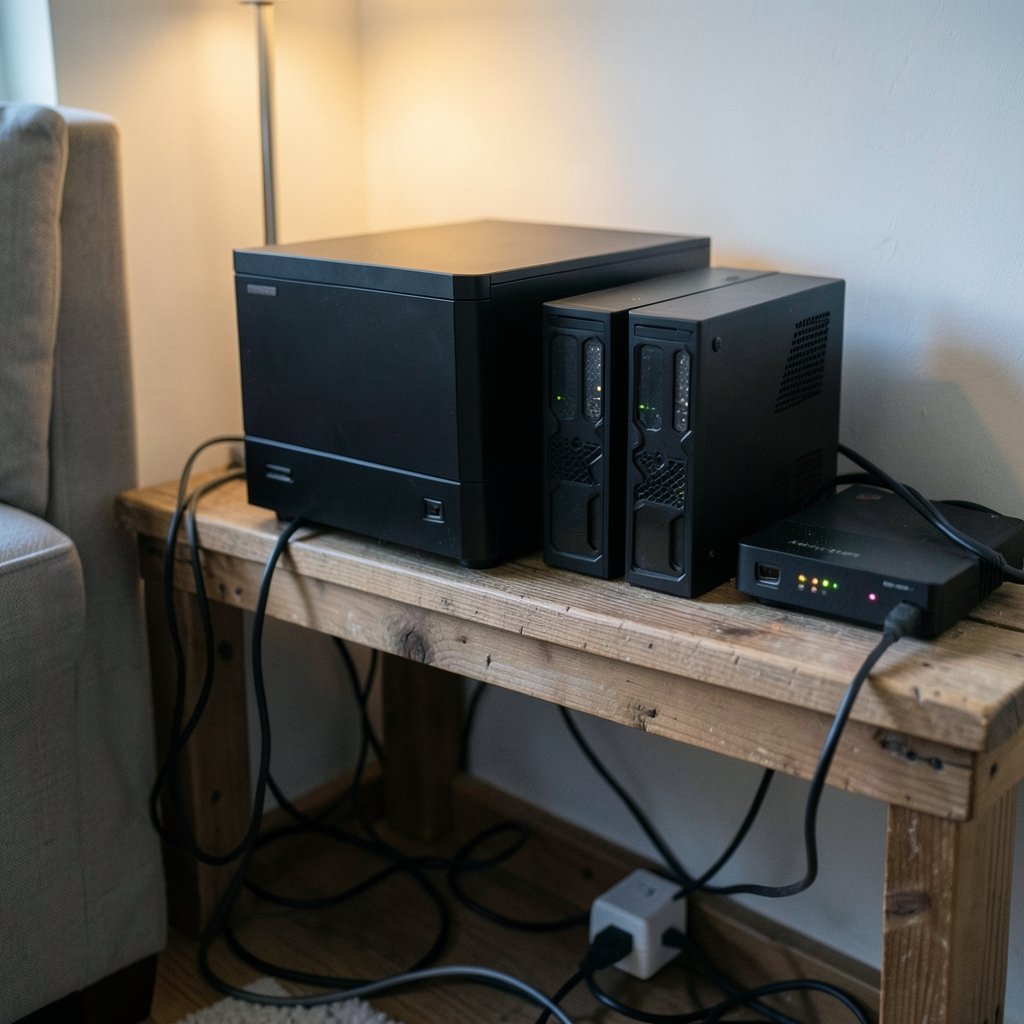
It can be, especially at high storage volumes, but only if you value your maintenance time at zero. Factor in hardware, electricity, domain costs, and the hours spent on updates. For small volumes, a paid managed plan is often cheaper once time is counted.
How do I move my files without losing anything?
Migrate one top-level folder at a time. Copy the folder, verify the file count and a few sample documents, then delete the source. Keep the original account active and read-only for at least a month so you can retrieve anything you missed.
What should I do about shared links after switching?
Shared links do not carry over between providers. Keep a list of documents you share regularly, recreate the links on the new service, and send updated links to collaborators. Doing this in one batch prevents weeks of broken links.
Is Syncthing a real replacement for Google Drive?
For syncing files between your own devices, yes. Syncthing is peer-to-peer, so there is no central server and no web interface for sharing with people outside your device set. If you need browser access or public share links, a suite like Nextcloud is a better fit.
Beyond the technical steps, the habit that matters most is documenting your setup as you go: which provider, which folders sync where, where backups live, and who holds the admin credentials. A short note kept with your recovery information turns a future emergency into a ten-minute fix, and it makes handing the setup to a family member or colleague far less painful. Whichever path you chose, revisit the configuration once a year, confirm backups still run, and update clients alongside the server. Storage setups fail quietly, so a scheduled check is the cheapest insurance you can buy.