
Quick Answer: How do i set up mesh wifi for the best performance?
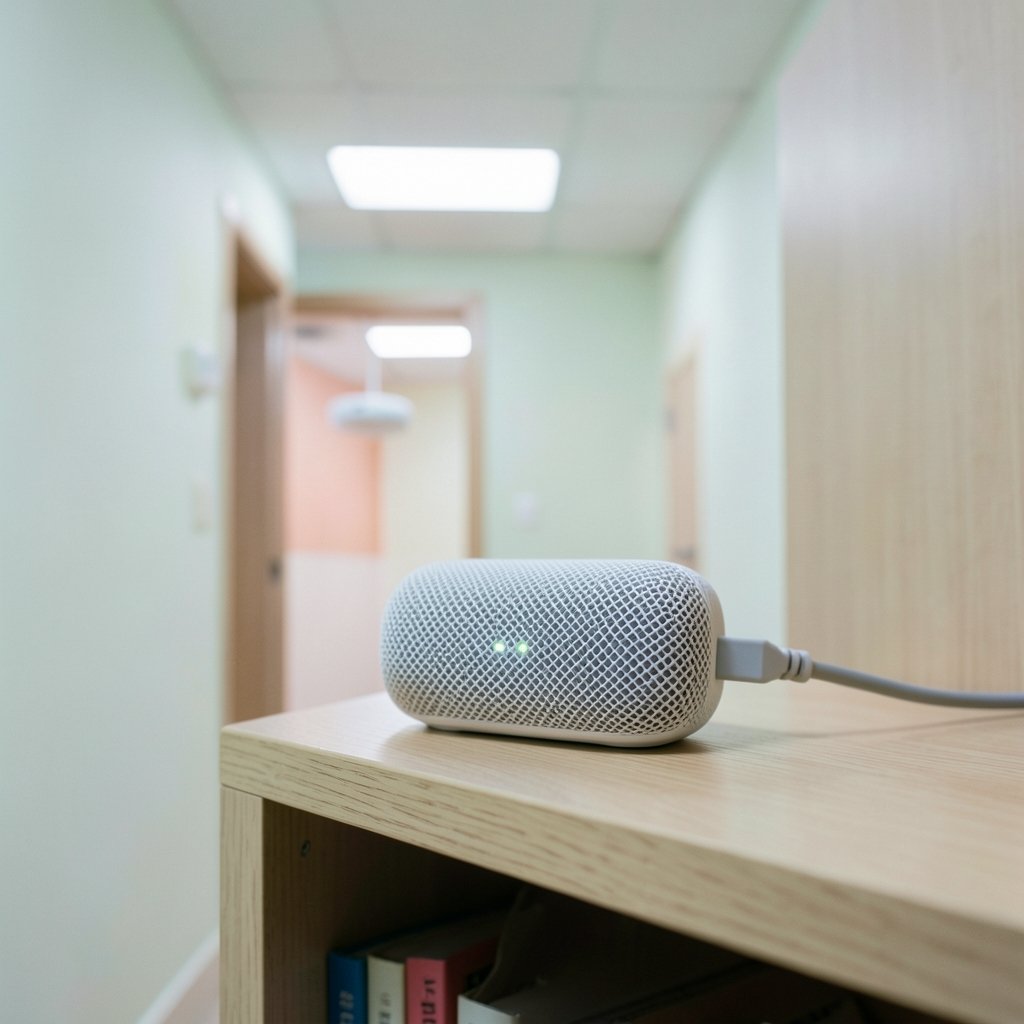
Getting the best performance from a mesh WiFi system comes down to placement, backhaul, and settings. Put the main node where your internet enters the home, then space the satellites roughly one or two rooms apart with as few walls and floors between them as possible. Wired Ethernet backhaul beats wireless every time, so run a cable to any node you can reach.
If cabling is not an option, a tri-band system that dedicates one radio band to backhaul will usually outperform a dual-band kit in the same spot. Either way, fewer hops means faster speeds, so resist the urge to add nodes you do not need.
Before buying or rearranging anything, compare node count, band type (dual or tri), backhaul options, WiFi generation, square footage coverage, and how many devices the system supports.
Most people treat a mesh WiFi kit like a magic box: plug it in, wait for the light to turn green, and assume the internet fairies handled the rest. Then the bedroom TV starts buffering and the video call drops every eleven minutes. The truth is that mesh systems are only as good as their placement and backhaul, and a few deliberate choices during setup can roughly double the speed you actually feel. The numbers back this up in a big way: WiFi carries a huge share of global internet traffic, and Cisco’s long-running forecast work has projected that WiFi will handle well over half of all IP traffic worldwide. When that much of your life rides on radio waves, where you put the boxes matters. (Mesh networking)
This guide walks through the setup decisions that move the needle, from node placement to channel settings, and flags the mistakes that quietly wreck performance.
Start With the Main Node, Not the Satellites
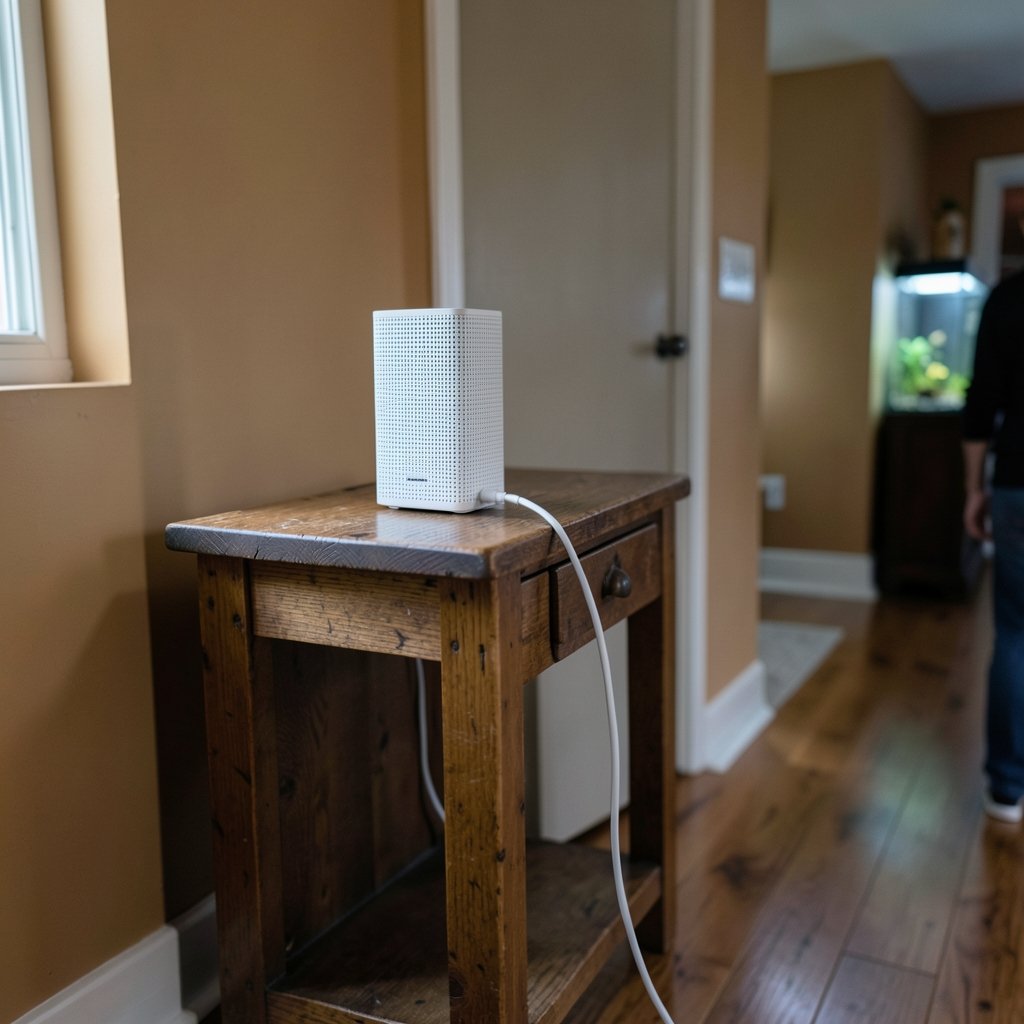
The router node is the anchor of the whole system, so it deserves the first and most careful placement. Put it where your internet line enters the home, ideally somewhere central and elevated. Avoid closets, cabinets, and the floor. Radio waves do not enjoy being buried.
A common mistake is hiding the main node in a utility corner because it is ugly. That corner then becomes the choke point for every satellite downstream. If the modem lives in a far basement corner, consider whether the ISP can relocate the entry point, or whether a longer Ethernet run to a better spot is feasible. That single cable can outperform any amount of app-based tuning.
Also keep the main node away from thick concrete, metal studs, fish tanks, and microwaves. These are not superstitions; dense materials and 2.4 GHz interference genuinely degrade signal quality.
Space Satellites Like Goldilocks: Not Too Close, Not Too Far
Satellite placement is where most setups go wrong. Too close, and the nodes overlap needlessly while wasting coverage. Too far, and the backhaul link between nodes gets weak, which drags down every device connected to the far node.
A practical rule of thumb: place each satellite roughly one or two rooms away from the previous node, with a clear line of sight where possible. Think in terms of signal strength indicators in the vendor app. Most apps show a backhaul quality score, and you want that score in the good or great range, not “fair.”
Here is how the trade-offs stack up:
| Placement Choice | Effect on Speed | Effect on Coverage | Verdict |
|---|---|---|---|
| Nodes one room apart | High backhaul speed | Redundant overlap | Slightly wasteful but safe |
| Nodes two rooms apart | Good backhaul speed | Balanced | Usually ideal |
| Nodes three or more rooms apart | Weak backhaul, speed drops | Wide but thin | Avoid unless unavoidable |
| Node behind a thick wall or floor | Poor backhaul | Poor | Move it |
Each wireless hop between nodes typically cuts throughput, so a chain of four nodes can leave the last one crawling. Fewer, better-placed nodes almost always beat a sprawling mesh.
Choose Wired Backhaul Whenever You Can
If there is one upgrade that separates a decent mesh setup from a great one, it is Ethernet backhaul. Running a cable from the main node to each satellite frees the wireless bands for client devices instead of using them to talk to each other. Speeds get more consistent, latency drops, and the whole system becomes far more stable under load.
Not everyone can fish cables through walls, and that is fine. Alternatives include MoCA adapters that carry Ethernet over existing coaxial cable, powerline adapters (which vary wildly in real-world results), and pre-existing phone or Ethernet jacks in older homes.
For renters or the cable-averse, wireless backhaul remains the default. In that case, a tri-band system helps because one band is dedicated to node-to-node traffic. Dual-band systems share that duty with your devices, which shows up as slower speeds on the far nodes. If you are weighing accessories and setup gear for a home network or a stage rig, the same principle applies: the quality of the connection between components matters as much as the components themselves, which is why guides like this one on the best keyboard stand for stage performance stress stability over flash.
Tune the Settings Most People Ignore
Once the hardware is placed, a handful of settings separate a fast network from a frustrating one.
Update firmware first
Out of the box, most mesh kits ship with outdated firmware. Update every node before you judge performance. Vendors patch roaming behavior, security flaws, and band-steering logic regularly.
Let the app pick channels, then verify
Auto-channel selection is convenient but inconsistent. After setup, check which channels your system chose. In dense neighborhoods, the 2.4 GHz band is a crowded party, and the 5 GHz band has more room. If the app allows manual channel selection, pick a less congested channel based on a WiFi analyzer scan.
Keep band steering on
Band steering nudges devices toward 5 GHz or 6 GHz when they are capable and close enough. Leave it enabled. Devices that need range still fall back to 2.4 GHz automatically.
Name both bands the same
A single network name (SSID) across bands lets steering work properly. Splitting names into “HomeWiFi” and “HomeWiFi_5G” forces you to manage connections manually.
Enable WPA3 if your devices support it
WPA3 is the current security standard and worth enabling, though very old devices may not connect. A mixed mode setting usually bridges the gap.
Match the System to Your Home and Devices
Mesh performance also depends on whether the system fits the job. A few comparison points matter more than marketing claims:
| Factor | Why It Matters | What to Look For |
|---|---|---|
| WiFi generation | Newer standards handle congestion better | WiFi 6 or 6E minimum, WiFi 7 if budget allows |
| Band configuration | Tri-band dedicates a radio to backhaul | Tri-band for wireless backhaul setups |
| Node count | Too few leaves dead zones, too many adds hops | Match nodes to square footage, not to optimism |
| Device capacity | Crowded networks strain cheaper hardware | Check supported device counts |
| Wired ports | Ethernet backhaul needs ports on each node | At least one LAN port per node |
The WiFi Alliance maintains public primers on how generations differ, and its WiFi Alliance resources are a reasonable starting point for understanding what each standard actually changes.
For homes with many smart devices, IoT gadgets, and streaming boxes, capacity matters as much as raw speed. A system rated for 50 devices will struggle in a household running 80. If you enjoy tinkering with network settings on other gadgets too, the same care applies to consoles and handhelds; even a guide on how to set up PPSSPP in 2026 benefits from a stable, well-planned home network underneath.
Common Mistakes That Quietly Kill Performance
Even careful setups stumble on a few recurring errors.
- Stacking nodes in the same room. This creates overlap without adding coverage. Spread them out.
- Placing satellites in dead zones. A node needs a decent signal to relay. Putting it where WiFi already fails just repeats the failure.
- Ignoring the backhaul score. The app usually tells you the link quality. Believe it.
- Skipping firmware updates. Old firmware can cripple roaming and security.
- Burying nodes in cabinets. Furniture and walls absorb signal. Keep nodes out in the open.
- Adding nodes instead of repositioning. Before buying another satellite, try moving the ones you have.
A related trap is expecting mesh to fix a slow internet plan. Mesh extends and stabilizes coverage; it cannot create bandwidth the ISP never delivered. Test your raw speed at the modem first. (Cybersecurity)
Test, Adjust, Repeat
After setup, walk the house with a speed test app and note results room by room. Look for rooms where speeds collapse. That pattern usually points to a weak backhaul link or an interference source, and it is fixable with a reposition or a channel change.
Small adjustments often pay off more than new hardware. Moving one satellite three feet can change a marginal link into a strong one. Give the system a day to settle into its channel choices, then re-test.
If you are building out a broader home setup with multiple devices and accessories, planning the network first saves headaches later. The same logic behind choosing a horse racing board game set for family game night applies here: the right pieces in the right places make the whole experience work.
Conclusion
Mesh WiFi rewards planning far more than plugging things in and hoping. Put the main node central and high, space satellites one or two rooms apart, prefer wired backhaul whenever a cable is possible, and update firmware before judging anything. Then tune channels, keep band steering on, and test room by room. None of these steps require expert skills, just a little patience and a willingness to move a box or two. Do that, and the buffering, the dropped calls, and the mysterious dead corner of the house become problems of the past.
FAQ
How many mesh nodes does a typical home need?
Most homes under 2,500 square feet do well with two or three nodes. Larger homes or multi-story layouts may need three or four. More nodes are not automatically better, because each hop can reduce speed. Start with the minimum, test coverage, and add only where a genuine dead zone remains.
Can I mix mesh nodes from different brands?
Generally no. Mesh systems rely on proprietary communication between nodes, so a satellite from one brand will not mesh with another brand’s router. Some vendors support mixing generations within their own ecosystem, but cross-brand mixing usually fails. Stick to one system for the whole network.
Does mesh WiFi work with wired devices?
Yes. Most mesh nodes include Ethernet ports, so you can plug in a desktop, console, or TV directly. This is often the fastest option for stationary devices, and it frees wireless capacity for phones and laptops. Some systems also let you use a node as a dedicated wired access point.
Why is my mesh WiFi slower than my old router?
This usually comes down to wireless backhaul eating into the available bands, or nodes placed too far apart. Check the backhaul quality score in the app, consider a wired connection between nodes, and confirm firmware is current. Dual-band systems are especially prone to this issue under heavy load.
Should I turn off my old router when using mesh?
Yes, in most cases. Running two separate WiFi networks in the same space creates interference and confusing roaming behavior. Either replace the old router entirely or put it in bridge mode if the mesh system requires it. One coordinated network performs better than two competing ones.
How often should I restart my mesh system?
A monthly restart is a reasonable habit, though many modern systems run for months without issues. Restart if you notice slowdowns, dropped connections, or after firmware updates. There is no need to power-cycle daily, and constant restarts can interrupt the system’s channel optimization.



