
Unboxing a new printer, plugging it in, and watching your computer stare back as if it had never heard the word “printer” is a familiar experience. Printer setup has a reputation for being a five-minute task that somehow eats an entire afternoon. (Internet Engineering Task Force)
The truth is that modern printers are far easier to set up than their predecessors, especially if you understand a few basics about how computers find them and how they talk to them. This guide walks through the whole process, from picking the right connection to fixing the “printer not found” message that sends so many people back to the store. By the end, you will know exactly which steps to take, which mistakes to avoid, and what to do when things go sideways.
Before You Plug Anything In
A little preparation saves a lot of frustration. Before touching a cable, do three things.
First, check what is in the box. Most printers ship with a power cord and, on cheaper models, no USB cable at all. That surprises people. If you plan to use a wired connection, confirm you have the right cable, usually USB Type-B on the printer end.
Second, find the printer’s network name and password if it is a wireless model. Many printers now have a small screen that walks you through Wi-Fi setup directly. Others require you to connect to the printer’s own temporary Wi-Fi network first, then choose your home network from a browser page.
Third, decide where the printer will live. Wireless signal strength drops through walls and floors. A printer tucked in a basement corner behind a metal filing cabinet is a printer that will mysteriously disappear from your network. Keep it reasonably close to the router, or plan to use a wired connection.
Choosing the Right Connection Type
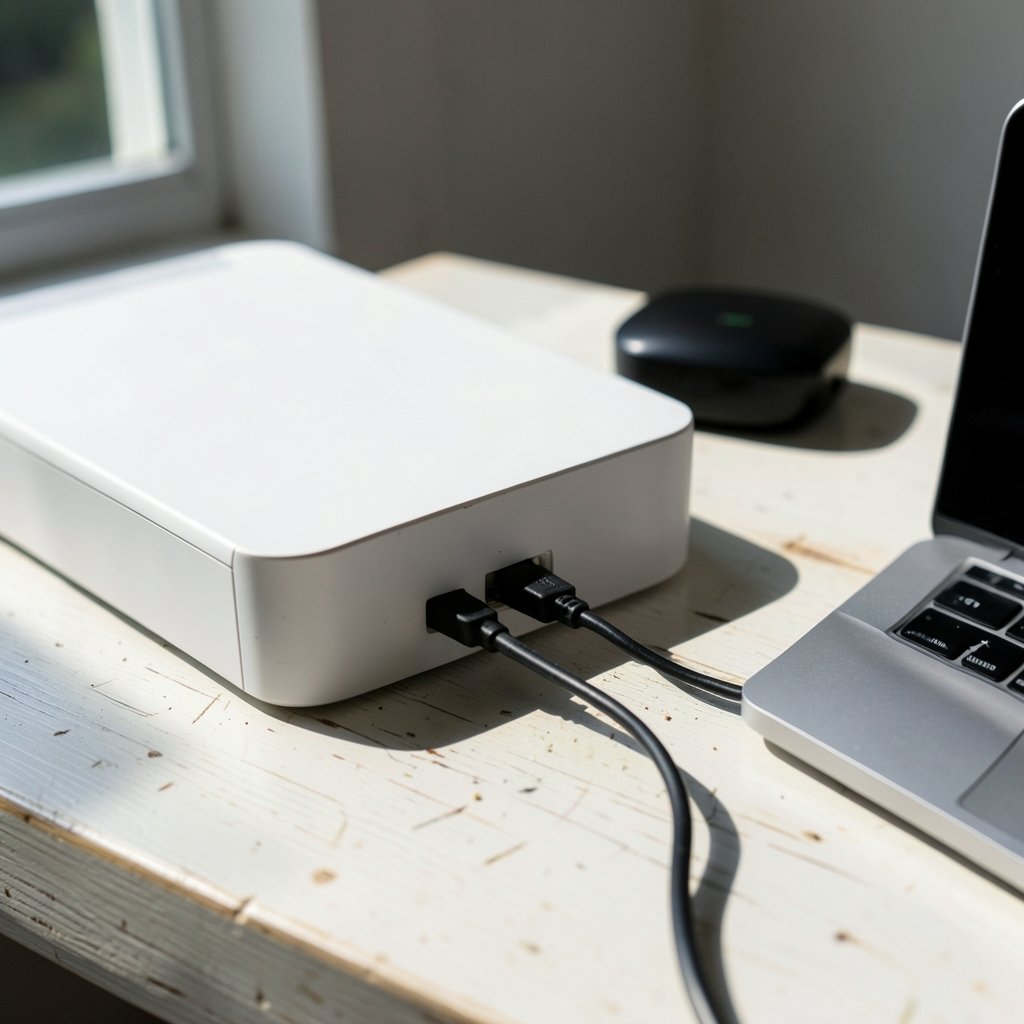
There is no single best way to connect a printer. The right choice depends on how many devices need to print and how reliable you need the setup to be.
| Connection | Best for | Trade-offs |
|---|---|---|
| USB cable | One computer, maximum reliability | Tied to a single machine |
| Wi-Fi (wireless) | Multiple devices, flexible placement | Signal issues, band compatibility |
| Ethernet cable | Offices, heavy printing | Requires a cable run to the router |
| Bluetooth | Quick phone printing | Slow, short range, limited support |
For most homes, Wi-Fi is the obvious pick because phones, tablets, and laptops can all print without shuffling cables. But here is a practical tip that saves hours: if wireless discovery keeps failing, a USB cable is the most reliable fallback. Most home printers include a USB port, and a wired connection sidesteps every network quirk at once. You can always add wireless later once the printer is confirmed working.
The Driverless Revolution Most People Miss
Here is something worth knowing before you go hunting for driver downloads. Many modern printers do not need a manufacturer driver at all. Standards like Apple AirPrint, introduced in 2010, and IPP Everywhere, a Printer Working Group standard, let operating systems print to a compatible printer over the network with zero setup software. Android has its own equivalent through Mopria.
The practical upshot: if your printer was made in roughly the last decade and your computer runs a current operating system, there is a good chance you can add it and start printing in under a minute. Older printers, or ones using unusual features like scanning to a folder or specialty paper handling, may still need the manufacturer’s driver package. When in doubt, try the driverless route first. It is faster and avoids the bloatware that some vendor installers bundle in.
Setting Up a Printer on Windows
Windows has improved its printer discovery a lot, but the menu path still confuses people because it has moved around between versions.
- Open Settings and go to Bluetooth & devices, then Printers & scanners.
- Select Add device. Windows scans for network and USB printers automatically.
- If your printer appears, click Add device and wait for the setup to finish.
- If it does not appear, choose Add manually. From there you can add a printer by IP address, Bluetooth, or a shared network name.
- Once added, open the printer’s properties and print a test page to confirm everything works.
A common mistake is clicking Add device repeatedly while Windows is still scanning. Give it thirty seconds. Another is ignoring the “Add manually” option entirely. If automatic discovery fails, adding by IP address is often the fastest fix, provided you can find the printer’s IP address on its display or through your router’s connected-devices list.
Setting Up a Printer on macOS
Mac users generally have an easier time, particularly with AirPrint-compatible printers.
- Open System Settings and select Printers & Scanners.
- Click Add Printer, Scanner, or Fax.
- Wait for the list to populate. AirPrint printers on the same network usually appear within seconds.
- Select your printer and confirm. macOS typically selects the correct driver automatically.
- Print a test page from the Print dialog to verify.
If nothing shows up, check that the Mac and printer are on the same network. A laptop connected to a guest Wi-Fi network cannot see a printer on the main network, and this trips up more people than any driver issue.
Setting Up a Printer on Phones and Tablets
Mobile printing is where driverless standards really shine. On iPhone and iPad, any AirPrint printer appears automatically in the share sheet when you tap Print. On Android, the built-in printing service handles Mopria-certified printers, and many manufacturers offer a companion app for models that need extra help.
The catch is that both the phone and the printer must be on the same Wi-Fi network. If your phone is on cellular data and your printer is on Wi-Fi, printing may fail silently. Toggle Wi-Fi on and try again.
The 2.4 GHz Problem That Breaks Wireless Setup
If there is one issue that causes more failed printer setups than any other, it is the Wi-Fi band. Many consumer printers can only join 2.4 GHz networks, not 5 GHz. Modern routers often broadcast both bands under a single network name, and the printer grabs the wrong one or fails to connect at all.
The fix depends on your router. Some let you split the bands into separate names, so you can point the printer at the 2.4 GHz one. Others have a temporary setup mode. Check your specific printer model’s manual, because this limitation varies by model and is not universal. If splitting bands feels like too much hassle, a USB or Ethernet cable solves the problem permanently.
Common Mistakes and How to Avoid Them
After watching countless setup attempts go wrong, a few patterns stand out.
Skipping the test page. People add the printer, assume it works, and discover the problem a week later when a deadline is looming. Print the test page immediately.
Installing the full vendor suite when a basic driver would do. Some manufacturer installers add toolbars, cloud services, and background processes you never asked for. Install only what you need.
Ignoring security defaults. Network printers ship with default admin passwords and often have unused services switched on. Change the admin password and disable services you do not use, such as Telnet or raw port 9100, where the printer allows it. Exposed printers are a known attack surface, and a printer sitting on your network with a default password is an open door. If you run a small office, it is worth pairing printer hardening with broader protections, such as the steps to set up network segmentation with a practical step-by-step plan so a compromised device cannot roam freely across your systems.
Forgetting firmware updates. Printer firmware fixes bugs and security holes. Check for updates once during setup, then again every few months.
When the Printer Still Will Not Appear
Troubleshooting follows a logical order. Work through these checks before assuming the printer is broken.
- Confirm the printer is powered on and awake. Sleep mode can hide it from discovery.
- Verify the computer and printer are on the same network.
- Restart the router, the printer, and the computer, in that order.
- Try a USB cable to isolate whether the problem is the printer or the network.
- Add the printer manually by IP address.
- Check the manufacturer’s support page for your exact model.
If the printer works over USB but not Wi-Fi, the problem is almost always network-related, not hardware. That narrows things down considerably.
Keeping the Setup Healthy Over Time
A printer that works today can stop working after a router replacement, a password change, or an operating system update. A few habits prevent most of these surprises.
Keep a note of the printer’s IP address, or better, set a static IP for it in your router so the address never changes. Keep the driver or firmware current. And if the printer is shared across a household or office, document the setup so the next person does not start from scratch.
Security deserves ongoing attention too. Printers store documents in memory, log job history, and sometimes hold scanned files. If your printer handles sensitive material, treat it like any other networked device. Backups matter as well: a ransomware attack that encrypts your files is bad, but one that also wipes your configured devices and settings is worse. Learning to set up backup immutability that actually stops ransomware protects the documents you print as much as the printer itself.
For offices running multiple devices, the same discipline applies to the software stack around the printer. If your team relies on video calls and shared documents alongside printing, it helps to set up zoom alternatives with a practical setup guide so communication tools and print workflows do not compete for the same fragile network.
A Realistic View of Setup Time
Manufacturers love to promise “setup in minutes.” Sometimes that is true, especially with a modern AirPrint or IPP Everywhere printer on a clean network. Often it takes longer, and that is normal. Budget thirty to forty-five minutes for a first-time wireless setup, including unboxing, Wi-Fi configuration, driver installation, a test page, and a security pass. Wired setups are usually faster.
The single biggest time-saver is knowing your fallback. If wireless fails, plug in a USB cable, confirm the printer works, and troubleshoot the network afterward at your leisure. That one habit turns a stressful afternoon into a minor inconvenience.
Conclusion
Setting up a printer is less about technical skill and more about knowing the sequence: prepare the hardware, pick the right connection, let driverless standards do their job where possible, and verify with a test page. The problems that trip people up, like the 2.4 GHz band limitation, the missing USB cable, and the forgotten default password, are all predictable and fixable once you know they exist.
Start simple. Try the automatic route first, keep a cable as your backup, and take five extra minutes to secure the device before you walk away. Do that, and your printer will quietly do its job for years, which is exactly what you want from a machine you only think about when something goes wrong.
Frequently Asked Questions
Why does my computer not find my wireless printer?
The most common causes are a Wi-Fi band mismatch, the printer and computer being on different networks, or the printer being asleep. Many printers only connect to 2.4 GHz networks, so if your router combines bands under one name, the printer may fail to join. Try adding the printer manually by IP address, or connect it with a USB cable to confirm the hardware works. (Printer (computing)))
Do I still need to install a driver?
Often, no. Modern printers support driverless standards like AirPrint and IPP Everywhere, which let current operating systems print without any manufacturer software. You may still need a driver for older models or for advanced features such as scanning to a network folder or special paper handling.
How do I print a test page?
On Windows, open the printer’s properties and choose Print Test Page. On macOS, print any document from the Print dialog. The test page confirms both the connection and the driver are working, so it is worth doing immediately after setup rather than discovering a problem later.
Can I set up a printer without Wi-Fi?
Yes. A USB cable is the most reliable option and works with most home printers. Ethernet is another solid choice if the printer has a network port and sits near your router. Both avoid wireless discovery problems entirely.
How long should printer setup take?
A wired setup usually takes ten to fifteen minutes. A wireless setup typically takes thirty to forty-five minutes once you include Wi-Fi configuration, driver installation, a test page, and a basic security check. Allow extra time if you need to troubleshoot network discovery.
Is it safe to leave a printer on my network?
It can be, provided you change the default admin password and disable unused services such as Telnet or raw port 9100 where the printer allows it. Network printers are a known attack surface, so treat them like any other connected device and keep their firmware updated.



