
When Nintendo revealed that the Switch 2 would ship with 256 GB of internal storage — eight times the original Switch’s 32 GB — it signaled something important: this is a console built for bigger games, bigger downloads, and bigger expectations. But raw hardware only tells half the story. A surprising number of owners never touch the settings that actually shape how games look and run, and they end up with a machine that’s quietly underperforming. The good news? Getting the most out of the system takes about twenty minutes of careful setup, and most of it happens before you ever launch a game.
Quick Answer: How do i set up nintendo switch 2 for the best performance?
To get the best performance from a Nintendo Switch 2, set it up in a well-ventilated dock connected to a TV’s low-latency game mode, use the official power adapter and HDMI cable, enable 4K output where available, and install games to internal storage or a microSD Express card rather than a slow drive.
You can act on this in three places: the console’s display and power settings, your TV’s picture menu, and your network configuration. Docked play and handheld play are tuned differently, so it’s worth optimizing both rather than assuming one setup covers everything.
Before you start, check these factors: ventilation clearance around the dock, your TV’s game mode and HDMI port version, your microSD card type, your Wi-Fi band or wired adapter, and whether your system firmware is current. Each one can quietly cap performance if it’s wrong.
The original Switch sold more than 140 million units worldwide, according to Wikipedia’s Nintendo Switch sales data, which means millions of people learned the hard way that default settings aren’t always optimal. The Switch 2 raises the stakes: 4K output, faster storage, and a more demanding thermal profile all reward a thoughtful setup. What follows is a practical, experience-tested walkthrough — the settings that matter, the mistakes people make, and the small habits that keep frame rates steady months after launch day.
Start With the Dock and Ventilation
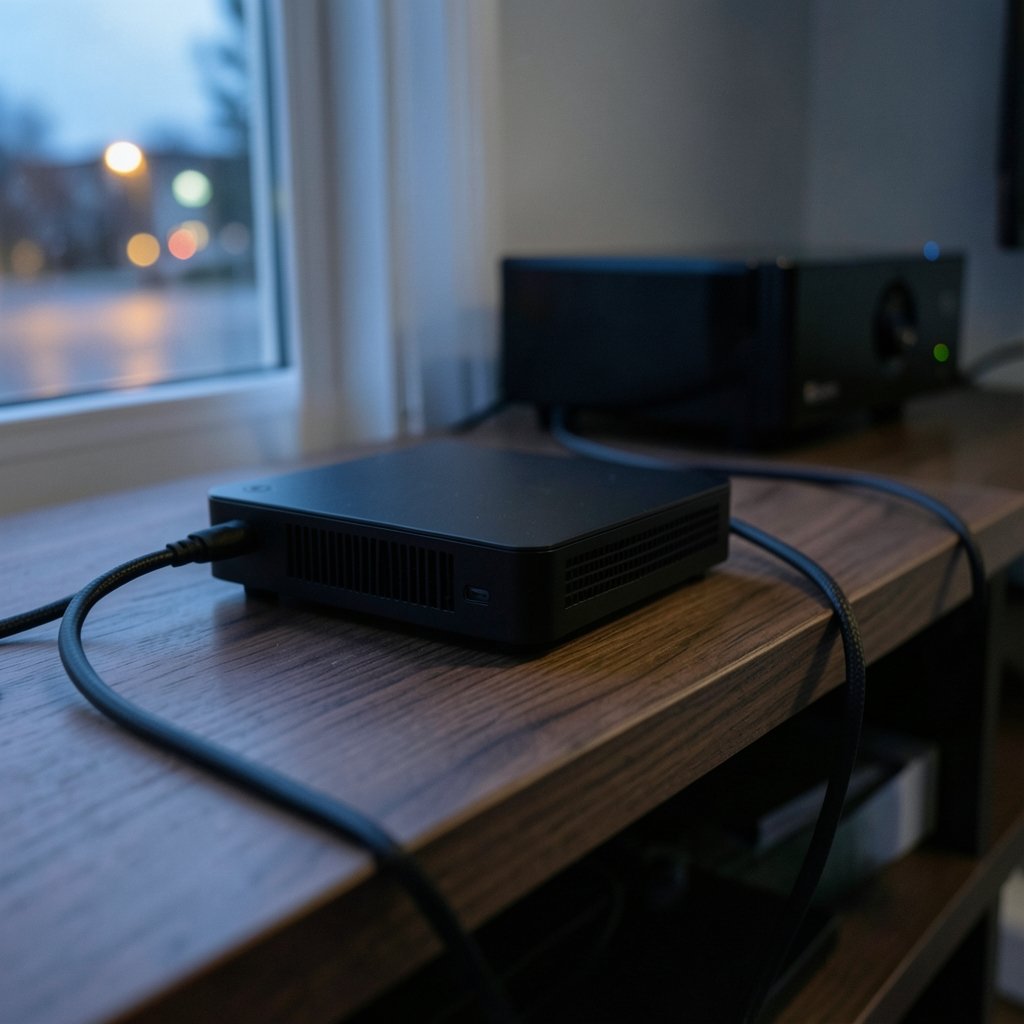
The single most common mistake is cramming the dock into a media cabinet with no airflow. The Switch 2 pushes more power than its predecessor, and heat is the enemy of sustained performance. When a console throttles, frame rates dip and load times stretch — and owners often blame the game instead of the shelf.
Practical guidance that actually works:
- Leave at least a few inches of open space on every side of the dock, especially the rear vents.
- Avoid enclosed glass cabinets unless they have active ventilation.
- Keep the dock away from other heat sources like receivers and cable boxes.
- Never block the vents with decorative items or stacked cases.
Nintendo’s own support documentation for the original Switch emphasized unobstructed vents, and the same principle applies here. If you want the broader hardware picture before you buy accessories, a look at how much the Nintendo Switch 2 costs helps you budget for the extras that genuinely improve the experience. (Nintendo Switch 2)
Use the Right Cables and Power Adapter
Third-party docks were a genuine hazard during the Switch 1 era, with reports of consoles being bricked by non-compliant USB-C hardware. The safe rule for Switch 2 is simple: use the included dock, the included HDMI cable, and the official power adapter. If you need a second setup for a bedroom TV, buy an official dock rather than a cheap knockoff.
For the HDMI connection, plug directly into the TV rather than through a soundbar or AVR passthrough when you can. Passthrough adds a handshake step and can introduce input lag or drop the signal to a lower resolution. If you must route through a receiver, make sure it supports the full bandwidth your TV needs.
Tune Your TV as Well as the Console
Here’s where most people leave performance on the table. The console can output a clean signal, but a TV in “Vivid” or “Cinema” picture mode will process it to death — adding motion smoothing, sharpening artifacts, and 30 to 60 milliseconds of input lag.
| TV Setting | Recommended | Why It Matters |
|---|---|---|
| Picture mode | Game / Game Mode | Cuts processing and input lag |
| Motion smoothing | Off | Prevents soap-opera effect and lag |
| Sharpness | Low or neutral | Avoids halo artifacts |
| HDMI port | Enhanced / 2.1 if available | Allows higher bandwidth |
| Eco / power saving | Off | Prevents dimming and throttling |
Enable Game Mode on the HDMI input you use, then verify the console is outputting at the resolution you expect. According to Wikipedia’s overview of HDMI 2.1, the newer standard supports higher frame rates and resolutions, which matters if your TV offers an enhanced-signal toggle per port. Many TVs hide this setting under “HDMI Input Settings” or “External Device Manager” — if a port isn’t set to enhanced, you may be capped below what the console can deliver.
Manage Storage the Smart Way
The Switch 2’s 256 GB fills up fast once you install a few large titles. Expansion is where people stumble: the console requires microSD Express cards, and standard microSD cards won’t work for game storage. This is the biggest compatibility trap of the generation.
A few rules that save headaches:
- Move your most-played games to internal storage; it’s the fastest option.
- Use a reputable microSD Express card from a known brand, and buy from a major retailer to avoid counterfeits.
- Keep at least 10 to 15 percent of any card free; full drives slow down writes and can cause install failures.
- Archive rather than delete games you might return to — redownloads are faster than reinstalls from scratch.
If you’re still deciding which titles deserve that precious space, a rundown of the best Nintendo Switch 2 exclusive games can help you prioritize.
Adjust Network Settings for Online Play
Wi-Fi is convenient, but it’s the weakest link for online matches and large downloads. A wired connection via a USB-C LAN adapter in the dock is the single biggest stability upgrade you can make. If wiring isn’t possible, connect to the 5 GHz band rather than 2.4 GHz, and keep the console within line of sight of the router. (How to Calibrate Your TV)
In the console’s internet settings, run a connection test and note your NAT type. A Type A or B NAT is what you want for smooth matchmaking; Type C or D often means strict router settings or carrier-grade NAT. Also schedule big downloads for off-peak hours and pause them during play — background downloads compete for bandwidth and can cause stutter in online games.
Keep Firmware and Games Updated
System updates frequently include performance patches, thermal tuning, and stability fixes. Set the console to download updates automatically and let it install them during rest mode. Game patches matter just as much — post-launch performance patches are common, and a title that ran poorly at release may be dramatically improved six months later. There’s a reason the community tracks firmware closely; discussions around the Switch 2 firmware dump and emulation research show just how much the software layer shapes real-world performance.
Know the Handheld Trade-offs
Handheld mode is a different performance envelope. The console lowers clock speeds to protect battery life and manage heat, so expect some games to run at reduced resolution or frame rate when undocked. To get the best handheld experience:
- Play in a cool room and avoid direct sunlight on the screen.
- Keep the USB-C port clear and use the official charger.
- Enable any in-game performance mode if the title offers one.
- Lower screen brightness slightly — it reduces heat and extends battery life.
Some games offer a quality-versus-performance toggle. When in doubt, choose performance for action titles and quality for slower, story-driven games.
Avoid These Common Mistakes
Experience shows a handful of errors come up again and again. Don’t stack the dock on carpet. Don’t use a phone charger as a substitute power supply. Don’t assume a cheap USB-C hub is equivalent to the official dock. And don’t ignore your TV’s picture settings — a five-minute menu fix often beats any accessory purchase. If you’re weighing a purchase against a price change, checking whether a Nintendo Switch 2 price increase is on the horizon can help you time it.
Conclusion
Setting up a Switch 2 for peak performance isn’t about exotic tweaks — it’s about removing bottlenecks. Give the dock room to breathe, use official cables and power, flip your TV into game mode, install games on the fastest storage available, wire your network if you can, and keep everything updated. Do those things and the console will hold steady frame rates far longer than one left on default settings. The hardware is capable; a thoughtful setup simply lets it show it.
The habits matter more than any single setting. Once the console is docked, ventilated, and updated, the remaining gains come from consistency: restarting the system after major firmware updates, clearing the cache on games that stutter, and re-running the TV’s input check whenever you move furniture or swap cables. A few minutes of maintenance every few months keeps performance predictable.
If you share the console with family members, create separate user profiles and keep the primary account’s save data on internal storage. Cloud saves are convenient, but syncing large saves over a weak Wi-Fi signal can stall at the worst moment. For households with multiple TVs, label your HDMI inputs and note which one is set to enhanced mode — it’s easy to plug into the wrong port and wonder why the picture looks soft.
Battery health deserves a mention for handheld players. Lithium-ion cells degrade fastest when they sit at full charge and high heat, so avoid leaving the console plugged in on a warm surface for days at a time. Nintendo’s guidance for the original Switch recommended against extreme temperatures, and the same care extends battery life on the newer hardware. If you mostly play docked, unplug occasionally and let the battery cycle.
Audio and controller settings rarely affect frame rate, but they do affect perceived responsiveness. Wireless headsets add a small latency that some players notice in rhythm or fighting games; wired audio through the dock avoids it. Similarly, keep controllers charged and paired directly rather than through a hub, and recalibrate sticks if you notice drift. These are small fixes, but they remove the friction that makes a well-tuned setup feel sluggish.
Finally, resist the urge to chase every rumor about hidden performance modes. Most meaningful improvements arrive through official firmware and game patches, and unofficial workarounds carry real risk. The community’s interest in the Switch 2 firmware and emulation research is fascinating, but it’s a research topic, not a setup guide. Treat official updates as your performance roadmap and let the console do the heavy lifting.
Put together, the checklist is short: ventilate the dock, use official power and cables, enable game mode and enhanced HDMI, choose microSD Express storage wisely, prefer wired networking, and stay current on firmware and patches. None of these steps is glamorous, and none requires spending beyond the essentials. That’s the point. The Switch 2 is designed to perform well out of the box; your job is simply to stay out of its way. Do that, and you’ll spend your time playing rather than troubleshooting — which is exactly how a console setup should end.
