

Can a brand-new SSD actually make a computer slower to start, or refuse to boot at all? Yes, and it happens more often than people admit. The drive fits, the screws line up, and the machine still stares back at a blank screen. The gap between “it fits” and “it works” is where most upgrade disappointments live, and it is entirely avoidable with a few checks done before money changes hands. Whether the plan is a cheap 2.5-inch SATA SSD, a speedy NVMe stick, or a big spinning hard drive for bulk storage, compatibility comes down to interfaces, slots, firmware, and physical space. Here is how to verify all four without opening the case twice. (Solid-state drive (Wikipedia))
Why Compatibility Trips Up So Many Upgrades
Storage marketing is loud about speed and quiet about fit. A drive’s headline number, such as 7,000 MB/s sequential reads, tells you nothing about whether the motherboard can talk to it. That is because the connector and the protocol underneath it are two different things, and both must match.
The practical result is a market full of near-misses. A SATA SSD and a SATA hard drive share the same data and power connectors, so they swap freely in most desktops and older laptops that still have a SATA port. NVMe drives live in an M.2 slot and travel over PCIe lanes instead. Those two families do not interchange. Confusing them is the single most common upgrade mistake, and it is the first thing to rule out.
Start With the Interface, Not the Capacity
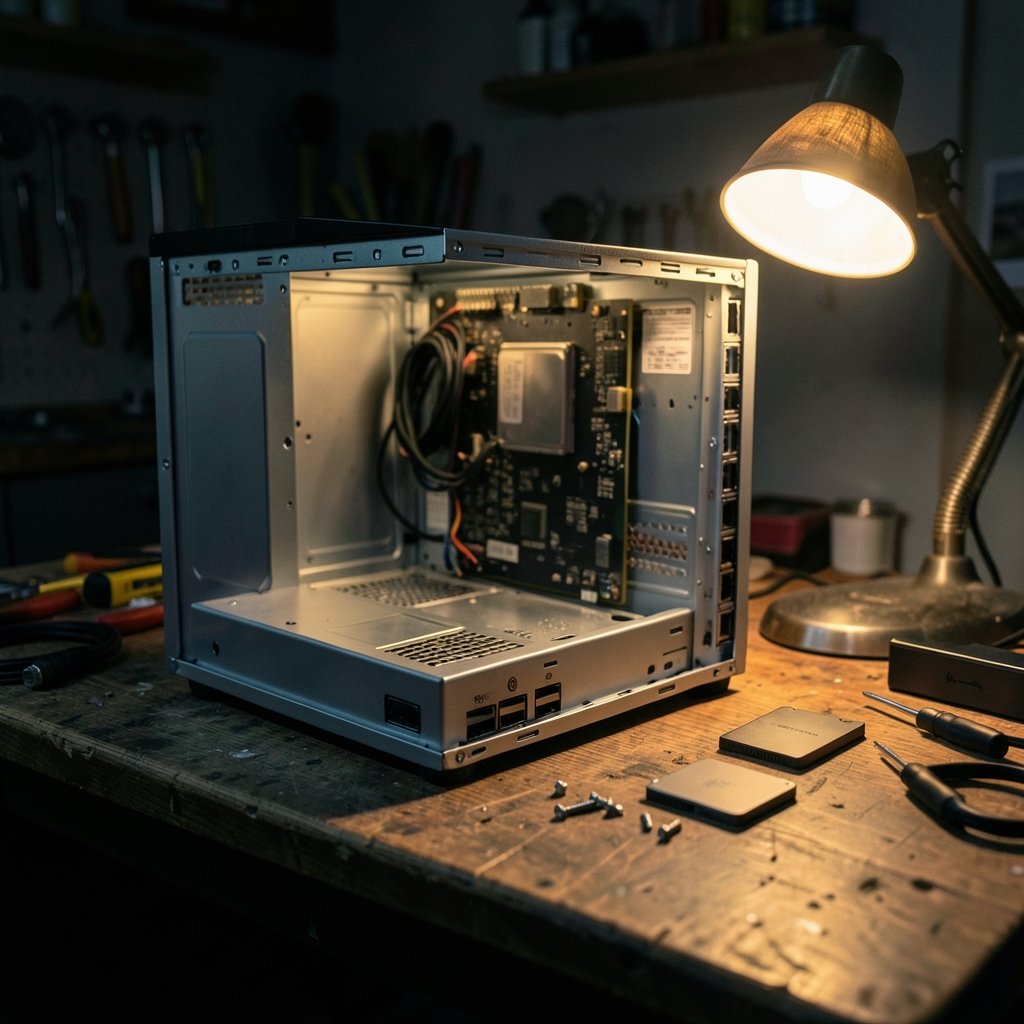
Before comparing terabytes or prices, identify what the machine can actually accept. There are three realistic paths.
| Drive type | Connector | Typical home | Swaps with |
|---|---|---|---|
| 2.5-inch SATA SSD | SATA data + SATA power | Desktop bays, older laptops | SATA hard drives |
| 3.5-inch SATA HDD | SATA data + SATA power | Desktop bays | 2.5-inch SATA drives (with mounting care) |
| M.2 NVMe SSD | M.2 slot, PCIe lanes | Modern laptops and boards | Other M.2 drives, if protocol and key match |
The key insight: SATA is a shared standard, so SATA-to-SATA swaps are almost always safe. M.2 is a slot standard, not a protocol, so an M.2 drive can be SATA-based or NVMe-based, and the slot may support one, the other, or both. The M.2 form factor explained covers keying, lengths, and protocol differences in more depth than any product page will.
How to Confirm What Your Machine Has
- Look up the exact model number in the manufacturer’s service manual or spec sheet. Search the model, not the brand.
- Open the case or the laptop’s bottom panel and photograph the board. A visual check settles arguments fast.
- Count the free SATA ports and confirm there is a spare SATA power cable from the power supply.
- Locate any M.2 slots and note their labels, which often read something like M2_1 or M2_2.
- Check the manual for each slot’s supported protocol, key type, and maximum length.
That last step matters more than people expect. Many boards have one fast slot wired for PCIe and a second slot limited to SATA or to older PCIe generations. Putting a top-tier drive in the slow slot works, but it wastes money.
The M.2 Trap: Keying, Length, and Protocol
An M.2 drive that slides into the slot is not proof of compatibility. Three details decide it.
Keying. M.2 drives are notched, or keyed, to prevent wrong insertions. Most NVMe drives are M-keyed. Many SATA M.2 drives are B+M-keyed. A B-keyed slot generally will not accept an M-keyed NVMe drive. The notch pattern is the physical gatekeeper.
Length. M.2 drives come in lengths such as 2242, 2260, and 2280, where the first two digits are width and the last two are length in millimeters. A 2280 drive will not fit a slot with a 2242 standoff unless the mounting point can move. Laptop owners should check this before ordering, because returning an opened drive is often a hassle.
Protocol. A slot wired for SATA will not run an NVMe drive, and a PCIe-only slot will not run a SATA M.2 drive. The NVMe protocol overview explains how the command set differs from older storage interfaces, which is why the two are not interchangeable even when the shape matches.
Laptop Realities
Thin laptops increasingly ship with a single M.2 slot and no 2.5-inch bay at all. Some solder storage directly to the board, which ends the upgrade conversation entirely. Others hide the slot under a shield or require removing the battery connector first. The service manual is the only reliable guide, and it usually names the supported drive lengths and any thermal limits.
Heat deserves a mention here. NVMe drives can run hot under sustained writes, and some laptops leave no room for a heatsink. A drive that throttles inside a cramped chassis can feel slower than a modest SATA SSD in daily use. If the machine’s manual warns about thermal limits, believe it.
Firmware, BIOS, and Boot Mode Checks
Hardware compatibility is only half the job. Older motherboards may need a BIOS update before they can boot from an NVMe drive, and some require UEFI boot mode rather than legacy BIOS. A drive can be perfectly healthy and still fail to appear as a boot option.
The fix is a five-minute check on the vendor’s support page for the exact board or laptop model. Look for BIOS release notes mentioning NVMe support, boot order changes, or storage fixes. Update the BIOS before installing the new drive, not after, because some boards will not flash cleanly once the boot drive has changed.
This is the same discipline that saves people grief in other upgrade decisions. Anyone weighing software switches faces similar hidden limits, which is why guides on Notion alternatives and their real limitations stress reading the fine print first. The pattern holds for storage: verify support before committing. (Cursor alternatives have real limits check before switching)
Physical Space, Power, and Mounting
Desktop builds are forgiving but not infinite. A 3.5-inch hard drive needs a 3.5-inch bay or a mounting adapter. A 2.5-inch SSD can often be screwed into a 3.5-inch bay with adapter rails, or left resting on a bracket in a pinch, though proper mounting is better for vibration and airflow.
Power is rarely the blocker. SATA power connectors are standard, and both SATA SSDs and hard drives sit comfortably within normal budgets. The real constraint is cable routing. A new drive needs a free SATA data cable and a free power lead, and small cases sometimes force a choice between a second drive and decent airflow.
Laptop owners face a stricter version of the same problem. Some models have an empty M.2 slot alongside the main drive, which makes adding storage easy. Others require replacing the existing drive, which turns a simple add-on into a migration project.
Cloning or Clean Install: Plan the Migration
Once the drive is confirmed compatible, decide how the operating system gets there. Two routes exist, and both have compatibility wrinkles of their own.
Cloning copies the existing system to the new drive. It is fast and preserves settings, but the cloning tool must support the target interface and the drive must be at least as large as the used space on the source. Cloning from a SATA drive to an NVMe drive usually works, but some older tools choke on NVMe targets.
Clean install wipes the slate and installs the OS fresh. It takes longer but avoids driver conflicts and leftover clutter. It also requires a backup of personal files first, no exceptions.
A practical middle path: clone first, boot from the new drive, confirm everything works, then wipe the old drive and use it for backups or extra storage. That way a failed clone costs nothing but time.
A Pre-Purchase Checklist That Actually Works
Run these checks in order. Each one takes minutes and eliminates a class of failure.
- Confirm the machine’s exact model and open the service manual.
- Identify available ports: SATA count, M.2 slot count, and each slot’s protocol.
- Note M.2 key type and supported lengths for every slot.
- Check the BIOS version and whether an update is needed for NVMe boot.
- Measure free physical space and confirm mounting hardware.
- Confirm a free SATA data cable and power lead, or an M.2 screw and standoff.
- Decide between cloning and a clean install, and check tool support.
- Back up important data before touching anything.
The same verify-first habit pays off far beyond storage. People checking whether their machine can run a new operating system benefit from a step-by-step Windows 11 compatibility check before downloading anything. Storage upgrades and OS upgrades share the same failure mode: assuming the hardware is ready when it is not.
Common Mistakes and What Works in Practice
The most frequent error is buying by speed rating alone. A drive rated for PCIe 4.0 in a slot limited to PCIe 3.0 will work, but it runs slower than advertised and costs more than necessary. Matching the drive to the slot’s ceiling is the smarter buy.
The second error is skipping the BIOS check. A machine that will not boot from a new NVMe drive looks like a dead drive, and people return perfectly good hardware because of it. A BIOS update usually fixes the problem in minutes.
The third is forgetting the migration step. A new drive with no operating system is just a paperweight until the OS arrives. Plan the clone or install before the drive ships.
Finally, there is the thermal blind spot. High-performance NVMe drives in tight laptops can throttle under load. A heatsink or a lower-power drive model often delivers steadier real-world performance than a faster drive that cooks itself.
Conclusion
An SSD upgrade in 2027 is still one of the best value improvements available for an aging computer, but only when the drive actually matches the machine. The order of operations is simple: confirm the interface, check the slot’s keying and protocol, verify BIOS support, measure the physical space, and plan the migration. SATA-to-SATA swaps remain the safest bet for older hardware, while M.2 NVMe delivers the biggest speed jump on modern boards that support it. Do the checks first, and the upgrade becomes a fifteen-minute job instead of a troubleshooting saga. The drive that fits is not always the drive that works, and knowing the difference is the whole game.
FAQ
Can I put an NVMe SSD in a SATA M.2 slot?
No. An M.2 slot wired for SATA will not run an NVMe drive, even if the drive physically fits. Check the motherboard manual for the slot’s supported protocol before buying.
Is a SATA SSD compatible with a SATA hard drive’s connectors?
Yes. SATA SSDs and SATA hard drives use the same data and power connectors, so they swap directly in most desktops and older laptops with a free SATA port.
Do I need a BIOS update to boot from an NVMe drive?
Sometimes. Older motherboards may need a BIOS update and UEFI boot mode before they can boot from NVMe storage. Check the vendor’s support page for the exact model.
What M.2 length should I buy?
Match the length to the slot’s standoff position, usually 2280 on desktops and often 2242 or 2280 on laptops. The service manual lists supported lengths for each slot.
Will cloning my old drive to a new SSD work?
Usually, if the cloning tool supports the target interface and the new drive is at least as large as the used space on the old one. Back up important files before starting.
Can I add a second drive to a laptop?
Only if the laptop has a free M.2 slot or a 2.5-inch bay. Many thin models have a single slot or soldered storage, so check the service manual first.



