
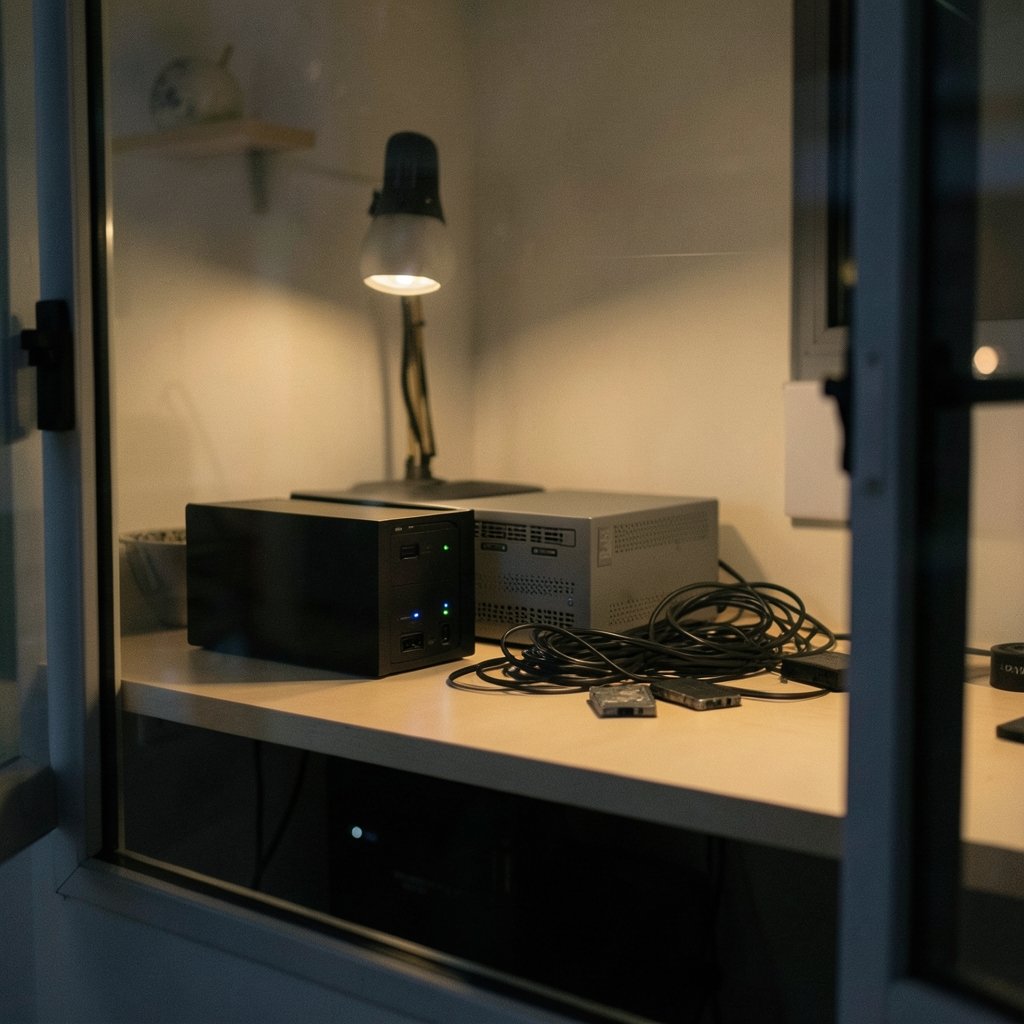
Which NAS actually fits how you work: the polished veteran, the tinkerer’s toolbox, or the aggressive newcomer? That question gets harder every year, because Synology, QNAP, and Ugreen no longer compete on the same axis. In 2027, the meaningful differences are less about raw specs and more about daily workflow: how you set up storage, run containers, back up data, and reach your files from outside the house. (Network-attached storage (Wikipedia))
This comparison focuses on those workflow differences. It is written from practical experience with how these systems behave once the honeymoon phase ends and the drives are full. Every capability claim should be treated as time-stamped: check current release notes before buying, because all three vendors ship changes constantly.
How the three platforms differ at the core
Synology’s DSM and QNAP’s QTS/QuTS hero have shipped for well over a decade. That maturity shows up in small things: consistent menu layouts, predictable update cadence, and documentation that answers the weird questions. Ugreen entered the NAS market with its NASync line in 2024, so its operating system is younger and changes faster. Younger is not automatically worse. It just means you are adopting a moving target, and you should plan around that.
The practical consequence is support depth. When something breaks on a decade-old platform, someone has already posted the fix. On a newer platform, you may be the one filing the ticket. That is not a reason to avoid Ugreen, but it is a reason to keep local backups and to avoid being an early adopter on your only storage device.
Filesystems and the data-integrity workflow

The filesystem underneath determines what protection you get for free. QNAP’s QuTS hero runs on ZFS, which uses copy-on-write and checksumming to catch silent corruption. You can read more about how those mechanisms work in the OpenZFS project documentation. Synology’s DSM uses Btrfs on many models, with ext4 on some entry-level units, so the integrity features depend on which box you buy. Ugreen’s NASync OS has offered Btrfs on supported models, but support varies by model.
| Platform | Typical filesystem | Integrity features | Workflow implication |
|---|---|---|---|
| Synology DSM | Btrfs or ext4 (model-dependent) | Checksums, snapshots on Btrfs models | Verify the model, not the brand alone |
| QNAP QuTS hero | ZFS | Copy-on-write, checksums, snapshots | Heavier RAM needs, stronger protection |
| QNAP QTS | ext4 | Snapshots on supported volumes | Lighter, less protective |
| Ugreen NASync OS | Btrfs on supported models | Snapshots where supported | Confirm per-model support first |
The common mistake here is buying by brand rather than by model. Two Synology units in the same product family can ship with different filesystems, and that changes your snapshot and scrub workflow entirely. Before you buy, open the vendor’s compatibility list and search for the exact model number.
Containers, virtual machines, and the self-hosting workflow
This is where the three platforms diverge most in daily use. All three support Docker-style containers on higher-end models, but the surrounding tooling differs.
QNAP offers Virtualization Station for running full virtual machines, and Synology offers Virtual Machine Manager. Both have years of refinement behind them: snapshots, resource limits, and network bridging that mostly behave. Ugreen’s container and VM support has been more limited and has evolved quickly, so check current documentation rather than reviews from launch week.
For a self-hosting workflow, ask three questions before committing:
- Does the model support containers at all, or only on higher tiers?
- Can you map persistent storage cleanly, or does the UI fight you?
- How do you update images: a scheduler, a watchtower-style tool, or manual pulls?
The third question matters more than people expect. A NAS that runs twenty containers but makes updates painful becomes a maintenance chore within months. If you are weighing hardware against software polish across these brands, a closer look at mini PC NAS picks for 2026 helps frame the trade-offs.
Backup and sync: where mature software earns its keep
Backup is the least glamorous workflow and the one that decides whether you trust the box. Synology’s Hyper Backup and Active Backup for Business, plus QNAP’s Hybrid Backup Sync, are long-established tools with broad destination support. Ugreen’s backup tooling is newer and still maturing.
Practically, this means the mature platforms make it easier to follow the 3-2-1 rule without duct tape: three copies, two media types, one offsite. On a newer platform you may need to build that yourself with rsync jobs or a container.
A workflow tip that applies to all three: test a restore in the first week, not the first disaster. Create a small share, back it up, delete the original, and restore it. You will learn more about the backup tool in twenty minutes than in twenty reviews. If restores fail, you have found the problem while it is still cheap. For a broader troubleshooting checklist, these common NAS storage problems and fixes are worth reading before you need them.
Remote access and the privacy trade-off
Remote access is where workflow meets policy. Synology’s QuickConnect and QNAP’s myQNAPcloud are vendor relay services: convenient, but your traffic passes through infrastructure you do not control. Ugreen has offered its own remote-access features as well.
The privacy-conscious alternative is to skip relays entirely and run a self-hosted VPN or a mesh tool like Tailscale on the NAS. That approach works on all three platforms, which makes it a good equalizer. The catch is setup effort and the need to keep the tunnel updated.
Security patching is the other half of this workflow. Patch cadence varies by vendor and by model, and NAS devices are popular targets precisely because they hold everything. The patch-gap problem across QNAP, TerraMaster, Ugreen, and Asustor is a useful reality check on how quickly fixes actually land. (Php2shell nas patch gap qnap terramaster ugreen asustor lag)
Available apps and day-to-day use
Synology’s Package Center and QNAP’s App Center have large third-party catalogs built over many years. Ugreen’s catalog is smaller. Catalog size is not everything, but it changes your workflow: a bigger catalog means more problems already solved by an app, and fewer evenings spent wiring up containers by hand.
Avoid quoting app counts from memory. They change monthly, and any number without a date is fiction. Instead, search the catalog for the three or four apps you actually need: a photo manager, a sync client, a media server, a notes app. If those exist and work, the total count is irrelevant.
Hardware value versus software maturity
Ugreen’s NASync line was positioned aggressively on hardware per dollar at launch in 2024. That pitch still resonates: more bays, faster networking, and newer CPUs for the money. Synology and QNAP typically charge more for equivalent hardware and defend the premium with software.
Neither position is wrong. It depends on what you value. If you enjoy tinkering and want maximum hardware for your budget, the newcomer is attractive. If you want to set it and forget it, the veterans are safer. For a longer view on how software and hardware costs play out over years, this comparison of Synology vs QNAP software and hardware long-term cost is a useful companion read.
A practical middle path: buy the hardware you want, but keep your data portable. Use standard protocols so you are never locked in.
Standards that keep your workflow portable
The quiet hero of cross-vendor compatibility is the protocol layer. SMB/CIFS handles file sharing for Windows and macOS clients, NFS handles Linux and Unix clients, and iSCSI provides block storage over IP for virtual machines and databases. The SNIA overview of the SMB/CIFS standard explains why these protocols matter more than brand loyalty: any client that speaks the protocol can talk to any NAS that serves it. (NIST Cybersecurity Framework overview)
That portability is your escape hatch. If your shares are standard SMB, migrating to a different brand later is a copy job, not a rebuild. If your workflow depends on a proprietary sync client or a vendor-specific photo app, migration gets expensive.
The same logic applies to your notes and documents. Local-first tools keep your data in open formats, and a comparison of Obsidian vs LogSeq by workflow shows how much difference that makes when you switch devices. The NAS is the storage layer; keep the layers above it just as portable.
A practical setup workflow for 2027
Here is a sequence that works regardless of which brand you pick:
- Decide your primary use: file shares, media, containers, or virtual machines.
- Confirm the exact model supports the filesystem and features you need.
- Set up storage with redundancy, then run a scrub or integrity check.
- Create shares using standard protocols, not proprietary sync only.
- Configure backups to two destinations, one offsite.
- Test a restore before trusting the backup.
- Set up remote access, preferring a VPN or mesh tool over a relay.
- Schedule updates and check release notes monthly.
Steps five and six are the ones people skip. They are also the ones that decide whether a drive failure is an inconvenience or a catastrophe.
Common mistakes to avoid
The first mistake is buying by brand. Model-level differences within a single brand can be larger than differences between brands.
The second is trusting a relay service with everything. Convenience is fine until the terms change. Keep a self-hosted path available.
The third is ignoring patch cadence. A NAS is a server. Treat it like one.
The fourth is skipping the restore test. Backups you have never restored are hopes, not backups.
The fifth is over-buying software features you will never use. A simpler workflow you understand beats a complex one you do not.
Conclusion
The Synology vs QNAP vs Ugreen question in 2027 is really a question about your workflow. Synology offers the most polished, predictable experience. QNAP offers depth for tinkerers, especially with ZFS on QuTS hero. Ugreen offers strong hardware value with software that is still catching up.
Pick the platform that matches how you actually work, verify the specific model, keep your data in standard formats, and test your restores. Do those four things and the brand matters far less than the habits.
FAQ
Is Ugreen’s NAS software mature enough for serious use in 2027?
It depends on your risk tolerance. Ugreen’s NASync OS is younger than DSM or QTS and changes faster. For file sharing and backups with local copies kept, it can work well. For mission-critical storage where you cannot afford surprises, the older platforms are safer. Always check current release notes for the exact model.
Does QNAP’s ZFS really protect data better than Synology’s Btrfs?
ZFS on QuTS hero offers copy-on-write and checksumming across the board, which is strong protection against silent corruption. Synology’s Btrfs also provides checksums and snapshots on supported models. The practical difference often comes down to which specific model you buy and how much RAM it has.
Can I move my drives from one brand to another?
Usually not directly. Most NAS systems use their own volume formats, so moving drives between brands typically means copying data over the network instead. That is why standard protocols like SMB and NFS matter: they make migration a copy job rather than a rebuild.
Is a vendor remote-access service safe to use?
Relay services like QuickConnect and myQNAPcloud are convenient, but your traffic passes through infrastructure you do not control. For sensitive data, a self-hosted VPN or a mesh networking tool gives you more control. Many users run both: relay for quick access, VPN for anything important.
How much RAM does a NAS need for containers?
It depends on workload, but containers add up quickly. A handful of lightweight services can run in a few gigabytes, while virtual machines and databases need considerably more. Check the vendor’s guidance for your specific model, and leave headroom for the operating system and caching.
What is the single most important setup step?
Test a restore in your first week. Create a small share, back it up, delete the original, and restore it. This one habit reveals more about your backup workflow than any specification sheet, and it costs twenty minutes.



