Tech-Play brings browser-based play and practical TV gaming help together, so you can choose a quick game or work out how to play on your television. A browser game launches and runs inside a web browser, rather than installing as a TV app or console title. Your best route depends on whether you are using a phone, computer, or television.
On Tech-Play, you can start a casual game in your browser or use a guide to sort out gaming on a Smart TV. These options suit different needs: browser play can fill a few spare minutes, while TV guides help when you want the bigger screen. You do not need to be a technology expert to begin. Pick the screen that fits your day, then follow the steps that make sense for it.
Key Takeaways
- Play browser games directly in a current web browser.
- Choose a game that fits your screen and available time.
- TV game access depends on the TV platform and title.
- Use Tech-Play guides when you need help with a television setup.
- Start with a browser game for an immediate break, or choose a TV guide when the big screen is your goal.
Which browser games can you play on Tech-Play?
For a quick browser session, pick 2048 Puzzle for number merging, Number Guessing Game for clues or Endless Runner for reflex play. These choices cover a puzzle, a logic challenge, and an arcade game without asking you to install a separate app.
Tech-Play offers these three games in the browser without a download or account requirement. The game pages are designed for desktop, laptop, tablet, and phone browsers. Phone and tablet play still depends on how well each game page works with touch controls.
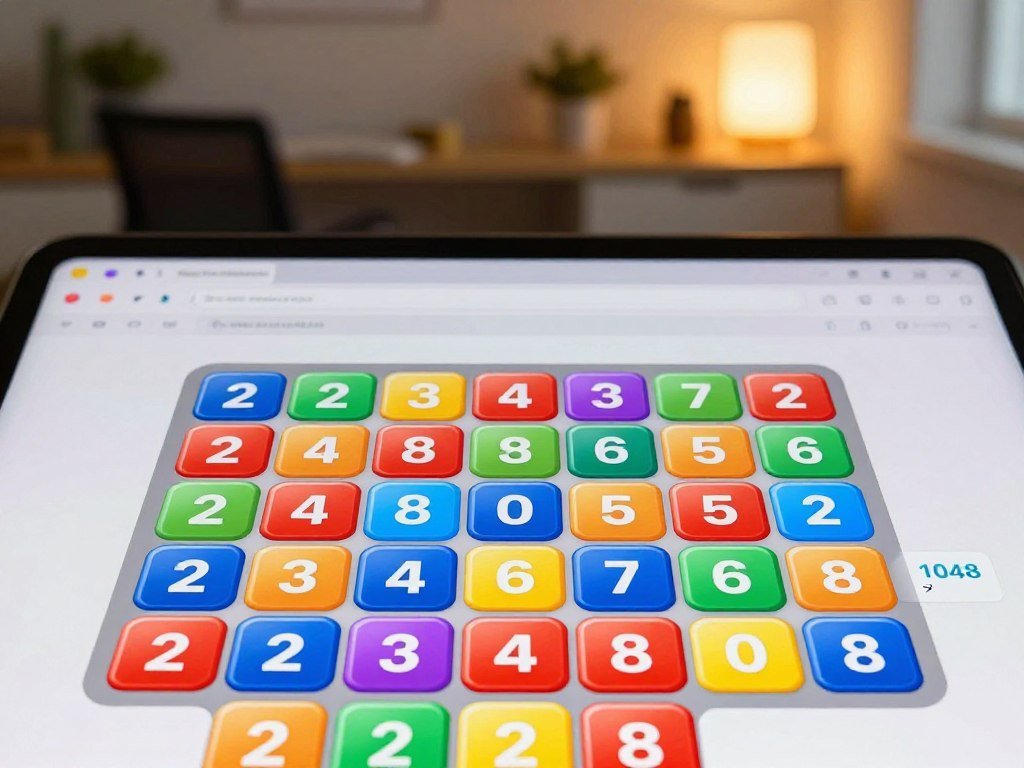
Tech-Play’s original browser games
2048 Puzzle asks you to combine matching number tiles and work toward a larger value. Each move changes the board, so a quick choice can shape the rest of your game.
Number Guessing Game gives you hints as you narrow down a hidden number. It suits a player who enjoys solving clues more than reacting quickly.
Endless Runner is an arcade reflex game built around movement and timing. You keep playing as the character runs, making each attempt easy to start and easy to stop.
More browser arcade titles
Tech-Play also points visitors toward browser arcade options such as Word Solitaire, Thread Fever, and Temple Blocks. These are examples of other titles, not Tech-Play original games.
Browser play can suit a short break between tasks or a longer session when you have more time. A phone is handy when you are away from a desk, while a computer gives you a larger view and keyboard controls when a title supports them.
Some players look for Tech Play Games on mobile because they want fun without filling a phone with extra apps. Tech-Play’s browser pages are designed for phone browsers, so you can start without installing a separate game app.
A phone screen does not guarantee that every game will feel right with touch controls; test the page before settling into a long session.
For school browsing, browser games for school Chromebooks offer more examples, though school filters and rules still apply. Open the game in a current browser and check that its controls suit your screen before settling in.
How do Tech Play Games work on Android TV and Smart TVs?
Compatible Android TV and Google TV devices can install TV games from Google Play, while Samsung Tizen and LG webOS use different app systems. The direct route is Google Play on a compatible Android TV or Google TV device.
Tech Play Games on TV works most straightforwardly through compatible Android TV or Google TV games. A TV Box can add Google Play access through an HDMI connection, while Tizen and webOS use their own app environments.
| TV platform | Native Google Play access | Practical game route | Key limitation |
|---|---|---|---|
| Android TV | Compatible Google Play TV games | Install from Google Play | Check title compatibility |
| Google TV | Compatible Google Play TV games | Install from Google Play | Uses the Android TV platform |
| Samsung Tizen | No native Google Play Store | Use supported TV apps or an HDMI Android streaming device | Android phone apps do not install like they do on Android |
| LG webOS | No native Google Play Store | Use supported TV apps or an HDMI Android streaming device | Android phone apps do not install like they do on Android |
Android TV offers more than 5,000 Google Play apps, including games, in 2026. That broad range does not mean every title works on every television or TV Box.
Google TV uses the Android TV platform, but game support still depends on the individual title and device. Check the listing for TV compatibility before planning a game night.
For a Tech Play Games Smart TV setup, start by identifying the TV platform and then choose a game route that fits it. A TV Box can connect through HDMI, but its own Android software and app support matter too.
Samsung Tizen and LG webOS do not natively support Google Play Store. An HDMI streaming device running Android can provide access to Google Play apps on a television with an open HDMI input.
The more than 5,000 Android TV apps include games, but a large app catalog does not remove title-by-title compatibility limits. A streaming device buying guide can help you compare players and check their connection needs. Before buying a TV Box, confirm that it runs Android and that its HDMI connection is available on your television.
Can you play TV games without a controller?
A remote can be enough for a simple game, but a title marked as requiring a gamepad needs a separate controller. Some games use the remote’s directional and select buttons, while others need a Bluetooth or USB controller.
Check the game’s input needs before you start, because pairing a controller does not guarantee that every button works. Android TV and Google TV games can use different control layouts, even when they run on the same device.
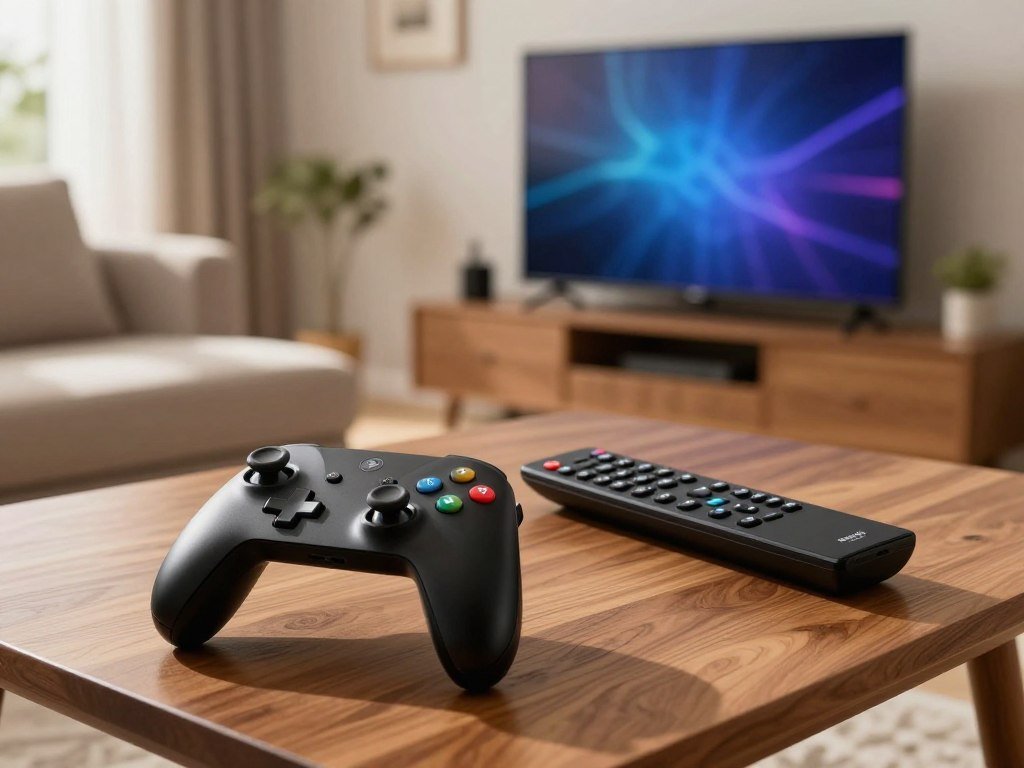
A remote often handles simple menus and games with clear up, down, left, right, and select actions. Fast movement or several game actions may call for a gamepad instead.
- Check the game listing for remote or gamepad requirements.
- On many Android TV and Google TV devices, open Settings, then Remotes & Accessories, then Pair accessory.
- Put the controller in pairing mode and test every button in the game.
Menu labels can vary by device, so the pairing path may look a little different on your screen. A Bluetooth controller connects without a cable, while a compatible USB controller plugs into an available port.
Some remotes include directional controls but lack the buttons a game expects. A title may also support a controller while leaving one or more buttons unused.
The Android Developers’ TV controller guidance explains how Android TV apps handle gamepad and directional input. Use that distinction when choosing a title for a remote-only setup.
Test the controls in the game before beginning a longer play session.
What does Google Play Games support across devices?
Google Play Games supports phone, TV, laptop, and tablet in 2026, but each individual game has its own compatibility and save behavior. Device support describes the platform range, not a promise that every title runs on every screen.
Instant Play titles can start without installation, while downloaded games need an install. The phone, TV, laptop, or tablet you use must still be supported by the specific game.
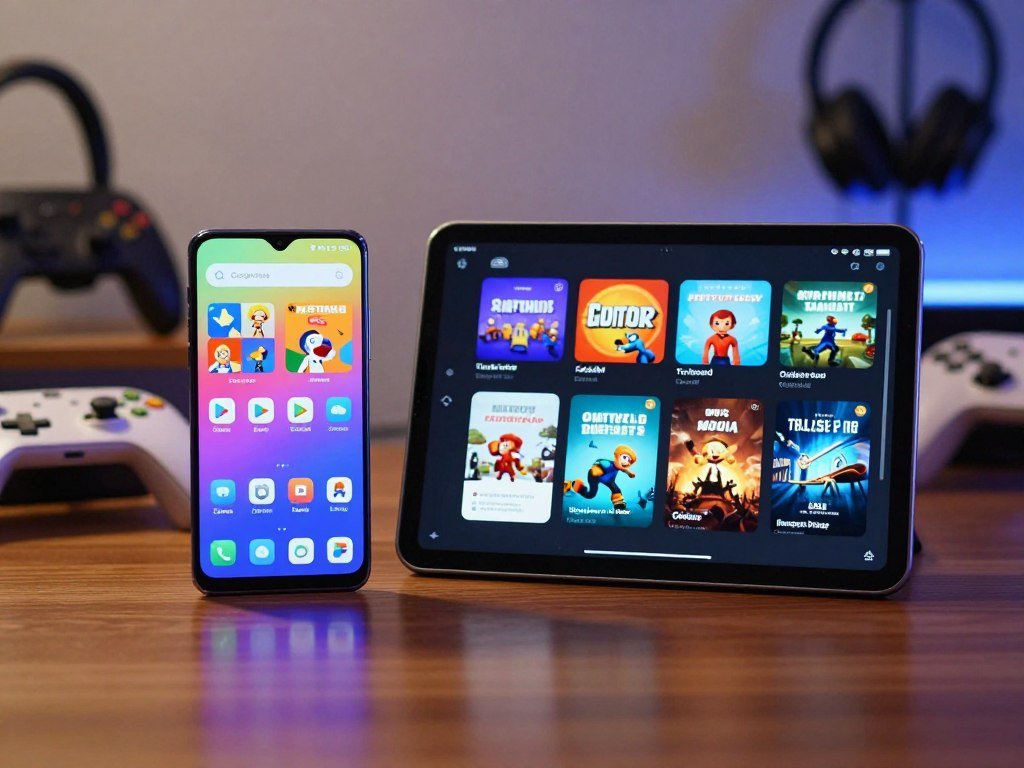
Instant Play and offline titles
Instant Play is a Google Play Games title that you can play without installing it. That can help when you want to try a game before adding it to your device.
Downloaded titles work differently because the game files must be installed. Some Google Play Games titles also offer offline play, which can help when your connection is unavailable.
| Device type | Google Play Games support | What to check |
|---|---|---|
| Phone | Supported device type | Title and phone compatibility |
| TV | Supported device type | TV game compatibility |
| Laptop | Supported device type | Title support on the laptop |
| Tablet | Supported device type | Title and tablet compatibility |
Solitaire, Minesweeper, Snake, PAC-MAN, Cricket, and Whirlybird are examples of titles available for offline play. Offline access applies to those games, not automatically to every Play Games title.
Tech Play Games on mobile can mean two different routes. Google Play Games lists phones among its supported device types, while Tech-Play’s own browser games offer a separate way to play in a phone browser.
Progress that can follow you
Some games can save progress through Google Play Games, but you should look for the game’s own save signal. The wording to find is “Progress saved by Play Games.”
That message matters if you plan to move between a phone and a TV or another supported device. A game may have its own save rules, so a shared account alone does not promise that progress will transfer.
Check the title’s Play Games save message before relying on progress carrying over to another device.
What can Google Play Games on PC do in 2026?
Google Play Games on PC added trials and file uploads for select games in October 2026, alongside earlier cross-device and control options. These tools apply to certain PC titles, not the full game catalog.
Select premium games offer limited-time trials, and compatible titles can accept file or media uploads. A trial lets you try a game before buying it, while a one-time purchase and Play Pass offer different ways to access some games.
Trials, purchases and Play Pass
Game Trials for select premium titles arrived on Google Play Games for PC in October 2026. You can play a supported game for a limited time before deciding whether to buy the full version.
If you buy the full game after a trial, you can keep your progress. The trial is a try-before-buy option, not a free copy of every premium game.
Select games added a one-time purchase option in March 2026, giving access on phone, tablet, and PC. That purchase is different from games included with Play Pass.
In March 2026, select paid, ad-free, and fully unlocked mobile games also became available on PC through Play Pass. Access depends on the title being part of the subscription selection.
Controls and file uploads
Compatible PC games can accept files and media, such as profile pictures, images for in-game chat, and attachments for support requests. The upload feature does not apply to every game.
Google added a keyboard Steer control for PC driving games in September 2026. You can set it in the Controls menu or press Shift + Tab while playing in fullscreen.
The option can help if a driving game’s controls feel better on a keyboard. A title still needs to support the feature, so it may not appear in every game’s settings.
Google’s Google Play Games on PC release notes track these dated changes and their limits. Check a game’s own PC listing to confirm which of these features it supports.
How do you install TV games safely?
The safest starting point is the television’s official app store, with Play Protect adding checks for apps from Google Play and scans for potentially harmful apps from other sources. That first stop helps you avoid downloads that do not match your TV.
Google Play Protect is on by default and can warn about, disable, or remove harmful apps. It may also block an unverified app that uses sensitive permissions often targeted in financial-fraud scams.
Use this short checklist before adding a game to your television:
- Start with the TV’s official app store.
- Check the app’s TV compatibility and requested permissions.
- Avoid installing a phone APK solely because it has the same name.
An APK is an Android app file. A phone version may not fit a TV screen or work with a remote, even when its name matches a TV listing.
Google Play Protect checks Play Store apps before download and scans potentially harmful apps from other sources. Its warnings can help you pause before installing an app that asks for access it does not seem to need.
From August 1, 2026, new Google TV and Android TV apps and updates that use native code must include 64-bit arm64 and 32-bit armeabi-v7a versions. This rule applies to apps using native code, not every TV app.
Google Play will continue delivering apps to 32-bit devices. You do not need to change a television setting because of the 64-bit app rule.
Apps targeting Android 15, also called API level 35, or higher must support 16 KB memory page sizes in their 64-bit version. This is an app requirement, not a setting you need to adjust on your TV.
Permission checks help you judge whether an app’s requests fit its purpose. If an app asks for sensitive permissions that do not fit its purpose, stop and review the listing before proceeding.
Are GCam ports and camera apps part of mobile gaming?
Google Camera ports are phone camera software, not a way to add games to a TV. They are separate utilities for taking photos and video on certain Android phones.
GCam ports and camera apps are not gaming features. Compatibility can vary by phone, so the same camera app may work on one model and fail on another.
Google Camera ports depend on the phone
A Google Camera port generally needs Camera2 API support and Google Play Services. Specially crafted ports can be exceptions to those usual requirements.
Ports have been made for devices such as Google Pixel 7 and 7 Pro, Asus Zenfone 9, and Motorola Edge 20. Those examples do not mean one port fits every model or software version.
Tech Play Games GCam and Tech Play Games camera searches can lead to camera topics, but GCam ports remain mobile camera utilities. They do not add games to a television or change how TV games run.
Phone makers use different camera hardware and software, which can affect port compatibility. Check the exact model rather than relying only on a phone brand or series name.
Camera apps and permission choices
Camera apps may request access for features beyond taking a picture. Read each permission request in light of what you plan to do with the app.
HD Camera for Android says location permission helps it remember where photos and videos were taken. The app also says contacts permission helps share files by email, SMS, or other apps.
Google Camera port compatibility details describe device-specific limits and common technical needs. These details do not guarantee that a particular port will work on your phone.
Confirm that a camera app’s permissions match the feature you intend to use before installing it.
Which Tech-Play guides should you open first?
Choose Complete Android TV Guide for setup help, Free Android TV Games for TV-friendly picks or Smart TV Gaming Basics to compare television platforms. The best starting point depends on what you want to do next.
Use a setup guide for television help, and use browser titles when you want to play right away. The guides and games serve different needs, so you can choose either one without making the other part of your setup.
Choose a guide for your TV setup
| Guide | Best starting point | What it helps with |
|---|---|---|
| Complete Android TV Guide | Setting up or fixing Android TV or Google TV | Wi-Fi, updates, apps, profiles, performance, and troubleshooting |
| Free Android TV Games | Finding casual big-screen games | Game options designed for TV play |
| Smart TV Gaming Basics | Choosing how to play on a specific television | Android TV, Google TV, Samsung, and LG system differences |
The Complete Android TV Guide covers common setup tasks, from Wi-Fi and updates to profiles and performance. It can also help when a problem needs troubleshooting rather than another game download.
Free Android TV Games is a fit when you want ideas for casual play on a television. Smart TV Gaming Basics helps you sort out what changes between TV systems before choosing a route.
Use guides alongside browser play
Tech-Play browser titles are ready for play in a web browser, while setup guides help when you need to work with a television. A browser game does not need TV setup to run on a supported browser.
You can use a browser game during a spare moment and save the TV guide for a time when you are adjusting your screen or choosing a game. That keeps casual play simple and gives setup questions their own space.
If you are comparing subscription options for another kind of gaming, the Xbox Game Pass plans and costs page covers its tiers and device access. Match the guide to the device you already own before buying an accessory or changing your setup.
Why is a game missing from a Smart TV?
A game can be missing because its listing does not support your television’s platform, exact device, or country. The device itself may work well even when a particular title does not appear.
A missing listing can reflect compatibility or country availability, not a broken television. Android TV, Google TV, Samsung Tizen, and LG webOS are distinct TV platforms with different app environments.
Check these three details when you cannot find a title:
- Confirm the TV’s operating system in Settings.
- Search the TV’s own app catalog using the exact game title.
- Compare the title’s device and country availability with the television you have.
A game listed for one TV platform may not appear in another platform’s app catalog. The exact television model can also affect which apps show up.
Country settings can change availability as well. A title that appears in one country may not be listed for your TV’s current country setting.
A Tech Play Games page for a Smart TV does not mean every game runs natively on every Smart TV.
Check the game’s exact name, then compare its supported devices with your TV model. Similar titles can have different listings, so a close match is not always the same game.
A TV Box can offer another way to access games, but it adds a device and a separate app environment. Confirm compatibility for your specific TV model before paying for an app, service, or accessory.
Conclusion
The quickest way to start is to choose the screen and setup you already have. Browser games are a simple route to casual play, while television gaming depends on platform and title compatibility.
You can open a browser game for an immediate session or choose an Android TV guide that fits your device. Either choice gives you a clear next step without changing the setup you already own.
Pick one browser game or open the matching TV guide and take your next step from there.
FAQ
Can every Google Play game run on Android TV?
No, only games that support Android TV can install on a compatible TV device. Google Play’s phone catalog includes titles that may not work with a television screen or TV controls. Check the individual game listing and the device requirements before choosing a title. A game’s presence on Google Play does not mean it supports every Android device type.
Can I use an Android TV Box to get Google Play games on another television?
Yes, an HDMI streaming device running Android can provide access to Google Play apps on another television. The TV needs an available HDMI input, and the box must support the game you want. TV Boxes can differ in software and app support, so the same title may not work on every model. Check the device and game requirements before buying.
Do Google Play Games saves automatically sync between a phone and TV?
No, you should not assume every game syncs progress between a phone and TV. Look for the message “Progress saved by Play Games” on the game’s listing or screen. That signal shows that the title supports Play Games progress saving. A game can still use its own save rules, so check its message before switching devices.
Which Google Play Games titles can I play offline?
Solitaire, Minesweeper, Snake, PAC-MAN, Cricket, and Whirlybird are examples of Google Play Games titles available for offline play. Offline access can be useful during travel or when your connection drops. It does not mean every game in the catalog works without an internet connection. Check the specific title’s details if you need to play offline.
Can a TV remote control every Android TV game?
No, a TV remote cannot control every Android TV game. Some games work with directional and select buttons, while others need a Bluetooth or USB controller. A title may also support a gamepad without using every button on it. Check the game’s control requirements, then test the buttons before settling into a longer session.
Why might Google Play Protect block an app installation?
Google Play Protect may block an unverified app that uses sensitive permissions often targeted in financial-fraud scams. Play Protect also checks Play Store apps before download and scans potentially harmful apps from other sources. It can warn you, disable an app, or remove one it finds harmful. Review the app’s listing and permissions before trying again.
Can I install a Google Camera port on any Android phone?
No, Google Camera ports vary by phone and generally need Camera2 API support and Google Play Services. Specially crafted ports can be exceptions, but they do not make every model compatible. A port made for one phone may fail on another, even within the same brand. Check the exact model and software details before installing a port.