Roughly 10 million people download Google Authenticator every month, according to figures cited by Wikipedia, and every one of them eventually faces the same small moment of dread: switching phones. Get it right, and the move takes ten minutes. Get it wrong, and you can spend an evening locked out of email, banking, and work accounts—all at once.
The good news is that Google built a proper transfer tool into the app. The bad news is that it is easy to overlook, and the safety net (cloud backup) is optional. This guide walks through every method, in order of reliability, plus the mistakes that trip people up most often.
Why the Transfer Feels Riskier Than It Is
Authenticator apps generate time-based one-time passwords (TOTP). Each six-digit code is calculated from a shared secret—a long string of characters created when you first set up two-factor authentication on a service. That secret lives on your phone, not on Google’s servers (unless you turned on sync).
So when you change phones, you are not “moving an app.” You are moving dozens of secret keys, each one tied to a different account. Lose them, and the service that issued them has no idea who you are.
That is why the order of operations matters so much. Before touching anything, do three things:
- Keep the old phone switched on and offline-free—do not wipe it until the new one is fully working.
- Make a list of every account in the app. Open Authenticator, scroll the list, and write the names down.
- Check backup codes. Many services let you generate one-time recovery codes in their security settings. Grab those first; they are your parachute.
Method 1: The Built-In Transfer Tool (Fastest, Works Best)
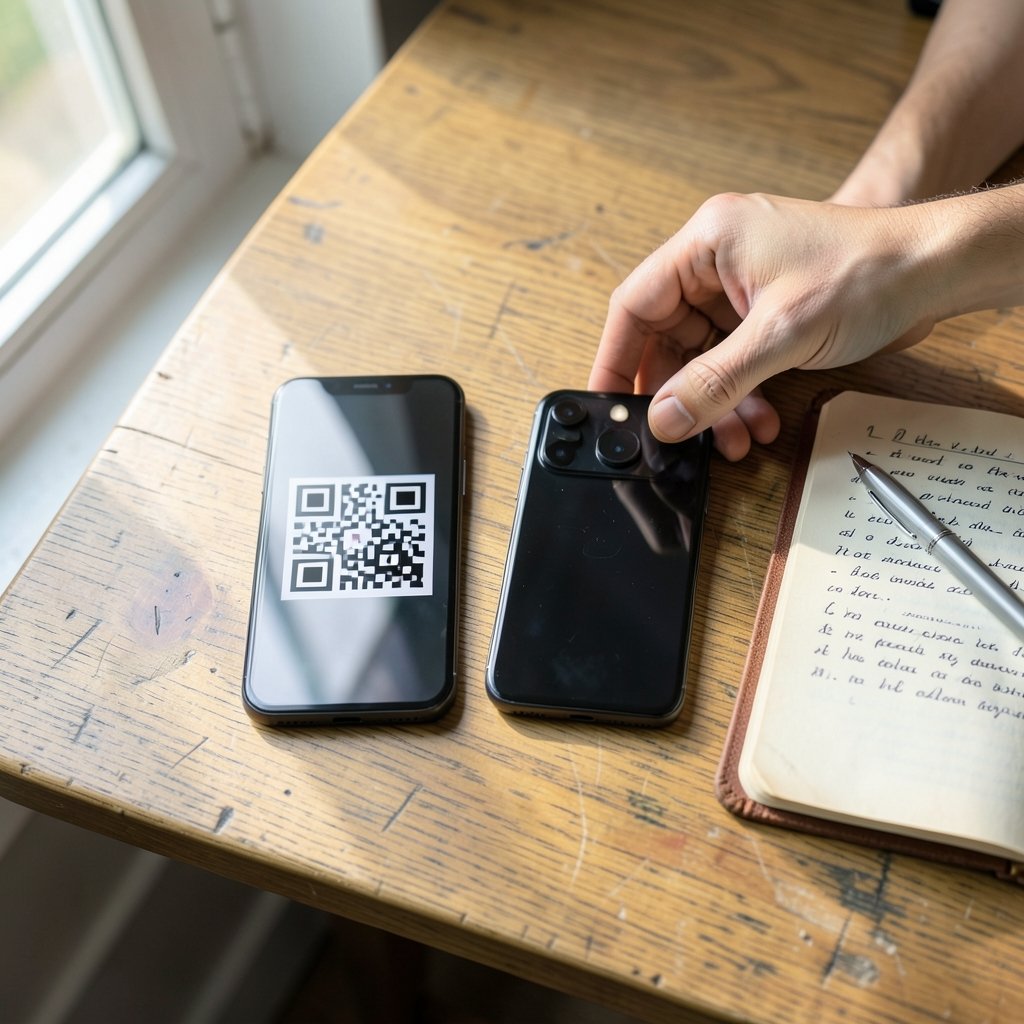
Google added a native export/import feature to Authenticator in 2023, and it remains the cleanest route. It uses QR codes to move batches of accounts directly between devices.
On the old phone
- Open Google Authenticator.
- Tap the menu icon (three dots or hamburger, depending on platform).
- Choose Transfer accounts, then Export accounts.
- Confirm your fingerprint, face, or screen lock to continue.
- Select the accounts to move, then tap Next.
- The app displays one or more QR codes. Each code holds a group of accounts—commonly up to about ten per code, though Google’s documentation is the place to confirm the current limit.
On the new phone
- Install Google Authenticator and open it.
- Tap the menu, then Transfer accounts → Import accounts → Scan QR code.
- Point the camera at the codes on the old phone’s screen, one after another.
- Verify that every account appears and produces a working code.
A few practical notes from experience: turn the old phone’s screen brightness up before scanning, and if a code will not read, move the phones slightly further apart rather than closer. Also, never screenshot the export QR codes and leave them in your camera roll. Those images contain the raw secret keys. Google explicitly warns that they must be kept private and deleted once the transfer is done. A screenshot sitting in cloud photos is a master key to your entire digital life.
For a deeper walkthrough of the export flow, including what to do when the QR scanner refuses to cooperate, this guide on how to use google authenticator transfer covers the edge cases well. (Google Authenticator)
Method 2: Cloud Sync (Easiest, If You Enabled It)
In April 2023, Google added optional cloud sync to Authenticator, as announced on the Google Security Blog. When sync is on, your one-time codes are stored against your Google Account and can be restored on any device that signs in with the same account. (Google Authenticator)
If sync was active, the migration is almost trivial:
- Install Authenticator on the new phone.
- Sign in with the same Google Account.
- The codes reappear automatically, or you can trigger a restore from the app’s settings.
The catch is the word optional. Sync is a setting, not a guarantee, and plenty of people have it switched off—sometimes deliberately, for privacy reasons. If it was off and the old phone is gone, Google generally cannot recover the codes for you. That is a widely reported limitation, and it is worth confirming the current wording on Google’s own help pages before you rely on it.
This is also the point where people ask whether a different app would have been safer. Comparisons like authy vs google authenticator are worth reading before you migrate, not after—multi-device backup is exactly where the two apps diverge most.
Method 3: Re-Enroll Each Account Manually (Slowest, Always Works)
If the old phone is lost, broken, or already wiped, the built-in transfer tool is unavailable. You are left with the manual route, which works for any service and any app version:
- Sign in to the service on a computer (email, bank, social network).
- Go to its security or two-factor settings.
- Choose to disable or reset two-factor authentication. Most services ask for your password and sometimes a backup code.
- Re-enable two-factor authentication.
- The service shows a fresh QR code. Scan it with Authenticator on the new phone.
- Save the new backup codes it offers.
Do this one account at a time, starting with the one you need most—usually email, since password resets for everything else flow through it. Expect it to take a couple of minutes per service. It is tedious but bulletproof, and it has a hidden benefit: it forces you to audit which accounts still have stale phone numbers or old recovery addresses attached.
Which Method Should You Use?
| Situation | Best method | Realistic time |
|---|---|---|
| Old phone works, sync off | Built-in export/import | 5–10 minutes |
| Old phone works, sync on | Cloud restore | 2 minutes |
| Old phone lost or broken | Manual re-enrollment | 30–90 minutes |
| Only a few accounts | Manual re-enrollment | 5–15 minutes |
| Corporate or shared accounts | Ask IT first | Varies |
The Mistakes That Actually Cause Lockouts
Most horror stories follow the same script. Someone buys a new phone, hands the old one to a trade-in counter, and only then opens Authenticator on the new device. By that point the secrets are gone.
Wiping the old phone too early is the single biggest error. Keep it powered on, connected to Wi-Fi, and physically nearby until every account on your list produces a valid code on the new device. Only then should you factory-reset it.
Assuming the app backed itself up. Unlike photos or contacts, authenticator secrets are not part of a standard phone backup. A restored iPhone or Android device will happily reinstall the app with an empty list. If you want a second layer of protection, consider whether a backup-friendly app suits you better—this breakdown of google authenticator vs microsoft authenticator explains how the two handle device migration differently.
Ignoring the clock. TOTP codes depend on the phone’s system time. If the new device’s clock is off by more than about 30 seconds, every code will be rejected even though the secrets transferred perfectly. Fix: enable automatic date and time in the phone’s settings, then toggle it off and on again to force a resync.
Forgetting the odd accounts. The one you always forget is the one that hurts: the payroll portal, the domain registrar, the crypto exchange. That is why the written list matters. Cross-check it against your password manager’s 2FA entries if you use one.
Sharing the QR codes. During a transfer, it is tempting to photograph the export codes and message them to yourself “just in case.” Resist. Every image of an export QR code is a complete bypass of two-factor authentication for those accounts. If you must keep a copy, keep it offline and destroy it once the new phone is confirmed working.
What About Switching Between iPhone and Android?
The built-in transfer works across platforms—Android to iOS and back—because it moves secrets, not app data. The menu wording differs slightly between versions, so if the labels on screen do not match the steps above, look for the words Transfer accounts and work from there. Google’s Authenticator help center lists the current menu paths for each platform.
One quirk worth knowing: if you are moving to a device that is also new to you, set it up and sign in to your Google Account before starting the export. That way, if cloud sync happens to be enabled, the restore may complete on its own and you can skip the QR codes entirely.
A Sensible Pre-Move Checklist
Before any phone upgrade, run through this in five minutes:
- Open Authenticator and count the accounts. Write the names down.
- Check whether cloud sync is on (look in the app’s settings menu).
- Generate backup codes for your top five accounts: email, bank, workplace, cloud storage, password manager.
- Confirm you still know the passwords for those same accounts.
- Keep the old phone until the new one is verified.
That last item deserves emphasis. A phone with a working authenticator app is a security asset. Treat it like one until the migration is genuinely finished—not when the new phone is unboxed, but when every single code has been tested.
If you are also planning to hand the new device to a parent or grandparent, the same principles apply but the stakes feel higher; a simpler handset and a written recovery sheet go a long way, as covered in this guide to the best cell phone for seniors.
Conclusion
Transferring Google Authenticator to a new phone is not complicated, but it is unforgiving of haste. The built-in export/import tool handles the job in minutes when the old device is still in your hand. Cloud sync makes it nearly automatic—if you had it switched on. And manual re-enrollment is the fallback that never fails, as long as you have access to the accounts themselves.
The pattern behind almost every lockout story is the same: the old phone left the building before the new one was proven. Keep it close, test every code, delete the QR screenshots, and check the clock. Do those four things and the switch becomes a chore rather than a crisis.
Frequently Asked Questions
Can I transfer Google Authenticator without the old phone?
Usually not through the app itself. If cloud sync was enabled, signing in with the same Google Account on a new device may restore your codes. If sync was off and the old phone is unavailable, you will need to re-enroll each account manually through the service’s security settings, using backup codes or account recovery to get past the 2FA prompt.
Does Google Authenticator transfer automatically when I get a new phone?
No. Authenticator codes are not included in standard phone backups, so a restored device typically shows an empty list. You need to either use the app’s Transfer accounts feature, rely on cloud sync if it was enabled, or re-enroll each account by hand.
Are the export QR codes safe to screenshot?
They are not. Each export QR code contains the underlying secret keys for the accounts inside it, which means anyone who sees the image can generate valid codes. Google advises keeping them private and deleting them after the transfer. If you screenshot them, store the images offline and remove them once the new phone is confirmed working.
Why do my codes show as invalid after transferring?
The most common cause is a clock mismatch. Time-based codes only work if the phone’s system time is accurate to within roughly 30 seconds. Turn on automatic date and time in the device settings, then toggle it off and back on to force a resync. If that does not fix it, the account may need to be re-enrolled.
Can I move codes from an iPhone to an Android phone?
Yes. The built-in export and import flow moves the secret keys themselves, so it works in both directions between iOS and Android. Menu labels vary slightly by app version, so look for Transfer accounts in the app’s menu rather than following screenshots from an older release.
How many accounts fit in one export QR code?
Google groups accounts into batches, and each QR code carries one batch—commonly cited as around ten accounts per code, though the exact figure is worth checking against Google’s current documentation. If you have more accounts than fit, the app simply shows several QR codes in sequence, and you scan each one on the new device.