

Quick Answer: Which AI document processing tools are best for beginners?
The best AI document processing tools for beginners are the ones that match a single, clear task the user actually needs to do, rather than the ones with the longest feature list. In practice, that means picking a tool for scanning and text extraction, a tool for chatting with or summarizing PDFs, and a tool for pulling data out of forms and invoices, then learning each one properly before adding more.
These categories overlap more than vendors admit, and a general assistant that reads documents can often replace a dedicated summarizer for light work. A beginner should compare free-tier limits, accuracy on their own sample documents, data retention and privacy terms, export options, language support, and how much setup the tool needs before committing to any paid plan.
Ask ten people what “AI document processing” means and you will get ten different answers. One person pictures a scanner that turns a crumpled receipt into clean text. Another thinks of a chatbot that reads a forty-page contract and tells them what matters. A third is thinking about software that automatically pulls invoice totals into a spreadsheet. All three are right, and that is exactly why beginners get stuck.
The confusion is not the beginner’s fault. The market has exploded, every tool claims to “understand documents,” and the free tiers are designed to feel generous right up until they are not. What actually works in practice is a much simpler approach: figure out which job you need done, then pick one tool built for that job. This guide walks through the categories, the practical trade-offs, and the mistakes that trip people up in the first week.
Why beginners should sort tools by job, not by brand
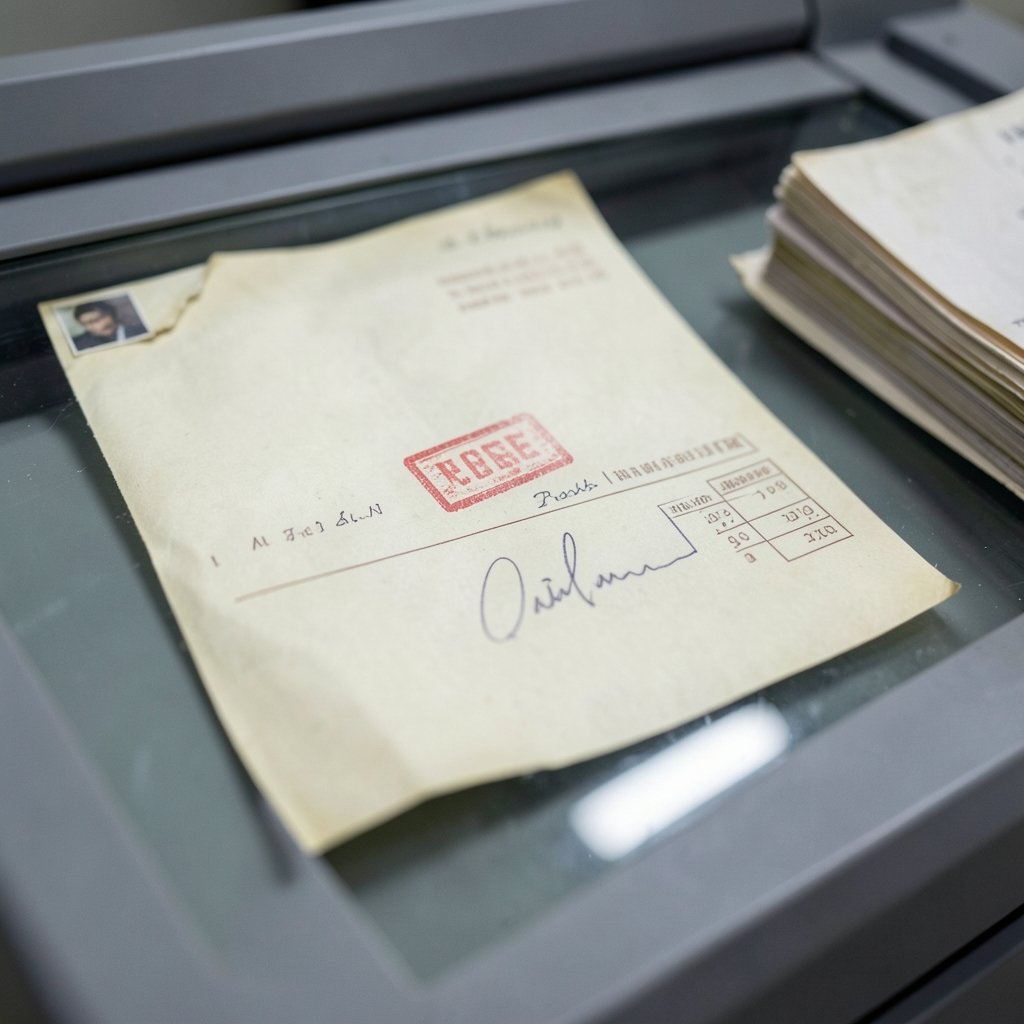
The single biggest mistake is starting with a brand name instead of a task. Someone reads that a popular AI assistant is amazing with documents, signs up, uploads a scanned lease, and gets a vague summary that misses the rent escalation clause. They conclude AI document tools are overhyped. In reality, they used a general-purpose tool on a job that needed a dedicated OCR engine first.
OCR (optical character recognition) is the foundation of most document work. If the text inside a scan is not extracted accurately, everything downstream is garbage. Handwriting, tables, stamps, and low-resolution phone photos are the usual failure points, and benchmarks rarely reflect how badly a real-world document behaves.
So the practical rule is: sort by job first, then by brand. The four jobs most beginners actually have are scanning and text extraction, summarizing and questioning PDFs, extracting structured data like invoices and forms, and transcribing audio or video into text. Each has a different best-fit tool type.
The four categories of AI document tools, explained
1. OCR and scan-to-text tools
These take a photo or scan and give you editable, searchable text. They are the workhorses. Modern versions handle multiple languages, detect tables, and export to Word or searchable PDF. For beginners, the key test is simple: scan one page of your own handwriting and one page with a table, and see what comes out. If the table collapses into a wall of numbers, the tool will cost you more time than it saves.
A practical tip that saves hours: photograph documents flat, in even light, with the whole page in frame. Most “the AI got it wrong” complaints are actually bad input. Cropping, shadow, and skew wreck extraction accuracy far more than the choice of tool does.
2. PDF chat and summarization tools
These let you upload a document and ask questions about it. They are genuinely useful for long reports, research papers, and contracts, but they have a well-known weakness: they summarize confidently even when the source is ambiguous, and they can miss details buried in tables or appendices. Treat the output as a map, not the territory. Always verify any number, date, or obligation against the original page.
If you are also choosing software for other parts of a small workflow, the same “pick by job” logic applies elsewhere. Beginners comparing project boards, for example, will find a similar breakdown in this comparison of Trello alternatives for beginners, and anyone signing contracts digitally should look at how document signing tools for business handle audit trails.
3. Data extraction tools for invoices, forms, and receipts
This is where AI document processing earns its keep for small businesses. These tools read a stack of invoices and output a spreadsheet with vendor, date, amount, and tax. They are more specialized and often priced per document, which is fine if you process fifty invoices a month and painful if you process five.
The beginner trap here is expecting perfection on messy documents. Handwritten receipts, faded thermal paper, and unusual layouts will always need a human check. Budget for review time as well as processing time.
4. Transcription and meeting-note tools
Audio and video files are documents too, in a practical sense. Transcription tools turn meetings into searchable text and action items. Accuracy on clear audio is now high; accuracy on accented speech, crosstalk, and phone recordings is still hit or miss. Always skim the transcript before sharing it.
How the main options compare for a first-time user
| Tool type | Best for | Typical beginner friction | What to check before paying |
|---|---|---|---|
| OCR / scan-to-text | Receipts, printed pages, handwriting | Poor photos, table layout loss | Language support, export formats, page limits |
| PDF chat / summarization | Long reports, contracts, papers | Confident but vague answers | Whether it cites page numbers, file size caps |
| Invoice and form extraction | Bookkeeping, expense claims | Messy or handwritten inputs | Per-document pricing, review workflow |
| Transcription | Meetings, interviews, lectures | Accents, crosstalk, background noise | Speaker labels, editing tools, storage terms |
Notice that none of these rows says “most accurate” or “most popular.” Those labels are meaningless without a sample of your own documents. The comparison that matters is the one you run yourself with five real files.
A realistic first-week plan
- List the three document tasks you repeat most often. Be specific: “scan receipts for expenses,” not “handle documents.”
- Pick one free tool per task. Do not sign up for five tools on day one.
- Run the same five real documents through each tool. Include one ugly one: a bad photo, a table, or handwriting.
- Time yourself. A tool that is 5% more accurate but takes twice as long to correct is a net loss.
- Read the privacy and data retention terms before uploading anything sensitive. This is the step almost everyone skips.
- Only then consider a paid tier, and only for the one task where the free limit actually blocked you.
That last point is worth repeating. Free tiers and usage caps change frequently, so any “best free” claim has a shelf life measured in months. What does not change is the method: test with your own files, time the correction work, and check the terms.
Privacy, accuracy, and the mistakes beginners make
The most common mistakes are remarkably consistent.
Uploading sensitive documents without reading the terms. Contracts, medical records, ID scans, and payroll data should not go into a tool whose retention policy you have not checked. Many services train models on uploaded content unless you opt out or use a business tier. If the document matters, check first.
Trusting a summary as a substitute for the source. AI summarizers are excellent at sounding right. They are less excellent at being right about a single clause on page 34. For anything with legal or financial consequences, verify against the original.
Ignoring the input quality problem. A clean scan beats a clever tool every time. Straighten the page, use good light, and avoid photographing at an angle.
Overbuying. Beginners often subscribe to three tools before learning one. Start with the free tier of a single tool, use it until it genuinely limits you, then upgrade.
For readers building a broader beginner toolkit, the same discipline applies to passwords and security. This guide to LastPass alternatives for beginners covers how to choose a password manager without overcommitting, and if you handle client documents, security orchestration explained for beginners shows how automated workflows fit together at a basic level.
Do you need a dedicated tool at all?
Often, no. General-purpose AI assistants now read PDFs and images well enough for light summarization and quick questions. If your need is occasional, a general assistant is the cheapest and simplest starting point. A dedicated tool earns its place when you need repeatable output, structured data, batch processing, or compliance-friendly handling.
The honest answer for most beginners is a two-tool setup: one OCR tool for getting text out of scans, and one general assistant for asking questions about the result. That covers the majority of real document work, costs little or nothing, and teaches you where the limits actually are before you spend money.
Conclusion
The best AI document processing tools for beginners are not the most powerful ones. They are the ones matched to a specific job, tested on your own messy documents, and chosen after reading the privacy terms. Sort by task, start free, time the correction work, and upgrade only when a limit genuinely blocks you. Do that, and document AI stops being a confusing category and becomes a small set of tools that quietly save you an hour a week.
Frequently Asked Questions
Can a free AI document tool handle scanned handwriting?
Sometimes, but expect errors. Modern OCR handles clear printed text very well and neat handwriting reasonably, while cursive, faded ink, and phone photos in poor light still produce mistakes. Always proofread handwritten content, especially names, numbers, and dates, before relying on the extracted text.
Is it safe to upload contracts or medical records to an AI tool?
It depends entirely on the tool’s data retention and training policies, which vary widely. Many consumer services may use uploaded content to improve models unless you opt out or use a business tier. For sensitive documents, read the terms first, and consider whether a local or offline tool is a better fit.
How accurate are AI summarizers on long PDFs?
They are strong at capturing the overall argument and weak at guarantees. Summaries can miss details buried in tables, appendices, or footnotes, and they rarely flag their own uncertainty. Treat the summary as an index and verify any figure, deadline, or obligation against the original page.
Do I need a separate tool for invoices if I already use a PDF chatbot?
Usually yes, if volume matters. A chatbot can answer questions about a single invoice, but it does not reliably produce a consistent spreadsheet across hundreds of them. Dedicated extraction tools are built for repeatable, structured output, which is what bookkeeping actually requires.
What should a beginner check before paying for a document AI tool?
Check the free-tier limits, accuracy on your own sample files, export formats, language support, per-document or per-seat pricing, and the data retention terms. Also check how much manual correction the output needs, since review time often costs more than the subscription itself.
How do AI document tools fit into a small design or content workflow?
They handle the text side: extracting copy from briefs, summarizing feedback, and turning client notes into structured tasks. For the visual side, beginners can pair that with a guide to AI graphic design tools for beginners and a comparison of Figma alternatives for beginners to build a small, affordable toolkit.



