
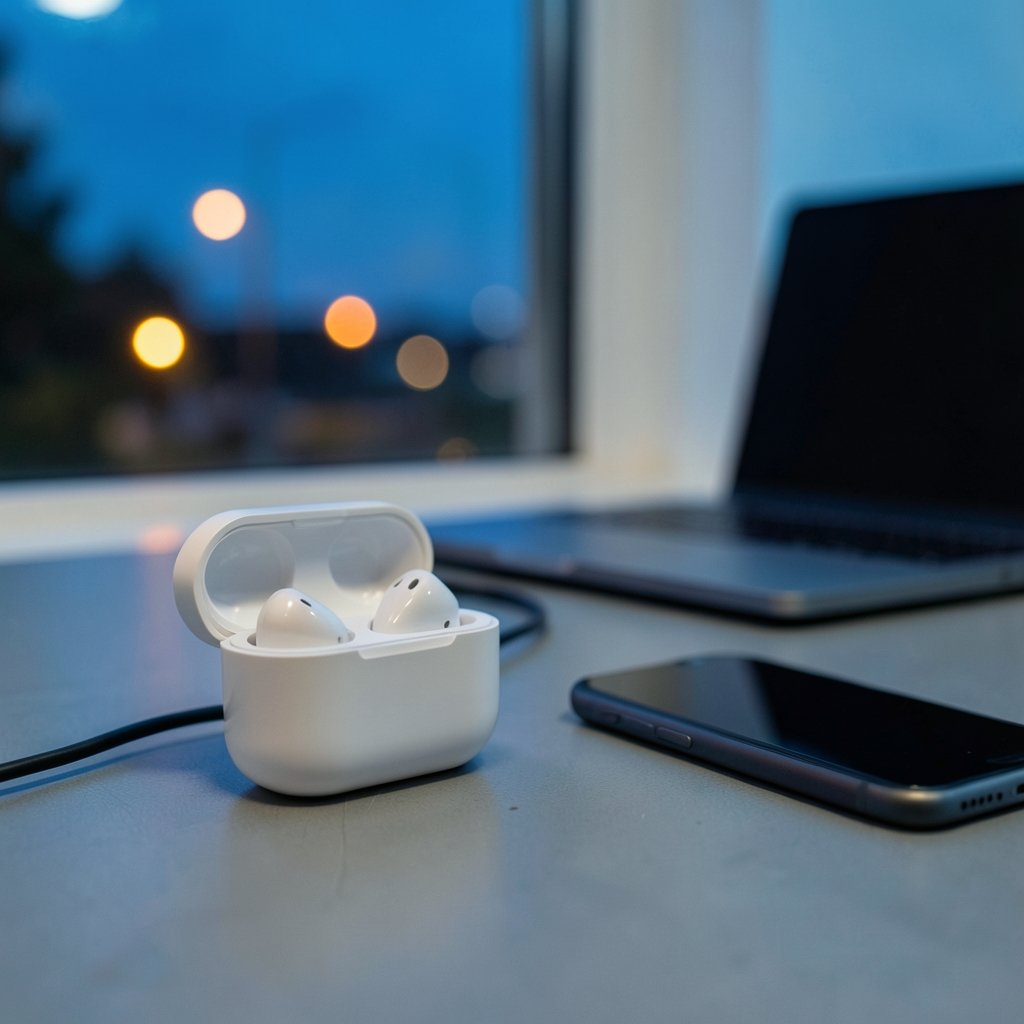
Have you ever been deep in a work call when your earbuds suddenly jump to your laptop, leaving the person on the other end talking to silence? Or started a podcast on your phone only to hear the audio vanish because your tablet grabbed the connection? If so, you’re not alone. Wireless earbuds keep switching devices for millions of people, and the culprit is usually a mix of helpful features working against you.
The good news is that this is almost always fixable. Understanding why it happens is the first step, and a few settings changes usually solve it for good. This guide walks through the real causes, the fixes that actually work, and the habits that prevent the problem from coming back.
Why Your Earbuds Jump Between Devices
Modern earbuds are designed to be convenient. They want to connect to whatever device you’re using right now. That sounds great in theory, but in practice it creates chaos when you own a phone, a laptop, a tablet, and maybe a smart TV.
Two technologies drive most of the confusion. The first is multipoint Bluetooth, which lets a single pair of earbuds hold active connections to two devices at once. The second is automatic switching, a platform-level feature that moves audio between devices signed into the same account. Apple’s ecosystem handles this through its own automatic switching, while Android relies on Fast Pair and audio switching. When both systems try to be clever at the same time, your earbuds end up playing musical chairs with your audio.
There’s also a simpler explanation many people overlook: your earbuds may be reconnecting to the last device that paired with them, or to whichever device has the strongest signal at that moment. Bluetooth doesn’t have a concept of “the device I actually want right now.” It just follows the rules programmed into the firmware.
The Role of Multipoint Bluetooth
Multipoint is genuinely useful. It lets you take a call on your phone while your laptop stays connected, so you can switch back to a video without repairing. But multipoint has a quirk: when a second device starts playing audio or makes a connection request, the earbuds may hand over control automatically. If your laptop wakes from sleep and reconnects, it can steal the audio mid-song.
Many people don’t realize their earbuds even have multipoint enabled. It’s often on by default, and the companion app may bury the toggle several menus deep. Turning it off is the single most effective fix if you only ever want audio from one device at a time. If you’re shopping for new earbuds and want to know which models handle this gracefully, a roundup of the best wireless earbuds under 200 in 2026 is a good starting point.
Automatic Switching: Convenience or Chaos?
Automatic switching is the feature most likely to frustrate you. It’s designed to follow you from device to device, but it can’t read your mind. If your phone is in your pocket and your laptop is open on the desk, the system may decide the laptop is the better target.
The behavior also depends heavily on firmware. Manufacturers ship updates that change how aggressively earbuds grab connections, and two people with identical earbuds on different software versions can have completely different experiences. That’s why advice found online sometimes contradicts itself: the “correct” fix depends on your specific model, operating system, and app settings.
The Most Common Fixes That Actually Work
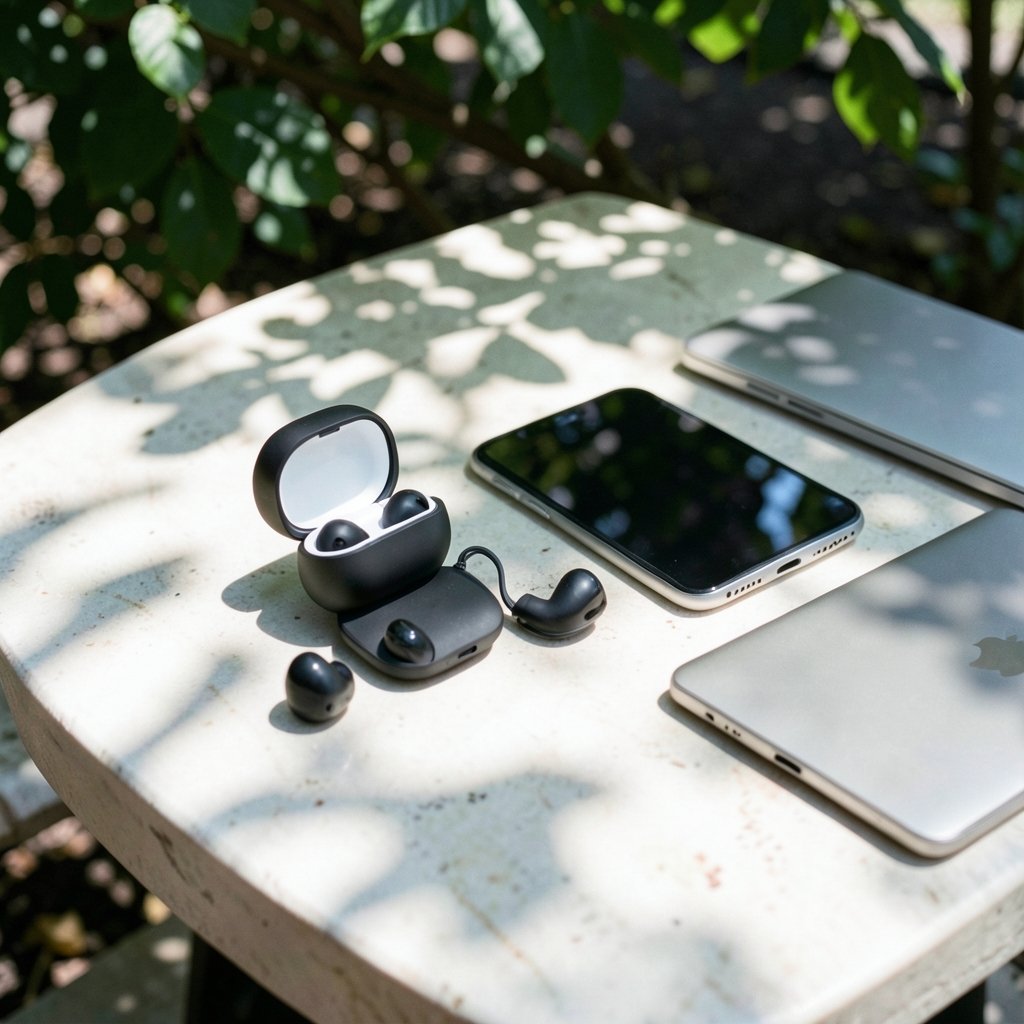
Before you assume your earbuds are broken, run through the basics. Most switching problems fall to one of the solutions below, and you can usually fix things in under five minutes.
- Open the companion app and disable multipoint or auto-switch. This is the first stop for most brands. Look for settings labeled “multipoint,” “auto-connect,” “automatic switching,” or “seamless switching.”
- Forget the device on the unwanted host. If your laptop keeps stealing audio, remove the earbuds from that laptop’s Bluetooth list. The earbuds can’t jump to a device they no longer know.
- Turn off Bluetooth on the second device. Crude but effective. If you’re listening on your phone and don’t need your tablet connected, switch its Bluetooth off.
- Update your firmware and your operating system. Switching bugs are frequently patched. Check the earbud app and your phone’s system updates.
- Reset the earbuds. A factory reset clears stale pairing data that can cause erratic behavior. The exact button combination varies by model, so check the manual.
- Re-pair in the right order. Pair the earbuds to your primary device first, then add others one at a time. This helps the earbuds learn which device matters most.
Platform-Specific Settings Worth Checking
On Apple devices, automatic switching is tied to your Apple ID. You can usually turn it off per device in Bluetooth settings, which stops audio from hopping between your iPhone, iPad, and Mac. On Android, Fast Pair and audio switching settings live in the Google settings menu and in each earbud’s companion app. Windows laptops add their own wrinkle: some Bluetooth drivers aggressively reconnect to previously paired audio devices, so updating the driver or removing the earbuds from Windows settings can help. (Bluetooth Technology Overview)
If your earbuds are primarily for calls and meetings, switching problems are especially painful. Dropped audio mid-meeting looks unprofessional, so it’s worth choosing models with stable connection behavior. A guide to the best earbuds for phone calls and meetings can save you a lot of trial and error.
A Quick Comparison of Switching Behaviors
Not all earbuds behave the same way. The table below summarizes how different connection setups tend to act, so you can match the fix to your situation.
| Connection Setup | Typical Behavior | Best Fix |
|---|---|---|
| Multipoint enabled, two active devices | Audio may jump when the second device wakes or plays sound | Disable multipoint in the companion app |
| Automatic switching across one account | Audio follows the “most active” device | Turn off auto-switch per device in system settings |
| Single pairing, one device | Rarely switches unless re-paired | Usually no action needed |
| Multiple remembered devices | Earbuds reconnect to whichever device is available | Forget unused devices in Bluetooth settings |
| Outdated firmware | Erratic switching, random disconnects | Update firmware and reset earbuds |
The pattern is clear: the more devices your earbuds remember, the more opportunities there are for confusion. Simplifying your pairing list is often the fastest route to stability.
Habits That Prevent the Problem From Coming Back
Fixing the issue once is satisfying, but keeping it fixed requires a little discipline. A few small habits make a big difference.
First, be deliberate about which devices are paired. Every extra device is another candidate to steal your audio. If you only use your earbuds with your phone and one laptop, remove everything else from the pairing list.
Second, keep an eye on firmware updates. Manufacturers rarely announce switching fixes loudly, but they do ship them. Checking the companion app once a month takes seconds and prevents surprises.
Third, understand that some switching is by design. If you use the same earbuds with a phone, tablet, and computer, occasional handoffs are the price of convenience. The trick is deciding whether you want seamless switching or predictable control. You can’t always have both.
Finally, consider how you use your earbuds. If you mostly listen while working out, connection stability matters more than multipoint. A pair built for movement, like those in this guide to the best wireless earbuds for working out, often prioritizes a rock-solid single connection over fancy switching features.
When the Problem Isn’t the Earbuds
Sometimes the earbuds are innocent. Interference from other wireless devices, a crowded 2.4 GHz band, or a failing Bluetooth chip in your phone or laptop can all cause connection drops that look like switching. If your audio cuts out and comes back on the same device, the issue is likely signal interference rather than device hopping.
Physical distance matters too. Bluetooth has a limited range, and walls, bodies, and metal objects weaken the signal. If your earbuds disconnect when you walk into another room, that’s normal behavior, not a malfunction.
It’s also worth checking whether a second person nearby is trying to connect. In shared spaces, earbuds left in pairing mode can be grabbed by the wrong device. Locking your earbuds to your own devices, where the app allows it, closes that gap.
One more thing to check: some smart TVs and streaming sticks aggressively grab nearby Bluetooth audio devices. If your earbuds keep jumping to the living room TV, remove the pairing from the TV’s settings menu. It’s a surprisingly common culprit that people rarely suspect.
Conclusion
Wireless earbuds that keep switching devices aren’t broken. They’re following instructions that no longer match what you want. Multipoint Bluetooth and automatic switching are designed to make life easier, but when several devices compete for attention, your audio ends up bouncing around like a pinball.
The fix usually comes down to three moves: turn off the switching features you don’t need, trim your pairing list to the devices you actually use, and keep your firmware current. Do those three things and most of the frustration disappears. When it doesn’t, a reset or a fresh pairing order usually finishes the job.
The next time your earbuds abandon your phone mid-podcast, don’t blame the hardware. Open the app, find the toggle, and take back control. Your audio should follow you, not the other way around.
Frequently Asked Questions
Why do my wireless earbuds keep switching devices on their own?
Your earbuds are almost certainly using multipoint Bluetooth or an automatic switching feature. These systems hand audio to whichever connected device seems most active. A laptop waking from sleep, a tablet playing a notification sound, or a phone receiving a call can all trigger a handoff. Disabling multipoint or auto-switch in the companion app usually stops it.
How do I stop my earbuds from jumping to my laptop?
The simplest fix is to remove the earbuds from your laptop’s Bluetooth list. If you still want the laptop connected, turn off automatic switching in the earbud app, or disable Bluetooth on the laptop when you’re not using it. Updating the laptop’s Bluetooth driver can also help if reconnections are aggressive. (Bluetooth)
Does turning off multipoint affect sound quality?
No. Multipoint is a connection management feature, not an audio codec. Turning it off doesn’t change how music sounds. It only limits your earbuds to one active device at a time, which can actually improve stability and reduce dropouts.
Why did my earbuds start switching after a software update?
Firmware and operating system updates frequently change how aggressively devices claim audio. A patch that improves switching for most users can make it worse for your specific setup. Check the companion app for a toggle, and if the problem persists, reset the earbuds and re-pair them in your preferred order.
Can two people’s earbuds interfere with each other?
Not directly, since each pair uses its own pairing keys. But in crowded spaces, earbuds left in pairing mode can be discovered by nearby devices. If your audio keeps getting hijacked in a shared office or gym, make sure your earbuds aren’t sitting in pairing mode and remove any unknown devices from the app.
Should I just buy earbuds without multipoint?
Not necessarily. Multipoint is genuinely useful if you take calls on your phone while working on a laptop. The key is choosing earbuds whose app lets you toggle it off. Models with clear, accessible settings give you the best of both worlds: convenience when you want it, predictability when you don’t.



