
A laptop that suits a student’s browser-based classes may not be the right tool for a designer or a frequent traveler. Your best choice depends on its operating system, portability, workload, and price. This guide helps you match those needs without paying for power you will not use.
A neural processing unit (NPU) is a processor component designed to handle AI workloads efficiently. It can help with certain AI tasks, but your daily apps still matter more than a chip label. You will find options for everyday use, school, business, creative work, and gaming, with trade-offs made clear.
Some buyers need a light machine for carrying between meetings; others need a large screen or strong graphics for demanding work. A tighter budget can change which features deserve priority. A clear match gives you a better experience and helps you avoid paying for hardware that sits unused.
Start by matching the computer to the apps and tasks you use most often.
Key Takeaways
- Choose an operating system that runs your essential apps.
- Match screen size and weight to how often you carry the computer.
- Spend more on performance only when your workload needs it.
- Check the exact memory, storage, screen, and port configuration.
- Read battery test results as comparisons, not promises of your own runtime.
Best Laptops 2026: Which Picks Fit Each Need?
For most people seeking one dependable everyday computer, start with the MacBook Air, while the other picks suit narrower needs. Best laptops 2026 means different things to different buyers, so use the table to narrow your search.
Start with the workload you do most often, then compare the configuration and price. These models offer a clear first choice for common needs, not a reason to skip checking software or hardware details.
| Need | Recommended model | Best fit |
|---|---|---|
| Everyday use | MacBook Air | Personal work and daily apps |
| Lower-cost Mac | MacBook Neo | Basic Mac use at a lower price |
| Windows | Dell XPS 14 | Windows apps and portable work |
| Lightweight travel | Lenovo Yoga Slim 7i Aura Edition | Frequent carrying and media |
| Gaming | Acer Nitro V 16S AI | PC games and dedicated graphics |
Choose the model that fits your main workload, then check its exact configuration before you buy.
A single best laptop cannot suit every operating system and every price range. A Windows app that your job requires may rule out a Mac, while a need for dedicated graphics can point you toward a gaming model.
Performance also depends on the specific processor, memory, screen, and graphics option you choose. Two versions of one model can feel quite different in daily use, even when they share the same name.
Use the category that matches your main workload as your shortlist, not as a substitute for checking the exact configuration.
Which MacBook Works Best for Everyday Use?
For a personal-use laptop that can handle everyday work without feeling bulky, the 2026 MacBook Air is the most balanced pick here. Its M5 10-core CPU can handle browsing, documents, spreadsheets, photo edits, and everyday multitasking.
The base model starts at $1,099 with 512GB of storage and at least 16GB of RAM. That gives you a more capable starting point than an entry-level model with less memory and storage.
The 13.6-inch display has a 2560 x 1664 resolution, and the computer weighs 2.7 pounds. Its 12-megapixel webcam is useful for video calls, while the slim build makes it comfortable to carry.
That mix suits a personal-use laptop for home, work, and travel. The screen has room for documents and web pages without making the whole computer feel oversized.
A fanless ultraportable is not the best match for sustained rendering or other long, heavy tasks. For those jobs, a computer built for continued high performance is a better fit.
The MacBook Air offers enough performance for ordinary work without adding the weight of a larger pro machine. Its screen and build quality also make daily use feel polished.
Check that the software you rely on runs on macOS before choosing the Air.
Which Windows Laptop Balances Battery Life and Portability?
Windows users who put a long unplugged workday near the top of their list should consider the Dell XPS 14. Its 14-inch screen offers a 1920 x 1200 resolution and a variable refresh rate from 1 to 120 Hz.
The base LCD configuration lasted 20 hours and 41 minutes in a battery test. The XPS 14 weighs 3 pounds, making it a portable choice for Windows work.
The variable refresh rate lets the screen adjust how often it updates. That can make movement look smooth while allowing the display to use less power during still tasks.
The low-travel keyboard is a real trade-off. Keys do not move down as far when pressed, so the typing feel may not suit everyone.
An OLED display can show richer colors and deeper contrast than the base LCD. That upgrade trades battery life for a more vivid picture, so choose based on whether screen quality or unplugged time matters more.
Intel Core Ultra is one processor family you may see in Windows laptops, but the exact chip and configuration matter. Compare the model you plan to buy, rather than assuming every XPS 14 has the same screen or runtime.
Check the exact display configuration before buying, since the measured runtime applies to the base LCD model.
What Is the Best Lightweight Laptop for Travel?
At 2.15 pounds, the Lenovo Yoga Slim 7i Aura Edition is the strongest pick here for people who carry a laptop all day. Its 14-inch 2880 x 1800 POLED touchscreen combines a sharp picture with a 120 Hz refresh rate.
The tested 32GB configuration lasted 16 hours and 38 minutes in a battery test. That model cost $1,519, so the price and results do not describe every version.
The low weight makes it a comfortable choice for commuting, flights, and days spent moving between rooms. Its OLED display also suits movies and shows during downtime.
There are limits to that slim design. The port selection is narrow, it has no headphone jack, and its CPU performance trails some competitors.
The 16 hours and 38 minutes came from a test of the 32GB model. Other configurations can differ, so do not treat that figure as a promise about every Yoga Slim 7i Aura Edition.
Its touchpad and screen support a relaxed travel setup, but wired accessories may need separate adapters. That can add clutter to an otherwise easy-to-carry kit.
Count the ports and check for a headphone jack if you regularly travel with wired accessories.
Which Laptops Last Longest Away from an Outlet?
Battery-test leaders can run for more than a full workday, but their rank depends on the test and configuration. Test runtime gives you a useful comparison, not a guarantee of your own battery life.
The HP OmniBook 3 16 recorded the longest listed result, at 34 hours and 5 minutes. Screen brightness, wireless use, and workload can change how long any laptop lasts.
How the long-running models compare
| Laptop | Test runtime | Notable detail |
|---|---|---|
| HP OmniBook 3 16 | 34 hours 5 minutes | Longest result listed |
| HP OmniBook 5 14 | 28 hours 19 minutes | More than 34 hours in another test |
| Lenovo Yoga 9i 2-in-1 Aura Edition | 25 hours 45 minutes | 2-in-1 design |
| MSI Prestige 14 Flip AI Plus | 25 hours 18 minutes | Flip design |
| Asus Zenbook A14 | 24 hours 7 minutes | Portable model |
The Acer Aspire 16 AI lasted 21 hours and 9 minutes in a test. It weighs less than 3.5 pounds, which may matter if you want a larger screen without a heavy bag.
Why test conditions change the result
Offline video playback places a steady load on a laptop. Mixed work adds changing tasks, such as web browsing, video calls, and documents, which can use power at different rates.
Brightness, wireless activity, and the apps you run all affect runtime. A bright screen or busy video call can shorten a workday away from an outlet.
The HP OmniBook 5 14 ran 28 hours and 19 minutes in one battery test, then more than 34 hours in a separate PCMag test. Those results use different test methods, so they are not a direct contradiction.
Use test results to compare models under similar conditions. A result from offline video playback may not predict a day of web calls and active apps.
Treat a test runtime as a comparison under stated conditions, then check whether your own brightness and workload resemble them.
What Is the Best Laptop Under $500?
At a strict $500 ceiling, the Asus Chromebook Plus CX34 is the clearest named fit, provided ChromeOS covers your apps. Listed at $499, it has an Intel Core i5 processor, 8GB of RAM, and a 1080p display.
For a laptop under $500, aim for a 1080p screen, at least 8GB of RAM, an SSD, and about 10-12 hours of battery life. A Core i3 or Ryzen 3 is enough for basic use, while a Core i5 or Ryzen 5 offers more room for busier days.
Check these four features before buying:
- A 1080p display for clear text and video.
- At least 8GB of RAM for everyday apps.
- An SSD for storage and quick file access.
- Battery life around 10-12 hours for a school or workday.
If the budget allows, 16GB of RAM is a preferable upgrade. It gives you more room when several apps and browser tabs stay open at once.
The MacBook Neo starts at $599, above this budget. Its 13-inch screen has a 2408 x 1506 resolution and 500 nits of brightness, and it uses an A18 Pro chip.
A Macworld stress test pushed the Neo’s A18 Pro chip and 8GB of memory through video editing and dozens of browser tabs. The MacBook Neo stress test found that results varied by task, a useful reminder that one demanding test does not predict every workload.
Do not trade down to a dim, low-resolution screen just to get a faster processor.
Which Laptop Makes Sense for College Students?
Students who carry one computer from lectures to the library should prioritize a comfortable keyboard, enough memory, and a battery that lasts through classes. The Acer Swift 16 AI fits students who want a large OLED screen and storage for many school files.
The listed $999.99 configuration has 16GB of RAM, 1TB of storage, and a 16-inch 2880 x 1800 OLED screen. It weighs 3.37 pounds and lasted 17.5 hours in a battery test.
Its 16GB of memory can support productivity apps, video calls, and web research running together. That matters when a class calls for several windows at once.
The 16-inch display gives you plenty of room for lecture notes and research. Its 3.37-pound weight is manageable for carrying across campus, though a smaller laptop may fit better in a packed bag.
Before ordering, check three details:
- Required course software and supported processors.
- Carry weight for your regular route across campus.
- Ports for classroom displays and external storage.
The 16GB student memory recommendation is a useful target for schoolwork that mixes research, video calls, and productivity apps. Storage also matters when courses require large project files.
Confirm that required engineering, design, or testing software supports the chosen processor before ordering.
What Should You Choose for Business and Personal Work?
A business laptop that also handles personal tasks should match the work role first, rather than maximize specifications without a reason. Support and manageability may matter more than top speed when a work team depends on shared tools.
Choose memory, support, manageability, and mobility based on the job’s daily demands. A light browser-centered role may need less power than work with large files or specialized software.
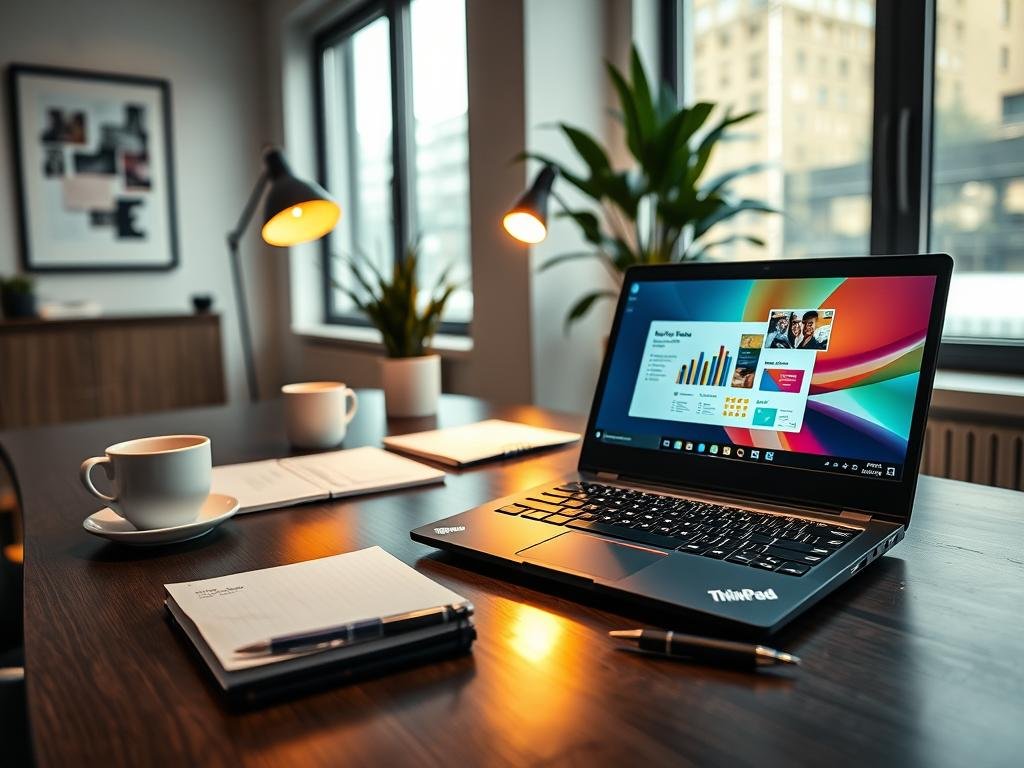
Business features that matter day to day
A 2026 business-laptop scoring framework gives 30% weight to reliability and support burden. It assigns 20% each to business manageability and value, 15% to battery and mobility, 10% to role-specific performance, and 5% to repairability and warranty.
Those priorities help show why a fast chip is only part of a business decision. A laptop that fits the company’s support plan may be a better work tool than a higher-spec model with fewer useful services.
Think through these three checks:
- Compatibility with required business apps.
- Support and manageability requirements from your company.
- Total ownership cost, including service and upkeep.
A premium business pick and its trade-offs
The ThinkPad X1 Carbon Gen 14 Aura Edition is a premium option with a repairable internal design and an optional 2.8K OLED display. Its listed price is $2,459.99.
The business laptop scoring framework makes reliability, support, and total cost part of the buying decision. That helps explain why a higher price may make sense for some work roles.
Still, that price may be hard to justify for a job centered on browser tabs and basic documents. The optional screen can suit buyers who value a sharp picture, but it is not a must-have for every desk.
Get the company’s support and manageability requirements in writing before selecting a premium configuration.
Which Laptop Is Easiest to Repair and Upgrade?
If you want to replace components instead of replacing the whole computer, the Framework Laptop 13 is the most direct fit in this guide. Replaceable parts give you a way to maintain the device as your needs change.
You can swap its RAM, storage, motherboard, and ports. The reviewed model weighs 2.99 pounds and has a 13.5-inch 2880 x 1920 display, a Ryzen AI 7 350 processor, 16GB of RAM, and a 1TB SSD.
The reviewed configuration lasted just over 11 hours in a battery test. That is useful for a day of light work, but its battery life is not class-leading.
Repairability is most useful when parts remain available and you feel comfortable doing the work. A replaceable component does not make every repair simple or free.
Check these three points before buying:
- Whether replacement parts are available for the model.
- The price of the full configuration you need.
- Your willingness to handle repairs yourself.
The Framework Laptop 13 uses integrated graphics, so it is not a substitute for a laptop with a dedicated GPU for demanding graphics work. Its appeal is the ability to maintain and change key hardware over time.
Price the parts and labor you may need over time, not just the initial configuration.
Which Laptop Fits Demanding Creative Work?
For recurring video, photo, or engineering work, choose the software platform and sustained performance before optimizing for the thinnest chassis. Demanding creative work can need more power than everyday browsing and document editing.
Choose a machine that can keep up with your actual creative apps. A processor’s name alone does not show how quickly it handles a long export or complex project.
The MacBook Pro for demanding macOS workflows
The 14-inch MacBook Pro M5 is a step up for sustained macOS work and external devices. Its 14.2-inch 3024 x 1964 display gives creative projects a sharp workspace.
It weighs 3.4 pounds and includes three Thunderbolt ports for compatible accessories and displays. That can help if your desk setup uses several fast connections.
Memory and storage upgrades can raise the price, and you cannot change them later. Choose the setup around the files and apps you use, rather than adding capacity without a clear need.
A Windows alternative with strong integrated graphics
The HP OmniBook Ultra has a 13-inch 2240 x 1400 touchscreen and an AMD Ryzen AI 9 HX 375 processor. Its Radeon 890M integrated GPU handles graphics within the processor rather than using a separate graphics chip.
It lasted 12 hours and 52 minutes in a battery test. That result can help with travel, though actual runtime changes with screen brightness and the apps you run.
Initial setup may include removing software that came preinstalled. For local AI tools, performance depends on the model and hardware; compare ChatGPT alternatives and local tools before choosing a computer for that work.
Match the processor and graphics to the applications you actually run, not to an AI label alone.
Which Gaming Laptop Should You Buy?
For a gaming laptop under $1,500, start by comparing RTX 5050 and RTX 5060 configurations with at least 16GB of RAM. Graphics power shapes game performance, while screen and weight affect how you use the machine.
Avoid gaming configurations with only 8GB of RAM or 256GB of storage. The Acer Nitro V 16S AI is the recommended gaming pick in this guide.
A more affordable gaming configuration
| Model | Graphics | Screen | Memory and storage |
|---|---|---|---|
| Acer Nitro V 16S AI | 85W RTX 5060 | 16-inch 1920 x 1200 180 Hz IPS | 32GB RAM, 1TB |
| Alienware 16 Aurora | 80W RTX 5060 | 16-inch 2560 x 1600 120 Hz IPS | Not specified |
| Gigabyte Aero X16 | RTX 5070 | Not specified | Not specified |
The Alienware 16 Aurora has a 96 WHr battery, weighs 5.64 pounds, and lasted 9 hours and 41 minutes in a battery test. The Gigabyte Aero X16 lasted 9 hours and 13 minutes in its test.
Those runtimes are test results, not a promise of long gaming sessions away from an outlet. Playing demanding games can use power quickly.
Premium gaming power and portability trade-offs
The Razer Blade 18 shows what a high-end gaming laptop can offer. It was tested at $5,199.99 with an RTX 5090 and a 7.06-pound chassis.
Its 18-inch display can run at 3840 x 2400 and 240 Hz, or 1920 x 1200 and 440 Hz. The higher resolution favors detail, while the faster mode favors a high refresh rate.
That screen choice comes with substantial price and weight. A larger gaming machine can suit a fixed desk, but it is less pleasant to carry each day.
Check the exact GPU wattage and screen refresh rate on the configuration you plan to buy.
When Is a Chromebook the Right Choice?
A Chromebook makes sense when your daily routine already lives in browser tabs and cloud services. ChromeOS suits browser-first work, school-managed tasks, and apps that run online.
A Chromebook is a poor fit for software that must be installed locally or demanding work offline. Check the apps you need before choosing one for school or work.
The Asus Chromebook CX15 was listed at $159 with a 15.6-inch 1080p screen, an Intel Celeron N4500 processor, and 4GB of RAM. Its battery lasted a little over 10 hours.
That low price can suit basic browsing and online assignments. Still, 4GB of memory falls below the 8GB guideline for standard cloud-based Chromebook tasks in 2026.
With 4GB, heavy multitasking can feel cramped when many tabs and apps stay open. The CX15 is better treated as a basic-use choice than as a laptop for demanding school projects.
It also differs from Windows and macOS laptops in its focus on browser-based work. A Chromebook may be a good match for school tasks set up around cloud apps, but not for every course or workplace.
Check that every must-have app works in ChromeOS before choosing the cheapest configuration.
What Makes a Laptop Good in 2026?
A good laptop in 2026 is one that runs your essential apps comfortably, fits your carrying routine, and has the screen and connections you actually use. The right fit includes a comfortable keyboard, enough memory and storage, and a display you can use for a full day.
Choose the operating system by software compatibility, not brand reputation. Windows, macOS, and ChromeOS each suit different apps and work habits.
Choose the operating system and screen for your routine
Check that your essential software runs on the system you choose. Windows, macOS, and ChromeOS have different app support, so the best fit depends on what your work needs.
A 1920 x 1080 display is a sensible minimum for clear text and video. Screen resolution describes the number of pixels; more pixels can make an image look sharper.
A 16:10 or 3:2 screen gives you more vertical workspace than a wide 16:9 screen. Typical screens start at 60 Hz, while 120 Hz is increasingly common and makes movement look smoother.
Higher resolution can use more power, so a 1080p screen can last longer than a 4K screen. Pick a display that is easy to read for the work you do most.
Balance portability, ports and battery expectations
Thirteen-inch laptops typically weigh 2-3 pounds, while 14-inch models often weigh 3-4 pounds. Fifteen- and 16-inch models commonly weigh 3.5-4.5 pounds; 17- and 18-inch systems are often gaming laptops or workstations.
USB-C ports can carry data, power, and video, while USB-A supports many older accessories. Check for HDMI and a headphone jack if your displays or wired audio need them.
Expect at least eight hours of battery life, and aim for 12 hours or more if you often work away from an outlet. A maker’s claim may not match real use, so compare results from battery tests.
Sign up for technology and product updates if you want selected news and deals in your inbox. You can choose which topics to receive.
Prioritize a comfortable keyboard and the ports you need if you cannot carry a hub.
How Much RAM Does a Laptop Need?
For most Windows buyers in 2026, 16GB is the practical starting point for smooth multitasking. RAM, or memory, helps a laptop keep several apps and browser tabs ready at once.
Use 8GB for basic tasks, 16GB for everyday work, and 32GB or more for demanding creative work. Your workload determines whether a larger memory setup is useful.
Memory for everyday work, school and gaming
| Workload | Practical RAM target | Why |
|---|---|---|
| Basic use | 8GB | Web and light tasks |
| Everyday Windows and school | 16GB | Several apps and tabs |
| Gaming | 32GB | More room for demanding games |
For everyday Windows use, students, remote workers, and business multitasking, 16GB is the 2026 recommendation. Eight gigabytes remains a basic-use baseline, not the best choice for every workload.
Gaming can also benefit from more memory, especially when you keep other apps open. Some graphics tasks share system memory, leaving less room for other work.
When creative work needs more memory
Serious creative work calls for at least 32GB as a practical target. That gives large projects and multiple creative apps more room to run.
For 8K video editing or dense 3D scenes, 64GB may be needed. Those tasks can use far more memory than basic video clips or simple image edits.
Before you buy, check the laptop’s maintenance guide to see whether its RAM can be expanded. Many thin-and-light models have soldered memory that cannot be changed after purchase.
Choose the memory configuration before checkout if the laptop’s RAM cannot be upgraded later.
Which Laptop Configurations Should You Avoid?
A low price can hide a configuration that feels cramped once your apps, files, and browser tabs are open. Compare the exact parts, not just the laptop’s family name.
The Dell XPS 13’s listed $799.99 configuration has 8GB of memory, which may be insufficient for some apps. That starting price does not make the 8GB version the right choice for everyone.
The best laptop under $1,000 depends on its exact configuration and the work you expect it to handle. Compare versions before settling on a model with a low starting price.
Watch for these warning signs:
- Too little memory for the apps and tasks you use.
- Too little storage for installed apps and saved files.
- A screen or port setup that does not match daily use.
Do not judge a laptop by its lowest listed price alone. A poor configuration can cost you time every day.
A gaming laptop with only 8GB of RAM or 256GB of storage is a poor choice for most gaming setups. Games and other installed apps need room, and a cramped configuration can limit your options.
A screen that looks fine in a product name may still be the wrong size or type for your daily work. Ports matter too, especially if your usual setup connects to storage or an external display.
For recent product news and checked deals, you can also choose topics in the Occcy newsletter. A sale price still does not make a mismatched configuration a good fit.
Compare the full configuration, not just the model name or its lowest listed price.
Conclusion
The right laptop is the one that supports your daily work without making you pay for hardware you will not use. Match your operating system to your apps, then think about workload and how often you carry the computer.
Before buying, check the exact RAM, storage, display, and port configuration. Those details can change how well the same model fits your routine.
Choose a few apps you rely on and compare their needs with the laptop you plan to buy. Before you buy, confirm that your essential apps run on the device and that its configuration fits the way you work.
FAQ
What are the best laptops for 2026?
The best picks are the MacBook Air for everyday use, MacBook Neo for a lower-cost Mac, Dell XPS 14 for Windows, Lenovo Yoga Slim 7i Aura Edition for portability, and Acer Nitro V 16S AI for gaming. Each fits a different need, so check that your apps run on its operating system. The specific screen, memory, and storage option can also change the value.
How much RAM do I need on a laptop?
For everyday Windows use in 2026, 16GB of RAM is a practical target, while 8GB suits basic tasks. Demanding creative work or gaming can benefit from 32GB or more. RAM helps keep apps and browser tabs ready, and some graphics work also uses system memory. Check whether the laptop lets you upgrade memory before purchase.
Which laptop will last 10 years?
No laptop can be guaranteed to last a decade. A model with repairable or upgradeable parts can stay useful longer when a component wears out or your needs change. Suitable memory and storage also help prevent an early replacement. Careful handling and available support improve the odds, but battery wear and changing software needs can still shorten its useful life.
What laptop to stay away from?
Avoid any configuration that cannot comfortably run your essential apps. Gaming laptops with only 8GB of RAM or 256GB of storage are poor choices for most buyers because those limits can become frustrating as games and files add up. A low price does not make a mismatched screen, port setup, or storage size a good deal. Compare the exact configuration.
What are the top 3 best laptops?
The top three picks here are the MacBook Air for most people, MacBook Neo for basic budget use, and Dell XPS 14 for Windows buyers who value a long battery-test runtime. The Air is the broad everyday choice, while the Neo costs less and suits lighter tasks. The Dell is a strong option if you need Windows apps and a portable chassis.
Who is the No. 1 laptop brand?
No single laptop brand is best for every buyer, because software and workload shape the choice. Apple is the guide’s everyday pick, while Windows brands suit people who need Windows apps or specific work tools. Compare the operating system, support, and exact hardware instead of choosing by brand name alone. The right match is the one that fits your actual routine.
What is the best laptop to buy right now?
The MacBook Air is the best general everyday laptop in this selection. The MacBook Neo is a cheaper alternative for basic use, while the Dell XPS 14 suits Windows buyers. Your essential apps should decide the operating system first. Then check the exact memory, storage, screen, and ports, since configurations within one model line can differ.
Who is better, HP or Dell?
Choose HP if you want the OmniBook Ultra’s Ryzen AI 9 HX 375 processor and Radeon 890M integrated graphics. Choose the Dell XPS 14 if a 3-pound chassis and its long measured battery-test runtime matter more. The HP is a creative-work option, while the Dell is a portable Windows pick. Your apps and daily use should settle the choice.