A Decky tab that disappears after an update is usually a different problem from a plugin that crashes the menu. Decky Loader can fail in several ways, and each one calls for a different first check. The Quick Access menu is the Steam Deck panel opened with the Quick Access button, where the Decky tab and its plugins appear.
This guide starts with simple checks, then moves toward updates, plugins, and compatibility issues. On Steam Deck 2026, start with what you can see in Gaming Mode or desktop mode. Do not begin with an unverified command or a factory reset.
Key Takeaways
- Match the fix to the symptom you see.
- Use the official installer for a missing Decky tab after an update.
- Keep stable as your regular branch unless you have a reason to test prerelease.
- Separate a blank page from a plugin that fails.
- Write down the exact error and versions before trying more changes.
Start with the symptom you can see, and use the least disruptive fix that matches it.
Decky Loader Not Working Steam Deck Fix 2026: Where Should You Start?
If Decky vanished immediately after an update, begin with its installer rather than removing plugins or resetting the Steam Deck. First, check whether the Decky tab appears, whether its pages load, and whether one plugin or the whole interface fails.
A Decky problem on the Steam Deck is not automatically a reason to reset the device. SteamOS updates can make the Decky menu disappear, while other symptoms point to a page or plugin problem.
| What you see | Likely area to check | First action |
|---|---|---|
| Missing after update | Decky installation | Rerun the installer |
| Missing after installation | Gaming Mode visibility | Open Quick Access |
| Blank store or settings | Page or client compatibility | Note versions and channel |
| Rendering error | Decky content or plugin | Read the error choices |
Identify what is missing or failing
Check the Quick Access menu before changing files or plugins. A missing tab differs from a visible tab with a blank store, settings page, or error message.
When the menu opens, note whether every Decky page fails or only one plugin behaves badly. That split helps narrow the fault without removing working parts.
Choose a low-risk first check
Use this order to keep the first test small:
- Open Quick Access and look for the Decky tab.
- If it appears, open settings and the store separately.
- Check whether one plugin fails while other controls still work.
- Record the exact error before restarting or changing settings.
Do not reset the Steam Deck for a Decky fault before checking which part has failed.
Write down whether the fault started after an update, a plugin change, or a restart. That timing can help explain a later version check.
Record the exact message on screen before changing settings, since it helps separate a menu error from a plugin problem.
Did Decky Loader Disappear After a SteamOS Update?
When the Decky tab disappears after SteamOS updates, rerun the official installer and select stable before trying anything more disruptive. Stable first is the least risky recovery path for a missing menu.
Decky Loader can stop showing up after an update because the system and loader may no longer fit. Reinstalling the stable branch is the first recovery step, not a reason to remove plugins one by one.

Reinstall the stable branch first
Use this sequence after an update removes the tab:
- Rerun the installer and select the stable branch.
- Return to Gaming Mode and check the Quick Access menu.
- If stable does not restore the tab, retry with prerelease.
- If both branches fail, check existing issues or file a report.
The stable branch is meant for regular use. It is the sensible first test when you need the loader back for games, settings, or other Decky controls.
After the installer finishes, check the menu in Gaming Mode before making another change. This gives you a clear result from the stable attempt.
Try the prerelease branch only if stable fails
Prerelease can include changes that help with a new SteamOS update. It can also introduce instability, so treat it as a fallback rather than your normal choice.
Do not keep switching branches without checking whether the tab returned. The result of each attempt matters when you look for a known issue.
If neither branch restores the menu, check existing Decky Loader issues before filing a new report.
How Do You Reinstall Decky Loader in Desktop Mode?
You can reinstall Decky from Desktop Mode using its official installer, without needing an administrator or sudo password. Use the installer rather than an unverified shell command.
The official installation instructions describe a short path from Desktop Mode back to Gaming Mode. The supplied guidance does not require an administrator or sudo password, so do not assume a password prompt is part of the install.
Follow these steps:
- Switch the Steam Deck to Desktop Mode.
- Download and run the official Decky installer.
- Choose the stable branch for ordinary use.
- Open the Return to Gaming Mode shortcut.
- After returning, check whether the installation is visible.
The installer gives you its own branch choices. Select the one that fits your use instead of relying on commands copied from an unknown page.
If your browser downloads the installer but cannot run it, open Dolphin, the Steam Deck file manager. Find the downloaded file there and use Dolphin to open it.
You do not need to enter a sudo command to complete the steps described in the official installation guidance. If a prompt asks for credentials, do not guess or treat it as required.
Desktop Mode is the place to run the installer, while its shortcut returns you to the normal game interface. Keep that path simple and avoid changing unrelated system settings during the reinstall.
Use the installer’s own options and return to Gaming Mode through its shortcut, rather than copying an unverified command.
Where Should the Decky Tab Appear After Installation?
After installation, open the Steam Deck Quick Access menu and look for Decky’s tab. That menu is where you reach Decky Loader and its plugins in Gaming Mode.
If the tab is present, the installation is visible and the failure is inside Decky. If it is absent, revisit the installation and update checks already covered.
The Quick Access button opens the panel. Look through its tabs rather than searching the Steam library or a game page for a separate Decky app.
The Decky Plugin Store is reached from within Decky. It is not a separate page in the Steam library, so a store problem does not prove the loader is missing.
A quick visibility check can keep you from reinstalling a setup that is already present. First look for the tab, then open it to see whether its controls respond.
If the Decky tab appears but a page inside it is blank, troubleshoot that page rather than reinstalling by default.
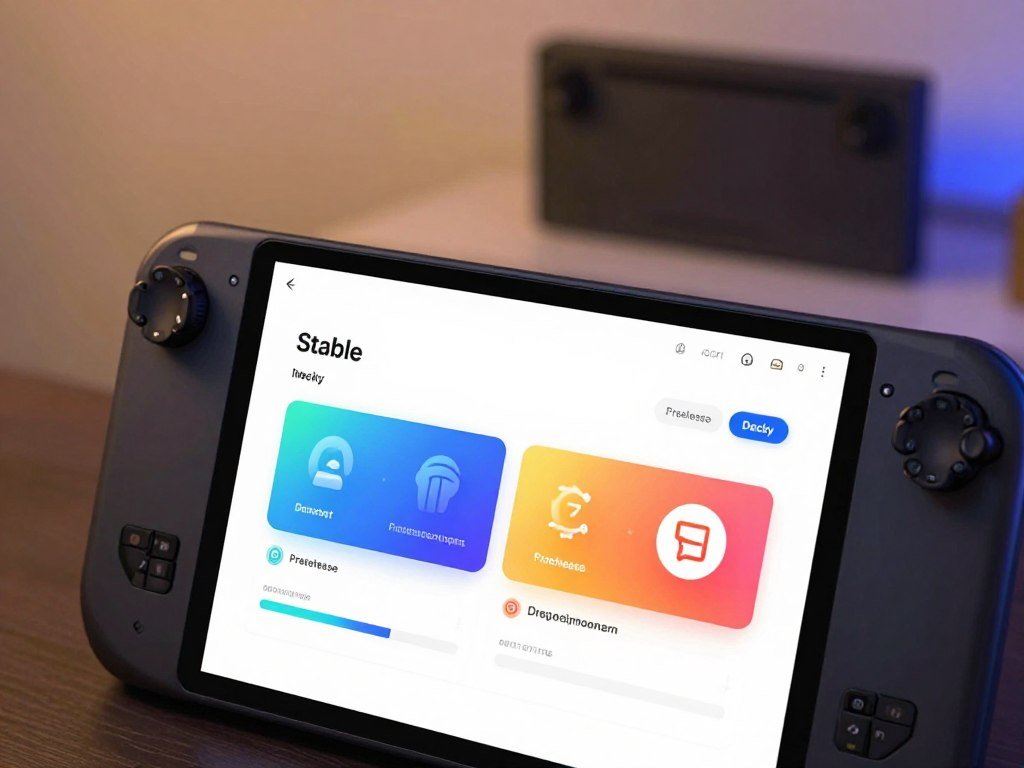
Should You Choose the Stable or Prerelease Branch?
Stable is the right branch for most Steam Deck owners, while prerelease is mainly for plugin developers. Most users should choose the stable branch for everyday use.
A prerelease is not automatically better just because Decky has a problem. Choose prerelease only for a specific test or compatibility need, and expect that it may be less stable.
| Branch | Intended user | Trade-off |
|---|---|---|
| Stable | Most users | Intended for regular use |
| Prerelease | Plugin developers | May be unstable |
Why stable is the everyday choice
The stable branch is intended for most users. It is the practical option if you want Decky tools without testing developer changes.
Regular users do not need developer mode or a prerelease just to use plugins. Pick the branch that matches your goal, not the one with the newest label.
When a prerelease may help
A plugin developer may need prerelease to test a change. A user following a specific compatibility fix may also try it when stable has not helped.
Keep the possible instability in mind before switching. A test branch can change how Decky behaves, so it should not be treated as a no-risk update.
If you only want a working menu and plugins, stay with stable. The prerelease branch makes more sense when you can name the issue it may address.
Choose prerelease only when you have a specific reason to test it and are prepared for instability.
What Does “An Error Occurred While Rendering This Content” Mean?
The rendering message means Decky could not display its content, and the menu provides four recovery choices. Read the options before selecting one.
The message does not mean you should immediately factory-reset the Steam Deck. One reported issue involved SteamOS 3.7.22 on the Stable update channel and Decky Loader 3.2.2, but that does not prove every case has the same cause.
| Menu choice | What it does | When to try it |
|---|---|---|
| Retry | Tries to render again | Use for a brief loading failure |
| Restart Steam | Restarts the Steam interface | Try if retry does not work |
| Restart Decky | Restarts Decky | Try if Decky content remains stuck |
| Disable Decky until next boot | Turns Decky off for this session | Use to test a Decky-related fault |
Read the error before choosing an action
Copy the error text as it appears, including any version details shown nearby. The exact wording can help distinguish a failed page from a plugin that stopped responding.
Retry is the smallest action when the page may have failed once. If the same message returns, repeated retries add little information.
Use the menu’s recovery options carefully
Restart Steam or Decky only when a fresh launch may clear the stuck interface. If neither works, disabling Decky until next boot can show whether the main interface works without it.
That temporary choice is a test, not a permanent removal. It can help you decide whether the fault sits in Decky or in the wider Steam interface.
If disabling Decky until next boot restores the interface, suspect a Decky or plugin compatibility problem rather than repeating the same retry.
Why Are the Decky Store and Settings Blank?
A blank store or settings page can be a Steam Beta Client compatibility problem even when the Decky tab itself is present. Check the client before assuming Decky vanished.
An issue title reports blank store and settings pages in the latest Steam Beta Client. That report does not prove every blank page has the same cause.
Decky Loader v3.2.6 included fixes for a June 2026 beta error boundary. That is a concrete compatibility example, not a claim that v3.2.6 is the newest release.
Check whether you use the Steam Beta Client and whether the problem appears on that client alone. Compare your Decky and client versions with a matching report in Decky’s issue tracker.
A blank page can affect the store, settings, or both. Note which page fails, since a report about the store alone may not match a settings failure.
A Steam client update and a Decky update have separate version numbers. Keep both when you compare your problem with a reported issue.
Compare the exact client and Decky versions with a matching issue before changing several settings at once.
What If Decky Loader Settings Still Will Not Load?
If Decky appears in Quick Access but its settings will not load, focus on the page failure rather than the installation. Keep the symptoms separate: a blank settings page is not the same as a missing tab.
Decky Loader settings are reached from its Quick Access menu tab. Decky and the Steam client are separate components, so their version numbers can differ.
Note whether the Decky store also appears blank, whether Steam uses a beta channel, and whether the text matches the rendering error.
Those details help narrow the failure to a page, a client combination, or a broader Decky issue. Do one controlled restart or installer-based update check at a time, then see whether the page changes.
Do not treat this sequence as proof that settings corruption has one universal cause. A settings page may fail for different reasons, and the visible tab alone does not identify which one.
If the same page remains blank, record the Decky version and Steam client version. Include the Steam update channel so you can compare the combination with a known issue.
A matching error message matters more than a vague report that settings are broken. Keep the words on screen intact instead of paraphrasing them.
Keep the exact error text and both component versions together when checking for a matching issue.
How Do You Troubleshoot CSS Loader on Steam Deck?
If CSS Loader is not working on Steam Deck but other Decky controls still open, isolate the theme before reinstalling the whole loader. Start with the plugin, not the full setup.
CSS Loader is a Decky plugin, so a broken theme may affect it without hiding Decky itself. Poorly configured plugins can cause lag, though CSS Loader does not always cause it.
Use this short checklist:
- Check whether Decky itself opens in Quick Access.
- Use an available Decky control to disable the suspected plugin or theme.
- Return to the normal Steam interface and test it.
- Restore theme changes one at a time.
Test the interface after disabling the suspected change. If the menu works again, the theme or plugin may be involved; if not, look beyond CSS Loader.
Keep track of which theme settings were active before the test. That makes it easier to spot a change that affects menus, game pages, or other parts of the interface.
A plugin that loads normally can still behave poorly with one theme configuration. Avoid changing several style settings between tests, or you will lose the clue.
Re-enable one theme change at a time so the setting that triggers the failure is identifiable.
What Should You Do When Decky Loader Plugins Stop Working?
If one Decky plugin fails while the rest of the menu works, troubleshoot that plugin before reinstalling Decky. One at a time is the clearest way to find the cause.
Decky Loader plugins run within the Steam Deck interface. A plugin failure does not automatically mean the loader itself is broken.
Check whether the problem starts only when the affected plugin is enabled. If other Decky controls still work, the failure may be limited to that plugin.
Separate a single-plugin issue from a wider Quick Access failure. When several controls stop responding together, the problem may reach beyond one plugin.
Some plugins may cause lag when they are configured poorly. Lag is one possible symptom, not a guaranteed result of using a plugin.
Use the plugin’s name and the behavior you see to describe the fault. “Slow” is less useful than noting which screen stutters or which control stops responding.
Do not reinstall the whole loader just because one plugin behaves oddly. A narrow test can preserve the rest of your working Decky setup.
Keep the plugin name and the exact behavior together, since a specific failure is easier to match to an existing issue.
Why Can’t You Install Plugins From the Decky Store?
If Decky opens but you cannot install plugins, first determine whether the store page loads or only the individual install fails. Those are separate problems.
A Steam Deck Decky plugin install failure differs from Decky Loader not appearing. The official installer restores Decky itself, while the store is where users get plugins.
Use this checklist to narrow the failure:
- Confirm the Decky tab opens.
- Confirm the store page loads.
- Retry one plugin rather than several.
- Note the plugin name and any message.
- Check whether the plugin comes from a trusted source.
If the store page itself is blank, an individual plugin install is not the first issue to solve. If the page loads but one install fails, keep the test focused on that plugin.
Do not treat a store problem as a reason to rerun the Decky installer by default. The installer and store serve different parts of the setup.
Take note of whether another plugin installs successfully. That result can help separate a store-wide failure from a problem tied to one listing.
Do not replace a failed store install with a random downloaded plugin file.
Can Syncthing or Another Service Block Decky Loader?
A service using port 1337 or 8080 can interfere with Decky even when the installer completed. Check for a conflict if Decky cannot start or acts as though a service is unavailable.
Decky Loader requires ports 1337 and 8080. Software using either required port can interfere, but a port conflict is only one possible cause.
| Port or service | Why to check it | Action |
|---|---|---|
| Port 1337 | Decky requires this port | Check for other software using it |
| Port 8080 | Decky requires this port | Check for other software using it |
| Syncthing service | May use port 8080 | Change service port to 8384 |
Check the ports Decky needs
Another app or service using either port can prevent Decky from working as expected. Check which services run on the Steam Deck before changing unrelated network settings.
A port conflict can look like a loader problem because Decky may be installed but unable to reach a service. The installer completing does not rule out that conflict.
Change Syncthing’s service port if necessary
Syncthing may use port 8080. When Syncthing runs as a service on Steam Deck, Decky recommends changing its service port to 8384.
That specific adjustment applies to Syncthing running as a service. It does not mean Syncthing causes every Decky failure or that every user needs to change a port.
Check whether Syncthing is running as a service before changing other network or system settings.
How Do SteamOS and Steam Client Updates Affect Compatibility?
A Decky failure that begins after a SteamOS or client update may reflect a compatibility change rather than a damaged installation. Compare versions before changing branches or removing plugins.
Decky compatibility can shift alongside SteamOS and Steam client updates. A Decky version number alone does not describe which Steam client build you use.
Decky Loader v3.2.6 included fixes for the June 2026 beta error boundary. This is one example of a compatibility change, not a claim that v3.2.6 is the newest release or fixes every fault.
A blank store issue has also been reported in the latest Steam Beta Client. The report makes the beta channel relevant to check, but it does not explain every blank page.
Compare your exact SteamOS version and Steam client channel with the issue you are investigating. Keep the Decky version separate from both.
A change that begins right after an update gives you a useful time marker. Note whether SteamOS, the Steam client, or Decky changed before the first failure.
Record the Decky version, SteamOS version, and client channel before testing another release.
Is It Safe to Use Decky Loader and Its Plugins?
Decky does not modify Steam files, but its plugins still deserve the same care as other software installed on a device. Use trusted plugins and understand what they do.
Decky injects React components into the Steam interface and runs scripts in the background. That is different from changing Steam files, but it still gives plugins a role in the device’s running interface.
Decky is intended for the SteamOS supplied on Steam Deck. HoloISO and other third-party SteamOS distributions are not officially supported.
Decky warns users not to install plugins from untrusted sources. Files installed outside the store deserve care unless you trust the project and understand the risk.
Developer mode does not make a plugin safe. It changes access or setup conditions, not the trustworthiness of the code you choose to run.
Keep plugins to projects you recognize, and be cautious with files shared by unknown accounts. A familiar name alone does not prove that a download is safe.
Use trusted plugin sources and avoid treating developer-mode installation as a safety check.
When Should You Report a Decky Loader Bug?
If reinstalling stable and prerelease has not fixed a repeatable failure, stop repeating the same steps and check existing issues. A clear report helps others tell whether they have the same problem.
Decky’s installation instructions recommend checking existing issues or filing a new one when both installer attempts fail. Basic questions can also be raised in Discord.
Check for a matching issue first
Search existing Decky Loader issues for the same error, version, and update channel. A close match can show whether the problem is already known.
Do not assume that a similar title describes the same fault. Compare the steps and versions before adding a comment or starting a new report.
Include useful details in a new report
Before reporting, gather the details maintainers need:
- Write the exact error text.
- Describe what you did just before it appeared.
- Include Decky and SteamOS versions.
- State the Steam update channel.
- Say whether stable and prerelease installer attempts both failed.
A useful report states what failed, what came just before it, and which versions were running.
Use GitHub for a bug report or feature request. Discord is an option for a basic question, but a public report does not guarantee a fix or response time.
Keep the report focused on one repeatable failure. A short sequence of steps is easier to follow than a list of unrelated changes.
A concise report with versions, channel, exact error, and reproduction steps gives maintainers the details needed to investigate.
Conclusion
Most Decky problems are easier to address once you separate a missing loader from a failing page or plugin. When Decky disappears after an update, use the stable installer first.
When the menu remains visible but its content fails, focus on the page, plugin, or compatibility clue instead. That keeps a small fault from turning into a full device reset.
Write down the exact message, Decky version, SteamOS version, and client channel before trying another change. Match the next action to the symptom, then check the exact versions and error before making another change.
FAQ
Do I need an administrator or sudo password to install Decky Loader?
No, Decky’s installation guidance says the installer can complete without an administrator or sudo password. Run the official installer in Desktop Mode and use its own choices. If your browser cannot open the downloaded file, Dolphin can open it. Do not guess a password or copy a terminal command from an unknown source to make the install work.
Can I use Decky Loader on a Windows handheld?
No, Decky Loader is intended for the SteamOS provided on Steam Deck, not Windows handhelds. HoloISO and other third-party SteamOS distributions are not officially supported either. A similar screen or handheld design does not make another operating system a supported Decky setup. Check which operating system your device runs before trying the installer.
Does Decky Loader change Steam files?
No, Decky Loader does not change Steam files. It injects React components into Steam’s user interface and runs scripts in the background. That design avoids modifying Steam files, but plugins still run as software on your device. Stick with trusted plugin projects, and be cautious with files from people or sites you do not know.
Why might Syncthing interfere with Decky Loader?
Decky requires ports 1337 and 8080, and Syncthing may use port 8080. If Syncthing runs as a service on Steam Deck, Decky recommends changing its service port to 8384. That can clear a port conflict, but Syncthing is not the cause of every Decky failure. Check whether the service is running before changing network settings.
Should most users install the stable or prerelease branch?
Most users should install the stable branch because Decky intends it for regular use. Prereleases are aimed mainly at plugin developers and may be unstable. A developer or someone testing a specific compatibility fix may have a reason to try prerelease. For everyday use, the stable branch is the safer starting choice.
What should I do if both stable and prerelease reinstalls fail?
Check existing Decky Loader issues first, then file a report if no match explains the failure. Include the exact error, Decky and SteamOS versions, Steam update channel, and steps that reproduce the problem. Note whether both installer branches failed. GitHub is the place for bug reports and feature requests, while Discord can help with basic questions.



