
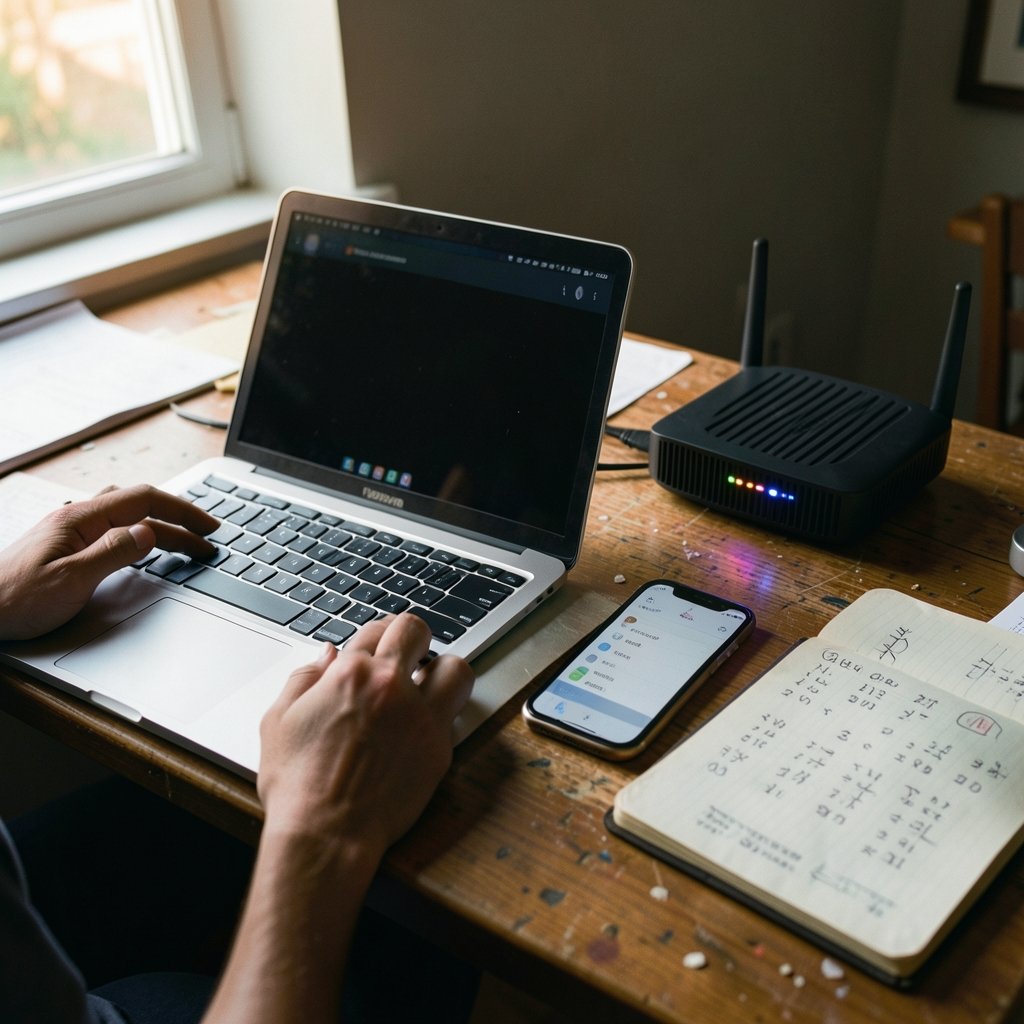
How much data does a single evening of cloud gaming actually eat? Most players guess wrong, and the bill or the throttled connection that follows is a nasty surprise. This 13-step guide shows how to build a free cloud gaming data use tracker using tools you already own, so you can see exactly where your gigabytes go and make smarter choices about resolution, session length, and carriers.
One honest note before starting: there is no official, industry-standard “13-step tracker” methodology. The steps below are a practical framework assembled from how data measurement actually works on phones, PCs, and routers. Treat every number you record as an estimate shaped by your own settings, not a lab-grade measurement.
Why Cloud Gaming Data Adds Up So Fast
Cloud gaming does not download a game. It streams a video of a game, frame by frame, for as long as you play. That distinction matters. A 60 GB game download happens once; a streaming session repeats that kind of traffic every few hours at high settings.
The variables that drive consumption are well understood even if exact figures vary by service:
| Factor | Effect on data use | What you can control |
|---|---|---|
| Resolution | Higher resolution means more bits per second | Stream at 1080p instead of 4K |
| Frame rate | 60 fps moves more data than 30 fps | Cap frame rate in service settings |
| Session length | Data scales linearly with time played | Set a timer, take breaks |
| Bitrate ceiling | The hard limit your service allows | Lower it in the app’s streaming settings |
| Network quality | Retries and buffering can add overhead | Use stable Wi-Fi over flaky mobile data |
The practical takeaway: resolution and session length are your two biggest levers. Everything else is fine-tuning. If you want a broader view of how the major platforms compare on pricing and infrastructure, the breakdown of AWS vs Azure vs Google Cloud in 2026 explains why streaming capacity and cost vary so much between providers.
The 13 Steps to Build Your Tracker
Step 1: Pick Your Measurement Point
Decide where you will count data. The three realistic options are your phone’s built-in counter, your PC’s network statistics, or your router’s per-device logs. Pick one and stick with it, because mixing sources produces numbers that cannot be compared.
Step 2: Reset Your Counter to Zero
Before your first session, reset the relevant counter. On Android, the data usage screen lets you set a billing cycle start date. On iOS, the cellular screen has a reset option. On a router, note the current byte count and treat it as your baseline.
Step 3: Record the Baseline Date and Time
Write down the exact date and time of your reset. This sounds trivial until you try to reconcile a month of sessions and cannot remember when the window started. A simple note on your phone is enough.
Step 4: Note Your Streaming Settings
Before playing, open the cloud service’s settings and record resolution, frame rate, and any bitrate cap. These are the settings you will change later to test impact, so the baseline must be documented.
Step 5: Run a Controlled 15-Minute Session
Play for exactly 15 minutes with no other apps running. Do not browse, stream music, or download updates in the background. This isolates the gaming traffic from everything else on the device.
Step 6: Read the Counter and Do the Math
Check the counter immediately after the session. Divide the megabytes used by 15, then multiply by 60 for an hourly estimate. Repeat once on a different day to check consistency. If the two estimates differ wildly, your network or settings changed between sessions.
Step 7: Test a Second Resolution Tier
Drop one resolution step, such as 1440p to 1080p, and repeat steps 5 and 6. Most players find the drop saves a meaningful share of data with little visible quality loss on a laptop screen. This single comparison is usually the most useful data point in the whole exercise.
Step 8: Log Every Session in a Simple Sheet
Create a spreadsheet with columns for date, service, resolution, duration, and data used. A free spreadsheet app works fine. The habit matters more than the tool: unlogged sessions are invisible sessions.
Step 9: Separate Gaming Data From Everything Else
Your phone counter includes app updates, photo backups, and video calls. If gaming is a small slice, the total will mislead you. Where possible, use a dedicated device or check per-app breakdowns rather than a single device-wide number.
Step 10: Compare Against Your Data Cap
Look up your carrier or ISP plan’s actual cap and throttling policy. Policies change often, so check the current terms rather than relying on what you remember signing. Regulators such as the FCC publish consumer guidance on broadband practices that helps decode the fine print. (FCC Broadband Speed Guide)
Step 11: Set a Session Budget
Divide your monthly data allowance by your measured hourly rate. That gives you a rough playtime budget. If the number feels small, you now know precisely which setting to change rather than guessing.
Step 12: Automate Reminders
Set a recurring phone reminder to check the counter weekly. Data surprises almost always come from forgetting to look, not from a single runaway session. A five-minute weekly check prevents the end-of-month panic.
Step 13: Review Monthly and Adjust
At the end of each month, compare logged sessions against the counter total. If they diverge, find out why: background updates, a guest on your Wi-Fi, or a service silently raising its bitrate. Then adjust your settings and repeat.
What Actually Works in Practice
First-hand experience from anyone who has tracked streaming data long enough surfaces the same lessons.
Measure one variable at a time. Players who change resolution, frame rate, and network in the same session learn nothing. Change one thing, measure, then change the next.
Trust the trend, not the decimal. Counters round, background traffic interferes, and services adjust bitrates dynamically. A reading of 2.1 GB versus 2.3 GB for the same session is noise. A consistent 40 percent gap between two resolution tiers is a real signal.
Wi-Fi and mobile data are not interchangeable. Mobile networks add overhead and retries that inflate counts. If you game on cellular, measure on cellular, because your Wi-Fi numbers will understate the cost.
Free tiers change without notice. Ad-supported and free cloud gaming offerings shift their limits and quality ceilings regularly. A tracker built around last year’s free tier may measure a service that no longer exists in that form. Re-baseline whenever a provider announces changes.
The counter is not the bill. Your device counter and your carrier’s meter can disagree because of how each rounds and when each resets. If the gap is large and persistent, that is worth a support call, not a spreadsheet tweak.
For readers running more complex home setups, tracking data alongside other infrastructure work pays off. Teams managing cloud environments often pair usage monitoring with security tooling, and a guide like Wazuh SIEM detect php2shell in 13 steps shows how structured, stepwise monitoring habits transfer across very different technical tasks.
Common Mistakes That Skew Your Numbers
A tracker is only as good as its discipline. These errors show up again and again:
- Forgetting the reset. A counter that has been running for three months tells you nothing about one session.
- Leaving auto-updates on. A game or OS update during a “gaming only” session can dwarf the streaming traffic.
- Measuring during network trouble. Buffering and reconnection attempts add traffic that will not repeat on a stable connection.
- Assuming published bitrates are exact. Provider guidance describes typical ranges, not guarantees. Your measured rate is the number that matters for your budget.
- Ignoring other devices. A router-level total includes every phone, TV, and smart speaker in the house. Attribute carefully or measure at the device.
Where the Numbers Come From
Because no single authority publishes a definitive cloud gaming data standard, the most reliable sources are the ones closest to the traffic: the platform’s own bandwidth guidance, your operating system’s built-in counter, and your network equipment’s logs. Mobile operating systems document their data tracking features officially, and cloud gaming providers publish bandwidth recommendations in their support pages. Cross-check any figure you find online against at least one of these primary sources before building a budget around it.
It also helps to understand the broader infrastructure picture. Data centers and cloud regions shape streaming quality and cost, and coverage of the Google data center India backlash in 2026 illustrates how local infrastructure decisions ripple out to end users’ experience and pricing.
Extending the Tracker Beyond Gaming
Once the 13-step habit is in place, the same approach works for any bandwidth-heavy activity. Video editing pipelines, AI-generated ad workflows, and large file transfers all benefit from measured baselines rather than guesses. If you work with creative tooling, an image to video AI ad pipeline in 13 steps follows a similarly structured, measure-first philosophy that pairs naturally with data tracking.
Hardware choices matter too. A device that throttles under load or drops Wi-Fi will inflate your retry traffic. Keeping an eye on thermal performance, as covered in this guide on how to check GPU temperature in 13 steps, prevents a different kind of performance surprise. And if you are equipping a setup for long sessions, reviews of the best wireless gaming headsets in 2026 help you avoid gear that adds its own wireless overhead.
Conclusion
A free cloud gaming data use tracker is not a product you buy. It is a repeatable habit: reset, measure, log, compare, adjust. The 13 steps above give you a structure, but the real value comes from running the loop consistently for a month or two. By then you will know your true hourly rate at each resolution, how close you run to your cap, and exactly which setting to change when the budget tightens. No subscription, no special hardware, and no guesswork required.
FAQ
How accurate is a phone’s built-in data counter for cloud gaming?
It is reasonably accurate for total traffic but does not separate gaming from other apps unless the operating system offers a per-app breakdown. For precision, measure in a controlled session with background apps closed, or use a router’s per-device logs.
Do free cloud gaming services use less data than paid tiers?
Not necessarily. Free and ad-supported tiers often cap resolution or queue time, which can reduce bitrate, but some keep quality high to attract users. The only reliable answer is to measure your specific service at your specific settings.
How much data does one hour of cloud gaming typically use?

There is no universal figure because bitrate depends on resolution, frame rate, and the provider’s encoding. Measure a 15-minute session and multiply by four. That estimate will be far more useful than any published average.
Does lowering resolution actually save data?
Yes, in most cases. Bitrate generally scales with resolution, so dropping from 4K to 1080p usually produces a substantial reduction. Test it yourself in a controlled session to see the real gap on your setup.
Why does my carrier’s data meter disagree with my phone?
Meters can differ because of rounding, reset timing, and how each side counts retransmitted packets. Small gaps are normal. Large, persistent gaps are worth raising with your carrier.
Can I track cloud gaming data without installing anything?
Yes. Phone settings screens, PC network statistics, and router admin pages all report data use without extra software. The tradeoff is less detail, which is why a simple manual log fills the gap.



