
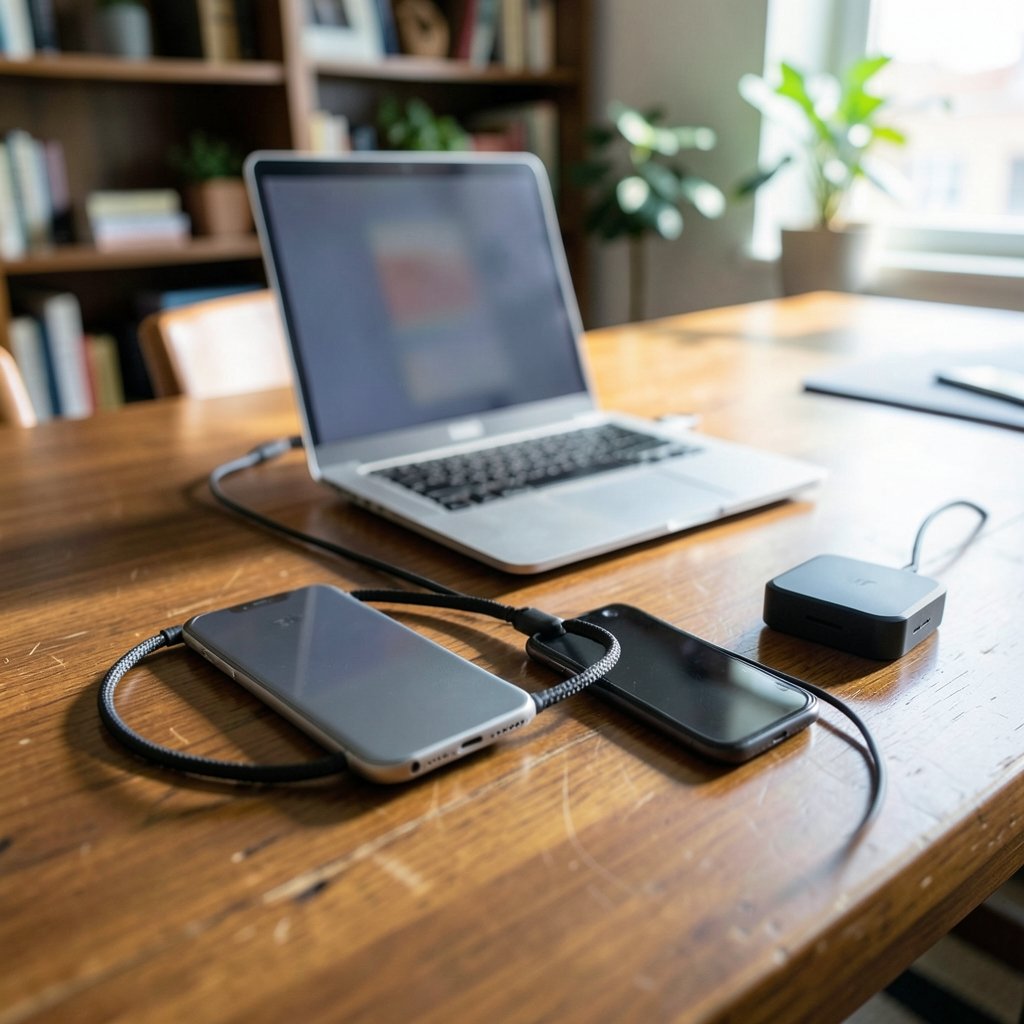
A 4K video clip shot on a modern phone can easily top 400 MB. Multiply that by a vacation’s worth of footage, and you’re staring at tens of gigabytes that need to move somewhere safe. Yet the cable that could do the job in minutes often sits unused in a drawer while people email themselves photos one at a time. That mismatch between what phones can create and how people move the results is one of the most common everyday tech frustrations.
The good news: every phone sold today can hand files to a computer reliably. The trick is picking the right method for the file size, the operating systems involved, and how often you’ll repeat the task. This guide walks through what actually works, what wastes time, and the small mistakes that trip people up most often.
Start With the Cable: Still the Most Reliable Route
Wired transfer gets dismissed as old-fashioned, but it remains the most dependable option, especially for large batches. It doesn’t depend on Wi-Fi strength, account storage limits, or whether the office guest network blocks device-to-device traffic.
Android to Windows
Plug the phone into a USB port, then pull down the notification shade and tap the USB connection notice. Choose File transfer (sometimes labeled MTP). The phone then appears in File Explorer as a drive, and you can drag folders straight to the desktop. If nothing shows up, the usual culprit is a charge-only cable. Swapping cables fixes this more often than any software setting.
iPhone to Windows
Apple’s approach differs. Windows machines need the Apple Devices app, which replaced iTunes for device management in 2024. Once installed, the phone appears in the app and photos or files can be imported. It’s clunkier than Android’s plug-and-play behavior, but it works without cloud storage.
iPhone to Mac
On macOS, the Finder handles everything natively. The phone mounts in the sidebar, and files move without extra software. This is one of the few places where the Apple ecosystem genuinely earns its reputation for smoothness.
| Setup | Tool needed | Best for |
|---|---|---|
| Android to Windows | None (native MTP) | Large batches, full folders |
| Android to Mac | Android File Transfer or similar | Occasional transfers |
| iPhone to Windows | Apple Devices app | Photos, backups |
| iPhone to Mac | Finder (built in) | Everything |
One practical tip: authenticate the phone before connecting. Many devices hide their storage behind the lock screen for security, and users often assume the cable is broken when the phone simply needs a fingerprint.
Wi-Fi Transfers: Fast When the Network Cooperates

Wireless transfer has improved dramatically. Google’s Quick Share (which absorbed Nearby Share in early 2024) now has a Windows app, letting Android phones beam files to a PC over local Wi-Fi and Bluetooth. For iPhone users, AirDrop handles Mac transfers beautifully, though it remains Apple-only and won’t talk to Windows or Android at all.
Browser-based tools in the PairDrop and Snapdrop family offer a clever middle ground. Both devices open the same page on the same network, and files move directly between them without touching a cloud server. It’s elegant, free, and requires no installation. The catch: corporate and guest Wi-Fi networks frequently block the local connections these tools rely on, so they work best at home.
LocalSend, an open-source app, takes the same idea and packages it as installable software, which tends to be more stable than browser tabs for repeated use.
The practical rule of thumb: wireless is wonderful for a handful of documents or photos, but if you’re moving a folder of videos, the cable will finish before the Wi-Fi handshake does.
Cloud Sync: Convenient but Easy to Misuse
Google Drive, OneDrive, iCloud Drive, and Dropbox all work across Android, iOS, Windows, and macOS. Upload from the phone, download on the computer, done. The method is platform-agnostic and needs no cables or shared network.
The hidden cost is storage. Free tiers fill up fast once videos enter the picture, and upload speeds on home broadband are often a fraction of download speeds. A 5 GB video folder can take an hour to upload and another chunk of time to download, all while consuming quota you might need elsewhere.
Cloud sync shines for documents and small photo sets you want accessible everywhere. It’s a poor fit for one-time bulk moves.
Bluetooth and Messaging Apps: Fine for Small Stuff Only
Bluetooth file transfer still exists, and it’s fine for a single PDF or a contact card. In practice, speeds typically sit well under 1 MB/s, which means a 50 MB file can take minutes. It’s a backup plan, not a strategy.
Emailing files to yourself has similar limits. Most providers cap attachments around 25 MB, and even that varies. Chat apps like WhatsApp or Telegram compress photos by default unless you explicitly send as a document, which quietly degrades image quality. Users who wonder why their transferred photos look softer almost always sent them through a messaging app.
Matching the Method to the Job
Different tasks deserve different tools. A quick comparison helps sort the decision:
| Situation | Best method | Why |
|---|---|---|
| 200 vacation photos | USB cable | Fast, no compression, no quota |
| One PDF for tomorrow’s meeting | Cloud drive or email | Zero setup |
| Full phone backup | USB cable or manufacturer software | Handles volume |
| Sharing a file with a colleague nearby | Quick Share or browser tool | No cable, no account |
| Small image for a chat | Messaging app (as document) | Convenience wins |
People upgrading devices often ask which phone to buy next, and transfer method compatibility should factor into that decision. Someone weighing the iPhone 18 vs Galaxy S26 will find that Android’s native Windows support makes PC life easier, while iPhone-to-Mac transfers are seamless in a way Android can’t match. Neither is universally better; the right answer depends on which computer sits on the desk.
Common Mistakes That Waste Time
A few recurring errors account for most transfer headaches.
Using a charge-only cable. Many cables bundled with accessories carry power but no data. If the phone charges but never appears on the computer, try a different cable before troubleshooting software.
Forgetting to change the USB mode. Android defaults to charging mode for security. The file transfer option must be selected manually each time unless the default is changed in developer settings.
Sending photos through chat apps. Compression is automatic and often invisible until you zoom in. Sending as a document preserves the original file.
Transferring to a nearly full drive. A computer with 2 GB free will fail partway through a 10 GB transfer, sometimes leaving half-copied files behind. Check space first.
Skipping the safe-eject step. Yanking a cable mid-write can corrupt files. Eject the phone properly, just as you would a USB stick.
Ignoring security on shared computers. Connecting a phone to an unfamiliar PC exposes its storage. Authenticate the phone deliberately, transfer what’s needed, then disconnect. Avoid public or library machines for anything sensitive.
Organizing Files So You Never Search Twice
Transfer speed matters less than what happens afterward. A folder called “DCIM” full of IMG_20240115 files is nearly useless six months later.
A simple habit: create a dated folder on the computer before transferring (for example, 2025-06-vacation), then move files into it immediately. Rename the handful you’ll actually use. For photos, most operating systems can sort by date automatically, which handles the bulk without manual effort.
Backups deserve a mention too. A transfer to a single laptop isn’t a backup; it’s a copy. The widely cited 3-2-1 rule from data recovery professionals, covered in general terms on Wikipedia’s backup article, recommends three copies of important data, on two different media, with one stored off-site. Phone photos of family events often exist in exactly one place, which is a quiet risk most people don’t think about until a phone is lost.
When You’re Moving More Than Files
Phone migrations involve more than photos. Contacts, messages, app data, and two-factor authentication settings all need to survive the switch. Authenticator apps are a classic stumbling block, since losing those codes can lock users out of accounts entirely. Anyone planning a device change should read up on how to use Google Authenticator transfer before wiping the old phone, because recovering from a lost authenticator setup is far harder than backing it up in advance. (Protecting Personal Information: A Guide for Business)
Likewise, people setting up a new computer often want their phone to feel familiar. Choosing the best Android phone with transfer-friendly features, or checking which budget phone in Canada supports modern USB speeds, can save hours down the line. The transfer experience is part of the purchase decision, not an afterthought.
A Realistic Workflow for Most People
For the average household, a repeatable routine beats any single clever tool.
- Connect the phone by USB and select file transfer mode.
- Copy new photos and videos into a dated folder on the computer.
- Verify the file count matches before deleting anything from the phone.
- Let cloud sync handle documents that need to be available everywhere.
- Keep one external drive as an off-site or rotated backup.
This takes a few minutes a month and eliminates the panic of a full phone storage warning before a trip.
Conclusion
Transferring files from a phone to a PC isn’t complicated, but the wrong method makes it feel that way. Wired connections remain the fastest and most reliable choice for large batches, wireless tools like Quick Share and AirDrop handle quick shares gracefully within their ecosystems, and cloud services earn their place for documents that need to live everywhere. The failures almost always trace back to small details: a charge-only cable, a forgotten USB mode, a chat app quietly compressing photos.
Pick the method that matches the job, build a simple folder habit, and keep a real backup. Do that, and moving files stops being a chore and becomes something that just happens in the background, the way good technology should.
Frequently Asked Questions
Why won’t my computer recognize my phone when I plug it in?
The most common cause is a charge-only USB cable. Try a different cable first. If that fails, authenticate the phone and check the notification shade for a USB options prompt, then select file transfer mode. On Windows, a missing or outdated driver can also be the cause.
Is it faster to transfer files by cable or Wi-Fi?
A USB cable is almost always faster for large files, since it isn’t limited by network speed or interference. Wi-Fi tools like Quick Share are convenient for a handful of photos but slow down noticeably with video files or large folders.
Does AirDrop work with Windows PCs?
No. AirDrop is limited to Apple devices, so it transfers between iPhone, iPad, and Mac only. iPhone users moving files to a Windows PC need the Apple Devices app with a cable, a cloud service, or a cross-platform tool.
Do messaging apps reduce photo quality when I send files?
Yes, by default. Apps like WhatsApp and Telegram compress images unless you choose to send them as a document. For full-quality originals, use a cable, a cloud drive, or the “send as file” option in the app.
How do I transfer a very large video file that won’t fit in email?
Email is out for anything beyond roughly 25 MB. Use a USB cable for a direct copy, or a cloud drive if you have enough storage quota. Browser-based local transfer tools also work well for large single files when both devices are on the same network.
Is it safe to plug my phone into a public or work computer?
It carries risk. Connecting a phone exposes its storage to that machine, and some corporate systems log or restrict device access. For sensitive files, transfer only on a computer you trust, keep the phone locked until you’re ready, and disconnect immediately afterward.
