

Roughly half of all Macs sold today run on Apple silicon, and that single hardware shift changed the Safe Mode routine more than any other troubleshooting step in recent memory. The old advice—hold Shift at startup—still works, but only on Intel machines. On an M-series Mac, holding Shift does nothing at all. That mismatch trips up thousands of users every year who follow outdated forum posts and assume their keyboard is broken.
This guide walks through the exact steps for both chip families, explains what Safe Mode actually does under the hood, and covers the practical details that Apple’s own documentation tends to bury: how to tell you’re in Safe Mode, how to get out, and when the whole exercise is a waste of time.
What Safe Mode Actually Does on a Mac
Safe Mode is a stripped-down startup state. When macOS boots into it, the system performs a startup disk check and repairs directory problems if it finds any. It also loads only essential kernel extensions, skips most third-party startup items, and trims visual effects. The result is a leaner environment where misbehaving software can’t interfere.
Apple documents this behavior in its official guide on starting up your Mac in safe mode, which is worth reading alongside this article since Apple occasionally adjusts the wording and steps with new macOS releases.
The practical value is diagnostic. If a problem disappears in Safe Mode, the culprit is almost certainly software—a login item, a kernel extension, a corrupted cache, or a font conflict. If the problem persists even in Safe Mode, the issue is more likely hardware or a deeper system fault. That single data point saves hours of guessing.
One important caveat: Safe Mode is a temporary troubleshooting state, not a permanent configuration. Nothing about it is meant to be a daily driver.
Before You Start: What You Need
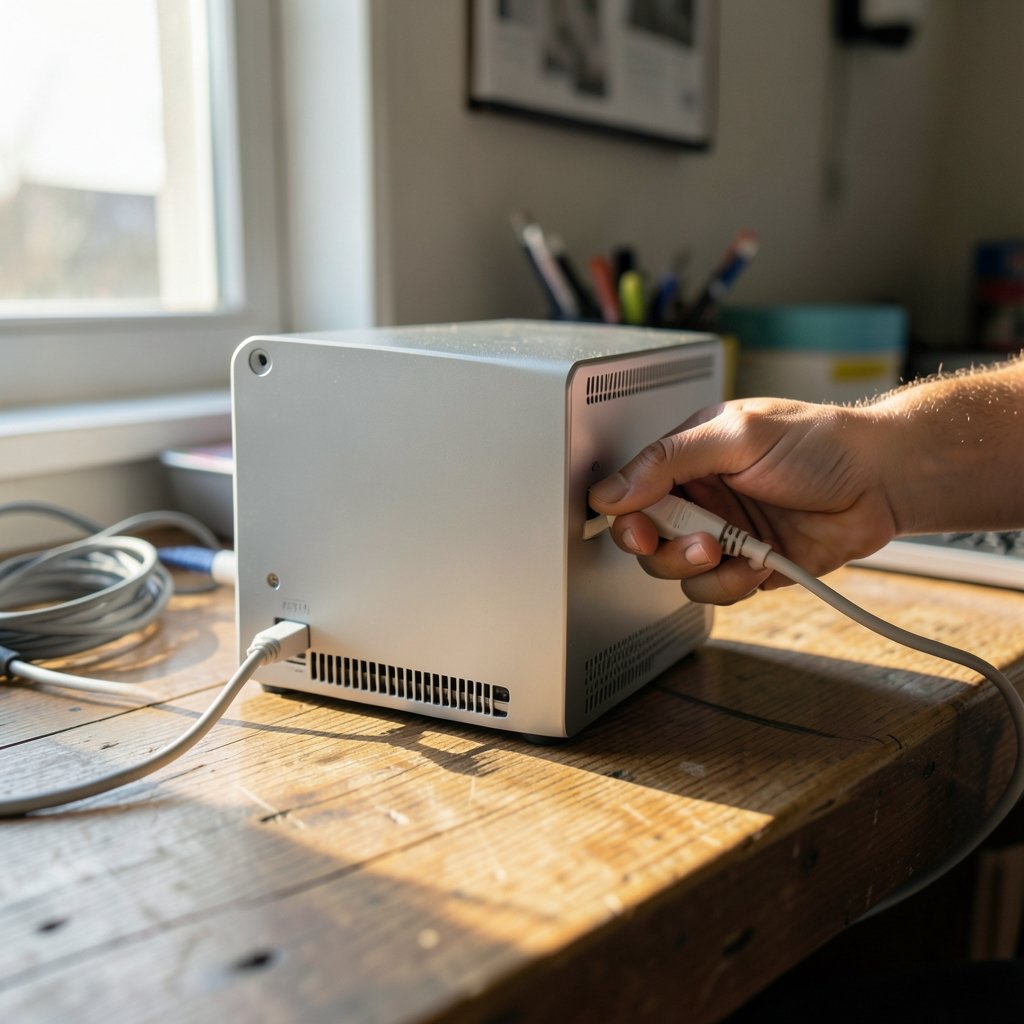
A few things make the process smoother:
- A wired or reliable keyboard. Bluetooth keyboards can fail to register during early boot, especially on desktop Macs. If you have a USB keyboard, use it.
- Your firmware password, if one is set. Some Macs will prompt for it before reaching startup options.
- Patience. Apple silicon Macs take longer to reach the startup options screen than you might expect. The power button needs a genuine long press.
If FileVault is enabled, you may be asked to log in twice: once to open the disk and once at the normal login window. Apple’s documentation on this varies by macOS version, so an extra password prompt does not mean something is wrong.
How to Boot an Apple Silicon Mac in Safe Mode
This applies to any Mac with an M1, M2, M3, or M4 chip. The procedure is entirely different from Intel machines because Apple silicon doesn’t use traditional startup key combinations.
- Shut down completely. Use the Apple menu and choose Shut Down. Wait for the screen to go fully black.
- Press and hold the power button. Keep holding it. After roughly ten seconds, the screen shows “Loading startup options.”
- Release the power button when you see the startup options screen with your disk icons.
- Select your startup disk, then press and hold the Shift key.
- Click “Continue in Safe Mode” while still holding Shift.
- Release Shift and let the Mac boot. You’ll see the login window as usual.
The startup options screen itself arrived with macOS Big Sur in late 2020, which is why older tutorials miss it entirely. If you’re following a guide written before that date, it almost certainly describes the Intel method.
A common mistake: people tap the power button instead of holding it. A quick tap just turns the Mac on normally. The long press is what triggers the recovery environment.
How to Boot an Intel Mac in Safe Mode
Intel Macs use the classic method, and it’s simpler—no startup options screen, no disk selection.
- Shut down the Mac completely.
- Press the power button, then immediately press and hold Shift.
- Hold Shift until the login window appears. You can release it once you see the login screen.
- Log in. You may be asked to log in twice if FileVault is active.
Apple lists Shift as the Safe Mode key in its Mac startup key combinations reference, which is a useful bookmark for anyone who troubleshoots Macs regularly. The same page covers target disk mode, recovery mode, and other startup shortcuts.
The most common failure here is timing. Holding Shift too late—after the Apple logo appears—won’t work. The key needs to be down at the moment the startup chime or logo sequence begins.
How to Tell You’re Actually in Safe Mode
Safe Mode isn’t always obvious. There’s no giant banner. Instead, look for these signals:
| Signal | What You’ll See |
|---|---|
| Login window | “Safe Boot” appears in the top-right corner of the login screen (varies by macOS version) |
| Visual effects | Reduced transparency, no window animations, plainer appearance |
| Menu bar | “Safe Boot” may appear in the Apple menu |
| Startup items | Third-party login items and menu bar apps fail to launch |
| Graphics | On Apple silicon, some GPU and network features are limited |
If none of these appear, you probably didn’t enter Safe Mode. Shut down and try again, paying close attention to the timing.
The visual differences catch people off guard. A Mac that suddenly looks flat and dated in Safe Mode is behaving correctly—that’s the point. The system is running a minimal graphics stack.
Troubleshooting When Safe Mode Won’t Start
Sometimes the process stalls. A few scenarios and fixes:
The Mac boots straight to the normal desktop. The Shift key wasn’t registered. On Intel, try a wired keyboard. On Apple silicon, make sure you’re holding the power button long enough to reach startup options.
The Mac asks for a firmware password. Enter it. If you don’t know it, you’ll need to contact Apple or an authorized service provider—there’s no workaround.
The Mac kernel panics during Safe Mode boot. That’s a strong hardware signal. Apple’s guide on what to do if your Mac doesn’t start up all the way walks through the next diagnostic steps.
The startup options screen never appears on Apple silicon. Disconnect all external devices except keyboard and mouse, then try again. A misbehaving peripheral can interrupt the boot sequence.
If you’ve ruled out startup problems and suspect something malicious is at play instead, a separate walkthrough on how to check for malware on a Mac covers the scanning and cleanup side, which Safe Mode alone won’t handle.
What to Do Once You’re In Safe Mode
Safe Mode is a diagnostic tool, so use it deliberately. Here’s a practical sequence:
- Reproduce the problem. Open the app or perform the action that was failing. Note whether it still fails.
- Check login items. Go to System Settings and review what’s set to launch at startup. Disable suspects.
- Clear caches if needed. Safe Mode clears some system caches automatically on boot, which resolves a surprising number of odd glitches.
- Test network behavior. On Apple silicon, Safe Mode limits some networking features, so don’t use it to judge Wi-Fi performance.
- Restart normally and see whether the issue returns.
If the problem vanishes in Safe Mode but comes back after a normal restart, the cause is a third-party startup item or kernel extension. Re-enable items one at a time to isolate the offender. This is tedious but reliable—binary search your startup items rather than guessing.
If you’re also dealing with browser-based threats while troubleshooting, a guide on how to check whether a link is safe is a sensible companion read, since phishing pages often masquerade as fix-it tools.
How to Exit Safe Mode
This is the easiest part, and also where confusion peaks. To leave Safe Mode, simply restart the Mac normally. Don’t hold Shift. Don’t hold the power button. Just choose Restart from the Apple menu, or press the power button once on a shut-down machine.
The Mac will boot into its regular configuration with all extensions, startup items, and visual effects restored. There’s no toggle to switch off—Safe Mode is a one-boot state by design.
If the Mac seems stuck in Safe Mode across multiple restarts, that usually means the Shift key is physically stuck or a peripheral is sending a phantom keystroke. Unplug external keyboards and try again.
When Safe Mode Won’t Help
Safe Mode is not a universal fix, and it’s worth being honest about its limits:
- Hardware failures. A failing SSD, bad RAM, or a swollen battery won’t care about Safe Mode.
- Disk corruption beyond directory repair. If the startup disk check can’t fix it, you’ll need Disk Utility from Recovery Mode.
- Software that installs system-level components. Some security tools and virtualization software load kernel extensions that Safe Mode blocks entirely, making diagnosis impossible.
- Performance complaints. Safe Mode makes everything slower on purpose. Don’t use it to benchmark.
For general Mac maintenance habits—screenshots, shortcuts, editor choices—there are better resources than a diagnostic boot. If you’ve ever fumbled for the right key combo, this guide to the undo shortcut key for Windows and Mac is a handy reference, and anyone setting up a development environment will appreciate this roundup of the best code editor for Mac.
A Note on Apple Silicon Differences
The Apple silicon Safe Mode has quirks worth flagging. According to Apple’s documentation, it limits some network and graphics capabilities more aggressively than the Intel version. That means certain apps may refuse to launch, and some external displays may behave oddly. This is expected behavior, not a fault.
Apple’s Platform Security guide explains the underlying architecture—signed system volumes, sealed snapshots, and boot policy—which clarifies why the startup process looks so different on M-series hardware. The short version: Apple silicon verifies the system at boot in ways Intel Macs never did, and Safe Mode slots into that verification chain rather than bypassing it.
Practically, this means Apple silicon users should expect the startup options screen every time, and should never expect the old Shift-hold trick to work. The hardware changed; the ritual changed with it.
Conclusion
Booting a Mac in Safe Mode comes down to one question: which chip is inside? Apple silicon Macs need a long power-button press, a startup disk selection, and a Shift-held click on “Continue in Safe Mode.” Intel Macs need a Shift key held from the moment of power-on until the login window appears. Get that distinction right and the rest is straightforward.
The real skill isn’t the keystroke—it’s knowing what to do with the result. Safe Mode is a controlled experiment. If the problem disappears, you’ve narrowed the cause to third-party software and can start disabling startup items. If it persists, you’re looking at hardware or deeper system damage, and it’s time for Recovery Mode or a service appointment. Treat Safe Mode as one step in a diagnostic process rather than a cure, and it will save you far more time than it costs.
Frequently Asked Questions
Does Safe Mode delete files or apps?
No. Safe Mode doesn’t remove anything. It temporarily disables startup items, limits kernel extensions, and skips some visual effects, but your files, apps, and settings remain untouched. Everything returns to normal after a standard restart.
Why doesn’t holding Shift work on my new Mac?
Because it has an Apple silicon chip. The Shift-hold method only applies to Intel Macs. On M-series machines, you must shut down, hold the power button until “Loading startup options” appears, select your disk, hold Shift, and click “Continue in Safe Mode.”
How long should I stay in Safe Mode?
Only as long as you need to test the problem. Run your diagnostic, note the results, then restart normally. There’s no benefit to extended Safe Mode use, and several drawbacks—reduced performance, missing features, and blocked third-party software.
Can I use Safe Mode to fix a slow Mac?
It can help identify the cause, but it won’t fix speed issues directly. If your Mac feels fast in Safe Mode, a startup item or login app is likely dragging it down. If it’s still slow in Safe Mode, the problem is more fundamental—possibly disk health or hardware.
What if my Mac restarts itself while entering Safe Mode?
A spontaneous restart during boot suggests a kernel panic, which often points to hardware or a corrupted system volume. Try booting into Recovery Mode and running Disk Utility’s First Aid. If that fails, Apple’s startup troubleshooting guidance is the next stop.
Do I need Safe Mode to install macOS updates?
No. Safe Mode isn’t part of the normal update process. In fact, installing major updates from Safe Mode can cause problems. Boot normally, install updates from System Settings, and reserve Safe Mode for diagnosing issues after an update goes wrong.



