

A dead MacBook is a special kind of frustrating. One minute you’re finishing a document, and the next the screen goes black and the charger light stays dark. Here’s the surprising part: in a lot of cases, the Mac isn’t broken at all. Modern MacBooks deliberately stop or pause charging for reasons that have nothing to do with hardware failure, and knowing the difference between “paused on purpose” and “actually broken” saves people hundreds of dollars in unnecessary repairs.
This guide walks through the fixes in the order that makes sense, from the ten-second checks to the ones that require a little more patience. It covers both Intel Macs and Apple silicon models, because the steps are not always the same.
Start With the Boring Stuff: Cable, Adapter, and Port
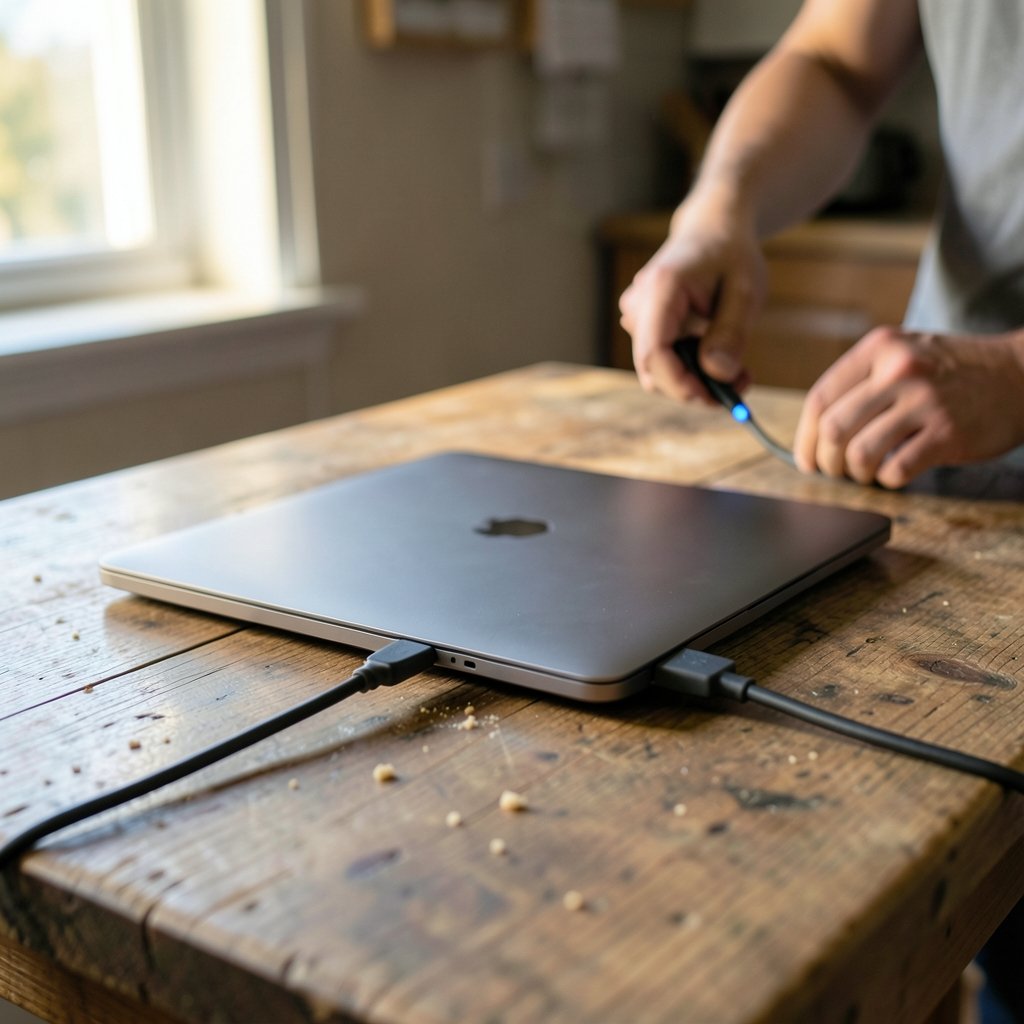
Before touching any settings, rule out the simplest culprits. Apple’s long-standing troubleshooting guidance begins here for good reason: a frayed cable or a dusty port causes more charging failures than any logic board ever will.
- Swap the cable. Use a known-good USB-C cable, ideally the one that came with the Mac. Cheap cables often carry data fine but fail to negotiate proper power delivery.
- Swap the adapter. Try a different charger with the correct wattage for the model. An underpowered adapter may charge slowly or not at all when the Mac is under load.
- Try a different port. MacBooks have multiple USB-C or MagSafe ports, and one of them can fail while the others keep working.
- Inspect for debris. Shine a light into the port. Lint, dust, and pocket fuzz compact into a hard layer that blocks contact. A wooden toothpick works better than metal, which can short pins.
A common mistake is testing with a charger that “works on my phone.” Phone chargers usually deliver far less power than a laptop needs. The Mac may show a charging icon and still lose battery percentage while you use it.
Check Whether macOS Is Pausing the Charge on Purpose
This is the step most people skip, and it explains a huge share of “my MacBook won’t charge” complaints. macOS includes a feature called Optimized Battery Charging, introduced back in 2020 with macOS Catalina 10.15.5. When it’s on, the system learns your daily routine and deliberately holds the battery around 80 percent, finishing the charge closer to when you usually unplug. (MacBook)
If the battery menu shows “Charging on Hold” or a message about optimized charging, the Mac is doing exactly what it was designed to do. You can confirm this in System Settings under Battery. If you genuinely need a full charge right now, there’s usually an option to charge to full immediately.
A related state is Charging on Hold (Rare Cases), which macOS triggers when the Mac runs hot. Heat is the enemy of lithium-ion cells, so the system pauses charging until temperatures drop. If your Mac has been rendering video or sitting in the sun, give it twenty minutes in a cool room before assuming anything is broken.
Look at Battery Health Before Anything Else
Open System Settings, go to Battery, and check the battery condition. On older versions of macOS, the same information lives under System Information, in the Power section. Apple documents this check in its battery health guidance for Mac notebooks.
| Status shown | What it means | What to do |
|---|---|---|
| Normal | Battery is working as expected | Keep troubleshooting elsewhere |
| Service Recommended | Battery has degraded or is failing | Book service; a replacement may fix charging |
| Charging on Hold | Paused for temperature or optimization | Wait, cool the Mac, or override the pause |
| No battery detected | macOS can’t see the battery | Likely a hardware or connection issue |
If the status says Service Recommended, stop chasing software fixes. A worn battery can refuse to accept charge even when everything else is healthy.
Reset the SMC on Intel Macs (and Skip It on Apple Silicon)
The System Management Controller handles power behavior on Intel Macs. When it gets into a weird state, charging, fans, and sleep can all misbehave. Apple’s official procedure is documented in its guide on how to reset the SMC of your Mac.
The exact key combination depends on the model, and it varies between Macs with the T2 chip and older ones. For most modern Intel notebooks, the routine is: shut down, hold Shift, Control, and Option on the left side plus the power button for ten seconds, then release all keys and power on.
Here’s the part people get wrong: on Apple silicon Macs, the SMC reset does not exist. There’s no controller to reset in the same way. The equivalent action is simply shutting down, waiting about thirty seconds, and starting up again. Running through old Intel key combos on an M-series Mac does nothing at all, and plenty of online guides still fail to mention this.
Run Apple Diagnostics to Catch Hardware Faults
Built-in diagnostics can flag power and battery problems without a trip to the store. On Intel Macs, hold D while starting up. On Apple silicon, shut down, then press and hold the power button until you see startup options, and follow the prompts. The test takes a few minutes and returns a reference code if it finds something.
Write that code down. It gives a technician a head start and tells you whether the issue is the battery, the adapter, or the logic board.
Check Temperature and Environment
Lithium-ion batteries have operating limits. Apple’s notebook specifications list recommended ambient temperatures roughly in the 10 to 35 °C range, and charging can stop outside that window. A Mac left in a hot car or on a radiator in winter is a genuine charging failure waiting to happen. If the machine feels unusually warm near the hinge or the underside, let it cool completely before plugging back in.
Signs It’s Genuinely a Hardware Problem
Software fixes have limits. These symptoms point to service rather than settings:
- No charging with multiple known-good adapters, cables, and ports
- A swollen battery, which can bulge the trackpad or bottom case. Stop using the Mac immediately; this is a safety issue, not an inconvenience.
- A charger that gets unusually hot or clicks
- Charging that starts and stops repeatedly with no pattern
- A “Service Battery” warning that persists after a restart
If the Mac won’t boot at all and you’re troubleshooting blind, the same methodical approach applies to other stubborn tech problems. The logic of isolating one variable at a time, covered in this guide on how to fix a website that will not load, works just as well on hardware. (How to fix antimalware service executable high cpu usage)
What Actually Works in Practice
After enough of these cases, patterns emerge. The fixes that resolve the most MacBook charging complaints, in rough order of frequency, are: a bad cable, compacted lint in the port, optimized charging doing its job, and a worn battery. Genuine logic board failures are rare by comparison.
A few practical habits prevent most of it. Keep one known-good cable and adapter set aside purely for testing, so you’re never debugging with a suspect charger. Clean the ports every few months with a dry toothpick and a puff of air. And when a fix works, note what it was. Nothing wastes more time than re-diagnosing the same cable twice.
For anyone who maintains a small fleet of machines, whether laptops or handhelds, keeping firmware and system software current matters too. The same discipline shows up in this walkthrough on fixing Decky Loader not working on a Steam Deck, where a stale component breaks things that used to work fine.
When to Book Service vs. Keep Troubleshooting
Use this rule of thumb. If you’ve tried two known-good adapters, two cables, every port, a restart, and a battery health check, and the Mac still won’t charge, it’s time for service. Apple Stores and authorized providers can run deeper diagnostics in minutes. If the machine is under warranty or you have AppleCare, don’t open it yourself; that can void coverage.
If the Mac is older and out of warranty, an independent repair shop can often replace a battery or a USB-C port board for far less than a full logic board swap. Ask for a diagnostic fee quote upfront, and confirm they use quality cells.
Conclusion
A MacBook that won’t charge is usually telling you something specific, not failing randomly. The cable and port come first, then the battery health screen, then the deliberate pauses that macOS uses to protect the battery from heat and from sitting at 100 percent all day. Only after those checks does the SMC reset (Intel only) or a full shutdown (Apple silicon) come into play, and only after that does hardware service make sense. Work through the list in order, change one thing at a time, and most machines come back to life without a repair bill.
Frequently Asked Questions
Why does my MacBook say “not charging” but still work when plugged in?
This usually means the Mac is drawing power from the adapter to run, but not sending any to the battery. The most common causes are optimized charging pausing the charge, a battery that has reached “Service Recommended” status, or an adapter whose wattage is too low for the load. Check battery health first, then try a higher-wattage charger.
Does resetting the SMC fix charging on an M1 or M2 MacBook?
No. Apple silicon Macs don’t have a system management controller that can be reset with a key combination. The equivalent step is a full shutdown, a thirty-second wait, and a restart. Guides that tell you to hold Shift-Control-Option-Power on an M-series Mac are describing a procedure that no longer applies.
How do I force my MacBook to charge past 80 percent?
Open System Settings, go to Battery, and look for the optimized charging controls. There’s normally an option to charge to full right away, or to turn the feature off temporarily. Leaving it on is better for long-term battery lifespan, so only override it when you actually need the extra runtime.
Can a dirty charging port really stop a MacBook from charging?
Yes, and it’s more common than people expect. Lint and dust compact into a dense layer at the back of the port and block the pins from making contact. A dry wooden toothpick and a careful puff of air often restore charging instantly. Avoid metal tools, which can bridge pins and cause damage.
Is it safe to keep using a MacBook with a swollen battery?
No. A swollen battery is a safety hazard and should be treated as urgent. Stop using the machine, don’t put pressure on the trackpad or bottom case, and take it for service. Swelling means the cell has vented gas internally, and continuing to charge it raises the risk of further damage.
How can I tell if the problem is the charger or the Mac?
Test each half separately. Try the suspect charger on another USB-C laptop, and try a known-good charger on your Mac. If the charger fails elsewhere, replace it. If a known-good charger also fails on your Mac across multiple ports, the fault is in the machine, and service is the next step.
One last thing worth knowing: charging problems often follow recent changes rather than appearing out of nowhere. If the trouble started after a macOS update, a new dock, or a different outlet, roll back that single variable first. Plug the Mac directly into a wall socket, bypassing hubs, extension leads, and travel adapters, since a failing hub can silently cap the power a Mac receives. Then note the exact moment charging stops, whether at a fixed percentage or after a set time, because that detail alone often points a technician straight to the cause.



