A page that will not open can point to your connection, browser, DNS, or the website’s server, so start by finding out how widely the problem occurs. First, check whether other sites open, then try the same address in another browser. These quick steps can narrow the cause before you change any settings.
DNS (Domain Name System) is the service that translates a domain name into the IP address a device uses to connect to a website. A site outage cannot be fixed from your device, though you can confirm whether the problem is local. Keep the exact error message handy, since it can identify whether the failure is a lookup, connection, or server response problem.
Key Takeaways
- Test another website to check the reach of the issue.
- Try a second browser if one site will not open.
- Check your device and internet connection before changing settings.
- Use Incognito mode to test for browser data or extension issues.
- Take a security warning seriously instead of forcing the page open.
- Share the error message and time of failure with support.
How to Fix a Website That Will Not Load: First Checks
If other sites open but one address does not, the problem is more likely limited to that site or the route to it than to your entire connection. Start by checking the address, then compare results in another browser. A second website and browser are useful controls because they help separate a site fault from a local one.
A site can fail even when other internet access works. Networks sometimes reach only part of the web, so a working connection does not prove every route works.
| What you see | What it suggests | Best next check |
|---|---|---|
| One site fails in multiple browsers | Site outage or route issue | Test the site from another network |
| One site fails in only one browser | Browser-specific fault | Try another browser |
| Multiple sites fail across browsers | Device or connection issue | Check the network connection |
If the same site fails on several devices and networks, treat a site-side outage as the leading possibility.
When only one website fails
Why won’t a website load but others will? The site may be down, or the route between your network and its server may have a fault. If the site works elsewhere, look for a local browser or network issue.
The error can narrow the cause. DNS_PROBE_FINISHED_NXDOMAIN signals a DNS lookup problem, while ERR_CONNECTION_TIMED_OUT means the server did not respond in time.
When multiple websites fail
A website not loading properly in all browsers points away from a single-browser fault. Compare several unrelated sites before changing any settings. The Internet Society’s partial reachability research explains why some networks can reach only parts of the internet.
If the same site fails on several devices and networks, treat a site-side outage as the leading possibility.
Check the Device and Internet Connection
If several unrelated sites fail on the same device, check the connection before changing browser settings. Begin with the active network, since Chrome on Android can use Wi-Fi or a mobile network. Testing Wi-Fi against mobile data can show which network is involved.
Some websites that do not open on mobile data may work on Wi-Fi, or the reverse. A public Wi-Fi network may also need a sign-in through its portal page before web access starts.

- Confirm Wi-Fi or mobile data is connected.
- Check that Airplane mode is off.
- Restart the modem and router if you use Wi-Fi.
- Sign in through a public Wi-Fi portal if Chrome prompts you.
Airplane mode can block mobile-network access, even when Wi-Fi remains available. If a home Wi-Fi connection fails, restarting the modem and router can restore it. The FCC home network tips also cover router placement and provider service disruptions.
If neither Wi-Fi nor mobile data connects, contact the relevant internet provider or mobile carrier rather than repeatedly reloading the page.
Fix Chrome and Android Browser Data
If a site opens in Chrome’s Incognito mode but not in a regular tab, an extension or saved browsing data may be interfering. Incognito gives you a quick way to test Chrome without changing your regular browsing data. Websites not opening in Chrome can result from an extension or outdated browser data.
Websites not loading on Chrome for Android can also be tested in Incognito before clearing data. If a site works there, check extensions and stored data in regular browsing. Some content blockers can hide site parts or stop forms from loading.
Test Incognito mode and extensions
Open a new Incognito tab and load the same address. If it works, turn off extensions one at a time in regular browsing, then test the page again. Review an extension’s settings before removing a tool you still use.
This comparison of Chrome extensions can help you review what an extension does and what access it needs.
Clear browsing data or reset Chrome
Clearing Chrome’s cache and cookies can fix loading or formatting problems and let a site load its latest version. Clearing cookies can sign you out and remove saved site preferences, so choose the time range with care.
On Android, open Chrome’s browsing data controls and select a range. As of 2026, the choices are the last 15 minutes, last hour, last 24 hours, last 7 days, last 4 weeks, or all time. Clear only the data needed for the test.
After clearing the cache, some sites may load more slowly the first time. On a computer, Chrome’s later reset option is More > Settings > Reset settings. It restores content settings, cookies and site data, extensions, and themes to defaults, but keeps saved bookmarks and passwords.
After clearing the cache, give the site time to reload its images and other content before judging whether the fix worked.
Check DNS Settings and Domain Resolution
When the connection works but a domain name cannot be resolved, the DNS resolver may be the part of the route that is failing. Resolution is the lookup that finds the server address for a site. An outdated or unavailable DNS resolver can stop web pages from loading even when the internet is fine.
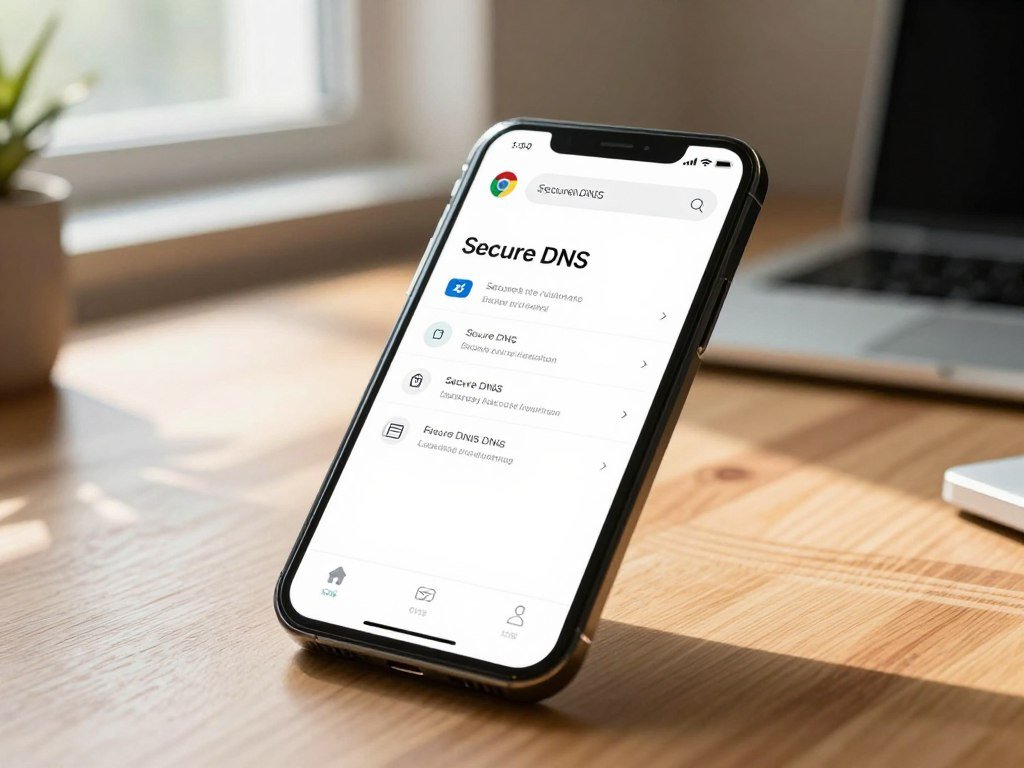
Chrome for Android has a Secure DNS setting that can use Cloudflare. Google Public DNS is another option, with separate IPv4 and IPv6 addresses. Record your current system DNS addresses before making a system-level change.
| Option | Address or setting | Where it applies |
|---|---|---|
| Chrome Secure DNS with Cloudflare | Use secure DNS, Cloudflare (1.1.1.1) | Chrome for Android |
| Google Public DNS IPv4 | 8.8.8.8 and 8.8.4.4 | IPv4 network settings |
| Google Public DNS IPv6 | 2001:4860:4860::8888 and 2001:4860:4860::8844 | IPv6 network settings |
Turn on Secure DNS in Chrome for Android
As of 2026, open Settings > Privacy and security > Security, then enable “Use secure DNS.” Choose Cloudflare (1.1.1.1) from the provider list. To check DoH, open Cloudflare’s 1.1.1.1 help page; “Using DNS over HTTPS (DoH)” should show “Yes.”
Choose public DNS addresses carefully
Google recommends using at least two DNS addresses, not entering the same address as both primary and secondary. Google Public DNS troubleshooting covers failed or incorrect DNS answers. If changing DNS does not help, restore the original addresses you recorded and continue with the other checks.
Google’s recommended DNS address setup includes using two different addresses and recording the old settings first.
Check Security Filters That May Block a Site
A browser security warning or a block page is different from a site that simply takes too long to respond. Read the warning before taking action, since Chrome and other browsers use Google Safe Browsing to flag potentially dangerous sites or apps. Do not bypass a warning just to make a page load.
A VPN, proxy, firewall, antivirus tool, or network policy can also block access. Check its block list or rules instead of leaving protection disabled. Content-blocking extensions may also affect a trusted site’s page elements.
Cloudflare 1.1.1.1 for Families offers optional DNS filters. Its malware-only IPv4 resolvers are 1.1.1.2 and 1.0.0.2; its IPv6 resolvers are 2606:4700:4700::1112 and 2606:4700:4700::1002. For malware and adult content, use 1.1.1.3 and 1.0.0.3, or 2606:4700:4700::1113 and 2606:4700:4700::1003.
The malware filter returns 0.0.0.0 for a domain it classifies as malicious, which prevents a connection. Cloudflare’s malware-blocking DNS behavior describes how that filter works. CISA’s malware and phishing guidance explains why these threats can harm devices and networks.
Do not bypass a malware warning unless you have independently confirmed that the address is safe.
When the Website’s Server or Hosting Is at Fault
If the same site fails on different devices and networks, the server, domain configuration, or hosting account may be responsible. Server-side errors need investigation by the website owner or hosting provider. HTTP 500, 502, and 503 responses point to server-side problems.
A 500 signals a general server error, a 502 a failed server connection, and a 503 temporary unavailability. Visitors cannot repair these faults from their own devices. Site owners can check domain setup and hosting status.
Check the domain and its DNS records
Check that the domain registration is active. An A record points the domain to a server IP address, nameservers direct DNS queries, and a CNAME can direct a subdomain. Confirm DNSSEC compatibility when the domain uses DNSSEC.
Recent DNS changes may take 24-48 hours to propagate. A mismatch or incomplete change can keep some visitors from reaching the site while others can open it.
Check hosting and site-side errors
For a WordPress site, test whether /wp-admin opens. If the admin area works but the front end fails, review recent plugin or theme changes and inspect the hosting error logs.
Give the hosting provider these details:
- The exact error code
- The affected URL
- The time the failure began
- Recent DNS or site changes
A site that fails across browsers and networks needs a site-side check, especially when it returns a 500, 502, or 503 error.
Give the hosting provider the exact error and the time it appeared so support can compare it with server logs.
Conclusion
Most loading problems become easier to solve once you know whether the failure follows one site, one browser, or one connection. Test the scope first, then change one setting at a time so you can see which change matters.
A clear error message makes troubleshooting faster. If the problem persists, send the hosting provider or network support the error message, affected address, and the tests you have already tried.
FAQ
How do I force a website to load?
You cannot safely force a site to load when its server is unavailable. Refresh once, check the address, and confirm your connection works on another site. If the page shows a security warning, do not bypass it just to reach the content. A server outage needs action from the site owner, not repeated reloads on your device.
Why will some websites keep loading and won’t load?
A site that keeps loading may have a slow or unreachable server, a DNS problem, or a network restriction. The exact error message helps tell these apart. A timeout means the server did not respond in time, while a DNS lookup error points to trouble finding its address. Try the same site on another network to compare.
What is blocking me from accessing a website?
A security warning, VPN, proxy, firewall, browser extension, network policy, or site-side restriction can block access. Check whether the page shows a warning or a plain loading error, since those point to different causes. Review the block list for your security tools, and avoid turning off protection as a quick test.
What should I do if a website isn’t opening?
Check the address, test another site, and try the same page in another browser. Then compare the result on another device or network before changing settings. If only one browser fails, its extensions or stored data may be involved. If the site fails everywhere, the website or its server may be at fault.
Why is my website not loading?
If visitors cannot open your site across browsers and networks, check domain records, hosting status, recent code or plugin changes, and server errors. A 500, 502, or 503 response points to a site-side issue. For WordPress, test whether /wp-admin opens, then review recent plugin or theme changes and your hosting error logs.
Why can’t I access a website all of a sudden?
A recent DNS or site change, an expired domain, a security block, or a temporary outage can interrupt access without warning. Compare the site from another network to see whether the issue follows your connection. If other visitors have the same problem, the site owner may need to check its domain setup or hosting service.
Why won’t anything load even though I have internet?
Confirm that another site opens in a second browser, since one working connection does not prove every web route works. If only some sites fail, check DNS, VPN or proxy settings, and browser extensions. A network restriction can also block selected sites while other internet services continue to work.
Why is one page not loading?
A single page can fail because of its URL, stored site data, a broken page resource, or a server response. Test the site’s home page and open the page in another browser. If the home page works but one address fails, check for a typing error or a page-specific problem on the site.



