A free plan can be enough to protect personal accounts, as long as its device and feature limits fit how you use your accounts. A password manager stores your logins in an encrypted vault, so you need to protect one main password instead of memorizing dozens. Zero-knowledge encryption means the provider cannot read the information stored in your encrypted vault.
This review compares usable free plans, not expired trials. Each can help protect your data, but the right fit depends on your device habits, privacy needs, and whether you need sharing or family tools. A free password manager can be a practical choice for daily accounts, provided its limits match your routine.
The most practical first check is whether you need your vault open on more than one device at the same time.
Key Takeaways
- Bitwarden is a broad free starting point for most personal users.
- Proton Pass adds email aliases and cross-device access on its free plan.
- NordPass and RoboForm limit free access to one active device.
- Google Password Manager is handy for Chrome and Android users.
- A unique master password and MFA help protect the vault.
- Free plans can work long term when their limits suit your routine.
Best Free Password Managers for Personal Use: Quick Comparison
For most people, Bitwarden is the clearest free starting point because it combines unlimited passwords with access across devices. Proton Pass suits privacy-minded users who want email aliases and multi-device access. NordPass works for someone comfortable with one active device, while RoboForm fits a one-device user who values autofill.
Are there free password managers? Yes. Bitwarden and Proton Pass offer lasting free plans, and NordPass and RoboForm also provide usable free password manager options. In this password manager 2026 review, the best free password depends on how you use devices, not just how many passwords you store. Unlimited storage does not always mean you can stay signed in on several devices.
| Manager | Free password or record limit | Free device access | Standout feature | Main free-plan constraint |
|---|---|---|---|---|
| Bitwarden | Unlimited passwords | Unlimited devices | Sharing with one other user | Advanced authenticator features are paid |
| Proton Pass | Unlimited logins | Unlimited devices | 10 email aliases | Free alias and vault limits |
| NordPass | Unlimited passwords | One active device | Simple interface | One active session at a time |
| RoboForm | Unlimited passwords | One device | Autofill | One-device access |
Compare the device rule before choosing, since unlimited storage does not always mean simultaneous multi-device access.
Bitwarden, Proton Pass, and NordPass were rated among top free password managers in 2026. Security.org rated RoboForm 9.8/10, NordPass 9.5/10, 1Password 9.6/10, and Proton Pass 9.5/10. These ratings use different measures, so treat them as one input, not a final verdict.
Compare the device rule before choosing, since unlimited storage does not always mean simultaneous multi-device access.
Why Bitwarden Is the Best Free Pick for Most People
If your priority is a capable free vault that follows you between devices, Bitwarden is the strongest all-around choice. Its free plan includes unlimited password storage across unlimited devices, with open-source security and zero-knowledge encryption. Bitwarden Free also includes advanced two-step login and built-in phishing protection.
The apps work in browsers, on phones, and on desktop computers. Bitwarden’s code is independently audited, which gives security-minded users a way to inspect its design. A [broader password manager security comparison](https://occcy.com/best-password-managers-for-security/) can help you weigh security practices alongside free-plan limits.
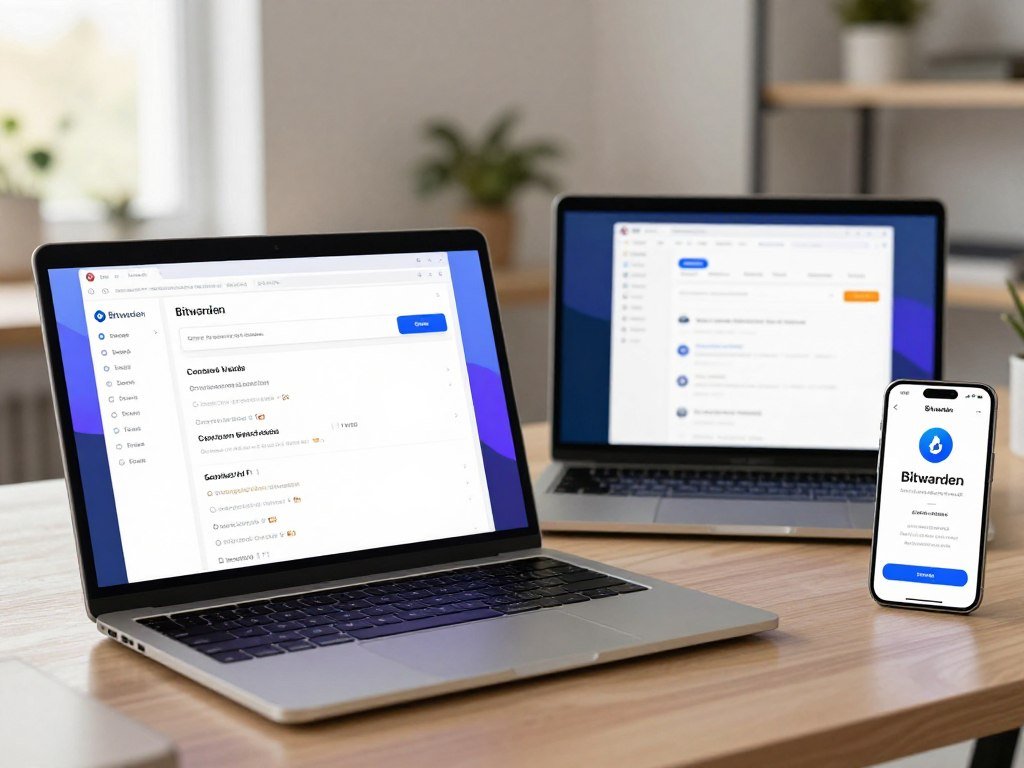
Useful tools include a password and username generator, autofill, passkey management, and encrypted export. You can share vault items with one other user, which can help with a shared household login. People who want to run their own server can also choose optional self-hosting.
The interface puts function ahead of polish, so some screens may feel less smooth than those in paid apps. Advanced authenticator features cost extra, which matters if you want your vault to create one-time codes. The free version still covers the main job well: storing and filling logins across devices.
Keep a separate authenticator app available if you want one-time codes stored apart from the vault.
When Proton Pass Is the Better Free Choice
Choose Proton Pass Free if masking your email address is as important to you as storing logins across devices. Hide-my-email aliases let you use an address that masks your real one when you sign up for a service. The free plan includes 10 aliases and 2 vaults.
Proton Pass Free stores unlimited logins, notes, and credit cards across unlimited devices. It also includes 1 GB of storage, passkey support on all devices, and alerts for weak or reused passwords. Plans use end-to-end encryption, and the vault syncs automatically across devices.
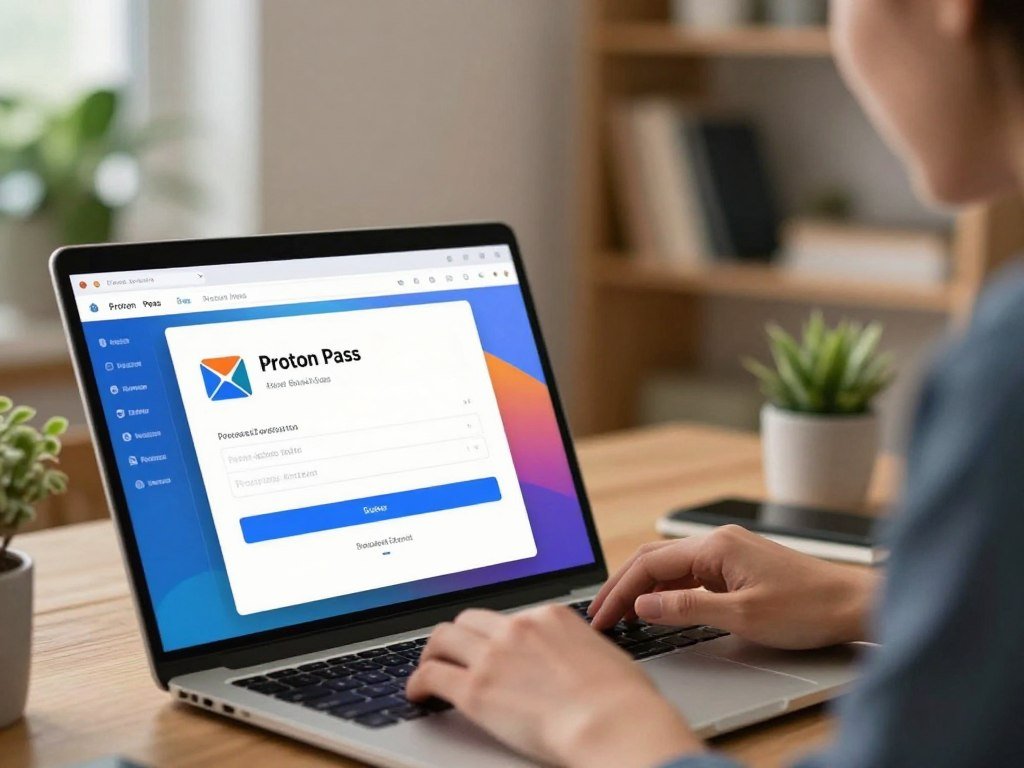
You can share vaults with two other people on Free. That may suit a small household or a couple who need to share a few logins, though it is not the widest family setup. Proton’s broader service range may also appeal if you already use its privacy tools.
The integrated authenticator and expanded sharing belong to Pass Plus, not Free. That distinction matters if you want one app to store logins and generate one-time passwords. Check that the 10 free aliases and 2 vaults cover your planned use before moving your accounts.
Can NordPass Work If You Use One Device?
NordPass can work well if you usually stay on one device and do not mind signing in again when you switch. Its clean interface can make it a friendly password manager for someone new to vaults. The free plan permits only one active session at a time.
You can install NordPass across platforms, but the free plan does not keep several devices active at once. Switching from a phone to a computer can log you out of the earlier session. This limit can become a nuisance if you often need a password on both screens.
NordPass Free supports unlimited passwords, passkeys, and personal information storage. It uses the same XChaCha20 encryption as its paid Premium plan. Autosave and autofill also handle routine logins without much effort.
Free users do not get password sharing or emergency access. Those gaps may matter if another person needs access to your accounts in an emergency. NordPass may still fit if you mainly use one phone or computer and prefer a simple layout.
Try switching between your phone and computer during setup to see whether the one-active-session limit is tolerable.
Is RoboForm a Good Free Option on One Device?
RoboForm is worth considering if autofill and form completion matter more to you than multi-device access. Its form tools can save time on login pages and address forms. The free version supports unlimited passwords on one device.
RoboForm Free includes one-click login and form filling, which can be handy on sites that ask for more than a username and password. The free version also includes password leak monitoring, making it more useful than a bare storage vault. RoboForm supports passkeys on all devices and includes an authenticator for third-party verification codes.
Optional local-only storage lets you keep the vault on your own device. Emergency access for trusted contacts is also available as a feature. These tools add choice, but do not remove the free plan’s one-device limit.
If you need access from a phone and computer at the same time, RoboForm Free is not a good fit. Its main appeal is speed on a single device, especially for forms you fill often. Test the forms you use most often before committing your full vault to its autofill workflow.
What About Google Password Manager, Keeper, and 1Password?
Google Password Manager is convenient for a Chrome-and-Android user, while Keeper’s free version is narrower and 1Password is a trial rather than a lasting free option. The difference is scope: a familiar name does not promise the same browser access or ongoing free use. 1Password offers a 14-day free trial, not a permanent free plan.
Google Password Manager stores unlimited passwords and can be enough for users who stay within Chrome and Android. It is not a standalone program or an extension for other browsers. That boundary can make it less useful if you use an iPhone, Mac, or a different browser.
When Google Password Manager Is Enough
Google’s built-in option keeps saved logins close to the browser and Android apps you already use. You do not need to install a separate password manager for those devices. It can be a reasonable choice when your daily setup stays inside that ecosystem.
If you work across Windows, other browsers, or different phone platforms, its limits may get in the way. A standalone app can offer a more consistent experience across those systems. Check that the browser where you shop and bank can reach the saved passwords.
What Keeper’s Free Version Allows
Keeper’s free version is for individual mobile use. It supports fingerprint or facial-recognition login, a useful option if you prefer unlocking with biometrics. Keeper encrypts and decrypts vault data locally using AES-256 in GCM.
That security design does not change the narrow scope of its free version. The mobile focus may suit someone who wants quick access on one phone, but it is not a broad desktop plan. Keeper’s emergency access is another feature, though the free version remains limited.
Why 1Password Is a Trial, Not a Free Plan
1Password gives you 14 days to try its service, then the trial ends. That can help you test the apps, but it is not a lasting free option. Its Secret Key and Watchtower are paid-plan protections discussed with other upgrade features later.
Google Password Manager can be enough if Chrome and Android cover your everyday use. Choose a built-in tool only if its browser and device boundaries match your everyday setup.
What Do Free Plans and Upgrades Actually Include?
A paid plan is worth comparing only after you know which free-plan limit you actually need to remove. Annual billing can lower the monthly equivalent, but it means paying the full year’s cost at once. A 14-day trial is time-limited, not a permanent free plan.
Bitwarden Premium costs $1.65 per month when billed annually at $19.80. Its Families plan costs $3.99 per month, billed annually at $47.88, for up to six users. Proton Pass Plus costs $2.99 per month, billed at $35.88 every 12 months. Its Family plan costs $4.99 per month, billed at $59.88 every 12 months, for up to six users.
| Provider | Individual plan | Family plan | Free route |
|---|---|---|---|
| Bitwarden | $1.65/month, $19.80/year | $3.99/month, $47.88/year, up to 6 users | Free plan |
| Proton Pass | $2.99/month, $35.88/year | $4.99/month, $59.88/year, up to 6 users | Free plan |
| NordPass | From $1.49/month | From $2.79/month, up to 6 users | Free plan |
| RoboForm | $11.90/year | $19.10/year, up to 5 users | Free plan |
| 1Password | $2.99/month promotional rate; $3.99/month regular rate, annual billing | $4.49/month promotional rate; $5.99/month regular rate, annual billing, 5 users | 14-day free trial |
NordPass Premium starts at $1.49 per month, and family plans start at $2.79 per month for up to six users. RoboForm Premium costs $11.90 per year, while Family costs $19.10 per year for up to five users.
Keeper Personal costs $3.33 per month billed annually at $39.99. Keeper Family costs $7.08 per month billed annually at $84.99. 1Password’s promotional and regular rates differ, so check the price and billing term shown when signing up.
Compare the annual total and renewal terms, not just the displayed monthly equivalent.
How Can You Keep a Free Password Manager Safe?
A free plan can protect accounts well when every login has a unique strong password and the vault itself has MFA enabled. Multifactor authentication (MFA) adds a second sign-in check beyond your master password. Your master password must be memorable to you, but never reused elsewhere.
CISA recommends using a password manager to generate and securely store strong passwords, then pairing them with MFA. Its guidance calls for passwords that are at least 16 characters, random, and unique to each account. A passphrase made from 5-7 unrelated words can also serve as a random password.
Build Strong, Unique Passwords
Use these checks when you create or update account credentials:
- Make every account password unique.
- Use at least 16 random characters or a passphrase of 5-7 unrelated words.
- Let the password manager generate new credentials.
- Avoid reusing an old password, even if you have changed it slightly.
Password managers can generate complex passwords, fill them automatically, and store them securely. They also reduce the need to invent a different password each time you join a new site. A CISA guide to strong passwords explains the same core habits.
Add Multifactor Authentication
MFA asks for a second verification step, such as a code or another approved check. Turn it on for your vault and important accounts, especially email and banking. Choose a password manager that works with your devices and offers MFA to access its password database.
A unique master password keeps the vault’s main key separate from every other account. Start by changing reused passwords on your email and financial accounts, since access to those can affect other logins.
Which Free Option Fits Your Devices and Household?
The best fit changes with your device routine: Bitwarden or Proton Pass for several devices, and a local vault when you want to manage storage yourself. Cloud storage syncs passwords across devices, while local storage gives you control over where the vault stays. A locally managed database needs regular backups on another storage device.
For Android across devices, Bitwarden and Proton Pass both offer a practical free route. RoboForm may suit a senior who wants simple autofill, while Keeper’s fingerprint or facial-recognition access can be another usability feature. No one design is the right choice for every user.
| Use case | Suitable choice | Reason it fits | Limitation to check |
|---|---|---|---|
| Android across devices | Proton Pass or Bitwarden | Free access across devices | Feature and sharing limits |
| Senior prioritizing simple login | RoboForm | Autofill and form filling | Free access on one device |
| Family sharing | Bitwarden Families or Proton Pass | Household sharing options | Family plan terms and user limit |
| Offline vault | KeePass or KeePassXC | Locally stored database | Owner handles backups |
Android and Cross-Platform Use
A cloud-based vault can keep the same login ready on an Android phone, computer, and browser. That convenience helps if you switch screens during the day. For a fuller look at password manager security and device access, compare how each service handles syncing and account recovery.
Senior-Friendly Access and Family Sharing
Simple autofill can make daily use easier for someone who does not want to type long logins. Family sharing needs a different check: confirm that the plan supports the number of people and the kind of vault access your household wants. Keeper’s biometric unlock may help some users, though its free version focuses on mobile use.
Offline Vaults and Local Control
KeePass and KeePassXC are offline, local-vault options for people who want to manage storage themselves. Local control also makes the owner responsible for keeping the database current and making backups. Cloud storage is more convenient for syncing between devices, while a local file needs a safe backup routine.
Before picking an offline option, confirm you can keep a current backup on a separate storage device.
How Should You Set Up a New Password Manager?
Set up the vault on your primary device first, then confirm that it unlocks and fills a test login correctly. A small test can catch setup problems before you move every account. Do not leave a password-export file where someone else can read it.
Use this order to move logins without losing access during the change:
- Install the official browser extension and apps from the provider.
- Create a unique master password you can remember.
- Enable MFA for the vault.
- Import existing logins using the manager’s supported method.
- Test autofill and account recovery before deleting the old vault.
Chrome can export saved passwords as a CSV file for import. That file holds readable credentials until you securely remove it, so avoid leaving it in downloads or shared folders. Import only through the official app or browser flow.
Check a few important logins after the import, including email and banking. Confirm that the manager fills the right username and password before you remove the old vault. Remove any temporary password-export file as soon as the import is confirmed.
When Is a Free Plan No Longer Enough?
Upgrade only when a specific limit blocks something you need, such as family administration, emergency access, or a built-in authenticator. A real need matters more than a long list of premium features. A free plan remains sensible when its limits do not disrupt your everyday use.
These four needs may justify paying for advanced features:
- Emergency access or secure attachments: Bitwarden Premium adds both.
- A built-in authenticator: Bitwarden Premium and Proton Pass Plus include one.
- More email aliases or broader sharing: Proton Pass Plus offers unlimited aliases and vault sharing with 10 others.
- Paid security reports or breach monitoring: Bitwarden Premium adds security reports, while Keeper BreachWatch is a paid add-on.
1Password Individual and Families include end-to-end encryption and a Secret Key alongside the account password. Watchtower alerts users to weak or reused passwords and breached websites. Families also supports unlimited vault sharing and admin controls.
If your current vault stores and fills your logins across the devices you use, keep the free plan and revisit the decision only when your needs change.
A paid feature can be useful without being necessary for every account. Match the upgrade to a limit you have actually hit, such as secure attachments or shared family administration. Keeper’s BreachWatch monitoring is a paid add-on, not part of its free version.
Conclusion
For most personal users, Bitwarden is the easiest free recommendation to start with, while Proton Pass stands out when email masking matters. Both offer free access across devices, though their added features and limits differ. Your device routine and privacy needs should guide the choice.
Choose one trusted free plan, create a unique master password, and enable MFA before importing logins. Start with the accounts you use most, then add the rest once the vault feels familiar. Choose the service that fits your devices, enable MFA, and move your first set of logins into its vault today.
FAQ
Which password manager is the safest and most reliable?
No password manager is risk-free, so prioritize a unique master password, MFA, clear security practices, and independent audits. Bitwarden’s open-source code is independently audited, giving users a way to review its code and security approach. Your own account habits still matter: a weak or reused master password can put the vault at risk, whatever provider you choose.
Which is safer, 1Password or Google Password Manager?
Neither is safer in every situation; compare the protections and devices you use. 1Password adds a Secret Key and Watchtower alerts for weak or reused passwords and breached websites on paid plans. Google Password Manager stores unlimited passwords, but its access is limited to Chrome and Android. Choose based on the protection you need and where you sign in.
What are the pros and cons of password managers?
Password managers can create unique passwords, store them in an encrypted vault, and fill them into sites and apps. That makes it easier to avoid reusing credentials across accounts. The main trade-off is protecting one master password, which you must not reuse elsewhere. Free plans can also limit devices, sharing, or added security features, so check those rules first.
Is there a better password manager than Keeper?
Bitwarden or Proton Pass may fit better if you want unlimited free storage across devices. Keeper’s free version focuses on individual mobile use, while fingerprint or facial-recognition login may suit users who value biometrics. The better choice depends on whether cross-device access or phone-based convenience matters more to you. Compare the actual free limits before moving your accounts.
Is there a 100% free password manager?
Yes, Bitwarden Free and Proton Pass Free are lasting no-cost plans. Both support unlimited logins or passwords across unlimited devices, though their added features and sharing rules differ. A free plan can be enough for personal accounts when its device limits fit your routine. By contrast, 1Password offers a 14-day free trial, not permanent free access.
Do security experts recommend password managers?
Yes, CISA recommends using a password manager to generate and securely store strong passwords. A manager can help you create unique credentials without having to memorize each one. CISA also recommends pairing strong passwords with multifactor authentication, which adds another sign-in check. Turn MFA on for the vault and important accounts such as email and banking.
What is the best free password manager in 2026?
Bitwarden is the broadest fit for most people who want free storage across devices. Proton Pass is a strong alternative if you value multi-device privacy features and email aliases. NordPass can suit someone who mainly uses one device and accepts one active session at a time. The right pick depends on your device habits and the features you need.
Which password manager was hacked?
A company-level security incident and an individual account compromise are different events, so do not treat every report as proof that a vault was exposed. Check the provider’s current security disclosures for details about any incident and its impact. Protect your own account with a unique master password and MFA. Avoid claims about a named provider unless current facts support them.



