

Here’s a fact that surprises a lot of Mac owners: if their MacBook was built in late 2020 or later, it has no SMC at all. Apple’s shift to its own silicon removed the System Management Controller entirely, which means the classic reset ritual many people search for simply doesn’t apply to a huge share of machines now in use. Yet the advice keeps circulating, often with no mention of which Macs it’s even for. That mismatch causes real confusion, wasted time, and in some cases a trip to the repair shop that was never needed.
This guide sorts it out. It covers the exact reset procedure for Intel Macs, explains what to do instead on Apple Silicon, and flags the mistakes people make most often. The goal is simple: readers should know within thirty seconds which category their Mac falls into and what to do next.
First, Find Out Which Mac You Actually Have
Before touching a single key combination, check the hardware. The reset procedure depends entirely on the chip inside.
Click the Apple menu, then About This Mac. Look at the chip or processor line.
| What the About This Mac window shows | Chip type | SMC reset applies? |
|---|---|---|
| “Chip: Apple M1 / M2 / M3 / M4” | Apple Silicon | No. These Macs have no SMC |
| “Processor: Intel” plus a T2 chip listed under System Report | Intel with T2 | Yes, special T2 procedure |
| “Processor: Intel” with no T2 | Intel without T2 | Yes, standard procedure |
To confirm whether an Intel Mac has a T2 Security Chip, open System Report (also under the Apple menu) and check the Controller or iBridge section. MacBook Pro and MacBook Air models from roughly 2018 through 2020 carry it. Older machines do not.
This single check eliminates most of the bad advice floating around. Plenty of people have spent twenty minutes holding key combinations on an M2 MacBook Air for no reason at all.
What the SMC Actually Does
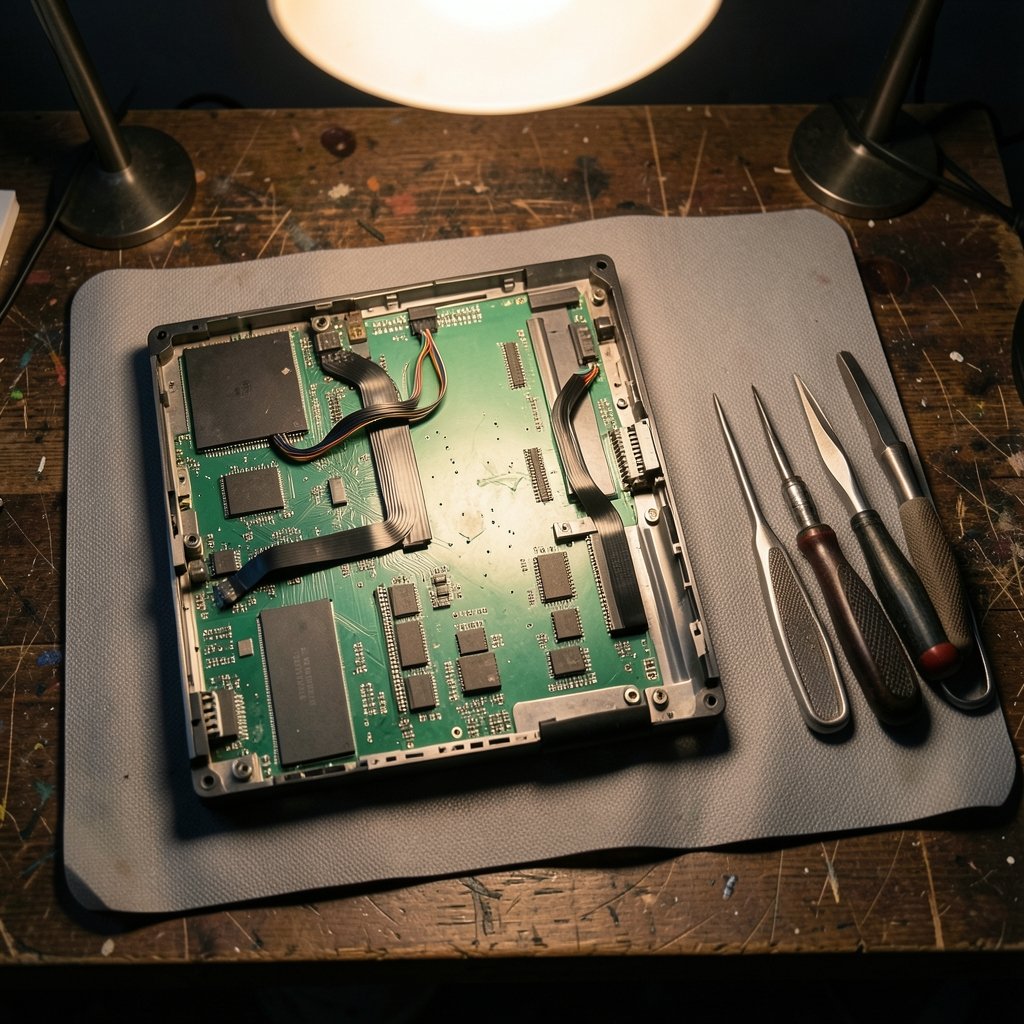
The System Management Controller is a low-level chip on Intel Macs that handles the jobs the main processor shouldn’t bother with. It manages power delivery, thermal response, battery charging behavior, fan speeds, display backlight, and the sleep-and-wake cycle.
When it glitches, the symptoms tend to be physical rather than software-based. Apple’s own support documentation associates SMC problems with fans running flat out when the machine is cool, a Mac that won’t power on, backlight issues, and batteries that refuse to charge. Notably absent from that list: app crashes, slow Wi-Fi, or a spinning beachball. Those are software problems, and an SMC reset won’t touch them. (Reset the SMC of your Mac)
That distinction matters in practice. A reader whose MacBook is running hot while idle has a plausible SMC issue. A reader whose browser keeps freezing does not. Getting this wrong sends people down a troubleshooting path that can never succeed.
How to Reset the SMC on Intel Macs With a T2 Chip
This covers MacBook Pro and MacBook Air models from about 2018 to 2020, plus the iMac Pro, Mac mini 2018, and Mac Pro 2019. The procedure is unusual because it involves the Control, Option, and Shift keys on specific sides of the keyboard.
- Shut the Mac down completely.
- Press and hold Control on the left side of the keyboard, Option on the left side, and Shift on the right side. Hold all three for 7 seconds.
- Without releasing those three keys, press and hold the power button as well. Keep everything held for another 7 seconds.
- Release all four keys at once.
- Wait a few seconds, then power the Mac back on normally.
The tricky part is step three. Many people release the first three keys before adding the power button, which breaks the sequence. Others use the right-side Shift instead of the left-side Control and Option, or vice versa. Apple’s instructions are specific about sides for a reason: the keyboard matrix reads them differently.
On MacBook models with a Touch ID button, that button is the power button. Press it as part of the hold. On the 16-inch MacBook Pro, the same applies.
How to Reset the SMC on Intel Macs Without a T2 Chip
Older Intel MacBooks use a simpler method, though it varies slightly by whether the battery is removable.
- Shut the Mac down.
- Disconnect the power adapter.
- If the battery is removable, take it out.
- Press and hold the power button for 10 seconds.
- Reinstall the battery, reconnect power, and start up.
For models with a built-in battery, the sequence changes: shut down, then press and hold Shift, Control, Option, and the power button together for 10 seconds, then release and power on. Getting the wrong variant for the model is a common slip, and the result is usually nothing at all, which leads people to assume the reset failed when it was simply never executed correctly.
Desktop Intel Macs take the easiest route of all: unplug the power cord for 15 seconds, plug it back in, wait 5 seconds, then power on.
Apple Silicon Macs: There Is Nothing to Reset
On M1, M2, M3, and M4 Macs, Apple states plainly that the machines do not have an SMC, and the reset procedure does not apply. This is not a technicality. The power and thermal functions the SMC used to handle are managed differently in Apple Silicon, so there is no controller to restart.
What actually helps on these machines when something feels off:
- Full shutdown and restart. Not a restart from the Apple menu, but a genuine power-off, a short pause, and a cold boot. This clears a surprising number of odd states.
- Check for macOS updates. Many power and thermal quirks get fixed in point releases.
- Reset NVRAM only if relevant. On Apple Silicon, NVRAM resets happen automatically in most cases, and the old key-combo method no longer applies.
- Safe Mode. Holding the power button until startup options appear, then choosing the startup disk with Shift held, can isolate software causes.
- Hardware DFU restore. A last resort for serious firmware problems, and one best done with guidance from Apple Support rather than a random forum post.
The honest answer for Apple Silicon owners is that the ritual they came looking for doesn’t exist. The faster they accept that, the faster they can move to troubleshooting that might actually fix the problem.
The Mistakes That Waste the Most Time
A few patterns come up again and again among people trying to reset an SMC.
Confusing SMC resets with NVRAM resets. These are different procedures with different purposes. NVRAM stores settings like startup disk selection and display resolution. The SMC handles power and thermals. Third-party guides sometimes blend the two, which produces instructions that are internally inconsistent and impossible to follow correctly.
Running the reset for software symptoms. If the problem is an app crashing or a network dropping, the SMC is not the culprit. No amount of key-holding will help.
Skipping the shutdown. The procedure starts from a powered-off state. Trying it from sleep or a restart produces nothing.
Forgetting to reconnect peripherals in order. After an SMC reset, some people find their external display or dock doesn’t behave until they unplug and replug it. That’s normal and not a sign of failure. Users who rely on a dock should also check that their hub isn’t the actual source of power weirdness, which is why a solid connection matters as much as the reset itself, and a guide to the best usb c hubs for macbook laptops can help narrow down whether the accessory is the real problem.
Assuming failure after one attempt. Apple’s procedure can be repeated. If symptoms persist after two clean attempts, the issue is likely hardware and warrants a diagnostic appointment.
After the Reset: What Should Change, and When to Worry
A successful SMC reset rarely announces itself. There’s no confirmation message. What changes is behavior: fans settle, the battery starts charging again, the display backlight behaves, or the Mac powers on when it previously wouldn’t.
If nothing changes at all, the most likely explanations are a misidentified model, an incorrectly executed sequence, or a hardware fault that a reset cannot address. Battery swelling, a Mac that won’t charge with a known-good adapter, and repeated kernel panics all point toward service rather than software.
For readers who have already ruled out the SMC and are now looking at accessory problems, the best usb c hub for macbook air and the best usb c hub for macbook pro guides cover port and power-delivery issues that can masquerade as charging faults. It’s worth checking before assuming the worst.
One more practical note: after any reset, give the Mac a full charge cycle before judging battery behavior. The controller recalibrates, and early readings can look strange.
Conclusion
The honest summary is that “how to reset SMC on MacBook” has two very different answers depending on the machine. Intel Macs with a T2 chip need the four-key hold with careful attention to which side of the keyboard each key sits on. Older Intel Macs use the simpler power-button or four-key method. Apple Silicon Macs have no SMC, so the correct move is a full shutdown, an update check, and then targeted troubleshooting.
The real value here isn’t memorizing a key sequence. It’s diagnosing correctly first. Most failed SMC resets are actually misdiagnosed problems, whether that’s a software fault, an accessory issue, or a hardware failure that no key combination will fix. Check About This Mac, match the symptom to the controller’s actual job, and follow the procedure for that specific model. That approach saves time, avoids frustration, and gets a Mac back to normal far more reliably than any ritual performed on autopilot.
Frequently Asked Questions
Does resetting the SMC delete files or settings?
No. An SMC reset does not touch the storage drive. Files, apps, and accounts stay exactly as they were. It may reset some low-level power and thermal parameters, but nothing user-facing is lost. It is a safe procedure when performed on the correct model.
How do I know if my Mac has an SMC?
Open About This Mac from the Apple menu. If the chip line says Apple M1, M2, M3, or M4, the Mac has no SMC. If it says Intel, the Mac has one, and the next question is whether a T2 chip is present, which System Report will confirm.
Can I reset the SMC on an M1 or M2 MacBook?
No. Apple Silicon Macs do not include an SMC, so there is nothing to reset and no key combination will do anything. Owners of these machines should perform a full shutdown and cold boot, check for macOS updates, and try Safe Mode if problems continue.
Why did the SMC reset not fix my Mac?
Three common reasons: the Mac was misidentified and the wrong procedure was used, the key sequence was executed incorrectly, or the underlying issue is not an SMC problem at all. Software crashes, network drops, and app freezes fall outside the controller’s scope.
How many times can I reset the SMC safely?
There is no documented limit, and repeating the procedure does no harm. In practice, two clean attempts are enough to judge whether it worked. If symptoms persist after that, the next step is a hardware diagnostic rather than a third attempt.
What are the signs of a genuine SMC problem?
Apple associates SMC issues with fans running at high speed on a cool machine, a Mac that won’t turn on, display backlight problems, and batteries that won’t charge. Symptoms like slow Wi-Fi, app crashes, or a frozen cursor point to software instead.



