
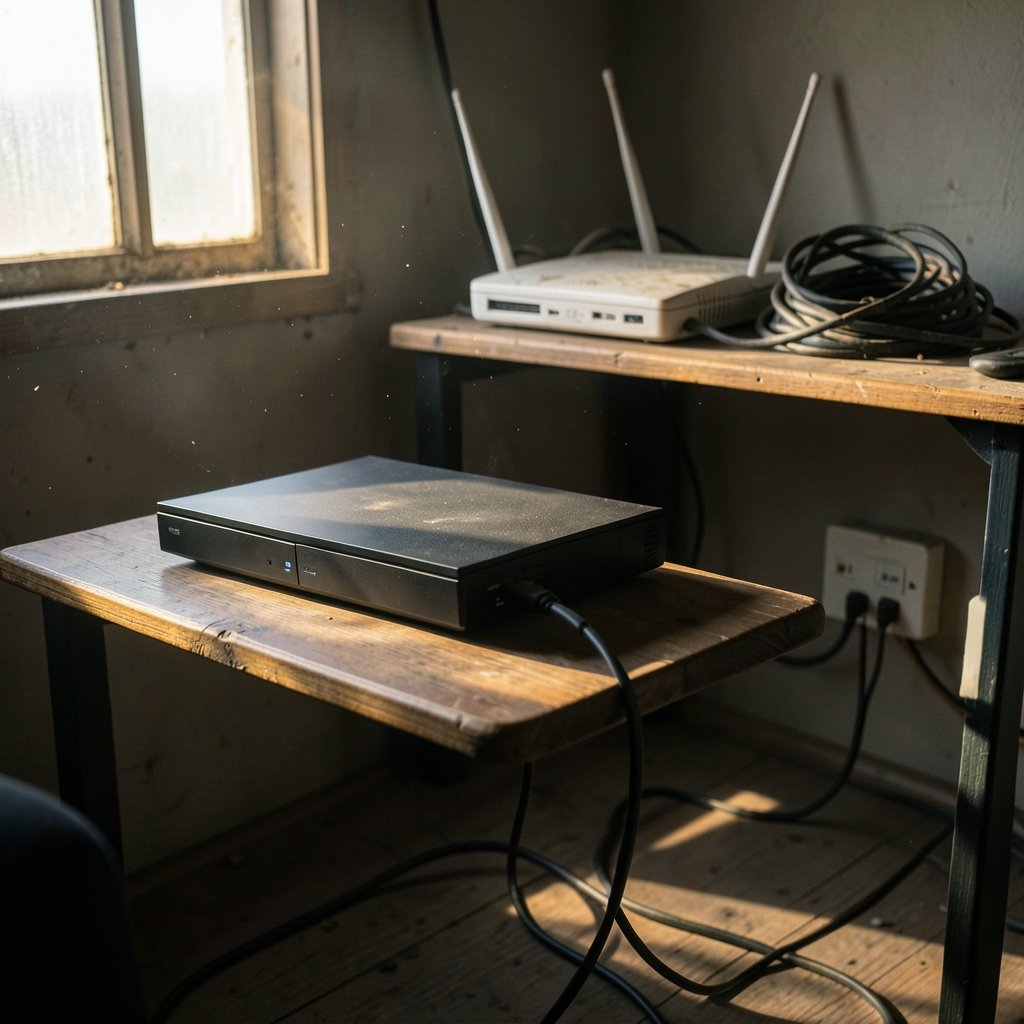
Here’s a number worth sitting with: in a fast online shooter, the gap between a 20 ms ping and a 100 ms ping is roughly the same as the difference between reacting instantly and reacting after blinking twice. That tiny window decides who wins the duel and who respawns. Yet most players assume lag is something you just live with, like bad weather. It isn’t. Lag has causes, and most of them are fixable. (Lag (Wikipedia))
This guide walks through what actually works, what wastes money, and which settings to change first. No miracle cures, no sketchy downloads, just the stuff that genuinely moves the needle.
What Lag Actually Is (and What It Isn’t)
Lag is the delay between your input and the game’s response. It comes from several places, and they’re not all your internet. There’s network latency (the round trip to the server), packet loss (data that never arrives), jitter (latency that keeps changing), and local lag (your device struggling to render frames).
Here’s the part that surprises people: bandwidth is usually not the problem. A 200 Mbps connection can feel worse than a 25 Mbps one if the slower line is more stable. What matters is how quickly and consistently small packets travel, not how much data you can pull at once. Latency and bandwidth are cousins, not twins.
That distinction shapes everything below. If you’re chasing a bigger internet plan to fix lag, you’re probably buying the wrong thing.
Start With the Cable, Not the Router
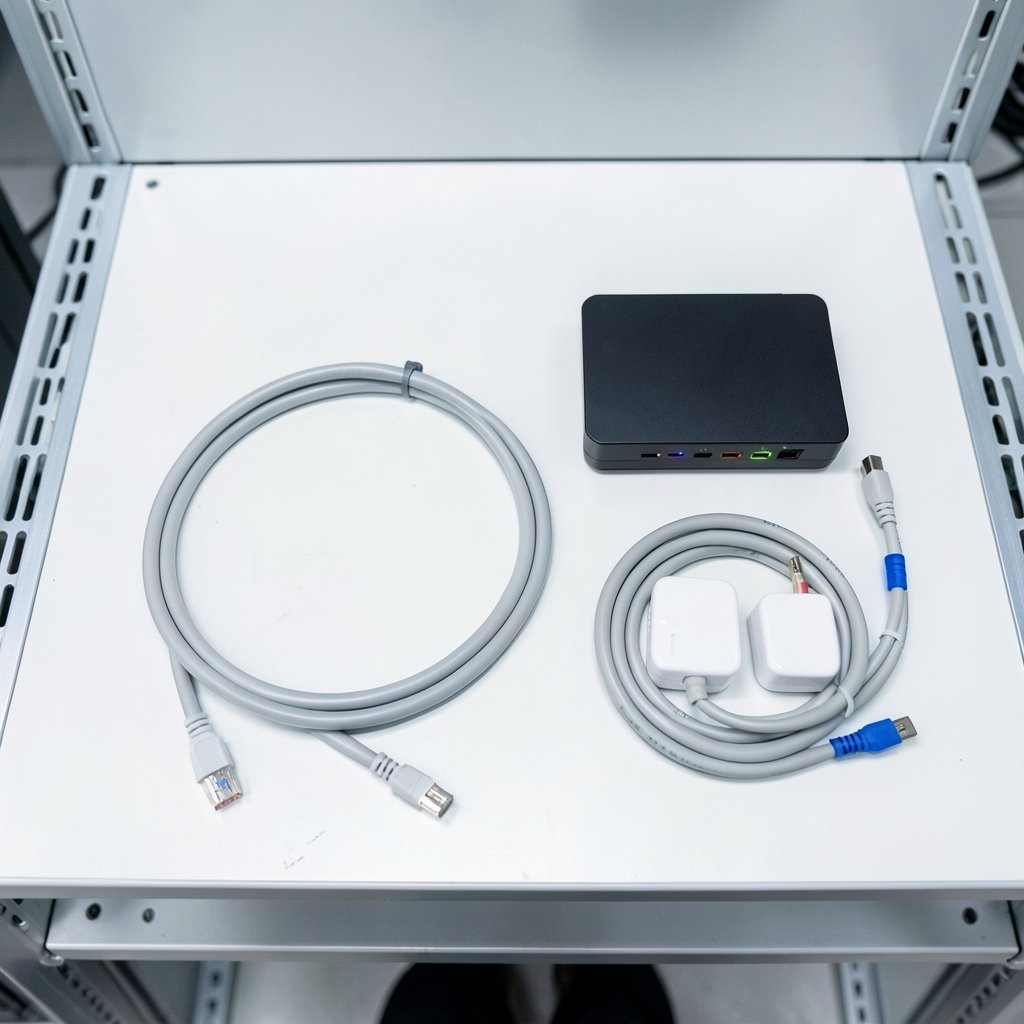
The single most reliable improvement most players can make is switching from Wi-Fi to Ethernet. It’s unglamorous, it costs the price of a cable, and it eliminates an entire category of problems: interference from walls, microwaves, neighbors’ networks, and the sheer unpredictability of radio.
Wi-Fi is fine for browsing and streaming. For competitive play, it introduces jitter that no amount of tweaking can fully smooth out. If running a cable across the house isn’t realistic, powerline adapters or a mesh node with a wired backhaul are the next best options. A Wi-Fi extender that simply repeats a weak signal often makes things worse, not better.
Common mistake: buying an expensive “gaming router” while still connecting over Wi-Fi from three rooms away. The cable matters more than the box.
Choose the Right Server Region
This one is free and takes ten seconds. Most games let you pick a server region or automatically match you to one. If you’re in Europe and get dropped into a North American lobby, you’ve added roughly 100 ms of pure geography before anything else happens.
Check your game’s settings for a region selector or a “preferred server” option. Many titles also display your ping in the lobby or a network overlay. If a region shows a ping above about 60–70 ms for casual play, try a closer one. Distance is physics; you can’t optimize your way around an ocean.
For browser-based games, the same logic applies in miniature. Lightweight titles on portals like free online auto games tend to run on nearby servers and load fast, while heavier ones may stutter if your connection is congested. Knowing which type you’re playing helps you set expectations.
Tame the Background Traffic
Your game shares a pipe with everything else in the house. Cloud backups, game downloads, video streams, and software updates all compete for the same connection, and they can spike your latency even when total bandwidth looks fine.
Practical steps that work:
- Pause downloads and updates on every device before you play.
- Ask housemates to hold off on 4K streaming during ranked matches.
- Disable cloud sync for photos and backups during sessions.
- Close browser tabs with video or heavy scripts running.
- On consoles, turn off automatic background downloads.
This is the “turn it off and on again” of lag fixes, and it’s underrated. A single active upload can wreck an otherwise perfect connection.
Use QoS and Fix Bufferbloat
Many home routers include QoS (Quality of Service) settings that let you prioritize gaming traffic. Turn it on and set your game device to high priority. It won’t work miracles, but it stops a background download from drowning your match.
The deeper issue is bufferbloat: routers and modems that queue too much data, causing latency to balloon under load. If your ping is great when idle and terrible when someone streams video, bufferbloat is the likely culprit. Some routers offer SQM (Smart Queue Management) or “gaming priority” modes that mitigate it. If yours does, enable it and test the difference.
A simple test: run a latency check while idle, then again while downloading a large file. If the second number is dramatically higher, you’ve found your problem. For more on the underlying concepts, the Wikipedia entry on bufferbloat explains the mechanics clearly.
Adjust In-Game Settings That Affect Responsiveness
Not all lag is network lag. Frame rate and input handling matter enormously, especially on consoles and older PCs.
| Setting | What It Does | Recommendation |
|---|---|---|
| V-Sync | Syncs frames to display, adds input delay | Off for competitive play |
| Motion blur | Smears fast movement | Off |
| Resolution scaling | Renders below native, boosts FPS | Lower if FPS is unstable |
| Graphics quality | Affects GPU load | Medium or low for shooters |
| Frame rate cap | Limits FPS | Match to monitor refresh rate |
Higher, steadier frame rates make a game feel more responsive even when network ping is unchanged. A stable 60 FPS beats a stuttering 120 every time. If your device struggles, dropping shadows and post-processing is usually the fastest win.
On mobile, close background apps and disable battery-saver modes, which often throttle performance mid-match.
What About VPNs and DNS?
Two popular “fixes” deserve honest treatment.
VPNs usually increase latency because your traffic takes an extra hop through a distant server. Occasionally a VPN helps when your ISP routes traffic badly to a specific game server, but that’s the exception. Don’t buy one expecting lower ping.
DNS changes affect how quickly your device looks up website addresses. Once a game connection is established, DNS does nothing for your in-match ping. It can speed up store pages and downloads, but it won’t fix lag. Anyone selling DNS as a ping cure is overselling.
The pattern here: fixes that touch routing or physical connection work. Fixes that touch name resolution or add extra hops mostly don’t.
Pick Games and Platforms That Suit Your Connection
Sometimes the smartest move is matching your library to your hardware. Turn-based puzzles, card games, and casual arcade titles tolerate shaky connections far better than twitch shooters. If your internet is unreliable, lean into genres that forgive it.
For families and casual players, numeracy online games and free games online mahjongg run light and rarely punish a brief hiccup. Couples gaming together can enjoy online games for couples that prioritize fun over frame-perfect timing. And quick arcade picks like the coreball game or the tap road game are built for short sessions where a little lag is barely noticeable.
That’s not defeatism; it’s strategy. Play the games your connection can support well, and save the competitive shooters for when the network is calm.
Know When the Problem Isn’t Yours
Before you spend hours troubleshooting, figure out whether the lag is on your end. Check the game’s server status page or community forums. If thousands of players report the same spikes, the servers are struggling and nothing in your house will fix it.
Signs the problem is external:
- Lag appears suddenly across all games
- Ping is high even on a wired connection with nothing else running
- Other players in the same match report identical issues
- The lag follows a pattern tied to peak hours
Signs the problem is local:
- Lag only on Wi-Fi
- Ping spikes when downloads run
- One device lags while others are fine
- Lag clears when you move closer to the router
This diagnostic split saves enormous time. There’s no point optimizing your router if the developer’s servers are melting.
Build a Simple Troubleshooting Order
When lag strikes, work through fixes in this order, cheapest and most likely first:
- Switch to a wired connection.
- Pause all background downloads and streams.
- Pick the nearest server region.
- Enable router QoS and SQM if available.
- Lower graphics settings for a steadier frame rate.
- Turn off V-Sync and motion blur.
- Restart the router and modem.
- Check the game’s server status.
- Contact your ISP only if everything above fails.
Most players find their answer in the first three steps. The rest are insurance.
Conclusion
Lag feels mysterious because its causes hide in different layers: the cable, the router, the server, the graphics card, the household’s streaming habits. But once you separate network latency from local performance and server problems, the fixes become obvious and mostly free.
The honest summary: wire your connection, quiet the background traffic, pick a nearby server, and tune your settings for steady frames. Skip the VPN upsells and DNS snake oil. And remember that stability beats speed every single time. A modest connection used well will outperform a fast one used carelessly. Fix the boring stuff first, and the dramatic improvements follow.
Frequently Asked Questions
What ping is considered good for online gaming?
Under about 50 ms feels smooth for most genres. Between 50 and 100 ms is playable, especially in casual games. Above 150 ms, competitive shooters become frustrating because your reactions arrive late. Consistency matters as much as the raw number, so a steady 60 ms beats a ping that swings between 30 and 120.
Does a faster internet plan reduce lag?
Usually not. Bandwidth affects download speed, not the round-trip time of small game packets. Upgrading from 100 Mbps to 1 Gbps rarely lowers ping. What helps is reducing jitter and packet loss, which come from connection quality and congestion, not plan size. (FCC Broadband Speed Guide)
Why is my ping high only at certain times?
Peak-hour congestion is the usual answer. Evenings bring more traffic on your street’s shared lines and on the game’s servers. If lag reliably appears between 7 and 11 p.m., it’s congestion somewhere along the route. Try a different server region or play outside those hours to confirm.
Can a VPN lower my ping?
Rarely. A VPN adds an extra hop, which normally increases latency. In unusual cases where your ISP routes game traffic poorly, a VPN can sometimes find a faster path. Treat it as a troubleshooting experiment, not a purchase decision.
Does changing DNS fix in-game lag?
No. DNS resolves website names into addresses; it doesn’t affect an established game connection. A faster DNS can make pages and downloads feel snappier, but your in-match ping will stay the same.
Why does my game stutter even with low ping?
That’s local lag, not network lag. Low frame rates, thermal throttling, or a struggling GPU cause stutter while your ping looks fine. Lower graphics settings, cap the frame rate to something stable, and close background apps. Steady frames make a game feel responsive regardless of network conditions.
If you’ve made it this far, you have a complete toolkit: diagnose the layer, fix the cheap things first, and stop paying for solutions that don’t address the actual bottleneck. Keep a short log of when lag appears and what you changed, because patterns reveal causes faster than guesswork. Revisit your setup every few months, since router firmware, new devices, and household habits drift over time. None of this requires expensive gear or technical expertise, just a bit of patience and the willingness to test one variable at a time. Do that, and lag becomes a problem you solve rather than a mystery you endure.



