
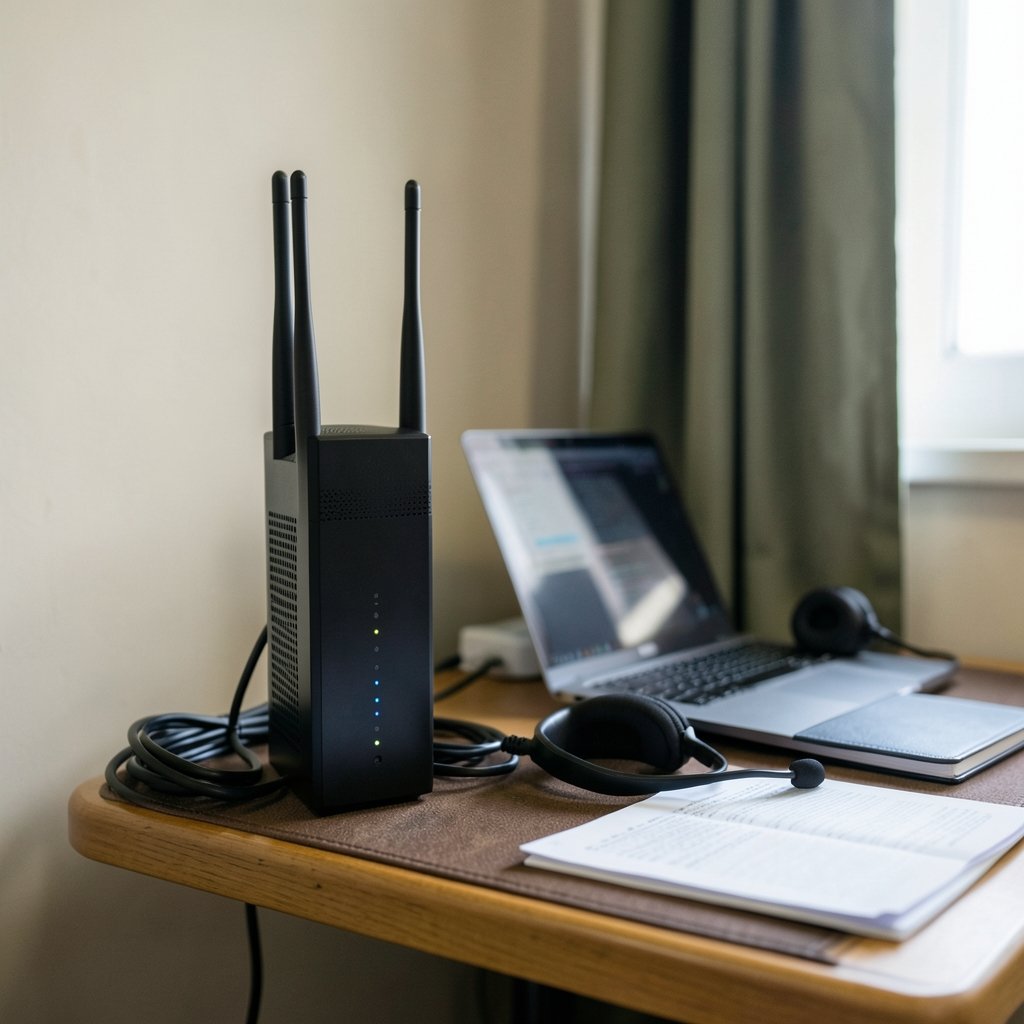
Quick Answer: What is a good internet speed for working from home?
A good internet speed for working from home starts at 100 Mbps download and 20 Mbps upload for a single remote worker handling video calls, cloud files, and everyday browsing. That figure matches the benchmark the FCC adopted for fixed broadband in 2024, though households with several heavy users should aim higher. (Internet access)
Upload speed matters more than most people expect, because video calls and file syncing run on upload, not download. Latency and stability also shape the experience as much as raw bandwidth does.
Before choosing a plan, compare download and upload speeds, the number of simultaneous users, latency, your router’s capability, the connection type, and the provider’s reliability record.
Why the “Fast Enough” Number Keeps Changing

Remote work exploded after 2020, and home internet quietly became office infrastructure. Yet the honest answer to “what speed do I need?” is that it depends on what a workday actually looks like in a given household. A single spreadsheet user and a household running three video calls while streaming 4K video are not the same problem.
The regulatory floor has moved too. For years, 25 Mbps download and 3 Mbps upload was the official US definition of broadband. In 2024, the Federal Communications Commission raised that benchmark to 100 Mbps down and 20 Mbps up, a reflection of how much heavier everyday internet use has become. That is a useful reference point, not a magic number.
What actually matters is whether your connection handles your specific workload without stalling at the worst possible moment.
The Real-World Baseline for One Remote Worker
For a single person working from home, the practical sweet spot sits around 50 to 100 Mbps download and at least 10 to 20 Mbps upload. That range comfortably covers:
- HD video conferencing
- Cloud document editing and file sync
- Email, chat, and browser tabs by the dozen
- Music streaming in the background
The FCC’s own household guidance has historically listed far lower speeds as adequate for basic tasks like email and web browsing. The gap between “adequate” and “comfortable” is where most frustration lives. A 25 Mbps connection technically supports a video call, but add a partner on another call and a child streaming video, and the cracks show fast.
Why Upload Is the Hidden Bottleneck
Most home connections are asymmetric, meaning download speed dwarfs upload speed. Cable plans in particular might offer 500 Mbps down but only 20 Mbps up. That asymmetry is fine for Netflix binges and terrible for a job built on screen sharing. (Broadband Speed Guide)
Video calls send as much data as they receive. Large file uploads, cloud backups, and remote desktop sessions all lean on upload capacity. If a connection feels sluggish during meetings but tests fine on a speed checker, upload is usually the culprit.
Matching Speed to Your Actual Workload
Different jobs place very different demands on a connection. The table below offers a practical starting point for common remote-work profiles.
| Work profile | Download needed | Upload needed | Notes |
|---|---|---|---|
| Email, documents, light browsing | 25–50 Mbps | 5–10 Mbps | Fine for one person, tight for a family |
| Regular video calls and cloud apps | 50–100 Mbps | 10–20 Mbps | The comfortable default for most remote workers |
| Heavy file transfers, design, video editing | 200+ Mbps | 20–50 Mbps | Upload speed is the deciding factor |
| Software development, large repos, VMs | 200+ Mbps | 20+ Mbps | Latency matters for remote servers |
| Live streaming or client presentations | 100+ Mbps | 20–40 Mbps | Stability beats raw peak speed |
Industry guidance from major video platforms generally puts a one-on-one HD call at roughly 1.5 to 3 Mbps in each direction, with group HD calls needing a bit more. Those numbers sound tiny, and they are, until you multiply them across a household and add everything else running quietly in the background.
Household Math: Add, Don’t Average
A common mistake is testing speed once, seeing a healthy number, and assuming the job is done. Bandwidth is shared. If three people each need 10 Mbps of upload at the same time, a 20 Mbps upload connection is already underwater.
A simple rule of thumb: count the number of people doing heavy real-time work or streaming simultaneously, then add a buffer of at least 50 percent. A household of four with two remote workers and a streaming habit should be looking at 300 Mbps or more, with upload no lower than 20 to 35 Mbps.
Latency, Jitter, and the Numbers Speed Tests Hide
Raw speed gets all the attention, but latency (the delay before data starts moving) and jitter (how much that delay varies) determine whether a call feels natural or robotic. For real-time work like video meetings and remote desktop access, latency under roughly 50 milliseconds is a reasonable target, and lower is better.
Speed test sites often bury these figures below the big download number. Anyone whose calls freeze while their speed test looks perfect should check latency and jitter next, then look at their Wi-Fi setup. A wired ethernet connection frequently solves problems that a faster plan cannot.
Bandwidth is the width of the pipe; latency is how long the water takes to arrive. Both shape the experience.
Where People Go Wrong When Choosing a Plan
Plenty of remote workers overpay for download speed they never use while ignoring the upload figure that would actually fix their meetings. A few patterns come up again and again.
Chasing the biggest download number. Providers advertise download speeds in huge type. A 1 Gbps plan with 20 Mbps upload is worse for a video-call-heavy job than a 300 Mbps plan with 100 Mbps upload.
Ignoring the router. An older router or a weak Wi-Fi signal can strangle a fast connection. If the plan is upgraded but the hardware is not, the bottleneck just moves. Anyone building out a home office setup may also want to look at smart speakers for home automation and similar devices, since every connected gadget competes for airtime on the same network.
Testing at the wrong time. A speed test at 7 a.m. on a quiet street proves little. Test during peak evening hours and during an actual video call.
Forgetting about security. A home office handles work credentials and client data, so pairing a solid connection with reputable protection matters. A guide to the best internet security in Australia illustrates the kind of checklist worth running through, wherever the reader happens to live.
Skipping the contract details. Upload speeds, data caps, and price increases after a promotional period are all buried in the fine print. Reading it takes ten minutes and saves months of annoyance.
How to Test and Improve What You Already Have
Before upgrading, it is worth confirming the current connection is actually the problem. A structured check takes about half an hour.
- Run a speed test on a wired connection, then again on Wi-Fi in the room where work happens. Compare the two.
- Run a test during a video call, not instead of one.
- Note the latency and jitter figures, as well as download and upload.
- Count how many devices are active during a typical workday.
- Move the router away from thick walls, microwaves, and fish tanks, and try a central position.
- If Wi-Fi is the weak link, consider a mesh system before paying for a faster plan.
Many people discover their connection was never the problem. A mediocre signal in the home office can make a gigabit plan feel like dial-up.
When Upgrading Genuinely Makes Sense
If tests show upload speeds under 10 Mbps, consistent latency spikes during calls, or slowdowns whenever the household is busy, a plan change is likely worthwhile. Fiber connections usually offer symmetric speeds, meaning upload matches download, which is ideal for remote work. Where fiber is unavailable, cable with a higher upload tier or a fixed wireless option may be the practical alternative.
Remote work has also reshaped where people live, and home offices increasingly factor into bigger property decisions. Households weighing renovations to create a dedicated workspace sometimes compare financing routes such as a home equity loan versus a line of credit before committing to a build. A wired home office is a genuinely useful upgrade, not a vanity one.
What Different Connection Types Deliver
Understanding the technology behind the plan explains a lot of the variation in real-world performance.
| Connection type | Typical download | Typical upload | Best for |
|---|---|---|---|
| Fiber | 300–1,000+ Mbps | Often equal to download | Heavy remote work, large households |
| Cable | 100–1,000 Mbps | 10–35 Mbps | Most remote workers, upload-limited |
| DSL | 10–100 Mbps | 1–10 Mbps | Light use, rural areas |
| Fixed wireless | 25–100 Mbps | 5–20 Mbps | Areas without cable or fiber |
| Satellite | 25–200 Mbps | 3–25 Mbps | Remote locations, higher latency |
| Mobile hotspot | 10–100 Mbps | 5–20 Mbps | Backup and travel only |
Satellite and mobile connections can post respectable download numbers, but their latency is often too high for smooth video calls and remote desktop work. For anyone whose job depends on real-time collaboration, fiber or cable remains the safer bet.
Conclusion
A good internet speed for working from home is not one number carved in stone. For most single remote workers, 100 Mbps download and 20 Mbps upload is a comfortable, future-proof baseline, and it lines up with the current broadband benchmark. Larger households, heavy file handlers, and anyone running live video should aim higher, especially on upload.
The smarter approach is to work backwards from the actual job: count simultaneous users, check the upload figure before signing anything, test latency during real calls, and fix the home network before paying for more bandwidth. Speed sells plans, but stability, upload capacity, and a decent router are what make a workday feel effortless. Get those right, and the big download number becomes the least interesting part of the package.
Frequently Asked Questions
Is 100 Mbps fast enough for working from home?
For a single remote worker, yes. A 100 Mbps download connection handles video calls, cloud apps, file syncing, and streaming with room to spare, provided the upload speed is at least 20 Mbps. The picture changes in a busy household where several people work or stream at once, since bandwidth is shared across every device.
Do I need fiber for remote work?
Fiber is not strictly necessary, but it is the most forgiving option because upload speeds usually match download speeds. Cable works well for most remote jobs as long as the upload tier is adequate. Fiber becomes close to essential for people who move large files daily, run a home server, or host live client sessions.
Why are my video calls lagging when my speed test looks fine?
Speed tests measure peak download and upload, not the latency and jitter that govern real-time calls. A connection can post impressive numbers and still stutter if latency spikes or the Wi-Fi signal is weak. Testing during an actual call, checking jitter, and trying a wired connection usually reveals the true cause.
How much internet speed does a family of four need?
A household of four with two remote workers and regular streaming should look at 300 Mbps download or more, with upload of at least 20 to 35 Mbps. The key is adding capacity for simultaneous heavy users rather than averaging their needs, then leaving a buffer for background updates and connected devices.
Does upload speed matter more than download for work?
For most remote jobs, upload deserves equal attention. Video calls, screen sharing, cloud backups, and file transfers all depend on upload capacity, and many home plans keep upload surprisingly low. A plan with fast download but thin upload will feel sluggish during exactly the tasks that define a workday.
Can I work from home on a mobile hotspot?
A mobile hotspot can carry a workday in a pinch, and modern mobile networks often deliver workable speeds. The drawbacks are data caps, inconsistent latency, and performance that shifts with network congestion. It works best as a backup connection rather than a primary one for anyone whose job revolves around live video.



