
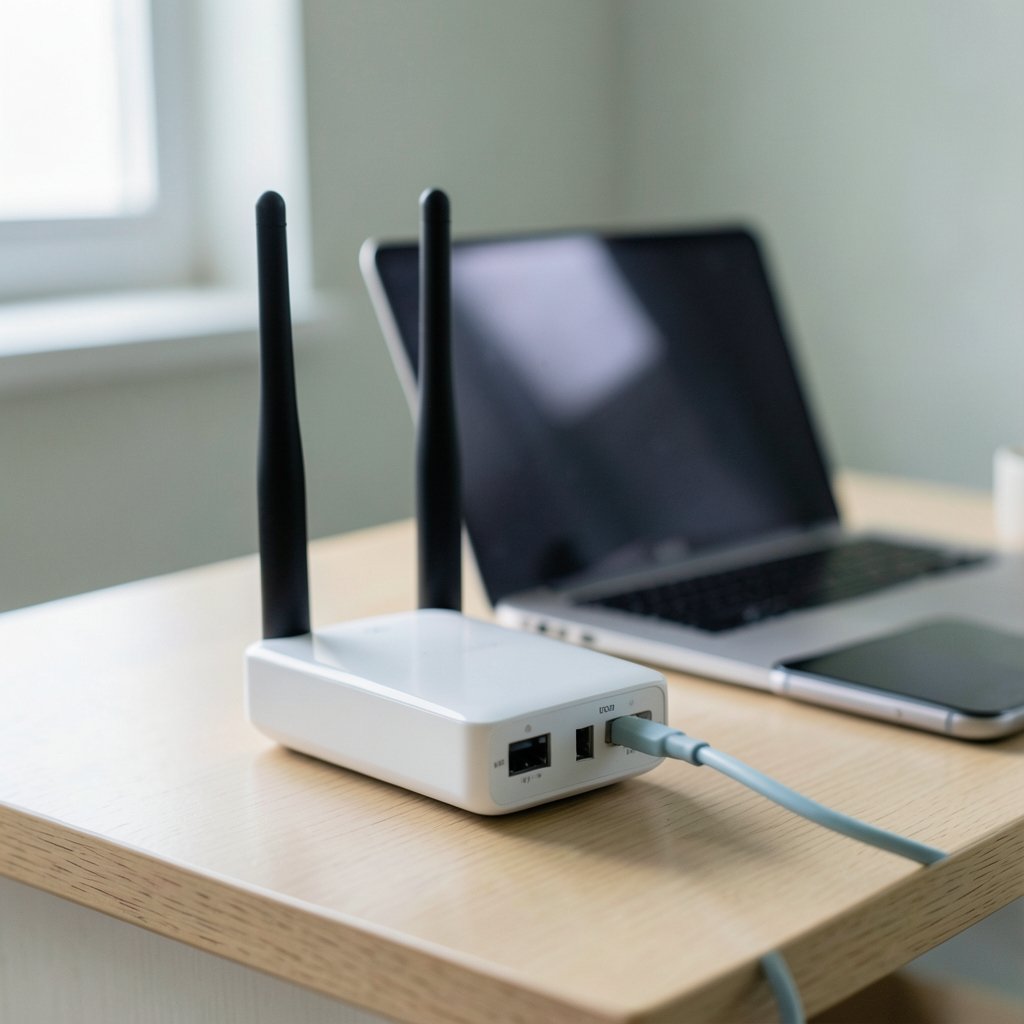
Open a typical home router’s admin page and you’ll find a dropdown labeled Channel with a default setting of Auto. Most people never touch it. Yet in apartment buildings and dense neighborhoods, that single setting can be the difference between a video call that holds and one that freezes every ninety seconds. The 2.4 GHz band crams every nearby router, microwave, and baby monitor into a narrow slice of spectrum, and each channel is only about 20 MHz wide while sitting just 5 MHz apart. That overlap is why neighbors’ networks stomp on each other, and why picking the right channel is one of the few router tweaks that genuinely pays off. (FCC Radio Spectrum Allocation)
This guide walks through how to change your Wi-Fi channel properly: what the bands actually offer, how to find the cleanest channel, the exact menu steps, and the mistakes that make people worse off than before.
Why Your Wi-Fi Channel Matters More Than You Think
Every wireless network broadcasts on a channel, which is simply a small frequency range inside a larger band. In the 2.4 GHz band, channels are numbered 1 through 14, though which ones you can use depends on where you live. The United States allows 1 through 11, most of Europe allows 1 through 13, and Japan permits 1 through 14. Channel 14 is effectively Japan-only and restricted.
Here’s the problem. Each 2.4 GHz channel needs roughly 20 MHz of breathing room, but the channels are spaced only 5 MHz apart. So channel 3 overlaps heavily with channels 1, 2, 4, 5, and 6. In the US channel set, only 1, 6, and 11 avoid overlapping each other. In the 1-through-13 set, 1, 5, 9, and 13 form the clean non-overlapping pattern, with 1, 6, and 11 still a common practical choice. (List of WLAN channels)
When two nearby networks sit on overlapping channels, they don’t politely take turns. They wait, retry, and slow each other down. That’s why a router on channel 6 in a crowded building can feel sluggish even with a strong signal. Signal strength and channel cleanliness are two different things, and most people only ever check the first.
The 5 GHz band behaves differently. It offers far more non-overlapping channels, typically more than twenty depending on region and radar-sharing rules, so channel choice matters much less there. Channel width is the bigger lever in 5 GHz. The 6 GHz band, used by Wi-Fi 6E and Wi-Fi 7 gear, is channelized cleanly from end to end and has no real overlap problem at all.
Before You Touch Anything: Check Whether It’s Actually the Channel
Changing channels is not a universal fix, and treating it as one wastes time. Before logging into the router, rule out the obvious.
Ask whether the problem is coverage or congestion. If a device drops out in the far bedroom but works fine next to the router, that’s a range problem, and no channel change will fix it. If everything is fast at 7 a.m. and crawls at 8 p.m. when the building fills up, that’s congestion, and channel selection is exactly the right tool.
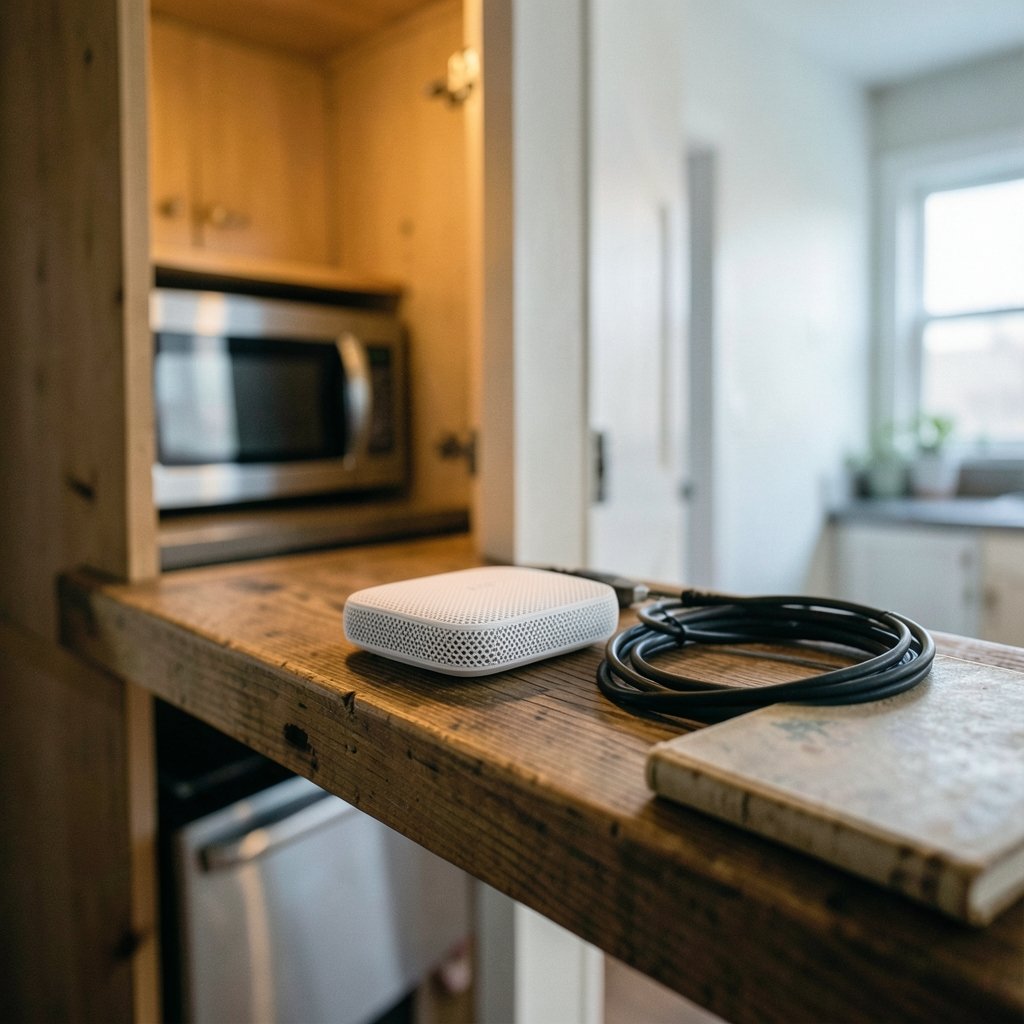
A practical first move: walk the home with a phone and watch the signal bars in each room. Then run a speed test at a quiet hour and again at a busy hour. A large gap between the two points to interference. A consistently weak signal points to placement. Moving a router off the floor, out of a cabinet, and away from a metal appliance often beats any channel change.
It also helps to know what your devices support. Older laptops and smart-home gadgets frequently run 2.4 GHz only, while phones and streaming boxes usually handle 5 GHz or 6 GHz. If the congested band is 2.4 GHz but your important devices can use 5 GHz, the smarter fix may be steering those devices to the higher band rather than fighting for space on 2.4 GHz.
How to Find the Cleanest Channel
You can’t pick a good channel without knowing what your neighbors are doing. A Wi-Fi analyzer app turns that guesswork into a picture. Android phones have several free scanners, laptops can run a scanner utility, and some router apps include a built-in channel scan. The display shows every nearby network as a curved hump, and where the humps stack up, interference lives.
Read the graph like this:
- Look for gaps where no hump peaks.
- In 2.4 GHz, favor the standard non-overlapping channels rather than a random empty-looking number.
- Count how many networks sit on each candidate channel, and pick the least crowded one.
- Re-scan at a different time of day, since neighbors come and go.
One honest caveat: results are a snapshot. A channel that’s empty at noon may be crowded at night. That variability is precisely why Auto exists, and why it’s often the better long-term answer.
Step-by-Step: Changing the Channel on Your Router
The mechanics are similar across brands even though the menus differ. The single most reliable source for exact steps is your router manufacturer’s own support documentation for your specific model, since menu labels change between firmware versions.
- Find the router’s admin address. It’s usually something like 192.168.1.1 or 192.168.0.1, printed on a sticker on the router along with the default username and password.
- Log in. If the default password was never changed, change it now. An unsecured admin page is a genuine risk, and router flaws have been exploited in the wild before.
- Open the wireless settings. Look for a section labeled Wireless, Wi-Fi, or WLAN, then find the band-specific page (2.4 GHz and 5 GHz are usually separate).
- Locate the Channel dropdown. Note the current value. If it says Auto, you’re about to override automatic selection.
- Select your chosen channel. Pick from the non-overlapping set you identified. In 5 GHz, prefer leaving channel on Auto and adjusting width instead.
- Check channel width. On 2.4 GHz, keep it at 20 MHz in crowded areas. A 40 MHz setting on 2.4 GHz often makes things worse, not better, because it hogs even more spectrum.
- Save and let the router reboot. The network will drop for a minute or two.
- Re-test. Run a speed test and compare against your earlier baseline. If nothing improved, revert to Auto.
A useful habit: change one thing at a time. Adjusting channel, width, and band steering simultaneously leaves you unable to tell which change helped.
What Actually Works in Practice
Experience from countless home networks points to a handful of patterns that repeat.
Auto usually wins. Modern routers scan for congestion and shift channels on their own. Manual selection mainly helps when Auto misbehaves, when a router stubbornly parks on a crowded channel, or when you want a fixed, known-clean setting for a device that reconnects poorly.
DFS channels are a trap for some users. In 5 GHz, many countries reserve certain channels (roughly 52 through 144 in many regions) for radar sharing. Routers must vacate immediately if they detect radar, which can cause a sudden disconnect near airports or weather radar installations. If a manually selected 5 GHz channel keeps dropping, DFS is a likely culprit.
2.4 GHz is for distance, not speed. It penetrates walls better but carries less data. Put smart plugs, sensors, and older gadgets there and keep phones, laptops, and TVs on 5 GHz or 6 GHz.
Neighbors change too. A channel that was clean last year may now be the busiest one on the block. Re-scanning occasionally is more useful than setting and forgetting.
For anyone comparing router models or naming networks while troubleshooting, small configuration details add up fast. The same principle applies to emerging hardware: filings and spec sheets, like the ps portal 2 wifi alliance filing 2026, often reveal which bands a device will actually support before launch.
Common Mistakes That Make Things Worse
| Mistake | Why it backfires | Better approach |
|---|---|---|
| Picking a random “empty” channel like 3 or 8 | It overlaps several neighbors at once | Stick to 1, 6, 11 (US) or 1, 5, 9, 13 |
| Setting 40 MHz width on 2.4 GHz | Consumes double the spectrum in a crowded band | Use 20 MHz on 2.4 GHz |
| Manually forcing a DFS channel | Router may vacate it when radar is detected | Leave 5 GHz on Auto unless testing |
| Changing channel to fix weak signal | Range problems aren’t congestion problems | Reposition the router or add an access point |
| Never re-checking after a move | New neighbors, new interference | Re-scan every few months |
There’s a broader lesson in that table: configuration changes should follow diagnosis, not replace it. The same discipline shows up in other technical domains, from network security advisories such as the php2shell crypto exchanges risk hwang suk jin slowmist 2026 report to the way researchers track emerging compute shifts in pieces on how quantum computing could change artificial intelligence. Good troubleshooting starts with evidence.
When to Stop Tweaking and Upgrade Instead
Channel changes have limits. If a household runs a dozen devices, streams in 4K, and works from home on video calls all day, a single aging router on a crowded 2.4 GHz band may simply be outmatched. Signs it’s time to move on include a router that only supports 2.4 GHz, repeated drops that survive every channel change, and a home layout with thick walls that no single unit can cover.
Mesh systems and newer routers handle channel selection automatically and far more intelligently than manual tinkering. Before buying, it’s worth understanding what the next generation of devices will demand. Coverage of developments like the Zuckerberg Chan CZI Biohub AI biomedical shift 2026 and its explainer companion illustrate how quickly bandwidth-hungry tools spread into everyday work, and home networks feel that pressure first.
Conclusion
Changing your Wi-Fi channel is a five-minute job with a clear payoff in the right circumstances. The recipe is simple: confirm the problem is congestion rather than coverage, scan for the least crowded non-overlapping channel, keep 2.4 GHz at 20 MHz width, and revert to Auto if nothing improves. In 5 GHz and 6 GHz, leave channel selection alone and focus on width and placement instead.
The deeper point is that diagnosis beats fiddling. A router on channel 6 in a crowded apartment block will frustrate anyone, but so will a perfect channel setting on a router tucked behind a metal shelf in the basement. Measure first, change one variable, and test again. That habit serves far better than any single setting, and it’s the difference between guessing and actually fixing the problem.
Frequently Asked Questions
What is the best Wi-Fi channel to use?
In the 2.4 GHz band, the best channel is whichever of the non-overlapping options is least crowded where you live. In the US that means choosing among 1, 6, and 11; in the 1-through-13 set, 1, 5, 9, and 13. There is no universal best channel because interference is local. Scan your surroundings, then pick the cleanest option.
Does changing my Wi-Fi channel really make internet faster?
It can improve speed and stability when the problem is interference from neighboring networks. It will not increase the speed your internet provider delivers, and it won’t fix weak coverage in distant rooms. Think of it as removing friction rather than adding bandwidth.
How do I know if my Wi-Fi channel is crowded?
Use a Wi-Fi analyzer app on a phone or laptop. It displays nearby networks as peaks across the channel range, so you can see which channels are stacked with neighbors. Check at different times of day, since congestion changes as people come home from work.
Should I leave my router on Auto channel selection?
Usually yes. Modern routers scan for congestion and switch channels automatically, which handles changing conditions better than a fixed setting. Manual selection is worth trying when Auto picks a persistently crowded channel, when a device reconnects poorly, or when you want a known-clean channel for testing.
Why does my 5 GHz connection keep dropping after I change the channel?
You may have selected a DFS channel, which many regions reserve for radar sharing. Routers must vacate those channels immediately when radar is detected, causing a brief disconnect. If drops started right after a manual change, switch back to Auto or pick a non-DFS channel.
Does channel width matter as much as the channel number?
On 2.4 GHz, yes. A 40 MHz width setting consumes roughly double the spectrum and usually hurts performance in crowded areas, so keep it at 20 MHz. On 5 GHz and 6 GHz, wider channels (40, 80, or 160 MHz) can help, but only when the band isn’t congested and your devices support them.



