

Almost every home network runs on a tiny box that most people never think about until something breaks. That box is the router, and it holds the keys to your Wi-Fi name, your password, your parental controls, and your security settings. The catch is that you can only reach those controls through a login screen that many people have never seen. Learning how to log into your router settings is one of the most useful tech skills you can pick up, and it usually takes less than two minutes once you know where to look.
What the Router Login Page Actually Is
Your router is a small computer, and like any computer it runs a web interface for administration. That interface sits at a private address on your local network, so you can reach it without an internet connection. The address is the router’s default route, and it is almost always something like 192.168.1.1, 192.168.0.1, or 10.0.0.1.
There is no universal standard. The exact address depends on the manufacturer and model. A list of “common router IPs” will always be incomplete, so the dependable method is to ask your own device which default route it uses. That single check clears up most login confusion before it starts.
The login page itself is usually plain and functional. You get a username field, a password field, and a login button. Some newer routers dress it up with a setup wizard, but the underlying idea is the same: prove you are allowed to change the network, then change it.
Step One: Find Your Router’s Address
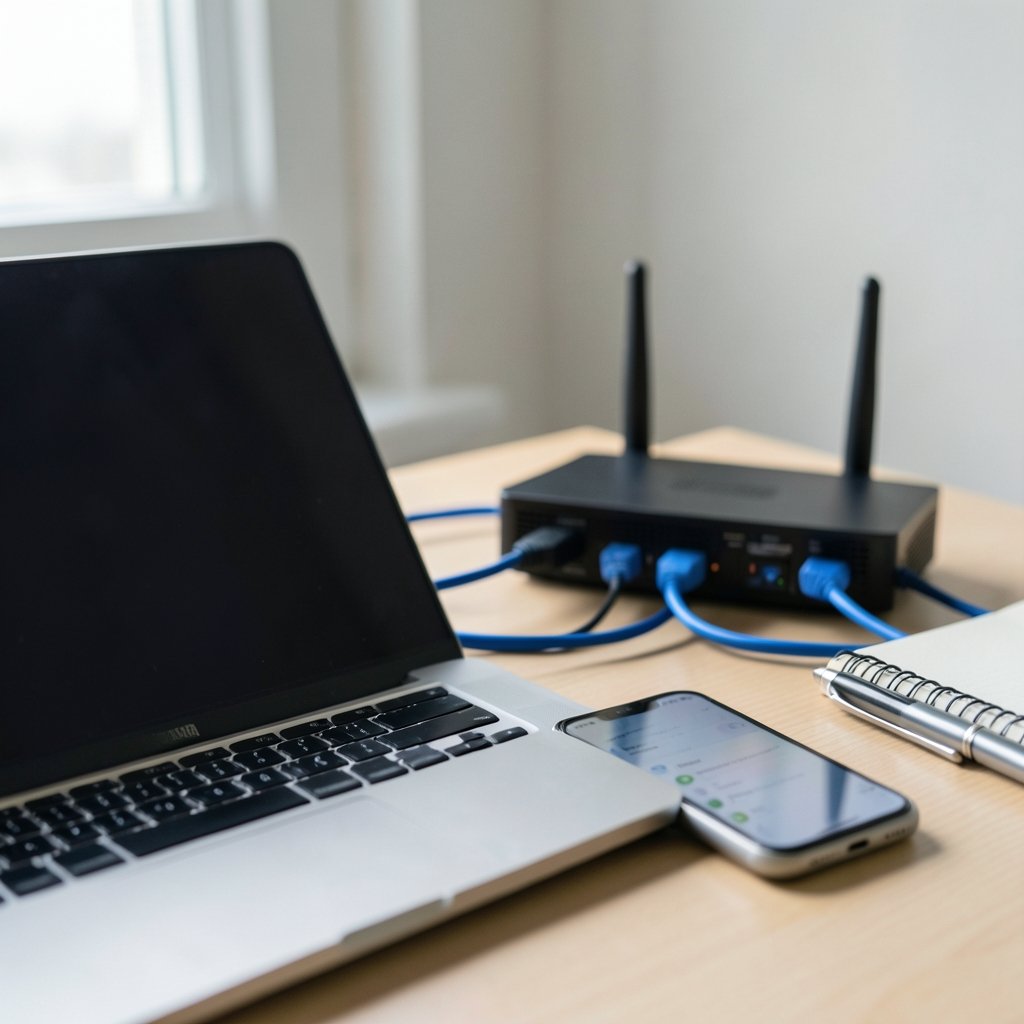
Before you can log in, you need the address. There are three dependable ways to get it, and the first one works on almost every device.
On Windows
Open the Start menu, type cmd, and press Enter. In the black window that appears, type `ipconfig` and press Enter. Find the line labeled Default Gateway in the output. The number next to it, such as 192.168.1.1, is your router’s address. Type that number into your browser’s address bar and press Enter.
On macOS and Linux
On a Mac, open Terminal and run `netstat -nr | grep default`. On most Linux systems, `ip route` shows the same information. The address after “default via” is your router’s local address. You can also check your phone’s Wi-Fi settings, which often display the router address in the network details. (Router (computing)))
On the Router Itself
Flip the router over. Most manufacturers print the admin address, the default username, and the default password on a sticker on the bottom or back. This label is the single most authoritative source for your specific device, and it is worth photographing with your phone so you never have to crawl behind the desk again.
| Method | Best for | What you get |
|---|---|---|
| `ipconfig` (Windows) | Desktop and laptop users | Default route address |
| `netstat -nr` or `ip route` | Mac and Linux users | Router address |
| Router label | Everyone | Address, username, password |
| Manufacturer manual | Older or unusual models | Full default credentials |
Step Two: Open the Admin Page and Log In
With the address in hand, open any browser and type it into the address bar. Include the ` prefix if the browser insists on searching instead of navigating. You should see a login prompt within a second or two.
Now enter the credentials. If you have never changed them, they are on the router label. Historically, many routers shipped with shared defaults like admin/admin or admin/password, but vendor practice has shifted over time. Many manufacturers now generate a unique password for each device, which is a security improvement. Treat any undated “standard password” list you find online with suspicion, because defaults are model-specific and change between firmware generations.
A few practical notes from experience:
- Type the password manually. Password managers sometimes autofill the wrong entry on these pages, and the failure looks identical to a wrong password.
- Watch for caps lock. It sounds trivial, but it is the single most common cause of a failed first login.
- Try HTTPS if HTTP fails. Some routers redirect the admin page to a secure connection, and others serve plain HTTP only. Behavior varies by firmware version, so if one scheme stalls, try the other.
- Use a wired connection if Wi-Fi is flaky. A laptop plugged into the router with an Ethernet cable removes one variable from the equation.
If the page does not load at all, the address is probably wrong, or you are connected to a different network than you think. Disconnect from any VPN first, since a VPN can route your traffic away from the local router address entirely.
Step Three: Change the Password Immediately
Once you are in, resist the urge to start renaming your Wi-Fi and exploring every menu. Do the security housekeeping first. Many routers force or strongly prompt a password change on first login, and you should accept that prompt.
Choose a password that is long, unique, and stored in a password manager. This password protects the controls for your entire network, so it deserves better than your dog’s name. While you are in the security section, check two more things:
- Remote administration should be off unless you specifically need it. Admin interfaces are normally LAN-only by default, and that default exists for good reason.
- Firmware updates should be applied. Router firmware patches security holes, and an unpatched router is a quiet liability.
If you are also shopping for hardware and want fewer boxes and cables in your life, a combined unit can simplify the setup considerably. Guides like this roundup of the best modem router combo options can help you compare features before you buy.
What You Can Actually Change Once You’re In
The admin panel is where the real customization lives. Most routers organize settings into a handful of categories, and knowing what each one does saves a lot of menu-hopping.
Wireless settings control your network name (SSID), password, and which radio bands are active. This is where you separate the 2.4 GHz and 5 GHz networks or give them the same name so devices pick the best one automatically.
Security settings cover the encryption standard, the admin password, and firewall options. Modern routers default to WPA2 or WPA3, and there is rarely a reason to downgrade.
Parental controls and access rules let you pause the internet for specific devices, schedule downtime, and block categories of content. These are more granular than most people expect.
Port forwarding and DHCP reservations are the advanced tools. Port forwarding exposes a service to the internet, and DHCP reservations give a device the same local address every time. Both are easy to misconfigure, so change one thing at a time and note what you changed.
Guest network settings create a separate Wi-Fi network for visitors that cannot reach your main devices. If you have smart home gadgets, putting them on a guest or IoT network is a genuinely good habit.
When the Login Fails: A Troubleshooting Order
Failed logins are common, and the fixes follow a predictable order.
First, confirm the address. Re-run the default route lookup. A surprising number of “wrong password” problems are actually “wrong IP” problems.
Second, try the credentials on the label. If someone in the household changed the password and forgot it, the label will not help, but it is worth ruling out.
Third, try a different browser or a private window. Browser extensions occasionally interfere with these pages, and a clean session eliminates that possibility.
Fourth, perform a factory reset. Every router has a recessed reset button that restores default credentials when held for about ten seconds. This is the standard recovery path, and it works. Be aware of the cost: a reset wipes your Wi-Fi name, password, and every custom setting. Write down your current configuration before you press it, or you will spend an evening rebuilding your network from scratch.
Fifth, check whether your router is ISP-supplied. Carrier-provided gateways sometimes use a custom admin URL or a companion app instead of a standard IP, and they may lock down certain settings entirely. Your ISP’s official help pages are the right place to look in that case.
One more scenario worth mentioning: if you are setting up a router for creative work and juggling several browser tabs, it helps to keep your admin session in its own window. The same discipline applies when you are dialing in AI image tools, where tweaking the best Leonardo AI settings for photorealistic images rewards the same patient, one-change-at-a-time approach.
Common Mistakes That Cost People Time
A short list of the errors that show up again and again:
- Assuming the IP is universal. It is not. Model-specific defaults mean you should always verify rather than guess.
- Confusing the Wi-Fi password with the admin password. They are different credentials with different jobs. The Wi-Fi password joins the network; the admin password changes the network.
- Resetting before checking the label. A factory reset is a last resort, not a first step.
- Leaving the default admin password in place. This is the riskiest habit on the list, because anyone on your network who knows the default can take control.
- Changing five settings at once. When something breaks, you will have no idea which change caused it.
Patience beats speed here. The people who breeze through router setup are not experts; they simply change one thing, test it, and move on.
A Word on Security and Trust
Router security is not a niche concern. A compromised router can redirect your traffic, inject ads, or expose every device on your network. The good news is that the defenses are simple: a strong unique admin password, current firmware, remote administration disabled, and WPA2 or WPA3 encryption on the wireless side. None of these require technical skill, and all of them take under ten minutes to set up. (Use Strong Passwords)
It also helps to understand what you are looking at. The admin interface is a web server running on a private address, which is why it works without internet and why it disappears when you connect to a VPN. Once that mental model clicks, the whole process stops feeling mysterious.
Conclusion
Logging into your router settings comes down to three moves: find the router address, open it in a browser, and enter the credentials from the label. The rest is housekeeping. Change the admin password on day one, keep the firmware current, and leave remote administration off unless you have a specific reason to enable it. If you get locked out, work through the troubleshooting order before reaching for the reset button, and always record your settings before a factory reset. A router you understand is a router you can actually secure, and the whole job takes less time than brewing a pot of coffee.
Frequently Asked Questions
What is the default address for router login?
There is no single default. Most home routers use a private address such as 192.168.1.1, 192.168.0.1, or 10.0.0.1, but the exact value depends on the manufacturer and model. The dependable method is to check your device’s default route using `ipconfig` on Windows or `netstat -nr` on macOS, or to read the address printed on the router label.
What if I forgot my router admin password?
First, check the label on the router, since many devices ship with a unique password printed there. If someone changed it and the new password is lost, the standard recovery path is a factory reset: hold the recessed reset button for about ten seconds. Be aware that a reset erases your Wi-Fi name, password, and all custom settings, so note your configuration first.
Is the router admin password the same as my Wi-Fi password?
No. They serve different purposes. The Wi-Fi password lets devices join your network. The admin password lets you change the network’s settings through the router’s web interface. Many people set them to the same value for convenience, but security-wise it is better to keep them different and store both in a password manager.
Why won’t my router login page load?
The most common cause is a wrong address, so re-check your router’s default route. A VPN can also prevent the page from loading because it routes traffic away from your local network, so disconnect it first. Finally, confirm you are connected to the right network, and try a different browser or a private window to rule out extension interference.
Can I log into my router from outside my home?
Usually not, and that is by design. Admin interfaces are normally LAN-only by default, and remote administration is typically disabled unless you turn it on. Leaving it off is the safer choice, since an exposed admin page is an attractive target. If you genuinely need remote access, use a VPN into your home network rather than opening the admin port to the internet.
How often should I update my router’s firmware?
Check for updates every few months, and always after a security advisory affecting your model. Firmware updates patch vulnerabilities and occasionally add features. Most routers have a one-click update option in the admin panel, and some can check automatically. An unpatched router is one of the quietest security risks in a home network.



