A good home connection starts with equipment that matches both the internet service and the household’s busiest day. A gateway is a device that combines a modem and a router in one unit. This roundup focuses on Wi-Fi 6 choices and includes one Wi-Fi 7 option for homes that want newer wireless technology.
The best modem router combo depends on your service type, plan speed, and the devices you use at once. A combo can simplify cable internet, but it does not fit every kind of connection. The right pick can help you avoid paying for features your home will not use.
Key Takeaways
- Check your service type before choosing a gateway.
- Get ISP approval for the exact model and plan.
- Choose DOCSIS 3.1 for cable plans above 400 Mbps.
- The CAX30S is a balanced Wi-Fi 6 option for many homes.
- Consider the G54 for Wi-Fi 7 and multi-gig headroom.
- Count wired devices and check port speed before buying.
Start with the service coming into your home, then weigh speed and household needs. Check whether the home has cable or fiber service before comparing any equipment.
Will a Modem Router Combo Work With Your ISP?
A cable modem-router combo only works when the connection is HFC cable and the ISP approves that model. Exact approval matters, since an ISP may support one model but reject another on the same plan.
The combos in this roundup are for hybrid fiber coaxial cable service, not fiber, DSL, or satellite. HFC networks use fiber and coaxial cable to deliver cable broadband, as described in CableLabs’ overview of HFC networks.
| Service type | Combo fit | Example provider or handoff | What to verify |
|---|---|---|---|
| HFC cable | Suitable in principle | Xfinity, Spectrum, or Cox | Exact model |
| Fiber | Not compatible with cable combos | ONT or provider handoff | Supported router connection |
| DSL or satellite | Not compatible with cable combos | Provider-specific equipment | Required hardware |
Cable compatibility for Xfinity and Spectrum
The best modem router combo for Xfinity or the best modem router combo for Spectrum must appear on that ISP’s approved equipment list. An Xfinity or Spectrum pick still needs approval for your exact plan and account.
Xfinity, Spectrum, and Cox are major cable providers, but approval can differ by model and plan. Some listed combos, including the CAX80 and CAX30S, do not support bundled voice service.
Fiber, DSL, and satellite connections
A cable combo will not replace the equipment used for fiber, DSL, or satellite service. Fiber service often uses an optical network terminal, or ONT, that hands off the connection to a router. Ask your ISP which router connection its handoff supports.
Before buying, use this four-check list:
- Confirm whether your service is cable, fiber, DSL, or satellite.
- Check approval for the exact model and plan.
- Check whether you need bundled voice service.
- Learn the ISP’s activation requirements.
Get the provider’s model approval before buying, especially when phone service is bundled.
Best Modem Router Combo for Most Homes
For most households that want a strong Wi-Fi 6 cable gateway without a specialized requirement, the CAX30S is the balanced starting point. It keeps the choice practical for users who do not need Wi-Fi 7 or extra multi-gig features.
The CAX30S supports cable plans up to 2.7 Gbps and costs about $380. Its Wi-Fi 6 AX2700 rating and four Gigabit Ethernet ports suit homes looking for a capable modem router without paying for a top-tier model.
| Model | DOCSIS and Wi-Fi | Wi-Fi tier | Ethernet ports | Approximate price |
|---|---|---|---|---|
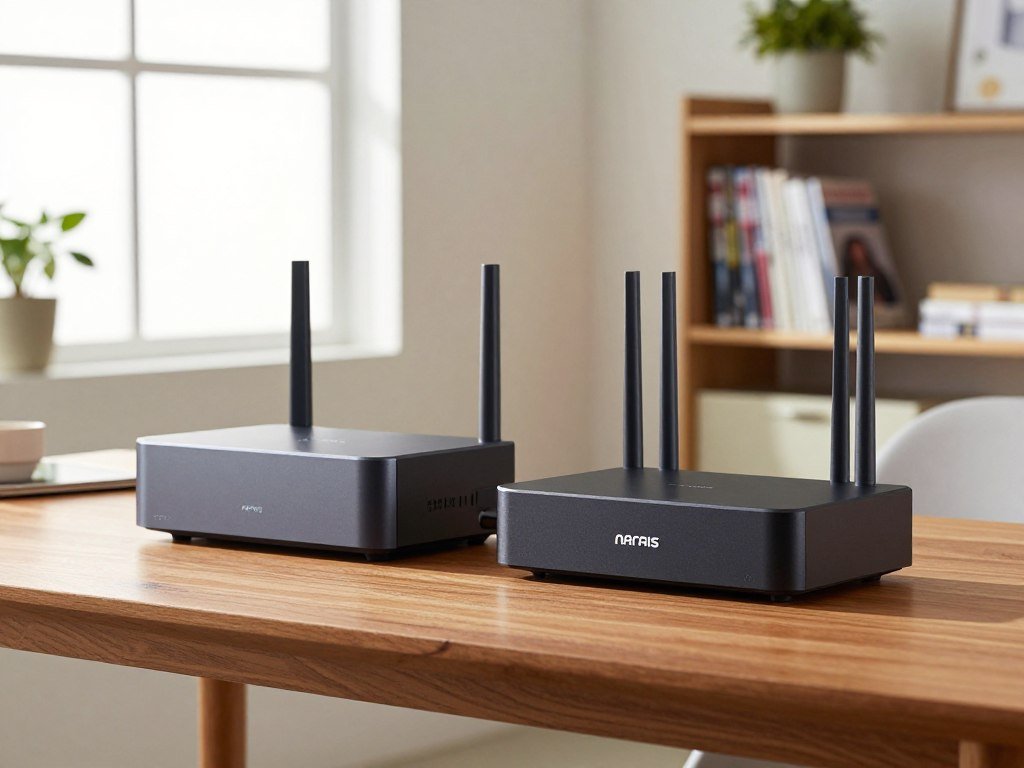
| ARRIS SURFboard G54 | DOCSIS 3.1, 32×8 channels, Wi-Fi 7 | BE18000, quad-band: 2.4 GHz, two 5 GHz, 6 GHz | One 10 Gbps, four 1 Gbps | $500-$600 |
| NETGEAR Nighthawk CAX80 | DOCSIS 3.1, 32×8 channels, Wi-Fi 6 | AX6000, up to 6 Gbps | One 2.5 Gbps, four 1 Gbps | About $500 |
| NETGEAR Nighthawk CAX30S | DOCSIS 3.1, Wi-Fi 6 | AX2700, up to 2.7 Gbps, dual-band | Four Gigabit | About $380 |
| ARRIS SURFboard G36 | DOCSIS 3.1, 32×8 channels, Wi-Fi 6 | AX3000 | One 2.5 Gbps, four 1 Gbps | About $300 |
| ARRIS SURFboard G34 | DOCSIS 3.1, 32×8 channels, Wi-Fi 6 | AX3000 | Four Gigabit | About $280 |
The ARRIS SURFboard G54 is the choice for Wi-Fi 7 and added multi-gig headroom. It supports cable plans up to 2.5 Gbps and has a 10 Gbps port plus four 1 Gbps ports. Its price is about $500-$600.
The NETGEAR Nighthawk CAX80 fits heavy simultaneous use. It combines Wi-Fi 6 AX6000, rated up to 6 Gbps, with a 2.5 Gbps port, four 1 Gbps ports, and USB 3.0. It costs about $500.
The ARRIS SURFboard G36 supports plans up to 1.2 Gbps and costs about $300. The G34 supports plans up to 1 Gbps and costs about $280, making either a more moderate-budget choice.
Wi-Fi tier figures describe advertised wireless throughput, not the speed a wired device or internet plan will receive. Match the plan ceiling and Ethernet port speed before paying extra for unused headroom.
Which Combo Fits a Plan Under 400 Mbps?
A household on a cable plan below 400 Mbps can save money with the SBG10 if it accepts the older Wi-Fi and modem standards. For a modest plan, this ARRIS SURFboard model costs about $80.
The SBG10 has a maximum download speed of 400 Mbps, so it is best suited to plans below that mark. It uses DOCSIS 3.0 with 16×4 channel bonding and dual-band Wi-Fi 5 AC1600.
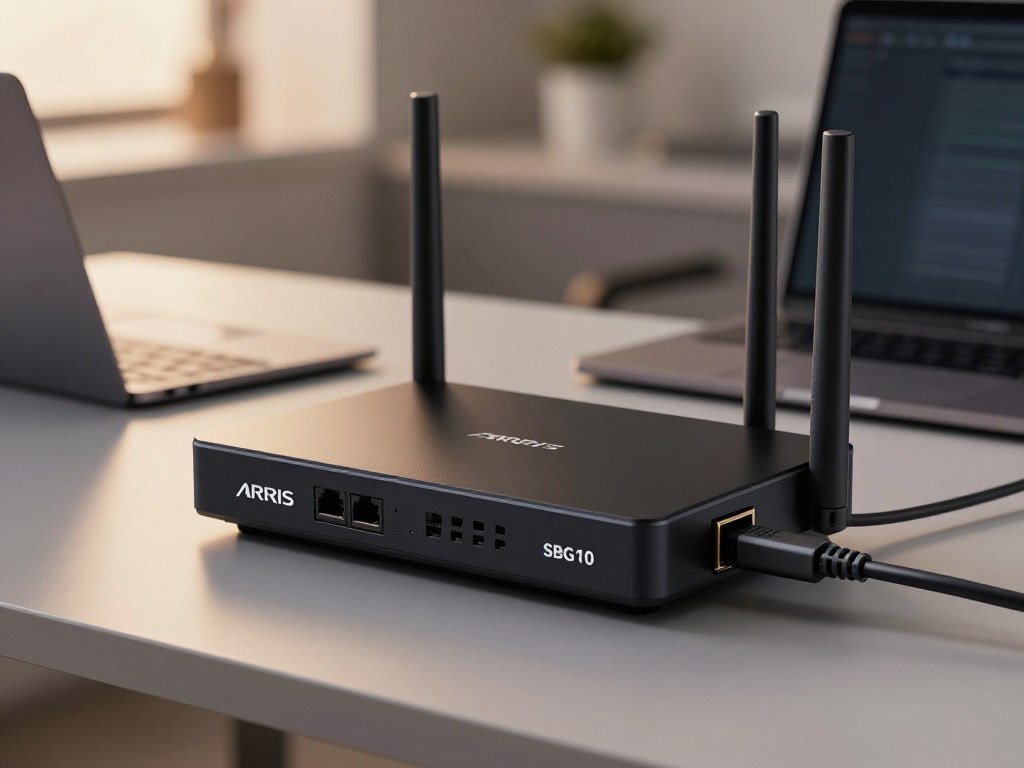
The modem is compatible with Xfinity, Spectrum, and most major cable providers, though the ISP still needs to approve it for your plan. Its two Gigabit Ethernet ports can feel limiting when several devices need a wired connection.
For browsing, streaming, and everyday internet use on a slower plan, the SBG10 can be a sensible low-cost choice. The older DOCSIS and Wi-Fi standards make it a poor fit for gigabit or multi-gig plans.
If a plan upgrade is near, moving to DOCSIS 3.1 is the sensible choice instead of replacing the modem soon after buying it. Skip this budget model if a gigabit plan is already in use or likely soon.
Which Combo Works Best for Gaming and Busy Homes?
For a crowded household with gaming, streaming, and other simultaneous traffic, the CAX80 is the performance-focused pick in this group. Its extra capacity suits homes where many users share the connection at once.
NETGEAR rates the CAX80 for up to 30 simultaneous devices and coverage up to 2,500 sq. ft. Those are manufacturer-rated limits, not a promise that every floor plan will get the same results.
Wired gaming and multi-gig connections
A wired connection is a sensible priority for a gaming PC or console when the device sits near the gateway. A cable avoids some wireless interference, but it cannot fix every issue between your home and the game server.
Wi-Fi speed labels do not promise low game latency. Latency is the delay between an action and its response, and it can change with network traffic or the route to a game server.
A fast internet plan and strong local Wi-Fi are different things. The plan sets the connection coming into the home, while the router handles links between the gateway and your devices.
Many devices sharing one network
The CAX80 includes a one-year NETGEAR Armor subscription. Its Wi-Fi 6 capacity can help when users stream, work, browse, and play games at the same time.
Device count alone does not decide performance. A television streaming video uses the connection differently from a console downloading a large game, and activity can rise or fall during the day.
Think about the busiest hour, not only the number of devices listed in your home. Wire the gaming device first if it sits near the gateway, since a high wireless rating cannot remove every source of latency.
How Do DOCSIS and Wi-Fi Standards Affect Speed?
DOCSIS determines the cable modem’s service capacity, while Wi-Fi determines how the gateway shares a wireless connection around the home. They solve different problems, so a fast modem standard does not ensure fast wireless links.
DOCSIS 3.1 is the recommended standard for cable plans above 400 Mbps. Its stated capacity reaches up to 10 Gbps download and 1-2 Gbps upload, though actual service speed depends on the ISP plan.
| Standard | Typical fit | Stated capability | Buying implication |
|---|---|---|---|
| DOCSIS 3.0 | Lower-speed cable use | Theoretical download ceiling of 1 Gbps | Can bottleneck modern gigabit plans |
| DOCSIS 3.1 | Plans above 400 Mbps | Up to 10 Gbps download, 1-2 Gbps upload | Recommended for headroom |
| Wi-Fi 6 or Wi-Fi 7 | Wireless links to household devices | Wi-Fi 6 baseline, Wi-Fi 7 newer option | Match compatible devices and needs |
DOCSIS standards and cable-plan headroom
DOCSIS 3.0 has a theoretical download ceiling of 1 Gbps, which can limit a modern gigabit plan. DOCSIS 3.1 raises that stated ceiling and gives more room for faster service.
Theoretical capacity does not guarantee the speed your ISP plan delivers. CableLabs says DOCSIS 3.1 can support up to 10 Gbps downstream and 1 Gbps upstream in its DOCSIS 3.1 overview.
CableLabs also describes DOCSIS 4.0 as supporting up to 10 Gbps downstream and 6 Gbps upstream in its DOCSIS 4.0 technology details. Those figures describe network capacity, not a speed every customer receives today.
Wi-Fi 6, Wi-Fi 7, and device support
Wi-Fi 6 is the baseline recommendation for a new combo, while Wi-Fi 7 is available in the G54. Wi-Fi 6 handles multiple connected devices more efficiently than Wi-Fi 5.
A newer wireless standard helps only when your connected devices support it. Older phones and laptops can still connect, but they do not gain every feature of newer Wi-Fi.
Choose DOCSIS 3.1 for a plan above 400 Mbps unless the ISP has a specific equipment requirement.
How Many Ethernet Ports Does a Home Network Need?
Count the devices that need a cable before deciding how many Ethernet ports the gateway should have. A quick count can keep you from running short after setup.
A standard Gigabit Ethernet port supports 1 Gbps. A 2.5 Gbps Ethernet port can avoid a 1 Gbps wired bottleneck on a multi-gig connection, if the other parts support that speed.
A LAN port connects a wired device to the local network, such as a desktop computer, game console, or network storage device. Count the connections you use often, then leave one spare port where practical.
Use this list to count common wired devices:
- Desktop computer or gaming PC
- Game console
- Network storage device
- Wired access point
Multi-gig service needs a matching port and a compatible connected device to use speeds above 1 Gbps. A fast plan alone cannot make a 1 Gbps port pass more data than its limit.
A 2.5 Gbps port only helps when the plan, gateway, cable path, and connected device can all support that speed.
Is a Modem-Router Combo Better Than Separate Devices?
A combo is usually the easier setup for a household that wants one approved cable device and does not need specialized routing. One box means less gear to connect and manage.
A modem-router combo puts the modem and router functions in one unit. Separate equipment uses two devices, which lets you upgrade the modem and router independently.
When one gateway keeps setup simple
A combo needs less space and can make installation simpler, with one device to power and one unit to replace if it fails. For ordinary cable households, that can be a better fit than managing two pieces of equipment.
The tradeoff is that a hardware problem or upgrade can mean replacing the whole gateway. You may also have fewer router choices than you would with separate equipment.
When separate gear gives more flexibility
Separate devices suit advanced routing needs or a home network that calls for more flexible features. You can replace the router without replacing a working modem, or update the modem while keeping the router.
A fiber installation may use an ONT, not a cable modem. The router connects to the provider’s handoff, so a cable modem-router combo is not the needed device.
The most reliable modem-router brand is not established by its name alone. Check exact-model approval, update support, and the ISP’s equipment list when comparing options.
Choose separate gear when independently upgrading the router matters more than minimizing setup and equipment.
What Should You Check Before Setup or Replacement?
Owning equipment can reduce rental costs, but the payback depends on the provider’s fee and the purchase price. For many homes, ownership can save about $100 per year in ISP rental fees.
The CAX30S has estimated rental savings of about $120-$180 per year and a 2-3 year payback. Your actual savings depend on your ISP’s rental charge and the gateway’s price.
Activation steps vary by provider. A new modem or combo may need registration, while replacing only a router generally does not need cable-modem activation.
The G54 setup takes about six minutes using the SURFboard Central app. That is the app setup time, not a guarantee of how long ISP activation will take.
Use these three setup steps:
- Confirm the ISP’s activation instructions.
- Connect coax and power as directed.
- Verify service and Wi-Fi on connected devices.
Finish the ISP’s activation process before treating a newly connected gateway as ready for everyday use.
What Affects Wi-Fi Range Around the Home?
A gateway’s coverage rating is only a starting point because walls, floors, and placement change the signal a device receives. The layout matters as much as the number on a product listing.
The ARRIS SURFboard G34 lists coverage at approximately 3,000 sq. ft., but that is not a guarantee for every home. A signal can weaken as it crosses walls, floors, distance, and nearby interference.
Placement, walls, and floors
Place the gateway in an open, central spot rather than inside a cabinet or at the far edge of the home. A central location gives the signal a more even path to rooms on different sides.
Thick walls, multiple floors, and nearby wireless devices can all affect range. A single gateway may struggle in a large or multi-story home, even when its listed coverage seems high.
A mesh system or access point may suit a spread-out layout better than expecting one gateway to reach every room. Test where you use the network before adding more equipment.
Choosing between 2.4 GHz and 5 GHz
The 2.4 GHz band generally reaches farther and passes through obstacles better than 5 GHz. That makes it useful for devices farther from the gateway.
The 5 GHz band can provide faster connections at shorter range. A nearby laptop may benefit, while a device behind several walls may get a weaker signal.
Test the weakest rooms before buying a second access point or replacing a gateway that already meets the plan’s speed needs.
Conclusion
The right choice is the least complicated approved setup that still gives the home enough speed and coverage. Your household’s real needs matter more than the longest feature list.
A balanced Wi-Fi 6 pick works for many homes, while a low-speed budget option can suit a modest plan. Power users may prefer a gateway with more capacity or newer wireless features.
Start with the approved equipment list and focus on the plan and devices you use most. Confirm the exact model with the ISP, then compare the approved options against the plan and the devices that matter most.
FAQ
Is it better to have a combo modem and router?
A combo is usually better for a cable household that wants a simple setup and fewer devices. It combines two jobs in one unit and takes up less space. Separate devices give you more control and let you upgrade the modem and router at different times. Choose based on how much flexibility your network needs.
What does putting aluminum foil around your wifi router do?
Aluminum foil can reflect or redirect radio signals, but it does not reliably improve Wi-Fi. The reflected signal may reach one area better while weakening service elsewhere. That can create dead zones or uneven coverage. Keep foil away from the router and improve placement or add network gear if some rooms have weak service.
Is a 5 year old router outdated?
A five-year-old router is not automatically outdated. Check its Wi-Fi generation, security update support, and ability to handle your internet plan. If it still receives updates and reaches the speeds your household needs, age alone is not a reason to replace it. Dropouts or weak coverage may point to a real problem.
Which brand of modem is best?
No single modem brand suits every ISP and plan. Start by checking whether the ISP approves the exact model, then compare its DOCSIS standard and supported speeds with your plan. Also check whether the maker still provides security updates. A well-known name cannot make an unsupported modem work with an ISP.
How often should you replace your router?
Use about 3-5 years as a general point to reassess your router, not an automatic replacement deadline. Check for security updates, steady performance, and coverage across the rooms you use. A router that still meets those needs can stay in service longer. Replace it sooner if support ends or repeated problems persist.
Do I need to tell my internet provider if I get a new router?
A router-only change generally does not need cable-modem activation. Replacing a modem or combo may require ISP registration before service works. Follow the provider’s steps if the new unit includes a modem, even when the old router worked without an activation call. Keep your account details handy during setup.
How do I tell if my modem is outdated?
A modem may be outdated if it uses DOCSIS 3.0 on a faster plan, loses connection often, or cannot reach your plan’s speeds after basic troubleshooting. Check the model’s supported service level and compare it with your ISP plan. A slow Wi-Fi connection can also come from the router or home layout, not the modem.
What are the key signs I need a new router?
Repeated dropouts, ended security updates, poor coverage, or trouble handling your current plan and devices can signal that a router needs replacement. First check whether the issue affects one device or the whole home. If problems continue across devices after basic troubleshooting, newer hardware may offer a more reliable connection.