

Apple’s move to USB-C on the MacBook lineup was bold, but it left many owners juggling dongles. The 12-inch MacBook shipped with a single port. Even current MacBook Air models keep connectivity lean compared to older machines. That scarcity is exactly why a good hub earns its place in a laptop bag.
The USB-C connector itself was published by the USB Implementers Forum in August 2014, and it is rated for roughly 10,000 mating cycles. That durability rating matters, because a hub you plug in twice a day will see thousands of insertions over a laptop’s life. But durability alone doesn’t make a hub good. The right pick depends on your MacBook model, your display setup, and how much power you need to pass through.
This guide breaks down what separates a reliable hub from a frustrating one, which categories suit which users, and the mistakes that trip up most buyers.
Why MacBook Owners Need a Hub in the First Place
Modern MacBooks trade port variety for thinness. A typical MacBook Air offers two Thunderbolt/USB-C ports, and the MacBook Pro adds an HDMI port, an SD card slot, and MagSafe on newer generations. That’s better than it used to be, but it still falls short for anyone connecting a monitor, wired network, external drive, and charger at the same time.
Here’s the catch most people miss: USB-C is a connector shape, not a guarantee of speed or features. Two ports that look identical can behave very differently. A port might carry Thunderbolt data, plain USB data, DisplayPort video, or power delivery, and the hub you attach must support the specific mix your MacBook offers. Intel’s Thunderbolt documentation makes clear that Thunderbolt and USB-C share a physical connector but are distinct protocols, which is why a cheap “USB-C hub” may not drive the display setup a Thunderbolt dock can. (USB-C)
For a model-by-model breakdown, see this guide to the best USB-C hubs for MacBook laptops.
The Specs That Actually Matter
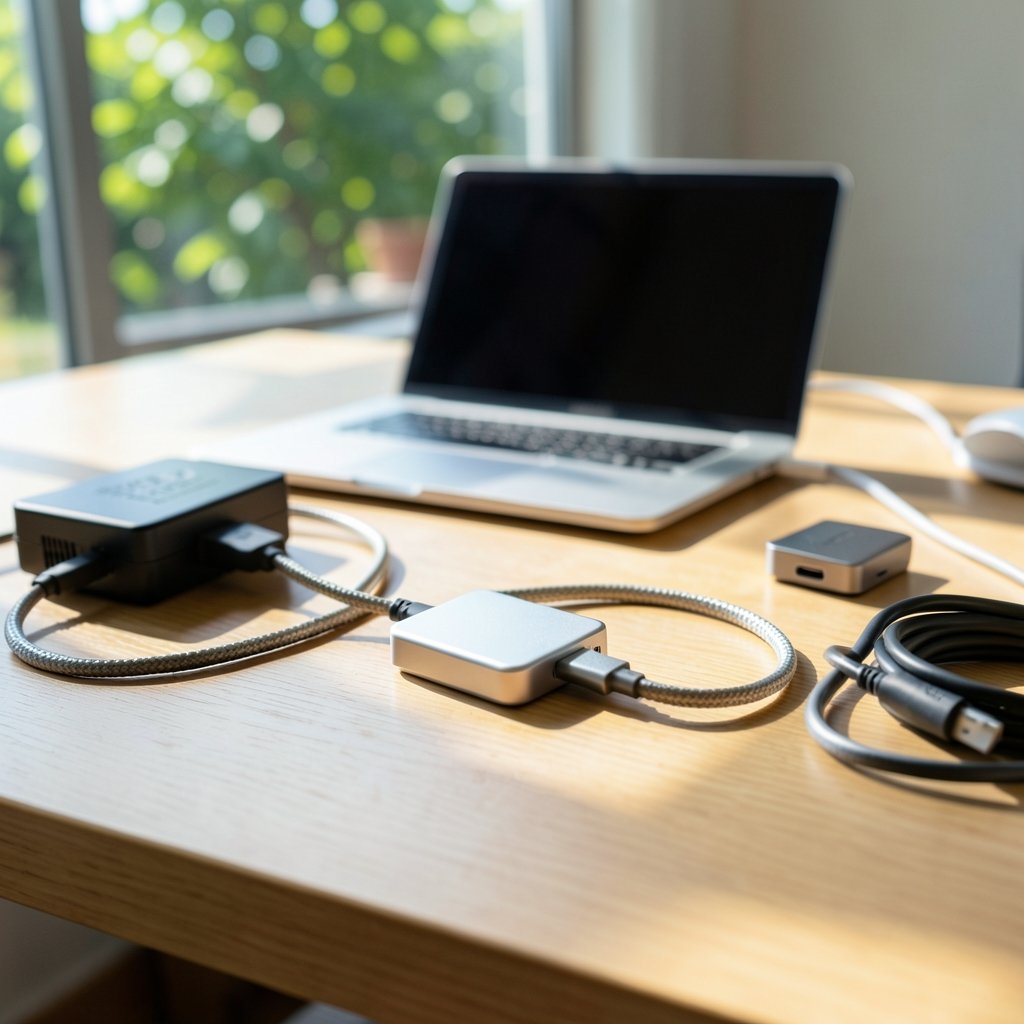
Before shopping, understand five numbers. They decide whether a hub feels seamless or constantly disappoints.
Power Delivery Wattage
Hubs pass charging power through to your laptop, but they cap it at their own rating. If your MacBook ships with a 67W or 96W charger and your hub only passes 60W, charging slows under load. Check the hub’s stated pass-through wattage, rather than a vague “supports charging” claim.
Video Output Version
“4K support” tells you almost nothing. HDMI 2.0 and HDMI 2.1, or DisplayPort 1.2 and 1.4, allow very different resolutions and refresh rates. A hub advertising 4K at 30Hz will feel sluggish for everyday work; 4K at 60Hz is the practical baseline. Confirm the exact HDMI or DisplayPort version on the spec sheet rather than trusting the marketing headline.
Data Speed
USB 3.2 Gen 1 (5 Gbps), Gen 2 (10 Gbps), and Thunderbolt (40 Gbps) are worlds apart for external SSDs. If you edit video from an external drive, port speed is your bottleneck. If you mostly move documents, 5 Gbps is plenty.
Display Count
Many bus-powered hubs support only one external display. Multi-display setups often require DisplayLink-based hubs that rely on a software driver, or a Thunderbolt dock. Know your target setup before you buy.
Ethernet Speed
Gigabit Ethernet is common; 2.5GbE is rarer and pricier. For home offices, gigabit is usually enough.
Hub Categories Compared
| Category | Best For | Typical Ports | Watch Out For |
|---|---|---|---|
| Compact bus-powered hub | Travel, everyday carry | 1 HDMI, 2–3 USB-A, SD reader, PD pass-through | Single display only; lower PD wattage |
| Desktop dock (powered) | Fixed desk setups | Multiple displays, Ethernet, audio, many USB-A | Needs its own power brick |
| Thunderbolt dock | Power users, video editors | Dual 4K displays, 40 Gbps data, daisy-chaining | Highest cost |
| DisplayLink hub | Multi-monitor on non-Thunderbolt MacBooks | 2+ HDMI/DP outputs via driver | Requires software install; slight latency |
The compact hub wins on portability but loses on display flexibility. The powered dock stays put and handles everything. Thunderbolt docks cost the most but remove nearly all compromises. DisplayLink fills a specific gap for MacBook Air owners who want two screens.
Matching the Hub to Your MacBook
Different MacBooks have different ceilings, so the “best” hub is model-dependent.
MacBook Air
Air owners usually want light, travel-friendly gear. A compact hub with HDMI, a couple of USB-A ports, and pass-through charging covers most needs. Because the Air’s port count is limited, avoid hubs that block the second port with a bulky body. If dual displays matter, a DisplayLink option is often the practical route. This roundup of the best USB-C hub for MacBook Air narrows the field.
MacBook Pro
Pro users tend to run heavier workloads: external SSDs, card readers, wired networks, and sometimes dual monitors. A powered dock or Thunderbolt dock pays off here, especially for creative work. Ports that support 10 Gbps data and full-wattage charging are worth the premium. See the best USB-C hub for MacBook Pro for workload-specific picks.
Older and Entry Models
Single-port or two-port machines benefit most from a hub that includes pass-through charging, since you can’t charge and connect at once otherwise. Prioritize a hub with a PD input rated close to your charger’s wattage.
Practical Tips From Real-World Use
Spec sheets don’t tell the whole story. These habits separate smooth setups from daily frustration.
Test display refresh rate immediately. Plug in your monitor and check the refresh rate in System Settings. If it defaults to 30Hz, you may have a cable, hub, or port limitation. Swapping a marginal cable for a certified one fixes this surprisingly often.
Don’t chain hubs. Plugging a hub into another hub invites power and bandwidth problems. Connect directly to the MacBook.
Mind thermal throttling. Compact metal hubs get warm under load, and some throttle data or charging when hot. Give them airflow rather than burying them under papers.
Label your cables. Not all USB-C cables carry video or full power. A charge-only cable in a video port causes hours of confusion.
Update firmware. Some docks ship with firmware updates that fix display flicker and charging quirks. Check the manufacturer’s support page after purchase.
Check the return window. Compatibility issues often appear only with your specific monitor and cable combination. Buy where returns are easy.
Common Mistakes Buyers Make
The most frequent error is buying on port count alone. A hub with eight ports that caps charging at 45W and video at 30Hz will disappoint a MacBook Pro owner far more than a four-port hub with proper specs.
The second mistake is assuming every USB-C hub supports Thunderbolt. It doesn’t. Thunderbolt docks cost more because they carry more bandwidth and features. If you need dual 4K displays at 60Hz, a plain USB-C hub likely won’t deliver.
The third is ignoring the charger. A hub’s pass-through wattage is a ceiling, and some hubs reserve power for their own operation, so your laptop receives less than the label suggests. If fast charging matters, buy a hub rated above your laptop’s charger wattage.
Finally, many buyers overlook cable quality. The hub is only as good as the cable connecting it. A certified cable rated for the data speed and power you need is not an upsell; it’s part of the system.
How to Choose in Five Steps
- List your devices. Count monitors, drives, card types, and network needs.
- Check your MacBook’s port capabilities. Confirm whether your ports are Thunderbolt or USB-C only.
- Match display requirements. Note resolution, refresh rate, and number of screens.
- Verify power pass-through. Compare the hub’s PD rating to your charger’s wattage.
- Read recent reviews for your exact model. Compatibility varies by generation.
Following these steps takes ten minutes and prevents most returns. For a broader overview of categories and picks, this guide to the best USB-C hub covers the landscape.
Conclusion
The best USB-C hub for a MacBook isn’t the one with the most ports or the lowest price. It’s the one whose power, video, and data specs match how you actually work. Travelers should favor compact, well-built hubs with honest PD ratings. Desk-bound users should invest in a powered dock. Creative professionals should consider Thunderbolt. And anyone chasing dual displays on a MacBook Air should look at DisplayLink options rather than fighting hardware limits.
Buy for your real setup, test it thoroughly in the return window, and treat cables as part of the purchase rather than an afterthought. Do that, and a single hub can quietly solve the port problem for years.
Frequently Asked Questions
Do all USB-C hubs work with every MacBook?
No. USB-C is a connector standard, but features vary. A hub may support video, power delivery, or high-speed data only if both the hub and the MacBook port support them. Thunderbolt-specific features require a Thunderbolt-capable Mac and dock. Always check the hub’s spec sheet against your exact model.
Can a USB-C hub charge my MacBook at full speed?
Only if the hub’s pass-through power rating meets or exceeds your charger’s wattage, and even then some hubs reserve a few watts for their own operation. A hub rated below your charger will charge more slowly, especially under heavy load. Match the rating to your charger for the best results. (USB Charger (USB Power Delivery))
Why does my external monitor run at 30Hz through a hub?
This usually comes down to the hub’s video version, the cable, or the port. HDMI 2.0 or DisplayPort 1.4 support is needed for 4K at 60Hz. A hub limited to older standards, or a low-bandwidth cable, will cap refresh rate. Check the refresh rate setting in System Settings and test with a certified cable.
Can I connect two monitors to a MacBook through one hub?
Sometimes, but it depends on the hub and the Mac. Many bus-powered hubs support only one display. Dual-display setups typically need a Thunderbolt dock or a DisplayLink-based hub with a software driver. Confirm multi-display support explicitly before buying.
Is a Thunderbolt dock worth the extra cost?
For heavy workloads, often yes. Thunderbolt carries far more bandwidth than standard USB-C, enabling dual high-resolution displays, fast external storage, and daisy-chaining. If you mostly connect a mouse and a flash drive, a compact USB-C hub is the better value.
How long should a USB-C hub last?
The USB-C connector is rated for roughly 10,000 mating cycles, so a well-made hub should outlast several laptops with normal use. Real-world longevity depends more on build quality, cable strain, and heat. Metal-bodied hubs with strain relief on the cable tend to hold up best.
Buy from a seller with a clear warranty and responsive support. Firmware fixes and replacement units are far easier to obtain from established brands, and a hub that fails in month three is only a bargain if someone stands behind it. Register the product after purchase so warranty claims go smoothly.
Keep the original packaging for the first few weeks. If a compatibility problem forces a return, having the box and accessories ready saves time and avoids restocking fees. It also makes resale easier if you later upgrade to a Thunderbolt dock.
Revisit your setup once a year. Ports, monitors, and drives accumulate. A hub that fit your needs two years ago may now be the weakest link in a faster workflow. A five-minute annual review of what you plug in, and how often, tells you whether a modest upgrade would remove a daily annoyance.
None of this requires deep technical knowledge. It requires honesty about your own habits. The buyer who checks refresh rate, matches wattage, and buys from a seller with easy returns will almost always end up happier than the one who chased the longest port list. A hub is infrastructure, not a headline purchase; quiet reliability is the whole point. Choose accordingly, test it while returns are still possible, and let it disappear into the background of your workday where it belongs.



