
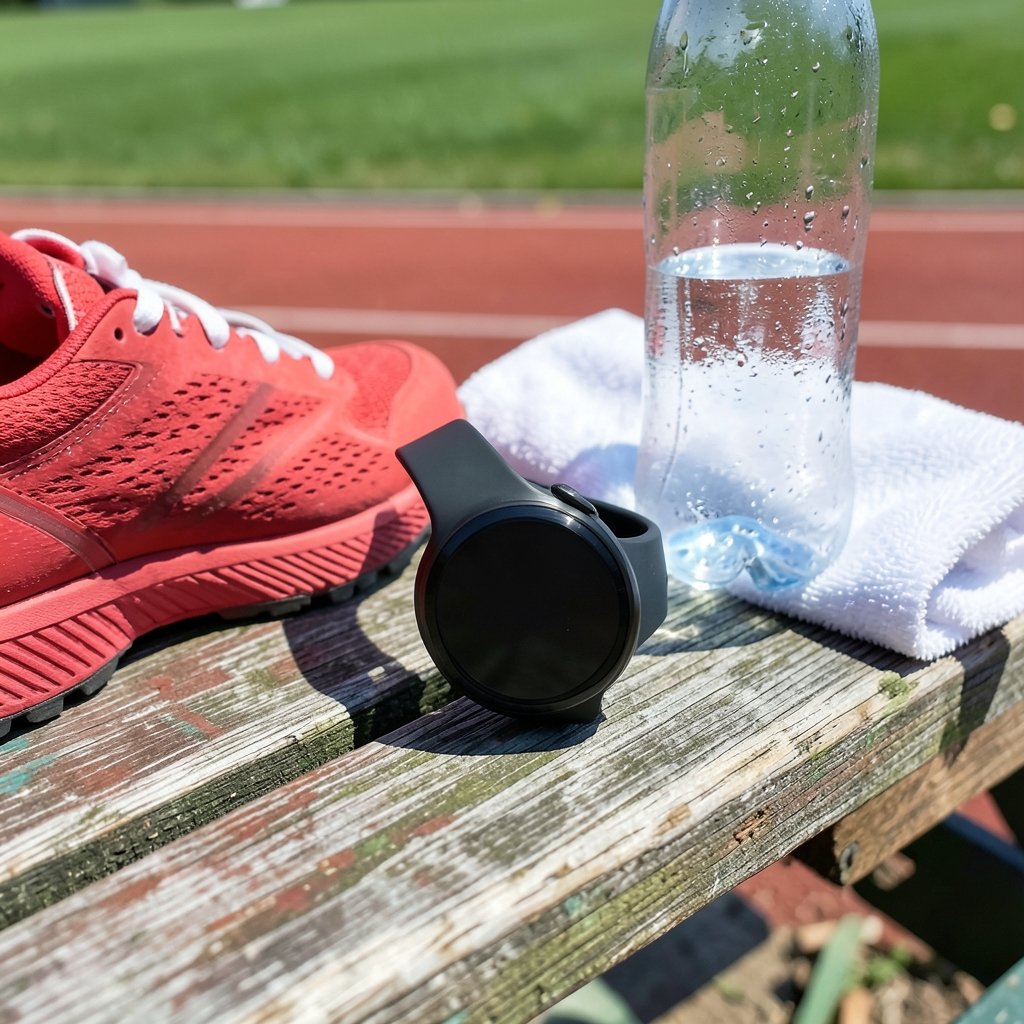
Quick Answer: How do i set up smartwatch for the best performance?
Getting the best performance from a smartwatch means tuning three areas: battery life, sensor accuracy, and responsiveness. You do this mostly in the watch’s own settings menu and the companion phone app, where display, background refresh, and health-tracking options live.
The right balance differs by goal. A runner chasing accurate GPS data needs different settings than someone who wants a week of battery between charges. Owners of a Wear OS device, an Apple Watch, or a Garmin will each find slightly different menus, though the underlying logic is the same.
Before changing anything, check the watch model and OS version, your daily battery drain, which sensors you actually use, how the watch fits your wrist, and whether the paired phone’s Bluetooth and firmware are current.
Most people treat a new smartwatch like a phone: pair it, glance at the watch face, and move on. Then the battery dies by dinner, the heart-rate graph looks like static, and notifications arrive a beat too late. The fix is rarely a new device. It is a short round of setup work that almost nobody does on day one. (Smartwatch)
That matters more as the category grows. Wearables have moved from novelty to daily infrastructure for sleep tracking, workout logging, and contactless payments, yet the default settings on most watches are tuned for demos, not daily life. Always-on displays, constant background refresh, and aggressive GPS modes all look great in a store and drain a battery in the real world. Here is how to set a watch up so it performs the way you actually need it to.
Decide What “Performance” Means Before Touching Settings
The word performance hides a trade-off. On a smartwatch, three goals pull against each other:
| Goal | What improves it | What it costs |
|---|---|---|
| Battery life | Lower brightness, off always-on display, fewer background apps | Fewer live features, slower glance access |
| Sensor accuracy | Snug fit, correct wrist position, higher GPS mode | More battery drain during workouts |
| Responsiveness | Fewer synced apps, clean Bluetooth link, current firmware | Slightly more setup and upkeep |
A watch tuned for a marathon will not last a week on a charge, and a watch tuned for maximum battery will miss some heart-rate detail. Decide which two matter most and accept the cost on the third. Knowing your priority up front saves an hour of fiddling later.
Start With the Basics: Pairing, Updates, and Fit
Before optimizing anything, get the foundation right. Skipping this step is the most common mistake, and it makes every later tweak feel ineffective.
- Update the watch and the phone first. Install the latest firmware on both devices before you customize anything. Updates ship battery and stability fixes, and a settings change made on old firmware may behave differently after the next release.
- Pair cleanly. Remove old Bluetooth pairings on the phone, then pair fresh through the official companion app rather than the phone’s Bluetooth menu alone.
- Wear it correctly. A watch should sit about a finger’s width above the wrist bone and stay snug enough that it does not slide, but not so tight that it leaves a mark. A loose strap is the single biggest cause of bad heart-rate readings.
- Charge to full and run one normal day. Note where the battery lands by bedtime. That baseline tells you whether you have a real problem or just normal drain.
If you enjoy setup projects in general, the same patience pays off elsewhere; the approach behind setting up PPSSPP on a phone, methodical and settings-first, works well here too.
Tune the Display: The Biggest Battery Lever
The screen is the hungriest component on nearly every smartwatch. Vendors’ own support documentation consistently points to display settings as the first place to look when battery life disappoints.
Turn off the always-on display unless you genuinely need a persistent clock. Reduce brightness and shorten the screen timeout to 10 or 15 seconds. Disable “wake on wrist raise” if you find the screen lighting up constantly, or keep it on and accept the cost. On models with an ambient or dim mode, choose the simplest watch face available; animated faces with live complications burn power all day.
A practical tip from real-world use: change one display setting at a time and check the battery the next evening. Changing five at once tells you nothing about which one helped.
Rein In Background Activity and Notifications
Every app that syncs in the background keeps the watch’s radio and processor busy. Trim ruthlessly:
- Turn off background app refresh for anything you do not check daily.
- Uninstall companion apps you tried once and never opened again.
- Limit notifications to calls, messages, and a short list of priority apps. Every buzz wakes the screen.
- Disable auto-detect workout prompts if you exercise on a schedule; they trigger sensors constantly.
- Turn off tilt-to-wake and gesture features you never use.
This is also where the paired phone matters. A phone with weak Bluetooth or a battery-saving mode that throttles background sync will make the watch feel sluggish and drop notifications. Keep the companion app exempt from the phone’s battery optimization.
Get Sensor Accuracy Right
Accurate heart rate, GPS, and sleep data depend on fit and settings, not luck. Optical heart-rate sensors need steady skin contact, so a snug strap during workouts is non-negotiable. For GPS, most watches offer a menu of modes: GPS only, GPS plus GLONASS or Galileo, and multi-band or dual-frequency. GPS-only drains the least; multi-band is the most accurate in cities and canyons but costs the most battery. Choose per activity rather than globally.
For sleep tracking, wear the watch slightly looser at night and enable a bedtime or sleep mode that dims the screen and silences alerts. If you use the watch for home routines as well, the same logic of matching settings to real use applies to the gadgets around you, much like choosing among the best smart speakers for home automation means matching features to the rooms where they will actually live.
Manage Connectivity, Payments, and Companion Features
Connectivity settings quietly shape performance. Wi-Fi on the watch is useful for updates but drains battery when left on constantly, so enable it only when needed. Turn off NFC if you never tap to pay, and disable LTE or cellular standby if your model has it and you rarely leave the phone behind.
Companion features deserve a hard look too. Watch faces with live weather and stock tickers refresh constantly. Third-party “optimization” apps are usually unnecessary and sometimes counterproductive; vendor documentation does not recommend them. Stick to the settings the manufacturer built in.
When to Reset and When to Ask for Help
If the watch still lags, drains fast, or drops sync after all of the above, a factory reset often clears corrupted settings. Back up first. Before resetting, note your current settings so you can rebuild a lean configuration rather than the default one.
Knowing when to stop troubleshooting is its own skill. If a device keeps failing after a clean reset and current firmware, the problem is hardware, not setup. The same judgment applies to other gear: a keyboard stand for stage performance that wobbles after every adjustment is a bad unit, not a bad setup. And if the watch is part of a broader connected home, a hub like the Home Center Lite can carry some automation load off the watch entirely.
A Realistic Setup Walkthrough
Here is a lean configuration that suits most people. It favors battery life and reliability while keeping the sensors useful.
- Update firmware on watch and phone.
- Turn off always-on display; set brightness to medium and timeout to 15 seconds.
- Disable background refresh for all but two or three apps.
- Keep notifications to calls, messages, and calendar.
- Set GPS to GPS-only by default; switch to multi-band for races or hikes.
- Enable sleep mode for nighttime.
- Turn off Wi-Fi and NFC unless in use.
- Wear the strap snug for workouts, slightly looser at night.
- Recheck battery after three days and adjust one setting.
Expect a meaningful improvement, often several extra hours of runtime, though exact gains vary by model. Consistency beats intensity here: small, deliberate changes compound.
Common Mistakes That Undermine Performance
The same errors show up again and again. Wearing the watch loose and then blaming the heart-rate sensor. Leaving every notification on and wondering why the battery dies. Installing three fitness apps that all track steps simultaneously. Skipping firmware updates for months. Charging overnight every night on a watch that could go three days, which accelerates battery wear over time.
Another quiet culprit: a phone that aggressively kills background apps. If notifications arrive late or sync fails, check the phone’s battery settings before blaming the watch. The watch is often just the messenger.
Conclusion
Setting up a smartwatch for peak performance is less about secret tricks and more about deliberate choices. Decide whether battery, accuracy, or speed matters most, then tune the display, background activity, sensors, and connectivity to match. Update the firmware, wear the watch properly, and change one setting at a time so you can tell what worked. Do that, and a mid-range watch will often outperform a premium one left on defaults.
Frequently Asked Questions
How long should a smartwatch battery last after optimization?
Most modern smartwatches should manage at least a full day of normal use with always-on display disabled, and many reach two to three days. Fitness-focused models can stretch to a week or more. If yours drops below a day after tuning, check for a rogue app or a failing battery.
Does turning off always-on display really save battery?
Yes, noticeably. The display is the largest power draw on most watches, and keeping it lit constantly can cut runtime by a third or more on some models. The exact savings depend on screen technology and brightness.
Why is my heart rate reading inaccurate during workouts?
Almost always strap fit. A watch that slides on the wrist lets light leak under the sensor. Tighten the band one notch for exercise, position it above the wrist bone, and clean the sensor’s back regularly to remove sweat and lotion residue.
Should I use GPS or multi-band GPS?
Use standard GPS for everyday runs and rides; it saves battery. Switch to multi-band or dual-frequency mode for races, trail runs, or dense city routes where accuracy matters most, and accept the extra drain for that session.
Do third-party battery saver apps help?
Rarely. Vendor documentation does not recommend them, and many simply duplicate built-in settings while running in the background themselves. The watch’s own battery saver mode is the safer, more effective option.
How often should I update my smartwatch firmware?
Install updates as they arrive, ideally monthly. Updates carry battery, accuracy, and stability fixes, and some settings behave differently across versions. Pair each update with a quick battery check the following day.
One last habit ties it together: revisit your setup seasonally. Apps you installed for a summer trip, a watch face you tried in December, and notifications from a service you no longer use all accumulate quietly. A five-minute quarterly review—clearing unused apps, confirming firmware is current, and rechecking that strap fit—keeps performance from drifting. Treat the watch as a tool you maintain rather than a gadget you configure once, and it will keep delivering the battery life and accuracy you tuned for.



