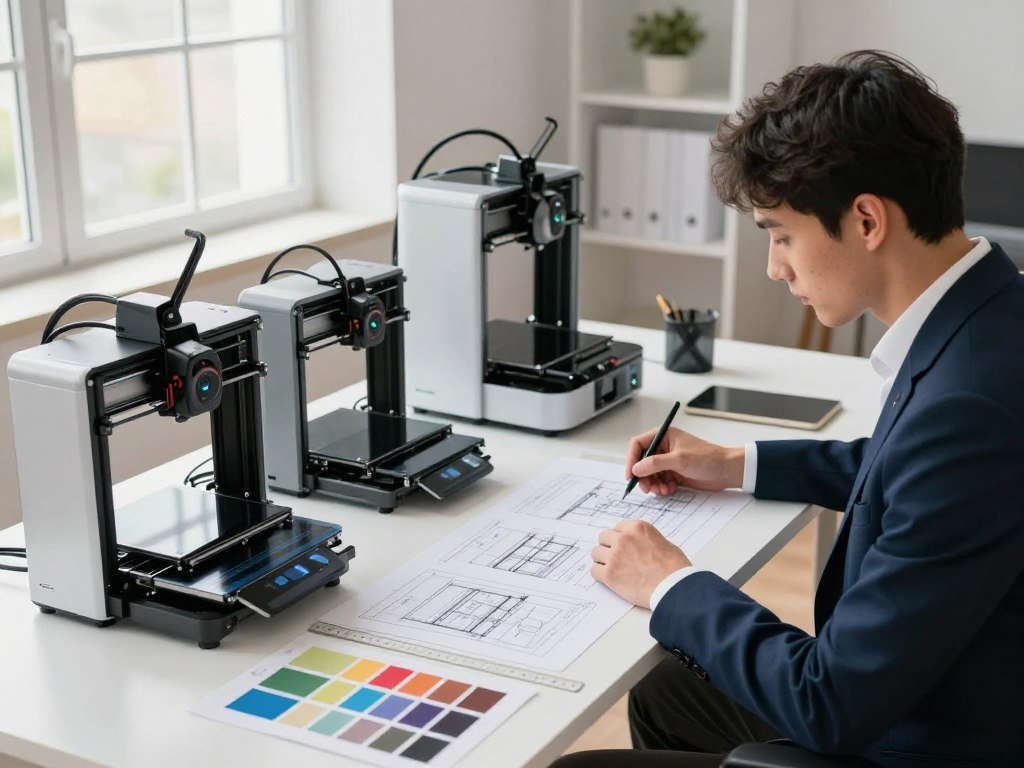
A first 3D printer should make your first few projects feel manageable, not turn setup into a second hobby. The best 3D printer for beginners depends on what you hope to make, what you can spend, and how much room you have.
A build volume is the maximum three-dimensional space available for a single print. That space matters, but it is only one part of choosing a useful first machine.
This shortlist covers single-color printing, multicolor options, budget machines, and printers aimed at young makers. It also weighs setup, print area, and the kinds of materials each machine can handle.
You do not need the biggest or fastest printer to begin. A compact model may suit small parts and desk toys, while larger designs call for more space and a higher budget.
The best starting point is the machine that fits both your projects and the space you actually have.
Key Takeaways
- The Bambu Lab A1 mini suits many beginners who want easy setup and small prints.
- The Creality Ender 3 V3 SE is a lower-cost choice with a simpler file-transfer process.
- An enclosed machine may suit your room and future plans better than an open-frame printer.
- Build volume describes the space for one print, not the printer’s full footprint.
- PLA is a common first filament, but the printer must support your chosen material.
- Choose a printer around your actual projects, budget, and available desk space.
How to Choose Your First 3D Printer
Start by deciding whether you value low upfront cost, easy setup, larger prints, or color more than the other three. For many beginners, easy setup is worth more than a feature they may rarely use.
In 2026, most entry-level 3D printers cost around $300 and can make many objects found in STL file repositories. That budget is a starting point, not a promise that every feature or accessory comes in the box.
Think about the projects you expect to print. A small desk hook needs less build space than a large model, and a one-off simple item may cost less to buy finished.
Printing can make sense for custom designs or objects you need again and again. The machine can also help you revise a part, though each new version takes time and filament.
Setup and daily use matter as much as the feature list. Check whether the printer guides you through calibration, how you move files, and whether help is easy to find.
These four beginner features can make a first machine easier to manage:
- A flexible, removable build plate helps release finished prints.
- A heated bed supports printing and helps some materials stick.
- Automatic bed leveling reduces manual bed adjustment.
- An active user community can help answer common setup questions.
Consider where the printer will sit, too. A machine needs a stable surface and space for its frame, controls, and moving parts.
List the materials you actually expect to use, then compare them with each printer’s guidance. A broad wish list matters less than support for your likely first projects.
Before comparing models, write down your budget and the largest object you expect to print.

Best 3D Printer for Beginners: Bambu Lab A1 mini
For most first-time makers who want a simple route from unboxing to a first print, choose the Bambu Lab A1 mini. Its small size and guided setup make it a clear first choice for mostly small, single-color projects.
Bambu Lab lists the A1 mini at $199.00 USD in 2026, with a typical price of $219.00 USD. The official US store listing includes a two-year warranty, 30-day returns, and free shipping in the 48 contiguous states.
What makes the A1 mini easy to start with
The printer arrives pre-assembled, pre-squared, and pre-tuned, so you have less initial adjustment to handle. Bambu Lab says a first print can follow setup in about 20 minutes.
Automatic calibration handles several checks that might otherwise make setup feel like a project of its own. A 2.4-inch touchscreen gives you a direct way to use the printer.
The printer is an FDM printer, which builds objects by laying down melted filament in thin layers. Its slicer prepares a model as printer instructions, so you still need to choose a suitable file and settings.
The AMS lite is optional, not a standard feature. It adds four-slot multicolor printing, which is useful only if your projects call for color changes.
What to expect from the compact open frame
The open frame and compact size suit a desk or shared workspace. That smaller footprint can make it easier to place than a larger enclosed machine.
The limited print area can rule out objects that need more room. Software also expects some adult familiarity, which may matter when families want a child to work independently.
The US-store warranty, return, and shipping terms apply to that listing, not every location or purchase. Check that the models you want to make will fit its small print area before you buy.

Does the Creality SPARKX i7 Suit a First-Time Maker?
Pick the SPARKX i7 if you want a beginner-oriented machine with the option to add four-color printing. It is a strong alternative when you want an easy-to-use machine and more room for projects.
The CFS Lite is optional, so compare the standalone printer with the combo you actually want. Tom’s Hardware lists the Creality SPARKX i7 at $339 in 2026.
The printer is described as easy to assemble and use, which can suit someone who wants useful features without a long setup process. Its optional color accessory gives you a way to add four-color printing later.
Tom’s Hardware names the SPARKX i7 its best beginner printer. That is a useful editorial judgment, not a guarantee that every user will get the same results or prefer the same controls.
Compare the package contents before judging the price. A standalone machine and a bundle with an accessory serve different needs, even when their product names look similar.
If you mainly plan to print single-color models, you may not need the accessory at all. If color is part of your project plan, include its cost when comparing machines.
The Creality name also appears on lower-cost models, but price alone does not tell you which setup will feel simpler. Consider how much room your common projects need and how often you expect to print in color.
Decide whether you need the color accessory now, since an optional add-on changes the package you should compare.

Is the Creality Ender 3 V3 SE the Best Cheap Option?
Choose the Ender 3 V3 SE when keeping the initial spend low matters more than built-in multicolor or wireless convenience. In 2026, Tom’s Hardware lists it at $168.26 as a budget option without multicolor printing.
The Ender 3 V3 SE offers automatic bed leveling and Z-height adjustment at a low listed price. Its build volume is 220 x 220 x 250 mm, and its maximum print speed is 250 mm/s.
Assembly takes about 15 minutes. Those conveniences help with the initial setup, though this machine gives up some connected features found on other printers.
Keep these four practical points in mind:
- Assembly takes about 15 minutes.
- Automatic bed leveling and Z-height adjustment reduce manual setup.
- The printer does not offer multicolor printing.
- Files move to the printer by SD card.
The low price can suit PLA and basic projects. The simpler controls and SD-card workflow may feel less convenient than app-connected options.
That tradeoff may be fine if you want to spend less and do not need wireless file transfer. A budget machine can still make useful parts, toys, and decorative models.
Prices can differ across sellers and over time, so treat $168.26 as the listed price in 2026, not a promise for every buyer. Make sure you are comfortable moving sliced files by SD card before choosing this budget route.
When Does the Elegoo Centauri Carbon Make More Sense?
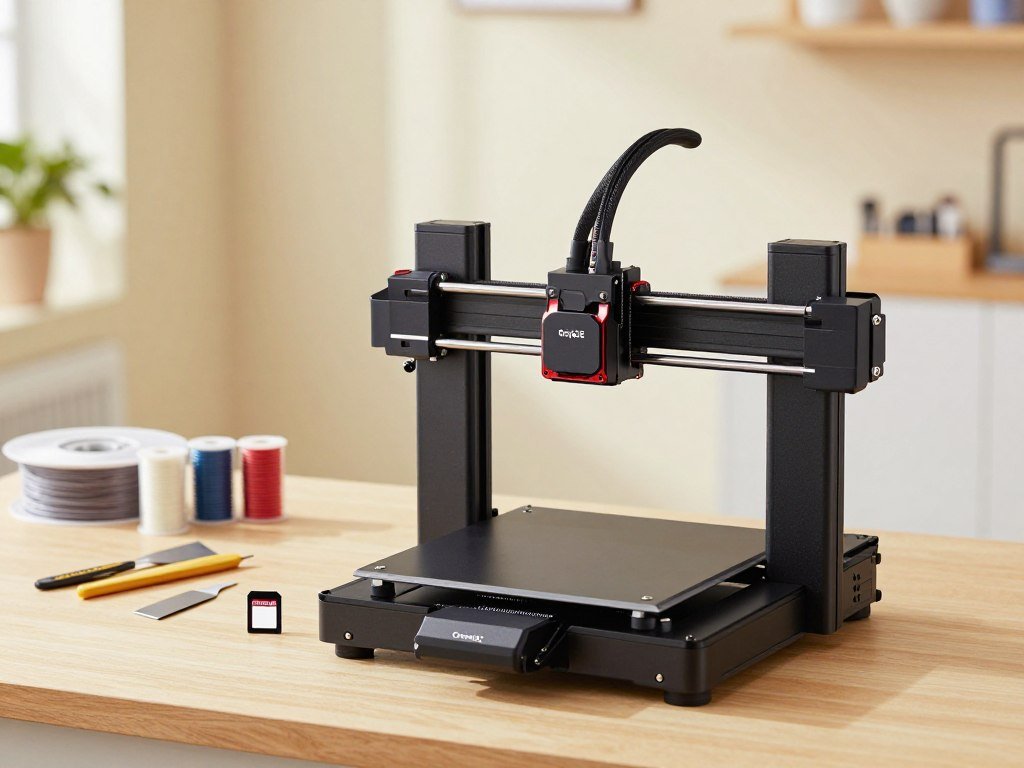
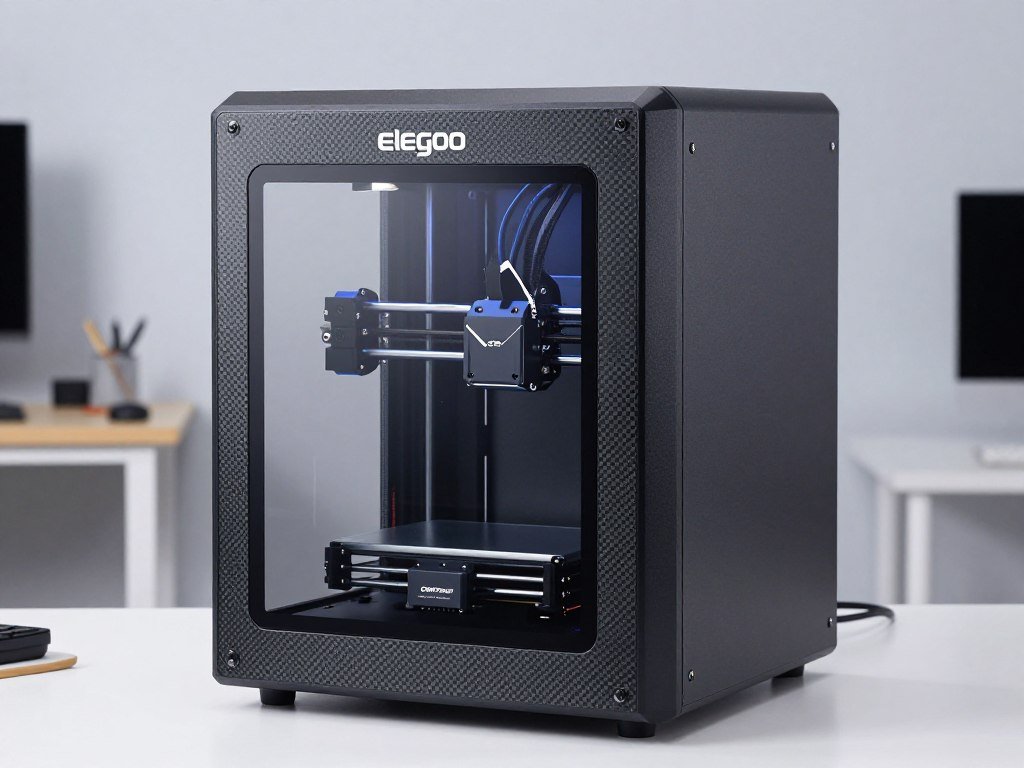
Choose the Centauri Carbon if you want an enclosed machine that arrives largely ready to use. Its enclosure is a practical fit for a beginner who prefers a covered design and room to grow.
Tom’s Hardware lists the Elegoo Centauri Carbon at a $299 sale price in 2026. The machine is fully enclosed, pre-assembled, and ready to use out of the box.
The enclosure sets it apart from open-frame starter machines. It can also make sense if you want to explore a wider range of projects as your skills grow.
Tom’s Hardware lists a maximum print speed of 500 mm/s. That figure describes a top speed, not a promise that every print finishes at that rate.
Print time depends on the job and its settings, so speed claims should not decide the purchase alone. A design with many details may still take much longer than a simple shape.
This machine is not the cheapest first printer simply because it has an attractive sale price. Choose it for its enclosed design and ready-to-use setup, rather than expecting the lowest possible cost.
Plan for the space its frame takes up before bringing it home. Leave enough desk space for the enclosed machine and routine access to its doors and controls.
Which Multicolor Printer Fits Your Projects?
If color is central to your projects, compare how each machine changes filament before choosing by color count alone. A multicolor printer can reduce manual swaps, but the way it handles color affects use and waste.
Match the system to the work you plan to print, not just its maximum color count. Some designs change filament through one print head, while other machines use several tool changers.
Compare color-changing systems
The Anycubic Kobra X Nano Combo is listed at $299 in 2026, with filament sold separately. The Kobra X is described as easy to assemble and use, multicolor, and larger in build volume than the Bambu Lab A1.
| Model | Multicolor setup | Build volume | Listed price |
|---|---|---|---|
| Anycubic Kobra X Nano Combo | Four-color system | 260 x 260 x 260 mm | $299, filament sold separately |
| Snapmaker U1 | Four tool changers | 270 x 270 x 270 mm | $999 MSRP |
| Flashforge Creator 5 | Four-head tool changer | 256 x 256 x 256 mm | $699 |
The Snapmaker U1 uses four tool changers and has a $999 MSRP. The Flashforge Creator 5 uses four print heads and has a 256 x 256 x 256 mm build volume.
The Bambu Lab P1S Combo is another option if you value a higher color count. Its AMS system supports up to 16 colors, a separate choice from the four-color machines in the table.
Match the setup to your printing plans
For small-batch business use, think about the objects you plan to sell and how often their colors change. Color options alone do not guarantee profit.
Material handling, time spent preparing jobs, and the finished objects all affect whether multicolor printing helps your work. A simple single-color product may not need a complex color system.
Consider the price of filament as well as the machine. The Anycubic Kobra X Nano Combo listing does not include filament, so account for that when comparing packages.
Choose the multicolor system that saves effort on the objects you will actually print, not just the one with the biggest headline number.
Which 3D Printer Works Best for Kids and Teens?
For a young child who needs a curated, simple workflow, consider a guided PLA machine; for a teen who wants to learn more, consider a full-featured enclosed printer. The best fit depends on age and interest, not the label “kids’ printer.”
A guided model library can make it easier to choose a first print, while open software gives older makers more room to learn. Neither type replaces adult help and supervision.
Guided tools for younger makers
Toybox is a guided PLA printer with a 75 x 80 x 90 mm build volume. Its Starter Bundle is listed at $249 by Toybox.
The AOSEED X-MAKER JOY has a PLA-only workflow and a 120 x 120 x 120 mm build volume. Its smaller focus may suit a young maker who wants a simple way to explore models.
Guided tools can reduce the number of choices a child faces before printing. A small model library may help a young beginner move from browsing to making.
| Model | Audience or workflow | Distinguishing feature | Listed price |
|---|---|---|---|
| Toybox | Guided PLA workflow | 75 x 80 x 90 mm build volume | $249 Starter Bundle at Toybox |
| AOSEED X-MAKER JOY | PLA-only workflow | 120 x 120 x 120 mm build volume | Price not stated |
| Flashforge Adventurer 5M Pro | General-purpose enclosed printer | Enclosed design | $449 |
| Anycubic Kobra S1 | General-purpose enclosed printer | Fully enclosed CoreXY | $349 or $399 for Combo |
More room to learn for teens
A teen who wants to make original designs may prefer a printer with fuller controls and open-ended software. That setup leaves more room to learn how models, printer settings, and materials work together.
The Flashforge Adventurer 5M Pro is enclosed and listed at $449 in 2026. The Anycubic Kobra S1 is a fully enclosed CoreXY printer, listed at $349 or $399 for the Combo.
Price and features do not show whether a young maker will enjoy a particular workflow. A teen interested in designing parts may quickly outgrow a narrow model library, while a younger child may prefer fewer choices.
Match the controls and model library to the child’s age and interest, then plan for adult help with setup and supervision.
How Much Build Volume Do You Need?
Choose a larger build area only if your usual projects need it, since a compact machine can handle many small models. The right build volume depends on the largest object you expect to print as one piece.
Build volume is the maximum space available for one print, not a measure of the printer’s full footprint. More room helps with bigger objects, but does not make a machine a better fit for a small desk.
The Bambu Lab A1 mini offers a 180 x 180 x 180 mm build volume. The full-size Bambu Lab A1 provides 256 x 256 x 256 mm, while the Creality SPARKX i7 offers 260 x 260 x 255 mm.
| Model | Build volume | Maximum bed temperature |
|---|---|---|
| Bambu Lab A1 mini | 180 x 180 x 180 mm | 80°C |
| Bambu Lab A1 | 256 x 256 x 256 mm | 100°C |
| Creality SPARKX i7 | 260 x 260 x 255 mm | 100°C |
A larger print area can help with wide models, taller objects, or several smaller items printed together. It will not improve a project that already fits comfortably inside a compact machine.
The A1 mini measures 347 x 315 x 365 mm and weighs 5.5 kg. Those physical dimensions help you judge the space it takes up outside the print area.
Leave room for the printer to move and for you to reach its controls. Measure the printer’s full footprint and the space needed to remove prints before setting aside a desk.
Which Filament Should a Beginner Start With?
PLA is the simplest starting point for many beginners, but always check the printer’s material guidance first. The right first filament is one that both your printer and slicer support.
Do not assume a printer can safely or reliably use a material just because its nozzle reaches a high temperature. The A1 mini supports PLA, PETG, TPU, and PVA, and Bambu Lab discourages several other materials.
Start with materials supported by the machine
The printer and slicer must both support the filament you choose. A slicer profile sets instructions for the material, and the printer must be able to follow them.
PLA is a common first material for simple projects. PETG may suit a different balance of toughness and ease, while TPU is flexible and needs careful settings.
| Material | A1 mini compatibility | Practical beginner note |
|---|---|---|
| PLA | Compatible | Common first material |
| PETG | Compatible | Useful when a project needs a different balance of toughness and ease |
| TPU | Compatible | Flexible filament needs careful settings |
| PVA | Compatible | Support material |
| ABS, ASA, PC, PA, PET, and fiber-reinforced polymers | Discouraged | Do not assume nozzle heat makes these suitable |
An eSUN filament guide discusses PLA, PETG, TPU, and ABS across practical print examples. Those examples do not replace the printer maker’s compatibility advice.
Know when a stronger material needs different conditions
The A1 mini has a maximum nozzle temperature of 300°C and a maximum bed temperature of 80°C. Those numbers describe temperature limits, not every condition a material may need.
Temperature alone does not guarantee a suitable chamber or safe setup. A material can demand more than a hot nozzle, so follow the printer’s guidance instead of guessing from the label.
Check the exact filament type and slicer profile before starting a job. Buy filament for a specific supported project rather than stocking several unfamiliar materials at once.
How Much Electricity Does a 3D Printer Use?
Electricity is usually a small part of a desktop FDM print’s cost, but the actual amount depends on power draw, print time, and your utility rate. A useful estimate starts with average power, not the printer’s top rating.
A printer averaging 70 W over a 10-hour print uses about 0.7 kWh. At a rounded US residential rate of $0.18 per kWh, that job costs roughly $0.13 in electricity.
Desktop FDM printers typically use 50-250 W during a print. Small to medium hobbyist models generally use 50-150 W.
The A1 mini has a maximum rated power of 150 W. Maximum rated power is not the same as average draw during an ordinary print.
PLA printing on a desktop FDM printer averaging 50-150 W is estimated at about $0.01-$0.05 of electricity per hour. Your actual cost depends on the local rate and the printer’s average draw.
To estimate a print, multiply average kilowatts by print hours and your local electricity rate. For example, 70 W is 0.07 kW, and ten hours at $0.18 per kWh comes to about $0.13.
Filament and failed prints are separate costs. A longer job can use more electricity, though power use may change as the printer works.
Use your local electricity rate and a realistic average draw, rather than the printer’s maximum rating, for a useful estimate.
Is a 3D Printer Safe to Use at Home?
A desktop printer can be used at home, but choose a ventilated location and treat hot and moving parts as real hazards. Keep the machine away from bedrooms and places where people spend long periods.
Heat, moving parts, and emissions need sensible controls during home printing. Ventilation or local exhaust should suit the material and enclosure you use.
Reduce exposure and choose a suitable location
Ultrafine particles are smaller than 100 nm. EPA recommends lower-emission materials, lower nozzle temperatures, less time near a running printer, and enclosure with local exhaust when appropriate.
Choose a well-ventilated room that is not used for sleeping or frequent occupancy. A printer’s enclosure does not remove the need to consider airflow and material choice.
Lower-emission materials and lower nozzle temperatures can reduce exposure. The right controls depend on the machine, material, and room.
Keep hands and clothing clear during operation
FFF nozzles commonly reach roughly 190°C to 260°C, while heated build platforms can run about 55°C to 120°C. Both can burn you before they cool.
Moving parts can trap fingers, hair, or loose clothing. Use these four precautions:
- Keep hands clear of the hot nozzle and bed.
- Keep fingers, hair, and loose clothing away from moving parts.
- Supervise children around the printer.
- Switch off, ventilate, and let the printer cool before clearing a clog.
Concerns about 3D printing are real: heat, moving parts, emissions, waste, and misuse can cause problems. Sensible controls address practical risks; they do not make those risks disappear.
Keep the printer where an adult can supervise it and where the room can be ventilated appropriately.
What Can You Make With a 3D Printer?
Beginners can make useful organizers, simple replacement parts, toys, decorative models, and cosplay accessories. What works depends on the printer’s limits, the design, and the material.
A print must fit the build volume and use a design and material the machine can handle. Hobby prints should not be treated as safety-critical parts without proper validation.
Useful and decorative first projects
Try a small model that has a clear purpose or gives you a chance to learn one new skill. These five project types make practical starting points:
- Desk organizers for small tools or supplies.
- Replacement knobs or brackets for non-critical uses.
- Simple toys with basic shapes.
- Decorative models for a shelf or desk.
- Cosplay accessories that suit the printer’s size and material.
Small, simple FDM prints often take about 1-6 hours. Larger or more detailed prints can take 10 hours or longer.
Limits, legality, and buying finished items
A one-piece object larger than the available build volume will not fit as a single print. The design also needs to suit the printer’s process and supported materials.
Some objects may be restricted by law, depending on the jurisdiction and circumstances. Intellectual-property rights may also apply to a design, so printing a file does not remove those limits.
A printed part is not automatically strong enough for a safety-critical job. A part that supports weight or protects someone needs testing for its real use.
Custom objects and items you need repeatedly can make printing worthwhile. A simple one-off may cost less to buy finished, especially when you count material and time.
For a one-off object, compare the cost and time of printing with buying a ready-made version.
What Should You Do Before Your First Print?
Start with a small, uncomplicated model that fits the print area and has a ready-to-use file. A clear first job makes it easier to learn the basic workflow without adding avoidable problems.
An STL file is a common 3D model format, and a slicer converts that model into printer instructions. Use a model and settings that match your machine.
Prepare a model and slice it
Online model repositories often offer STL files for common projects. Look for a simple design that fits your build area and does not need many extra supports.
Follow these four steps to prepare the job:
- Choose a model that fits the build area.
- Open it in the slicer and select the printer and filament profile.
- Transfer the prepared file through the printer’s supported method.
- Watch the first layer and check that the finished object releases cleanly.
Check the machine and start the job
Check that the selected printer and filament profile match the machine and material. Review the slicer’s time estimate before sending the file.
Small, simple FDM prints often take about 1-6 hours. Larger or detailed prints can take 10 hours or longer, depending on size, layer height, supports, and settings.
Watch the first layer to see whether the print begins as expected. When the job ends, check that the finished object releases cleanly.
Keep the first job simple so you can learn the file and print workflow before trying a large or complex design.
Conclusion
For most beginners, the Bambu Lab A1 mini is the easiest place to start, while the right alternative depends on budget, print size, and enclosure needs. The Creality Ender 3 V3 SE suits a tight budget, while the Elegoo Centauri Carbon fits buyers who want an enclosed machine.
Choose one project you want to make, confirm it fits your machine, and start with a small spool of compatible filament.
FAQ
What can I make with a 3D printer?
You can make desk organizers, simple toys, decorative models, and replacement parts with a 3D printer. You can also print cosplay accessories or custom objects for repeated use. The design must fit the printer’s build volume and suit its process. Material choice also limits what works, so a printed part should not replace a safety-critical item without proper testing.
How long does 3D printing take?
Small, simple prints often take about 1-6 hours, while larger or detailed prints can take 10 hours or longer. Size and layer height affect the estimate, as do supports and printer settings. A slicer gives you a job estimate before printing, but the final time can change with the design and chosen settings.
What is the best 3D printer for the price range?
The Creality Ender 3 V3 SE is the budget pick at $168.26 in 2026. Its low listed price suits basic projects, though it uses SD-card file transfer and does not offer multicolor printing. If you value easier setup, the Bambu Lab A1 mini is listed at $199.00 USD in 2026. Compare the package and features you need, not price alone.
Is it cheaper to 3D print or buy?
Printing can be cheaper for a custom object or something you need repeatedly, while buying often costs less for a simple one-off. A print also takes time and uses filament, and a failed attempt adds more material and work. Compare the cost of the filament and your time with the price of a ready-made version before starting.
What cannot be printed on a 3D printer?
A one-piece object cannot be printed if it exceeds the machine’s build volume. The design also must suit the printer’s process and use a supported material. Do not trust hobby-printed parts for certified strength or safety performance without validation. A model may need different equipment, materials, or testing than a desktop printer can provide.
What is illegal to 3D print?
Legality depends on your jurisdiction, the object, and any intellectual-property rules that apply. Printing does not make an otherwise restricted item lawful. A design may also be protected even when a printer can reproduce it. Check the rules that apply to your location and the item before making or sharing a print.
How much will my electric bill go up with a 3D printer?
A printer averaging 70 W during a 10-hour job uses about 0.7 kWh and costs roughly $0.13 at $0.18 per kWh. Your local electricity rate and the printer’s average draw change the total. Maximum rated power is not the same as average power during a print, so use a realistic draw for your estimate.
Why are people against 3D printing?
Common concerns include emissions, hot parts, moving parts, waste, and misuse. Ventilation, careful material choice, supervision, and responsible design help address practical risks. A printer can also create failed prints that use extra material. Those concerns call for sensible controls and thoughtful use, not ignoring the hazards or assuming every print is harmless.



