
Quick Answer: How do i update usb c charger safely without losing data?
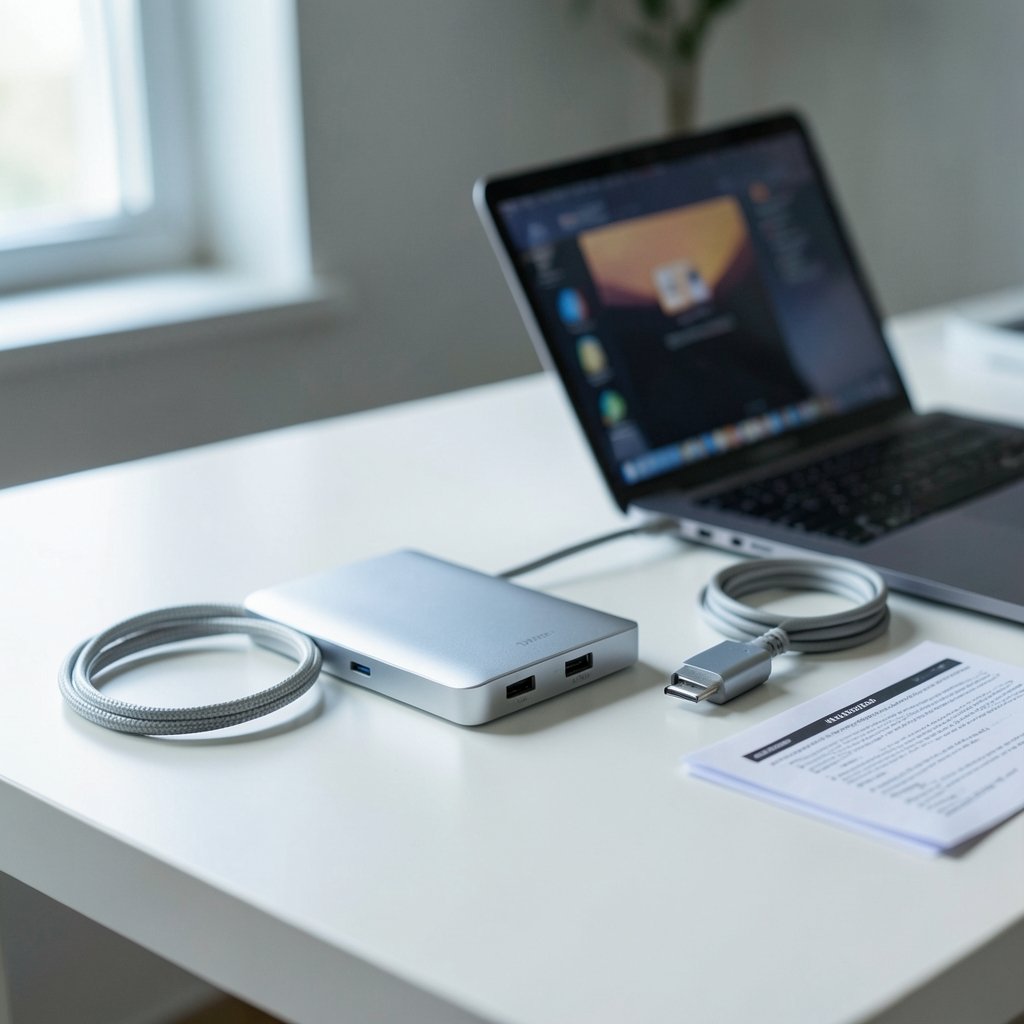
Updating a USB-C charger safely means updating the firmware of the device that actually has firmware, usually a smart dock, hub, or laptop power controller, while keeping it plugged into stable power and never unplugging it mid-flash. Plain wall chargers have no updatable software at all, so the real work happens through the manufacturer’s own utility or your laptop’s BIOS update tool. The risk to your files is close to zero because chargers store no user data, but an interrupted flash can brick a dock or leave a laptop unbootable. Before starting, check the exact device model, the firmware version, the cable’s wattage rating, your backup status, and the manufacturer’s official instructions. (USB Charger (USB Power Delivery))
The word “update” hides three different jobs. Sometimes people mean flashing firmware on a powered hub or smart charger. Sometimes they mean buying a newer, higher-wattage charger to replace an old one. And sometimes they mean updating the USB-C controller firmware inside a laptop. Each path carries different risks, and each one calls for a different set of precautions.
A charger that ships with firmware is essentially a tiny computer, and like any tiny computer, it can be interrupted at the worst possible moment. The good news is that with the right sequence of steps, the odds of anything going wrong are small.
Here is the statistic worth sitting with: a single power interruption during a firmware write is one of the most common causes of bricked docking stations reported to manufacturer support desks. It takes about two seconds of carelessness to turn a working dock into a paperweight.
Why “Updating a Charger” Usually Means Something Else
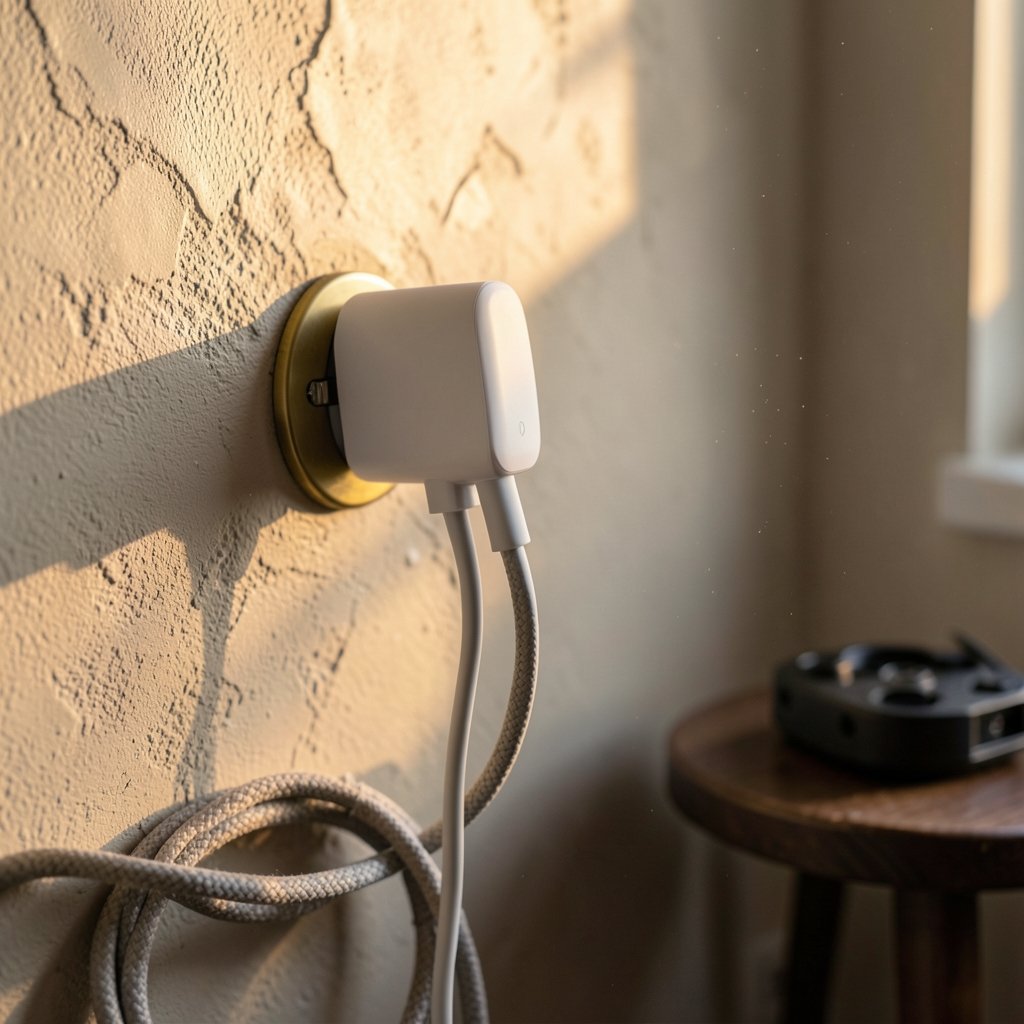
Most USB-C wall chargers are dumb in the best sense. They negotiate power through the USB Power Delivery protocol, hand over the agreed wattage, and that is the whole job. There is no menu, no app, and no firmware to refresh.
The devices that do carry updatable firmware are the ones with brains bolted on:
- Docking stations and hubs with DisplayPort, Ethernet, or Thunderbolt controllers
- Smart power banks with displays or app connectivity
- Laptop USB-C and Thunderbolt controllers, updated through the system BIOS
- Some high-end multi-port chargers with per-port power management
If someone is hunting for an update tool for a plain 65W brick, the honest answer is that none exists. What they probably need is a better charger or a certified cable. Anyone comparing accessories should also weigh basics like port selection, which is why guides such as this roundup of the best usb c hub for macbook air focus on fit rather than firmware. (USB-C)
There is also a regulatory shift pushing everyone toward USB-C. The European Union’s common charger rules require a harmonized USB-C port across most covered device categories, a change documented in Directive (EU) 2022/2380 on EUR-Lex. That means more devices than ever share one cable standard, and more people wondering whether their charger needs attention.
Before You Touch Anything: The Pre-Update Checklist
Skipping preparation is where most accidents begin. A few minutes of checking prevents almost every failure mode.
- Identify the exact device. Write down the model number of the dock, hub, or laptop. Firmware is model-specific, and flashing the wrong package is the fastest route to a dead device.
- Back up your data anyway. The update should not touch your files, but a dock firmware glitch can cause a storage drive connected through that dock to drop offline mid-write. A backup costs nothing compared to a corrupted project folder.
- Check the cable. A charger can only deliver what the cable supports. A 60W cable on a 100W charger caps the flow, and a damaged cable can cause negotiation failures during a flash.
- Confirm the power source. Plug the laptop or dock directly into a wall outlet, not a power strip that someone might switch off.
- Close everything heavy. Shut down video calls, renders, and large file transfers so the update has a clean runway.
- Read the manufacturer’s notes first. Every vendor publishes its own warnings, and they vary.
A common mistake is treating a dock update like an app update: clicking install and walking away to make coffee. The walk-away is fine. The unplugging to “reset it” is not.
How to Update Dock or Hub Firmware Step by Step
This is the procedure that works across most major brands, from Dell and Lenovo to CalDigit and Anker.
- Download the firmware utility only from the manufacturer’s official support page for your exact model.
- Connect the dock to power and to the computer using the cable that came in the box.
- Close all other applications, especially anything that reads or writes to drives connected through the dock.
- Run the utility and let it detect the current firmware version. Confirm the version matches what the release notes describe.
- Start the flash and do not touch the cable, the power, or the lid of the laptop until the utility reports completion.
- Wait for the reboot prompt, then let the device restart on its own.
- Verify the new version number in the utility or system information panel.
If the utility stalls at a percentage for several minutes, resist the urge to intervene. Some flashes pause while writing large blocks. Pulling the cable during that pause is precisely how devices get bricked.
If the update fails and the dock stops responding, unplug it from power for a full minute, reconnect, and try again. Most modern docks ship with a recovery mode that the vendor’s documentation describes. If that fails too, contact support before trying anything creative.
Updating Laptop USB-C and Thunderbolt Firmware
Laptop-side updates are a different animal. The USB-C and Thunderbolt controllers live on the motherboard, and their firmware usually arrives bundled inside a BIOS or system firmware update.
The rules tighten here:
- Keep AC power connected. Most vendors refuse to flash on battery alone, and for good reason.
- Use the official updater. Windows Update, the vendor’s support assistant, or a bootable firmware image are the safe channels.
- Never force a shutdown during a BIOS flash, even if the screen goes black for a minute.
- BitLocker users should have their recovery key handy. Firmware changes can trigger a recovery prompt on the next boot.
That last point trips up more people than any other. A firmware update that changes the security posture of the machine can lock a drive behind a recovery key, and someone who never saved that key faces a genuinely bad afternoon. This is the one scenario where “losing data” becomes a real possibility, and it has nothing to do with the charger.
For anyone curious about what sits behind these systems, the infrastructure angle is worth a look at what an ai data center actually contains, since the same power-delivery principles scale up dramatically in those facilities.
What Actually Happens If You Unplug Mid-Update
Interrupting a flash leaves the device’s firmware partially written. Depending on the design, one of three things follows:
| Outcome | What it looks like | Recovery odds |
|---|---|---|
| Clean rollback | Device reboots on old firmware | High, just rerun |
| Recovery mode | Device appears dead but accepts a reflash | Moderate, needs vendor tool |
| Bricked controller | Device unrecognized, no lights, no charge | Low, warranty or replacement |
The middle row is the most common. The bottom row is rare but real, and it is almost always caused by pulling power during the write phase rather than the download phase.
Data loss on the connected computer is a separate question. The charger holds no files. The risk comes from storage devices losing power mid-operation, which is why the backup step in the checklist matters more than any other single precaution.
Choosing a Replacement Charger Without Breaking Anything
Plenty of people asking about charger updates are really asking whether their current charger is good enough. The answer usually comes down to three numbers: wattage, cable rating, and certification.
A laptop that wants 100W will charge slowly on a 65W brick and may refuse to charge at all on a 30W phone charger. The cable matters just as much. A cable rated for 60W will cap a 100W charger at 60W, and the user blames the brick.
Look for USB-IF certification on the packaging. Certified chargers have passed compliance testing for power negotiation and safety, and the certification program exists specifically to weed out the non-compliant units that cause overheating stories. Specifications and program details are published by the USB Implementers Forum, the body that maintains the standard.
One underrated tip: match the charger to the device’s maximum draw, not to the biggest number on the shelf. A 140W charger feeding a phone that pulls 27W wastes money and adds heat for no benefit.
Common Mistakes People Make
The same handful of errors shows up again and again in support forums.
Updating the wrong device. Someone downloads a dock utility for a hub they no longer own and wonders why detection fails. Always match model numbers exactly.
Using a random cable from a drawer. Cheap cables with missing data lines can break the update tool’s connection mid-flash. Use the cable that shipped with the device.
Updating over a wireless dock connection. Some wireless charging docks support firmware updates, and those updates are far more fragile than wired ones. Do them wired if the vendor allows it.
Ignoring release notes. Occasionally a firmware update fixes one bug and introduces another. Skim the notes before committing.
Forgetting the recovery key. Covered above, but worth repeating because it is the single mistake with the worst consequences.
Curiosity about adjacent tech topics sometimes leads people down unexpected paths, whether that is checking when a new cyberpunk update drops or learning how to use ai for data analysis. The discipline is the same: read the notes, back up first, and do not interrupt the process.
Conclusion
Updating a USB-C charger safely comes down to knowing which device actually has firmware, preparing properly, and then keeping hands off the cable until the utility says it is done. Plain chargers have nothing to update. Docks, hubs, and laptops do, and those updates are routine when handled with care and risky when rushed.
The data loss worry is mostly misplaced, but not entirely. Chargers do not hold files, yet an interrupted flash can knock connected drives offline and a BIOS change can lock a drive behind a recovery key. Back up first, keep power steady, and the whole process becomes a five-minute chore instead of a repair ticket.
Frequently Asked Questions
Do USB-C wall chargers have firmware that needs updating?
Almost never. Standard wall chargers negotiate power through the USB Power Delivery protocol and carry no user-updatable software. Only smart chargers, docks, and hubs with added controllers typically receive firmware updates, and those come through the manufacturer’s own utility rather than a generic tool.
Can a firmware update on a dock delete files on my laptop?
No. The dock stores no user data, and the update only rewrites the dock’s own firmware. Files can still be at risk if a connected external drive loses power mid-write, so the practical safeguard is backing up before starting rather than worrying about the dock itself.
What should I do if the update freezes at 50 percent?
Wait. Many flashes pause while writing large blocks, and the progress bar is often an estimate rather than a live measurement. Give it at least ten minutes before doing anything. If it is still stuck, check the vendor’s recovery instructions, which usually involve a power cycle and a second attempt.
Is it safe to update a laptop’s USB-C firmware on battery power?
It is not recommended. Most vendors block the flash unless AC power is connected, because a battery draining mid-write can leave the machine unbootable. Plug in, confirm the battery is above half charge as a backup, and keep the charger connected for the entire process.
Will a higher-wattage charger damage my laptop?
No, provided both the charger and cable are compliant. USB-C devices negotiate power before any current flows, so a laptop only draws what it requests. The real risk comes from uncertified chargers that fail negotiation or lack proper safety circuitry, which is why USB-IF certification matters.
How do I know the update actually worked?
Check the firmware version number in the vendor utility or in your operating system’s device information panel, and compare it against the version listed in the release notes. If the number matches, the update succeeded. A quick test of charging speed and connected peripherals confirms everything is behaving normally.



