

What if the biggest bottleneck in your home or office network isn’t your internet plan, your drives, or even your NAS itself, but a single gigabit port holding everything back? That’s the situation thousands of NAS owners hit when they try to move big files between their storage box and a workstation. The hardware is fast, the drives are fast, and yet transfers crawl along at roughly 110 MB/s. A 2.5GbE upgrade is the usual fix, but the requirements trip up more people than the upgrade itself. This guide walks through what actually has to be in place, what commonly goes wrong, and where the money is best spent.
Why 1GbE Feels Slow in the First Place
A standard gigabit Ethernet link tops out around 1,000 megabits per second, which translates to roughly 110 to 118 megabytes per second in real-world file transfers after overhead. Modern hard drive arrays in RAID can push 200 MB/s or more on large sequential reads. SATA SSDs go far beyond that. So the network link becomes the ceiling, not the storage.
2.5GBASE-T was designed to solve exactly this problem without forcing anyone to rewire a building. It runs at 2.5 times the speed of gigabit Ethernet and, critically, was built to work over existing Cat5e and Cat6 cabling in most installations. That design choice is why 2.5GbE became the default upgrade path for NAS owners rather than 10GbE, which is fussier about cable quality, distance, and heat.
The catch is that 2.5GbE is a chain, and every link in it has to support the speed. Miss one component and the whole connection negotiates back down to 1GbE without so much as an error message.
The Five Requirements You Cannot Skip
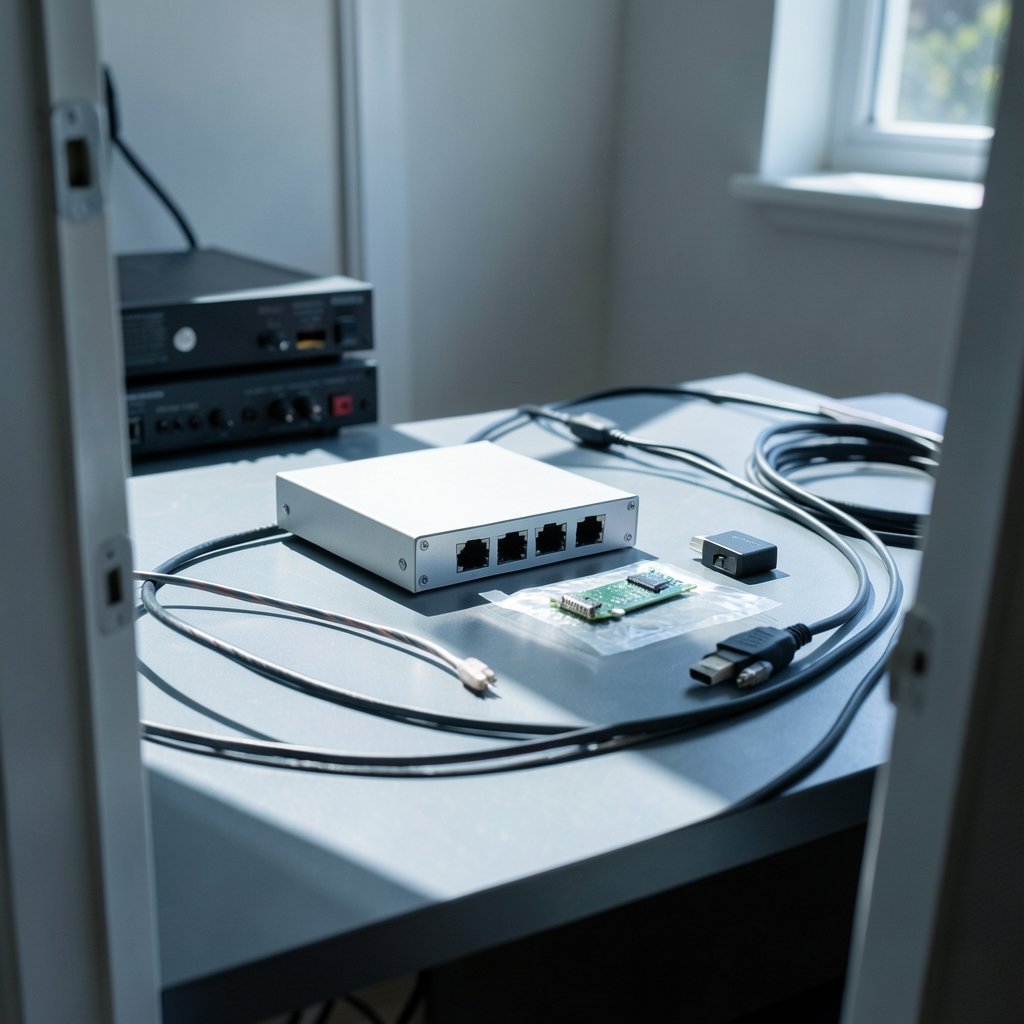
Before buying anything, it helps to map the full path a file travels: from the NAS drives, through the NAS network port, across a cable, through a switch, across another cable, and into the client device’s network port. Every one of those stages needs to handle 2.5GbE.
1. A 2.5GbE Port on the NAS
This is the starting point. Many consumer and small-business NAS units ship with only gigabit ports, especially older or entry-level models. The options are:
- A NAS that already includes a 2.5GbE port out of the box.
- A PCIe expansion slot that accepts a compatible 2.5GbE network card.
- A USB 2.5GbE adapter, which is the cheapest route but the most finicky.
Vendor compatibility lists are the authoritative source here. USB adapter support in particular varies by NAS operating system, kernel version, and firmware release, and it can change with an update. Buying an adapter before checking the vendor’s supported hardware list is one of the most common mistakes in this whole process.
2. A 2.5GbE-Capable Switch (or a Direct Connection)
If more than one device needs to reach the NAS at 2.5GbE, a multi-gig switch is required. A standard gigabit switch will happily pass traffic, but it will do so at gigabit speed. Multi-gig switches with a handful of 2.5GbE ports and one or two 10GbE uplinks have become affordable, which is a big part of why this upgrade is now practical for home labs.
There is a shortcut worth knowing: if only one computer needs fast access, you can skip the switch entirely and connect the NAS directly to that machine’s 2.5GbE port. This works well for video editing workstations or backup targets, though it means the NAS is no longer reachable from the rest of the network through that port unless the NAS has a second interface.
3. A 2.5GbE Client Device
The computer doing the transferring needs a 2.5GbE port too. Many recent motherboards include one, and PCIe cards are inexpensive. Laptops usually need a USB adapter or a Thunderbolt dock with multi-gig Ethernet.
Wi-Fi is a separate conversation. Wi-Fi 6, 6E, and 7 can exceed gigabit in ideal conditions, but real-world throughput drops with distance, interference, and client hardware. For consistent 2.5GbE-class performance, wired is still the reliable answer.
4. Cabling That Meets the Standard
Cat5e is generally rated to carry 2.5GBASE-T across typical home runs, which is the entire reason the standard exists. Cat6 gives more margin and is the safer choice for new installs, longer runs, or environments with electrical noise. Cable quality, length, and how well the connectors were terminated all affect real-world results, and a marginal cable can cause link flapping or a silent fallback to gigabit. (2.5GBASE-T and 5GBASE-T)
If the cabling is already in the walls and it’s decent Cat5e, there’s usually no need to rip it out. Test first, replace only if the link misbehaves.
5. Storage That Can Actually Feed the Link
This is the requirement people overlook most often. 2.5GbE tops out around 280 to 300 MB/s in theory, and closer to 250 to 280 MB/s in practice. A single hard drive delivers maybe 150 to 250 MB/s sequential. That means:
| Storage setup | Realistic sequential throughput | Benefit from 2.5GbE |
|---|---|---|
| Single HDD | 150–250 MB/s | Modest, sometimes none |
| HDD RAID 5/6 array (4+ drives) | 300–600 MB/s | Large |
| SATA SSD array | 500 MB/s+ | Large |
| SSD cache plus HDD array | Highly variable | Moderate to large |
| NVMe pool | 1,000 MB/s+ | Large, but 10GbE may suit better |
If the array can only produce 180 MB/s, a 2.5GbE link won’t make transfers faster than gigabit already does. Check the array’s real sequential performance before spending money on network gear. For anyone also refreshing compute hardware alongside storage, the same logic of matching components applies as in this GPU upgrade and graphics card install guide, where one weak part quietly caps the whole system.
A Practical Upgrade Order
Working in the right sequence saves money and frustration. A sensible order looks like this:
- Measure current transfer speeds to and from the NAS on the existing gigabit link.
- Check the NAS model’s specs and the vendor’s compatibility list for network cards and USB adapters.
- Confirm the client device’s port situation.
- Identify whether a switch is needed or a direct link will do.
- Inspect and, if possible, test the cabling.
- Benchmark the drive array’s sequential throughput.
- Buy only the pieces that are actually missing.
Steps 1, 5, and 6 cost nothing and frequently reveal that the upgrade is cheaper than expected, or that it won’t help yet.
Common Mistakes That Waste Money and Time
Buying the adapter first. The NAS port is the constraint most often, but the adapter is the part people purchase before confirming support. USB 2.5GbE adapters in particular have a reputation for running warm and for driver quirks that vary by NAS OS version.
Forgetting the switch. A 2.5GbE NAS plugged into a gigabit switch delivers gigabit speeds. This surprises people constantly.
Assuming Wi-Fi counts. It can, sometimes, but not reliably enough to plan around.
Enabling jumbo frames without testing. Jumbo frames are sometimes recommended for large transfers, but they cause compatibility problems with devices that don’t support them. Test before enabling, and be ready to turn them back off.
Ignoring heat and power. 2.5GbE PHYs and USB adapters can run warm, and some bus-powered adapters have known stability issues under sustained load. A small heatsink or a powered adapter solves most of it.
Expecting small-file transfers to speed up. Random small-file operations are limited by latency and IOPS, not bandwidth. A folder of 50,000 photos will not transfer dramatically faster on 2.5GbE. Large video files, disk images, and backups will.
What Real-World Gains Look Like
On a well-matched setup, large file transfers typically move from roughly 110 MB/s to somewhere in the 250 to 280 MB/s range. That’s a bit more than double, not the 2.5x the name suggests, because of protocol overhead and storage limits. For a 100 GB project folder, that difference turns a 15-minute copy into roughly six or seven minutes.
Virtual machine backups, media libraries, and large dataset moves are where the improvement is most obvious. Day-to-day office documents won’t feel different at all, and that’s fine. The upgrade is about removing a ceiling, not about making every operation faster.
For anyone running a mixed environment with servers, virtualization, or container workloads, network planning tends to sit alongside other infrastructure upkeep. Teams that maintain Kubernetes clusters, for example, already treat network capacity as part of the upgrade checklist, much like the sequencing described in this walkthrough of EKS cluster upgrade steps for Kubernetes 1.37. The principle is the same: verify each layer before assuming the bottleneck is where you think it is.
Is 10GbE a Better Choice?
Sometimes. 10GbE delivers far more headroom, but it demands better cabling (Cat6a for longer runs), runs hotter, and costs more at every link. For a NAS with an HDD array that tops out around 500 MB/s, 2.5GbE captures most of the available gain at a fraction of the price. For all-flash arrays and multi-user environments, 10GbE or 25GbE starts to make sense.
The honest framing is that 2.5GbE is the pragmatic middle step. It’s cheap, it usually works on existing cable, and it removes the most common bottleneck without a rewiring project.
Conclusion
A NAS 2.5GbE upgrade succeeds or fails on preparation, not on the gear itself. The requirements are straightforward: a 2.5GbE port on the NAS, a 2.5GbE path through switch and cabling, a 2.5GbE-capable client, and a drive array that can actually deliver more than gigabit speeds. Skip any one of those and the connection quietly falls back to the speed you already had.
The best approach is to measure first, check vendor compatibility lists before buying adapters, and spend money only on the missing link. Do that, and large file transfers roughly double in speed for a modest outlay. Skip the homework, and the new hardware sits there negotiating at gigabit while you wonder why nothing changed.
Frequently Asked Questions
Do I need Cat6 cable for a 2.5GbE NAS upgrade?
Not necessarily. 2.5GBASE-T was designed to run over existing Cat5e in typical installations, which is why it’s the popular upgrade path. Cat6 provides more margin for longer runs and noisy environments, and it’s the better choice for new cabling. Test the existing cable first and replace it only if the link shows problems.
Can I use a USB 2.5GbE adapter with my NAS?
Often yes, but support is model-specific and depends on the NAS operating system and firmware version. Some adapters work flawlessly, others have driver issues or run hot under sustained load. Always check the NAS vendor’s compatibility list before buying, and prefer adapters that are explicitly listed as supported.
Will 2.5GbE make my NAS transfers 2.5 times faster?
Rarely that much. Real-world gains usually land between two and 2.5 times, from roughly 110 MB/s to around 250 to 280 MB/s. The exact result depends on the drive array, RAID layout, CPU, and file sizes. Small-file transfers may barely improve because they’re limited by latency rather than bandwidth.
Do I need a special switch for 2.5GbE?
Yes, if more than one device needs fast access. A standard gigabit switch will pass traffic at gigabit speed regardless of what’s plugged into it. A multi-gig or 2.5G switch is required. Alternatively, connect the NAS directly to a single 2.5GbE client and skip the switch entirely.
Will my Wi-Fi 6 or Wi-Fi 7 network give me 2.5GbE speeds?
Sometimes in ideal conditions, but not reliably. Real-world Wi-Fi throughput drops with distance, interference, and client hardware limitations. For consistent 2.5GbE-class performance, a wired connection remains the dependable option.
What if my NAS only has gigabit ports and no expansion slot?
Then a USB 2.5GbE adapter is the only route, assuming the vendor supports one for your model. If it doesn’t, the realistic options are living with gigabit speeds or upgrading to a NAS model with a built-in 2.5GbE port or a PCIe slot. Check the compatibility list before assuming an adapter will work.



