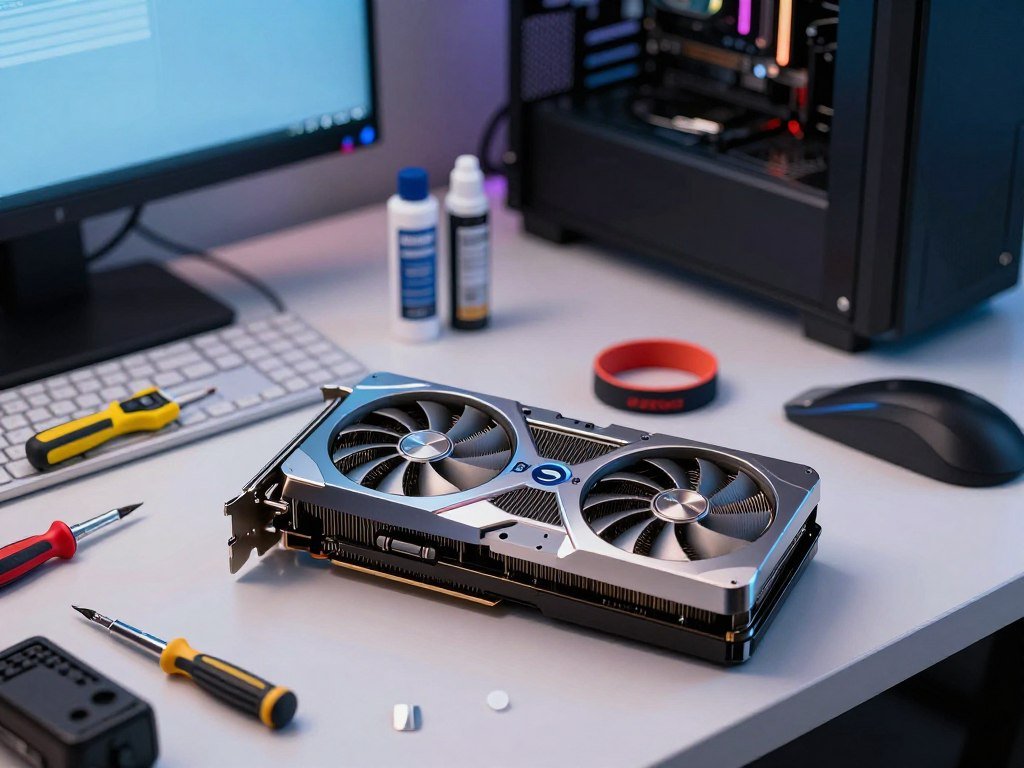
A GPU upgrade is manageable when you check the whole PC before buying a card and work through the swap in order. This guide helps you diagnose the performance problem, confirm your build can support a replacement, swap the card safely, install the correct driver, and check the result. It covers desktop PCs, not laptops with nonreplaceable graphics hardware. The PCIe x16 slot is the long motherboard expansion slot commonly used to connect a desktop graphics card. A well-matched card can improve gaming performance, while features like frame generation may change how smoothly some games appear. You will also learn when an upgrade makes sense and when another part may be holding your games back.
Key Takeaways
- Check that the GPU is causing the slowdown before you shop.
- Compare the card with your monitor, PSU, motherboard, and case.
- Use the correct PSU cables and handle the card with care.
- Install the official driver for the new card and your operating system.
- Test a familiar game after installation and watch for errors.
Set aside a stable, well-lit workspace and keep the replacement card’s model name handy.
Is the GPU Actually Causing Your Slowdowns?
If the GPU is near full load while the CPU has headroom during the exact slowdown, the graphics card may be the bottleneck. Watch both parts while you reproduce the problem in the same game, at the same settings. That pattern is a clue, not proof that buying a new GPU will fix everything.
Open Task Manager with Ctrl + Shift + Esc, then select Performance. Start the game and play until the slow frame rate returns. GPU use around 95-100% with CPU use around 50-70% can point to a GPU limit. Write down the readings during the slowdown, not while the game sits at its menu.
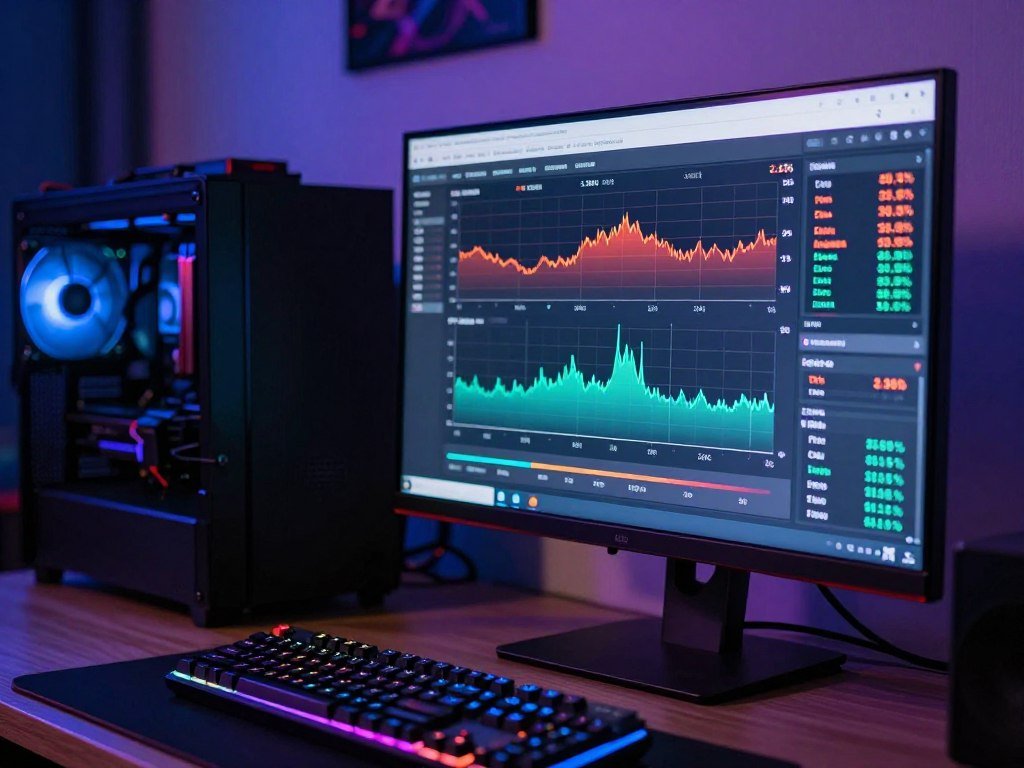
High CPU use with lower GPU use points toward a possible CPU limit. The game may be waiting for the processor to prepare work, so a faster graphics card might not raise frame rates much. A game can also shift between CPU and GPU limits as its scene changes.
Use the same test conditions each time. Resolution, graphics settings, background apps, and the game scene can all affect the readings. UL’s game performance estimates compare 3DMark graphics scores with frame rates in games such as Fortnite and Apex Legends.
High GPU use with spare CPU capacity supports a GPU bottleneck diagnosis, but one reading cannot confirm it.
If performance drops after several minutes, heat may be slowing the system. Check temperatures and fan behavior before blaming the card itself. A single game that runs poorly may have a game-specific setting or software problem.
General Windows instability can also come from memory, storage, or driver trouble. Look for crashes outside games, too. Compare more than one demanding game before deciding that a single game’s behavior justifies a purchase.
Which Graphics Card Fits Your Games and Monitor?
Choose a card around the resolution and refresh rate you actually use, not a performance tier chosen for someone else’s setup. Entry-level, midrange, and high-end cards serve different gaming targets. Your screen sets the starting point, while your games and preferred features narrow the choice.
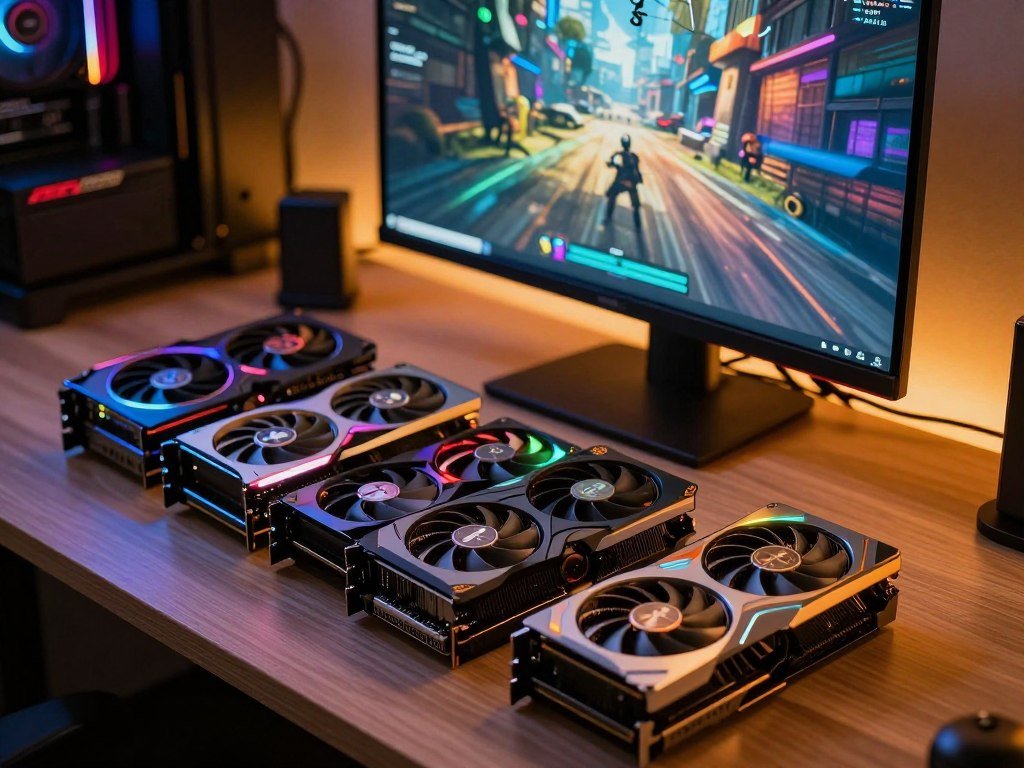
Match the GPU tier to your screen
Use the table as a broad guide, not a promise of one frame rate in every game. A demanding new release can need more power than a lighter competitive game at the same resolution.
| GPU tier | Typical gaming target |
|---|---|
| Entry-level | 1080p |
| Midrange | 1440p and high-refresh 1080p |
| High-end | High-refresh 1440p and 4K |
A [gaming PC under $1,000](https://occcy.com/best-gaming-pc-under-1000/) can suit 1080p play, but its exact parts still shape results. A card built for 4K may be a poor use of your budget if you play at 1080p and do not plan to change screens.
Compare performance features, not just raw speed
Resolution affects how many pixels the GPU must draw. A higher refresh rate also calls for more frames each second, while ray tracing adds demanding lighting effects. Decide which settings matter in the games you play most.
Upscaling renders a game at a lower resolution, then uses software to produce a sharper-looking image. Frame generation creates extra frames between rendered frames, which can make motion look smoother. Results depend on game support and how each feature feels to you.
The RX 9070 XT has 16GB of GDDR6 memory on a 256-bit interface, 640GB/s stated bandwidth, and a 304W TDP. It supports AMD FSR 4.1 FP8, but FSR 4.1 game support is less broad than NVIDIA’s DLSS suite. The RTX 5080 is a high-end example, while the RX 9070 XT was the overall GPU pick in Club386’s 2026 roundup.
Those picks are examples, not a promise that either card suits your build. Check your case and PSU before choosing one. People often upgrade every two to three GPU generations, or about three to five years, but that is a planning guide, not a schedule.
If you are not changing displays or lowering settings has not become necessary, keep the current card until you can name the improvement you need.
GPU Upgrade Install Graphics Card Guide 2026: What to Check Before Buying
Before ordering a card, confirm that the PSU, case, motherboard, and the rest of the build can support it. The best 2026 guide to a GPU upgrade and graphics card installation starts with power, case fit, and the motherboard slot. Check your exact parts, since two PCs with the same brand name can have different layouts.
Confirm the four basic compatibility points before you buy. This check can prevent a card from arriving that your PC cannot power, fit, or use well.
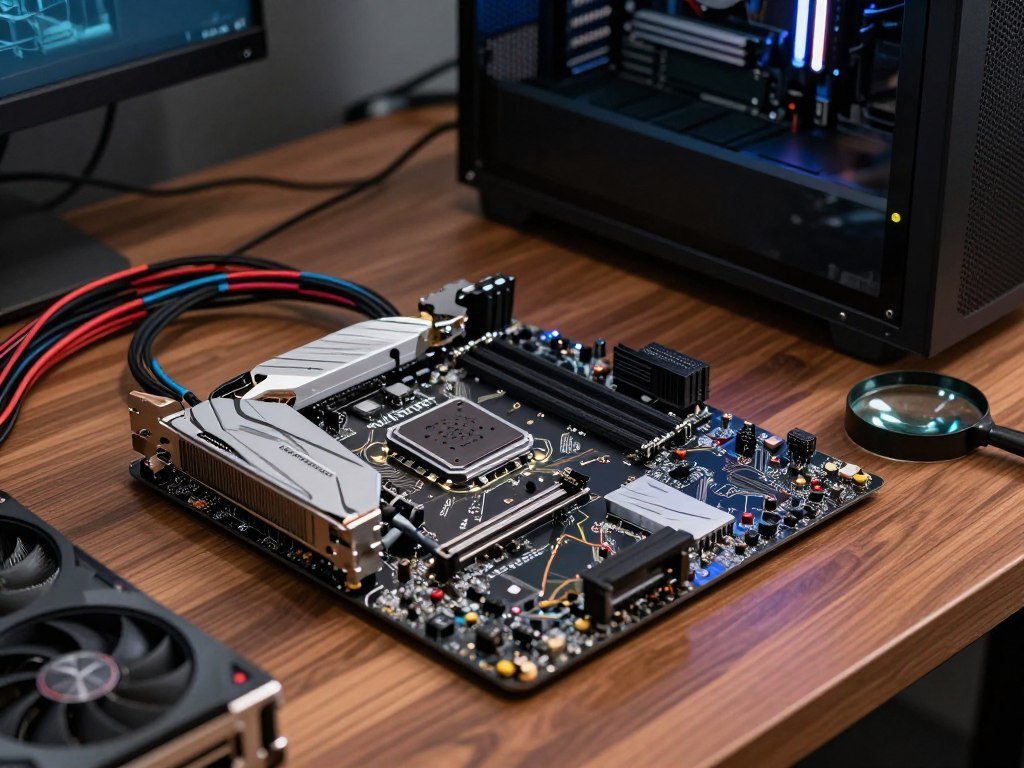
Check the whole system before ordering
Use this checklist to compare the new card with the computer you own. Record exact model names where possible, since a model family alone may not show its connectors or limits.
- PSU rating and connectors
- Case length and width
- Motherboard PCIe x16 slot
- CPU and display target
Desktop motherboards use PCIe expansion slots, and the PCIe x16 slot is the standard type to check for a graphics card. Common board sizes include ATX, microATX, and Mini-ITX. Your board’s exact model and revision can clarify which slots and features it supports.
If you do not know the board model, use these steps to identify your motherboard, then check its manual. A motherboard guide can also help you compare board sizes and expansion slots.
Check upgrade limits on a prebuilt PC
A prebuilt PC can use standard parts, but its PSU, board layout, or case may limit your choices. Compare those parts with the new card’s needs instead of assuming any card will fit. A custom case or compact power supply can narrow the options.
Check the manufacturer’s warranty and upgrade policy before opening the case. NZXT prebuilt gaming PCs have a two-year limited warranty that excludes problems caused by upgrading, adding, or changing components. Other manufacturers may set different terms.
Keep a record of the computer’s model and parts before you start. That information can help you check the board’s slot layout and the case’s supported motherboard size. Read the prebuilt PC’s warranty terms before removing a side panel, since an upgrade-related exclusion can affect coverage.
What PSU Wattage and GPU Connector Do You Need?
A card’s power rating is not the same as the PSU wattage its complete system may need. Use the card maker’s system recommendation, then check that your PSU has the right cables. Do not choose a PSU by adding the CPU and GPU ratings alone.
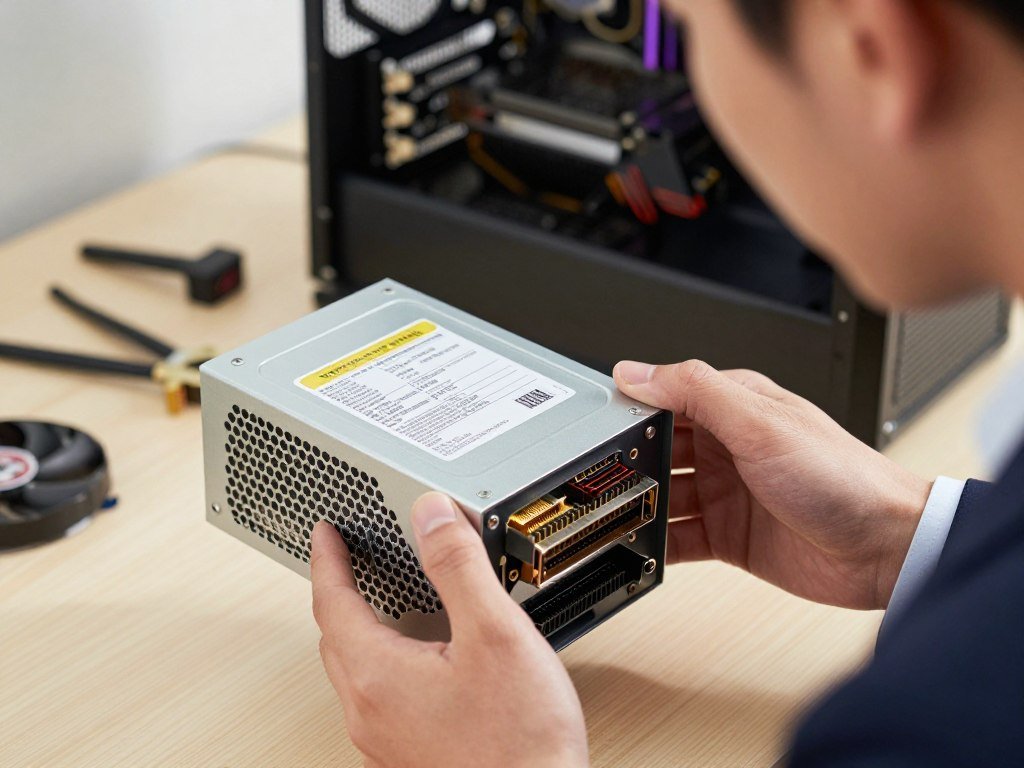
The RTX 5080 is rated at 360W, and its installation guide recommends an 850W system PSU. The RTX 5070 Ti is rated at 300W, with a 750W system PSU recommendation. These are system recommendations, not the cards’ power draw.
CORSAIR recommends 850W for an RTX 5080 with an Intel Core i5 or AMD Ryzen 5, and also with an Intel Core i7 or AMD Ryzen 7. For an RTX 5070 Ti, it recommends 650W with an Intel Core i5 or AMD Ryzen 5, and 850W with an Intel Core i7 or AMD Ryzen 7.
| GPU and configuration | PSU recommendation |
|---|---|
| RTX 5080 system | 850W |
| RTX 5070 Ti installation-guide recommendation | 750W |
| RTX 5070 Ti with Intel Core i5 or AMD Ryzen 5 | 650W |
| RX 9070 XT with Intel Core i5 or AMD Ryzen 5 | 750W |
| RX 9070 XT with Intel Core i7 or AMD Ryzen 7 | 850W |
CORSAIR also recommends 750W for an RX 9070 XT with an Intel Core i5 or AMD Ryzen 5, and 850W with an Intel Core i7 or AMD Ryzen 7. These figures account for the CPU, typical cooling, storage, and memory, not just the CPU and GPU ratings added together.
Overclocking or adding higher-power parts can call for extra capacity. A PSU with more headroom may also leave room for a later upgrade. The exact connector layout matters just as much as the wattage, since cards can use different plugs or adapters.
Read the CORSAIR PSU recommendations for the card and CPU combination you plan to use. Verify both the PSU’s continuous wattage label and the specific connector layout before buying the card.
Will the New GPU Fit Your Case?
Measure the entire cooler shroud against the case’s clearance for its actual fan or radiator layout. Use the full card size, not just the length printed for the bare circuit board. Leave 5-10mm of extra length beyond the cooler shroud when comparing published clearance.
Measure length and account for front cooling
Compare the card maker’s full cooler length with your case’s maximum GPU length. If a front radiator is installed, use the case’s clearance figure for that radiator setup. A figure for a radiator-free case may not match your build.
| Case layout | Clearance or change | Condition |
|---|---|---|
| RTX 5080 installation guide | At least 336mm; triple-slot width | Most board-partner designs |
| Compact or ITX case | Often 150-300mm; some layouts allow 330mm | May depend on orientation or drive cage |
| Front 360mm radiator | 20-60mm less clearance | Depends on case geometry |
Compact cases can have less space than standard towers, though some layouts allow longer cards. The placement of a drive cage or the card’s orientation can change the usable room. Check the exact case manual for your setup.
Check card thickness, side-panel depth, and risers
A card can fit by length and still be too thick. A 2.5- or 3-slot cooler may hit a nearby drive cage or another part. Check the card’s width and the space around the PCIe x16 slot.
A vertical mount does not fix a length problem. It can add 20-40mm of depth between the card and side panel, which may leave too little room for the power plug or airflow. Make sure the side panel can close without pressing on the card.
For a vertical mount, use a PCIe 4.0 riser with a PCIe 4.0 GPU. A PCIe 3.0 riser can work, but it slightly throttles bandwidth. The card guide’s RTX 5080 clearance details include its length and triple-slot needs.
Measure the case in its current layout, including front fans, radiators, and drive cages. Recheck the case specification for the installed front radiator rather than relying on its radiator-free clearance figure.
What Should You Prepare Before Opening the PC?
Having the tools, driver installer, and a clear work surface ready prevents avoidable pauses once the case is open. A little setup keeps the work steady and helps you avoid dropping small parts. Gather the tools before you power down the PC.
Gather tools and protect components
Keep these items within reach:
- Magnetic Phillips #2 screwdriver
- Anti-static wrist strap
- Cable ties or Velcro straps
Use a stable, well-lit work surface with room for the case and card. A small container keeps screws from rolling away. Touch grounded metal or wear the wrist strap before handling components, and avoid working on carpet.
Take your time with small screws and connectors. Good lighting makes it easier to see the latch and the card’s edge connector later. Keep drinks and loose objects away from the work area.
Check warranty and save your setup details
Check your PC’s warranty before opening it, since upgrade terms differ by maker. NZXT prebuilt gaming PCs have a two-year limited warranty that does not cover problems caused by upgrading, adding, or changing components. A warranty rule may shape how you choose to proceed.
Photograph cable connections if you think the pictures will help you restore the setup. Have the correct official driver installer ready for later, along with the replacement card’s exact model name. Keep the driver file somewhere easy to find.
Clear space beside the case for the old and new parts. Put small screws in a container rather than leaving them loose inside or beside the case.
Should You Remove the Old Graphics Driver First?
A clean driver change is especially useful when you are moving between NVIDIA and AMD graphics cards. It can also help when an old driver causes conflicts or detection problems. Device Manager can uninstall a display adapter, while Display Driver Uninstaller, or DDU, offers a more thorough cleanup.
DDU is most useful for a brand switch or a driver problem, not every same-brand swap. Download the utility before the hardware change so you do not need to find it later. The RTX 5080 installation guide recommends DDU version 18.0.8.0 or newer.
Run DDU in Windows Safe Mode, which limits the drivers and services Windows loads. Microsoft explains how to reach Startup Settings and choose Safe Mode through Windows Recovery Environment in its Windows startup settings instructions.
Follow this order for a DDU cleanup:
- Download DDU before changing the card.
- Enter Windows Safe Mode.
- Choose the current GPU vendor in DDU.
- Select “Clean and restart,” then let Windows reboot.
After Windows restarts, shut down the PC before making the hardware change. This sequence removes the old vendor’s driver while the old card is still installed. If you are keeping the same GPU brand and have no driver trouble, Device Manager may be enough.
Keep the new official driver package ready as well. It can save time if Windows starts with a basic display driver. Download the new official driver package before removing the old GPU so you can install it without searching from a phone.
How Do You Remove the Old Graphics Card Safely?
Shut the PC down fully and unplug it from the wall before reaching inside the case. Do not rush the latch, since forcing it can harm the motherboard slot. The old GPU is held by its rear bracket screws and the motherboard’s PCIe retention latch.
Support the card’s weight while releasing it from the slot. A large cooler can sag as soon as the latch opens. Keep your other hand under the card before lifting.
Remove the old GPU in this order:
- Fully shut down and unplug the PC.
- Press the front power button once and ground yourself.
- Unplug the old GPU’s power leads and remove its rear bracket screws.
- Release the PCIe retention latch and lift the card straight out while supporting its weight.
Some latches push down, while others move to the side. Use the shape of your motherboard latch to guide your hand. Press or move it gently, and never pry aggressively if it is hard to reach.
Once the latch releases, keep the card level as you lift it. Do not pull on the fans or cooler shroud. If the card feels stuck, pause and check that every rear screw is out and the latch is open.
The old card may be useful as a backup or for resale, so handle its edge and cooler with care. Set the removed card on an anti-static bag or clean, dry surface rather than on carpet.
How Do You Seat the New Card in the PCIe x16 Slot?
Line up the card’s edge connector with the motherboard slot and its bracket with the case opening before pressing down. Even pressure matters, since a tilted card can catch in the slot. Use the top PCIe x16 slot when it is wired for full x16 speed.
Seat the card with these checks:
- Remove the needed rear expansion-slot covers.
- Align the card’s edge connector and rear bracket.
- Press evenly until the retention latch engages.
- Secure the bracket with screws and use any supplied support bracket.
Other x16-length slots may operate at lower speeds, even though the card can fit them. Check the motherboard manual to see how each slot is wired. Your board model can also show whether other installed parts affect slot speed.
If your PC is changing from integrated graphics to a dedicated GPU, the card still needs a compatible motherboard slot and enough case clearance. The motherboard’s graphics output does not replace the slot needed by the card. A motherboard guide for gaming PCs can help explain board sizes and expansion slots.
Keep the card straight as you apply pressure. The rear bracket should line up with the case before the edge connector is fully seated. If the card will not seat evenly, lift it out and correct the alignment instead of forcing it.
How Do You Connect GPU Power Cables Safely?
Use only power cables made for the PSU in this PC, even when another cable appears to fit. Modular cables are not universal, and the wrong cable can damage parts. The connector you need depends on the card and PSU.
Never mix modular PSU cables from different units. Use a native PSU connector when the PSU has the correct one, or use the adapter supplied with the GPU. A plug that fits does not prove that its wiring matches.
For a GPU using a 12V-2×6 adapter, each 8-pin cable should come from the PSU on its own lead. Do not connect both adapter plugs to the two ends of one daisy-chained cable. Separate leads help avoid overloading one cable.
Follow the GPU and PSU instructions for the exact connector setup. Keep the cable’s path clear of sharp edges and moving fans. A tight bend or cable pull can put strain on the plug.
After connecting the power lead, check the plug from more than one angle. It should sit fully in place with no visible gap, and the cable should not pull sideways on the connector. Before closing the case, check that the GPU power plug is fully seated and that no cable can touch a fan.
What Should You Check on the First Boot?
Plug the monitor into an HDMI or DisplayPort output on the new GPU before powering the PC on. A dedicated card works without integrated graphics, but the display cable must connect to the card. The motherboard’s video output may not show the new GPU’s signal.
Reconnect the monitor and peripherals, switch the PSU on, and press the case power button. Watch the screen for a signal while the PC starts. A first boot can take a little longer as Windows detects changed hardware.
Windows Device Manager can show whether the system sees a display adapter after startup. Open the Display adapters list and look for the new model or a basic display entry. If the card appears there, Windows has detected a graphics device.
If there is no display, do not keep restarting the PC. Power it down before reseating the card or checking its connectors. Check that the monitor is on the right input and that the video cable is secure at both ends.
A PC can turn on even when the card is not fully seated or powered. The fans may spin without a working display signal. If the fans run but there is no display, shut the PC down before checking card seating and power connections.
How Do You Install Drivers After Switching GPU Brands?
Install the official driver package for the exact card and operating system shown in the PC. Use the card maker’s support channel, not a third-party download site. The official installer can match the display driver to your GPU model.
Install the new vendor’s driver after Windows detects the display adapter. When switching from NVIDIA to AMD, cleanly remove the previous vendor’s driver, install AMD Software: Adrenalin Edition, and restart when prompted. For an Intel-to-NVIDIA switch, install the current official NVIDIA driver.
Install the official driver for the new card
Download the driver from the official NVIDIA, AMD, or Intel support channel. Follow the installer prompts and choose the recommended setup unless you have a specific reason to change it. The process for Windows 11 depends on the GPU maker.
AMD Software: Adrenalin Edition supports Windows 11 version 21H2 and later. NVIDIA’s driver process is separate, so use its current package for your GeForce card and Windows version. Do not install a driver meant for a different GPU family.
AMD’s instructions, updated February 9, 2026, use Adrenalin Edition 26.1.1. AMD’s installer checks system and software compatibility, and the company offers both an auto-detect tool and manual product selection.
Check the driver and Windows compatibility
Before setup, AMD recommends closing open applications and temporarily disabling antivirus, firewall, remote-access, and streaming services. Those programs can sometimes conflict with installation. Turn protection back on after setup finishes.
NVIDIA says GeForce Game Ready Drivers are WHQL-certified and tested across thousands of hardware configurations. Choose the package for the exact card and operating system, then follow the on-screen steps. A clean driver install can help when you have changed GPU brands.
Use this short check before you finish:
- Confirm the card model.
- Confirm Windows compatibility.
- Restart after installation.
After the restart, check Windows or the vendor software to make sure the new card’s model appears. Restart once after installation and confirm the new card’s model in Windows or its vendor software.
How Can You Test and Troubleshoot the New GPU?
A short benchmark and a familiar game can reveal whether the new card is stable in ordinary use. Start with a controlled test, then try your usual settings. Run a 15-minute benchmark or demanding game session while watching temperatures, fan behavior, and stability.
Use the card maker’s temperature limit for your exact model. There is no single safe temperature threshold that applies to every GPU. Stop the test if the card shows clear warning signs.
| Symptom | First check | Next action |
|---|---|---|
| No display | Monitor output and card seating | Reseat only with power off |
| Crash or freeze | Driver installation and Windows Event Viewer | Reinstall the official driver if needed |
| Visual artifacts | Display cable and temperatures | Stop testing if artifacts persist |
| Poor performance in one game | Another known game and its settings | Check for a game-specific issue |
Once the benchmark ends, play a game you know well. Familiar scenes make changes in frame rate or image quality easier to spot. If only one game has trouble, compare its settings with another game before changing system parts.
Windows Event Viewer can help you check for system errors after a crash or freeze. A clean event log does not rule out every hardware problem, but it can show whether Windows recorded a related error. Note when the problem happened and what the PC was doing.
Do not keep testing through repeated crashes or lasting visual glitches. Stop testing if you smell burning, see persistent artifacts, or the PC repeatedly shuts down under load.
Conclusion
A successful GPU upgrade starts with choosing hardware that fits the PC you already own. Compatibility checks and a careful, unforced installation matter as much as the card’s performance tier. A faster GPU cannot help if the PSU lacks the right connectors or the card cannot fit the case.
Before ordering, write down the exact GPU model, PSU model and wattage, and case model. Check those three model details before placing the order.
FAQ
How long does a GPU upgrade usually take?
A prepared first-time installer should allow about 45-90 minutes for a GPU upgrade. The swap itself can take less time, but careful checks reduce the chance of mistakes. Driver cleanup or troubleshooting may add time, especially when you change GPU brands. Set aside extra time so you do not feel rushed while handling the card or checking the first boot.
Do I need to reinstall Windows after changing a graphics card?
No, you usually do not need to reinstall Windows after changing a graphics card. Windows can start with the new hardware, then use the correct graphics driver. Remove or update the old driver when needed and restart Windows after installing the new package. A Windows reinstall is generally not part of a routine GPU swap.
Can a PCIe 4.0 graphics card work in a PCIe 3.0 slot?
Yes, a PCIe 4.0 graphics card can generally work in a PCIe 3.0 slot because PCIe generations are backward-compatible. The card and slot use the supported link speed. Performance can depend on the card, slot wiring, and workload, so check your motherboard manual for the slot’s actual configuration.
Should I uninstall drivers when replacing a card with another from the same brand?
Not always. A same-brand swap often works with the existing driver, especially when the old card was stable. A clean removal can help if Windows fails to detect the new card or the system has driver-related crashes. If you do remove it, download the new official driver before changing the hardware.
Can I use a modular PSU cable from a different PSU if the plug fits?
No, do not use a modular PSU cable from a different PSU, even if the plug fits. Modular cable pinouts can differ between models and brands. The wrong wiring can damage the graphics card, PSU, or other parts. Use only cables made for the exact PSU installed in your PC.
Why does my new GPU have no display if the PC turns on?
The monitor may be connected to the motherboard instead of the graphics card, or the card may not be seated or powered correctly. Connect the monitor to the new GPU’s HDMI or DisplayPort output first. If there is still no signal, shut down and unplug the PC before checking the card and its power connectors.
How do I know whether a used graphics card is faulty?
Test a used graphics card under load and watch for persistent artifacts, crashes, abnormal fan noise, and unstable temperatures. A single brief glitch does not prove the card is faulty, since software or the display cable can also cause problems. Repeat the test with a known game, then stop if errors continue or the PC shuts down.