
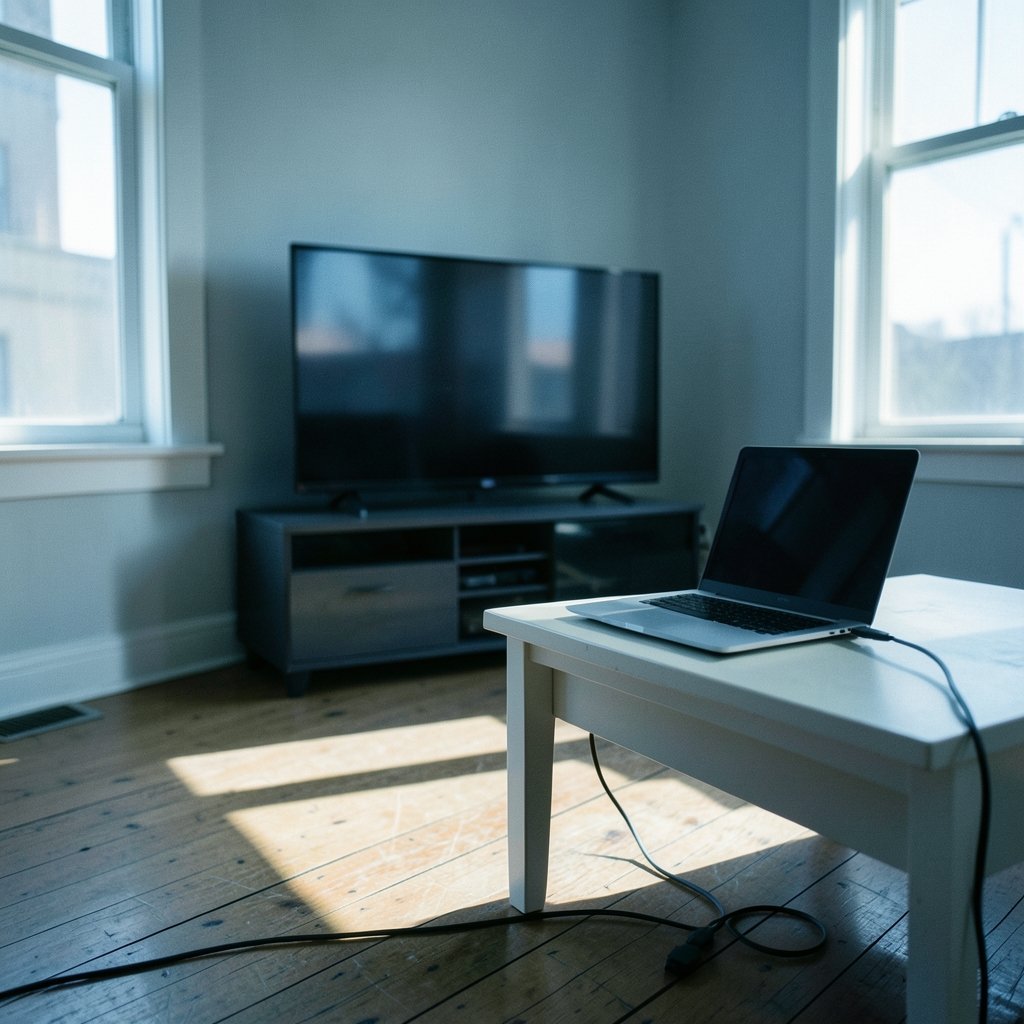
Ever plugged a laptop into a big TV, leaned back to enjoy all that screen space, and noticed that every letter suddenly looked like it had been smeared with a wet finger? The windows, the menus, the web pages, the spreadsheet cells: all fuzzy around the edges, especially anything red or blue. That blur usually isn’t a broken TV, a bad cable, or a failing graphics card. It’s almost always a chroma subsampling setting, and the fix is to get your graphics card and your TV talking in 4:4:4 chroma. This guide explains what 4:4:4 actually means, why TVs often default to something less, and how to set it up so your television behaves like a proper PC monitor.
What “Chroma 444” Actually Means
The shorthand “444” refers to 4:4:4 chroma subsampling, a way of encoding color in a digital video signal. Human eyes are far more sensitive to brightness (luma) than to fine color detail (chroma), so video engineers realized decades ago that you could throw away some color information and most people would never notice on a movie or a TV show.
That trade-off works beautifully for film and broadcast content. It works terribly for computer desktop content, where the screen is full of thin, high-contrast colored lines: text, icons, window borders, and UI elements.
Here’s the difference in plain terms:
| Format | What happens to color | Typical use | Desktop text quality |
|---|---|---|---|
| 4:4:4 | Every pixel keeps its own full color value | PC monitors, professional work | Sharp, clean edges |
| 4:2:2 | Color is shared between two horizontal pixels | Some broadcast and camera workflows | Slight softness on colored edges |
| 4:2:0 | Color is shared across a 2×2 pixel block | Most streaming, Blu-ray, broadcast TV | Visible blur and color fringing on text |
The numbers describe how many chroma samples accompany each group of four luma samples. In 4:4:4, every pixel gets a full color sample, so nothing is shared and nothing is lost. That’s the whole point: full color resolution, pixel for pixel.
Chroma subsampling itself is defined in international standards such as ITU-R BT.601 and BT.709, which set out how color difference signals are sampled and encoded. You can read more about the underlying concepts on the Wikipedia page for chroma subsampling if you want the technical depth.
Why TVs Default to Lower Chroma
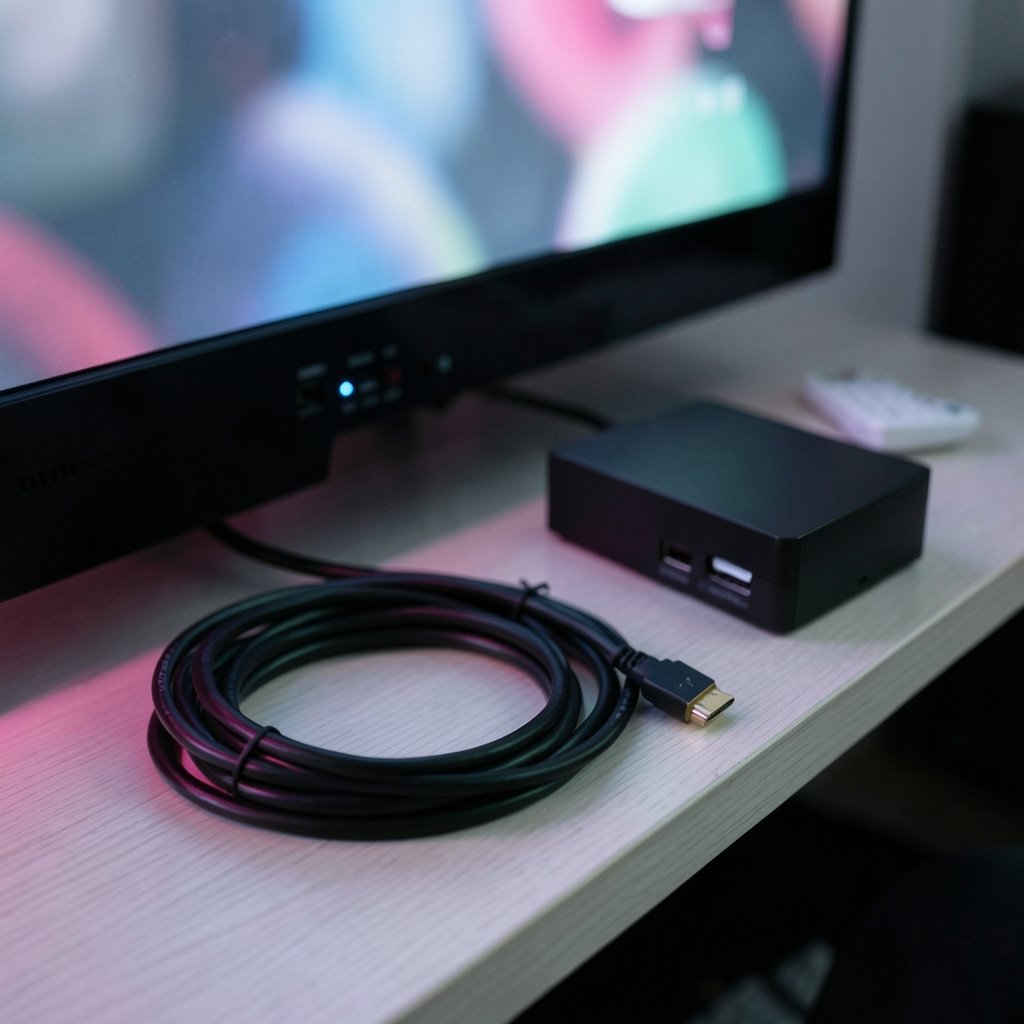
TV manufacturers build their picture processing around movies and TV shows, not spreadsheets. When a television receives a signal, it often assumes the source is video content and applies processing accordingly. Many sets historically forced 4:2:0 or 4:2:2 on HDMI inputs, which is fine for a Netflix stream but produces that familiar soft, slightly colored halo around text.
The reason is bandwidth. A full 4:4:4 signal carries noticeably more data than a subsampled one, and older HDMI hardware had strict limits. According to the HDMI specification overview from HDMI Licensing Administrator, HDMI 2.0 provides roughly 18 Gbps of bandwidth, which is enough for 4K at 60Hz with 4:4:4 at 8-bit color. HDMI 2.1 pushes that much higher, enabling 4K at 120Hz with full 4:4:4. If you want the full technical picture of how the interface evolved, the Wikipedia article on HDMI covers the bandwidth tiers in detail.
So the short version: the TV isn’t being lazy. It’s following a default that made sense for its original job. Your job is to tell it that a computer is now in charge.
The Two Settings That Matter Most
Getting crisp text on a TV comes down to two things working together: the graphics card output and the TV input mode. Miss either one and you’ll still be staring at fuzzy letters.
Step 1: Set 4:4:4 in Your Graphics Card Driver
On Windows, open your GPU control panel. For NVIDIA cards, open the NVIDIA Control Panel, find Change Resolution, and look for the output color format setting. Select RGB or YCbCr 4:4:4. Avoid YCbCr 4:2:2 and 4:2:0. Set output color depth to 8-bit or higher, and choose Full range instead of Limited.
For AMD cards, open AMD Software and look under Display settings for Pixel Format. Choose RGB 4:4:4 PC Standard (Full RGB). Intel integrated graphics have a similar setting under Display > Color settings.
A common mistake here is assuming the driver is already outputting 4:4:4 because the resolution looks right. Resolution and chroma are separate settings. You can have a perfect 4K signal that is still subsampled.
Step 2: Enable PC Mode on the TV
This is where most people get stuck. The graphics card can send a perfect 4:4:4 signal, but the TV may still downsample it internally if it thinks it’s receiving video content.
The fix varies by brand, but the principle is the same: tell the TV that the HDMI input is connected to a computer. On many sets this means:
- Open the TV’s input or source menu.
- Find the option to edit or label an input.
- Rename the HDMI port to PC or select PC mode.
- On some models, enable Game Mode or a dedicated PC picture mode.
- Turn off any picture processing features like noise reduction or edge enhancement, which can soften text further.
Sony, LG, Samsung, and TCL all handle this slightly differently, so check your model’s manual. The naming is inconsistent, which is a genuine frustration in the community. Some TVs call it “Input Label,” others “HDMI Mode,” others “PC/Game.” The RTINGS.com guide to TV settings for PC use is a solid reference for testing whether your set is actually displaying 4:4:4.
How to Test Whether You Actually Got 4:4:4
Don’t trust your eyes alone, especially if you’re tired. Use a test pattern. Display a full-screen image of fine red text on a black background, or a pattern of alternating red and blue single-pixel lines. At 4:4:4, those lines stay distinct. At 4:2:0, they blur into a muddy purple or gray.
Another practical test: open a document with small black text on a white background, then look at a paragraph of red or magenta text. Subsampling damage is most obvious on saturated colors, which is why red text on a dark background is the classic giveaway.
If the text is still soft after both steps, check these common culprits:
- The cable. A marginal HDMI cable may force the link into a lower bandwidth mode, dropping chroma quality. Try a certified high-speed cable.
- The HDMI version. A 4K 60Hz 4:4:4 signal needs HDMI 2.0 or better on both ends. Older cables and ports cap out lower.
- The refresh rate. Pushing 4K at 120Hz on an HDMI 2.0 port will force subsampling. Drop to 60Hz or move to HDMI 2.1.
- The TV’s HDMI port. Some TVs only support full bandwidth on specific ports, often labeled differently in the manual.
- Windows display settings. Make sure the resolution and refresh rate match what the TV and cable can actually handle.
4:4:4 vs DisplayPort: A Quick Comparison
If your TV has a DisplayPort input, which is rare but not unheard of, use it. DisplayPort was designed with computers in mind and generally carries full 4:4:4 without the same negotiation headaches. The VESA DisplayPort standard documents the bandwidth and format support if you want the details.
| Connection | Typical 4K60 4:4:4 support | Notes |
|---|---|---|
| HDMI 2.0 | Yes, at 8-bit | Needs a certified cable and PC mode |
| HDMI 2.1 | Yes, up to 4K120 | Best option for modern TVs |
| DisplayPort 1.2+ | Yes | Rare on TVs, common on monitors |
| USB-C (Alt Mode) | Varies | Check the adapter’s spec sheet |
For most people, HDMI 2.0 with a good cable and PC mode enabled is enough. The difference between 4:4:4 and 4:2:0 on a desktop is dramatic; the difference between 8-bit and 10-bit color is subtle by comparison.
Practical Tips and Common Mistakes
After helping plenty of people set this up, a few patterns show up again and again.
Don’t confuse “Game Mode” with “PC Mode.” They often overlap, but on some TVs Game Mode lowers input lag while still subsampling color. Check both settings independently.
Don’t leave the input label on “Blu-ray” or “Cable.” Those labels tell the TV to expect video content and apply the corresponding processing.
Don’t ignore the source device. If you’re using a streaming stick or a console, you can’t force 4:4:4 from the TV side alone. The source has to send it.
Do check the refresh rate first. Many people chase chroma settings for an hour before realizing their 4K 120Hz setting is the actual bandwidth hog. Drop to 60Hz, confirm 4:4:4 works, then step back up.
Do test with real content. A test pattern is useful, but the real proof is reading a long document or editing a spreadsheet without eye strain.
For a broader look at how display standards and signal formats fit together, the Wikipedia overview of color space and signal encoding is a reasonable starting point. (ITU-R BT.709 recommendation)
When a TV Is the Wrong Tool
It’s worth being honest: a TV can make a fantastic large PC display, but it isn’t a monitor. TVs often have slower response times, less accurate color out of the box, and firmware that fights you on settings. If you spend eight hours a day reading text, a dedicated monitor with native 4:4:4 support and DisplayPort will usually be less hassle.
That said, for a media center PC, a living room gaming rig, or a big-screen productivity setup, a TV with 4:4:4 enabled is genuinely excellent. The key is knowing which two settings to change and verifying the result rather than assuming.
If you’re building out a home setup and want more guidance on display configuration and related hardware topics, the resources at occcy.com are worth a look.
Conclusion
Sharp text on a TV used as a PC display requires full color resolution through the whole chain. Set your graphics card to output RGB or YCbCr 4:4:4 with full range, then tell the TV the HDMI input is a PC by relabeling it or enabling PC mode. Check with a test pattern; if text still looks soft, check the cable, the HDMI version, and the refresh rate, in that order.
The payoff is real. Text becomes crisp, colors stop bleeding at the edges, and a big TV turns into a surprisingly capable workspace. It takes ten minutes of settings work, and once it’s done, you’ll wonder why every TV doesn’t ship with this figured out.
Frequently Asked Questions
What does 4:4:4 chroma actually do for PC use?
It keeps full color information for every single pixel instead of sharing color data across neighboring pixels. On a desktop, that means sharp edges on text, icons, and fine UI elements, especially in saturated colors like red and blue. Without it, small text looks blurry and colored edges smear.
Why does my TV show fuzzy text even at 4K resolution?
Resolution and chroma are separate settings. A TV can display a perfect 4K image while still subsampling color to 4:2:0 or 4:2:2, which blurs fine colored detail. The fix is to enable PC mode on the TV input and set the graphics card to output RGB or 4:4:4.
Do I need an HDMI 2.1 cable for 4:4:4?
Not necessarily. HDMI 2.0 supports 4K at 60Hz with 4:4:4 at 8-bit color, which is enough for most desktop work. HDMI 2.1 becomes necessary if you want 4K at 120Hz with full 4:4:4, or higher resolutions at high refresh rates.
How can I tell if my TV is really displaying 4:4:4?
Display a test pattern of fine red text on black, or single-pixel red and blue lines. At 4:4:4 the lines stay distinct and the text stays sharp. At 4:2:0 they blur together into a muddy color. Reading small red text on a dark background is the quickest real-world check.
Does Game Mode disable 4:4:4?
It depends on the TV. On some models Game Mode enables full 4:4:4 along with lower input lag. On others, Game Mode reduces lag but keeps subsampling. Check both the input label and the picture mode separately, and test the result rather than assuming.
Is a TV good enough to replace a PC monitor?
For casual use, media, and gaming, a TV with 4:4:4 enabled works well. For long hours of text work, a dedicated monitor with DisplayPort and native full-color support is usually more comfortable and less finicky. The TV route is viable, but it requires more setup patience.



