
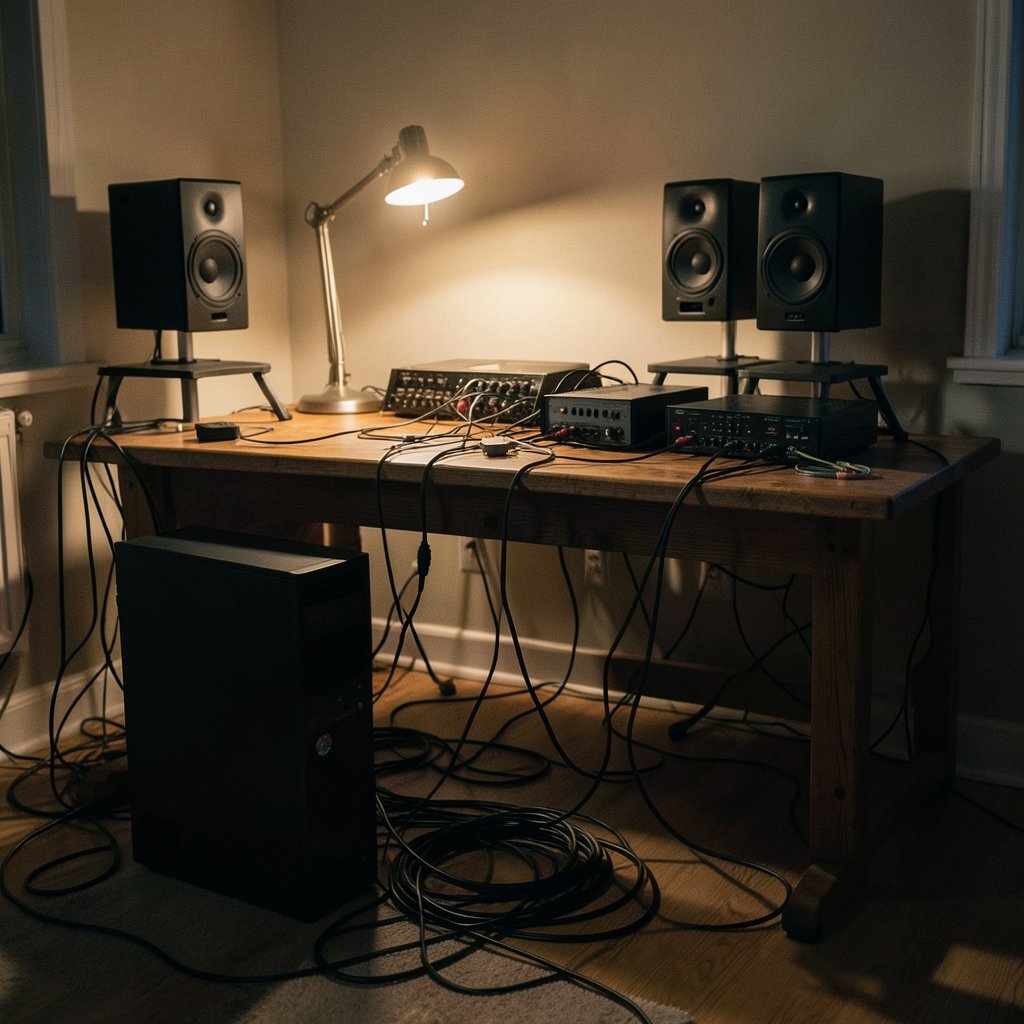
You sit down, hit play on a quiet track, and there it is: a faint, steady hiss leaking from your speakers before the music even starts. Where does that noise come from, and why does it vanish the moment you unplug the cable from your PC?
Speaker hiss on a desktop or laptop setup is one of the most common audio complaints, and it is almost always fixable. The noise usually comes from one of four places: a ground loop, a gain-staging mismatch, electrical interference from the computer itself, or a genuinely noisy onboard audio chip. The trick is figuring out which one you are dealing with before you start buying gear. This guide walks through each cause, the tests that isolate it, and the fixes that actually hold up in daily use. (Audio engineer)
What Speaker Hiss Actually Sounds Like and Why It Matters
Not all unwanted noise is the same, and misdiagnosing it wastes money. A hiss is a steady high-frequency “shhh” that stays constant regardless of what is playing. A hum is a low 50 or 60 Hz drone tied to mains power. Buzz sits somewhere in between and often changes with what is on screen, because it follows the graphics card’s power draw.
Hiss matters because it masks quiet detail. On a pair of nearfield monitors or a good set of bookshelf speakers, a noise floor you can hear from a meter away makes late-night listening unpleasant and ruins recordings of quiet room ambience. It also gets worse as you turn the volume up, which is exactly when you want a clean signal.
The single most useful diagnostic question is this: does the hiss stay when the cable is unplugged from the PC but still connected to the speakers? If yes, the speakers or their power supply are the culprit. If no, the PC or the cable is injecting the noise.
The Four Main Causes of PC Speaker Hiss

Ground Loops
A ground loop happens when two devices connect to earth ground at different points, creating a small voltage difference that travels along the audio cable as noise. It is extremely common when a PC, a monitor, powered speakers, and a USB interface all plug into different outlets or a shared power strip with poor grounding. The classic symptom is hum or buzz that appears only when the audio cable touches the computer.
Lifting the ground on a power cable is dangerous and should never be done. The safe fix is a ground loop isolator, a small transformer-based inline device that breaks the electrical path while passing the audio signal. It costs little and solves a surprising share of cases.
Gain Staging Mistakes
This is the most overlooked cause and the easiest to fix. If the speakers’ own volume knob sits at 90 percent while Windows output sits at 15 percent, the amplifier is magnifying both the music and the noise floor of the PC’s output stage. The result is audible hiss at low listening levels.
The practical rule: keep the source volume high and the speaker gain low. Set Windows or macOS output to 80 to 100 percent, then bring the speaker knob up only as far as you need. Many powered monitors also have a dedicated input sensitivity switch or a -10 dB pad; using it lowers the noise floor further.
Electrical Interference From the PC
Computers are electrically noisy boxes. Switch-mode power supplies, graphics cards under load, and USB buses all radiate electromagnetic interference that an unbalanced 3.5 mm cable can pick up like an antenna. Two habits make this worse: running the audio cable parallel to a power cable, and coiling excess cable into a tight loop next to the case.
Simple mitigation works more often than people expect. Route audio cables away from power leads, keep them short, and cross other cables at right angles rather than running alongside them. If the hiss changes pitch or volume when you move the mouse or scroll a webpage, interference is almost certainly involved.
Noisy Onboard Audio and USB Power
Motherboard audio codecs sit inches from high-current components, and their shielding varies enormously between budget and premium boards. Laptops are worse: the 3.5 mm jack often shares a bus with USB and charging circuitry, so hiss appears or worsens the moment the charger is connected. USB-powered speakers inherit the same problem, drawing current from a port that also carries data traffic.
The clean solution in both cases is to move the digital-to-analog conversion outside the computer. A dedicated DAC or a USB audio interface with a proper output stage removes the onboard codec from the chain entirely.
A Step-by-Step Diagnostic Sequence
Work through these in order. Each step rules out a cause, and most people find their answer within the first four.
- Unplug the audio cable from the PC while leaving it connected to the speakers. Hiss remains? The speakers or their power supply are at fault.
- Turn the speaker volume to zero. Hiss disappears? It is gain staging or an upstream source, not the amplifier.
- Plug the speakers into a different outlet, ideally on a different circuit from the PC. Hum gone? Ground loop.
- Swap the cable for a known-good shielded one. Use the shortest length that reaches.
- Move the cable away from power leads and the laptop charger. Listen for changes while a game or video renders.
- Connect the speakers to a phone or portable player with the same cable. Clean audio means the PC is the noise source.
- Try the rear audio jack instead of the front panel, and try a different USB port for USB-powered speakers.
Fixes Ranked by Cost and Effectiveness
| Fix | Typical cost | Best for | Effectiveness |
|---|---|---|---|
| Lower speaker gain, raise PC volume | Free | Constant hiss at low levels | High |
| Reroute and shorten cables | Free | Interference that changes with load | Medium to high |
| Rear jack instead of front panel | Free | Front-panel header noise | Medium |
| Ground loop isolator | Low | Hum and buzz tied to grounding | High for ground loops |
| Powered USB hub | Low | USB-powered speakers | Medium |
| External DAC or audio interface | Moderate | Noisy onboard codec | High |
| Balanced cables and outputs | Higher | Long runs, studio setups | Very high |
The pattern in that table is worth noting: the free fixes solve more cases than the paid ones. Before ordering anything, spend twenty minutes on gain staging and cable routing.
Choosing Cables and Connections That Stay Quiet
Unbalanced 3.5 mm and RCA cables are fine for short runs in electrically quiet rooms, but they are vulnerable in a desk setup crowded with monitors and chargers. Balanced connections, which use TRS or XLR with separate ground and inverted signal conductors, cancel induced noise at the receiving end. If your speakers and interface both offer balanced inputs, use them.
Digital connections sidestep analog noise entirely. USB, optical S/PDIF, and Bluetooth all carry audio as data, so a ground loop or a nearby power cable cannot add hiss to the signal. Optical is especially clean because the cable carries light, providing complete electrical isolation. Bluetooth adds its own faint background noise on some codecs, but it eliminates hum completely.
Cable quality matters less than cable condition and length. A well-shielded cable that is too long picks up more noise than a short, ordinary one. If you are rebuilding a desk setup, it is worth reading up on best bookshelf speakers that include balanced inputs and proper gain controls, since the speaker’s own design determines how much of the PC’s noise floor you ever hear. For a desk-based listening station, the same logic applies to best smart speakers for home automation, many of which accept optical or network input and avoid the analog problem altogether.
When the Problem Follows the PC Into the Car
Hiss is not confined to desks. The same mechanisms appear in vehicle audio, where alternator whine and ground loops between the head unit and amplifier are notorious. A phone or laptop connected through an aux jack can introduce the identical noise floor, and the fixes overlap: better grounding, shielded cable routing away from power feeds, and where possible a digital connection instead of an analog one. Buyers researching best car speakers often discover that the hiss they blamed on the speakers was actually a grounding issue in the install.
What Actually Works in Practice
Experienced installers tend to follow a few habits that prevent hiss before it starts. They set gain structure first, before touching any other setting. They keep analog audio and mains power physically separated inside the desk. They avoid front-panel headphone jacks for permanent speaker connections, because the internal header cable is unshielded and runs past the CPU cooler. And they test with a silent source, not music, because music masks exactly the noise they are trying to hear.
Two common mistakes deserve calling out. The first is buying an expensive DAC to fix a problem that a two-minute gain adjustment would have solved. The second is assuming a faulty speaker when the real issue is a laptop charger injecting noise through the mains; unplugging the charger during a listening test settles that question instantly.
It also helps to understand what the equipment is doing. The Wikipedia article on ground loops) explains why two grounded devices at different potentials create current on a signal cable, which is the mechanism behind most hum. For a broader view of how interference travels through cables and chassis, the Wikipedia overview of electromagnetic interference is a solid primer. And if you are weighing whether a separate interface is worth it, Forbes coverage of consumer audio gear frequently notes that external converters have become inexpensive enough that onboard audio is rarely the best choice for critical listening.
Matching the Fix to Your Setup
A gaming desktop with a high-wattage GPU and powered monitors needs attention to cable routing and gain staging first. A laptop user hearing hiss only when plugged in should test with the charger disconnected and consider a ground loop isolator or a USB DAC. Someone running USB-powered desktop speakers should try a powered hub before anything else, since bus-powered ports are a frequent noise source.
Studio users with long cable runs should move to balanced connections and treat the interface as the system’s audio center. And anyone whose hiss persists after every free fix should test the speakers on a completely separate system, because a failing power supply inside a powered speaker can produce a constant hiss that no amount of cable swapping will cure.
Conclusion
Speaker hiss on a PC is rarely a mystery once you break it into parts. Unplug the cable to see whether the noise lives in the speakers or the computer. Check gain staging before spending anything. Separate audio cables from power leads. Then, if the noise survives, reach for a ground loop isolator or an external DAC, in that order. The vast majority of hiss problems trace back to a mismatch between source volume and amplifier gain, or to a grounding path that a small inline transformer can break. Fix the setup, not the symptom, and the noise floor drops to where it belongs: inaudible.
Frequently Asked Questions
Why do my speakers hiss only when connected to my PC?
Because the PC is injecting noise the speakers would otherwise never reproduce. That noise comes from the onboard audio codec, the USB bus, the power supply, or a ground loop between the computer and the speaker’s power connection. Unplug the cable from the PC and the hiss should stop, which confirms the computer as the source.
Does a ground loop isolator really fix hiss?
It reliably fixes hum and buzz caused by grounding differences, which is the most common electrical fault in desktop setups. It will not fix hiss caused by a noisy codec or by gain staging, so test those first. An isolator is inexpensive enough that trying one early is reasonable, but it is not a universal cure.
Should I turn the speaker volume up or down to reduce hiss?
Turn the speakers down and the computer’s digital volume up. Amplifier gain magnifies both the music and the noise floor, so running speakers near maximum while the PC output sits low produces the worst possible ratio. Aim for 80 to 100 percent on the PC and the lowest speaker setting that still gives you enough loudness.
Is hiss worse with USB-powered speakers?
Often, yes. USB-powered speakers draw current from the same port that carries data, and they inherit whatever noise exists on that bus. A powered USB hub, or switching to speakers with their own mains power supply, usually removes the problem without any other change.
Can a bad cable cause speaker hiss?
Yes. A damaged shield, a loose connector, or an excessively long unbalanced cable can all pick up interference. Swapping in a short, known-good cable is a fast test, and it costs nothing if you already have one in a drawer. If the hiss changes when you wiggle the connector, replace the cable.
Will Bluetooth or optical connections stop the hiss?
They usually will, because both carry audio as digital data and break the electrical path between the PC and the speakers. Optical provides complete isolation since the cable transmits light. Bluetooth avoids ground loops entirely, though some codecs add a faint background noise of their own that is different from analog hiss.



