
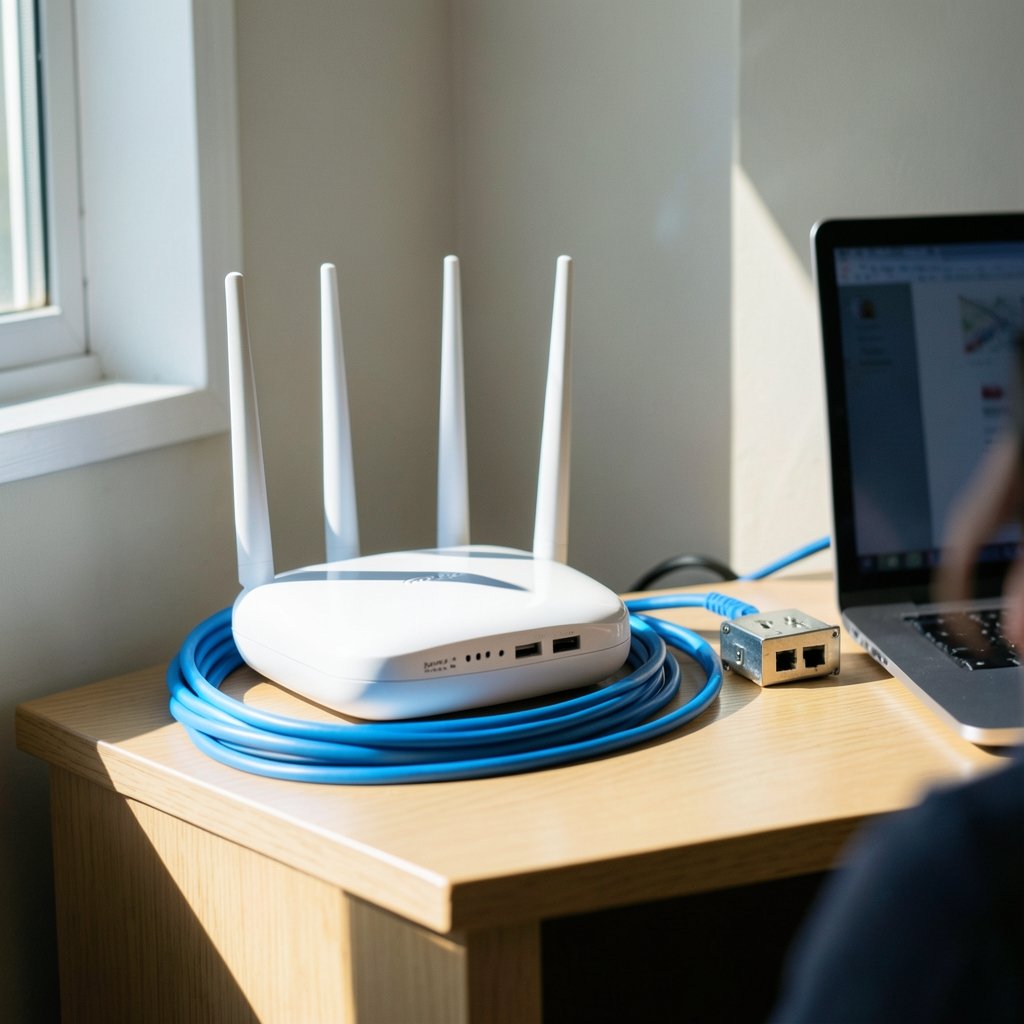
Why does a video call freeze the moment someone in the house starts a big download, even when the speed test says 500 Mbps? That contradiction is the signature of bufferbloat — a router problem that has nothing to do with raw bandwidth and everything to do with how packets wait in line. The good news: it is measurable in about 30 seconds and fixable in most homes with a firmware setting or two. This guide walks through what bufferbloat actually is, how to test for it properly, and which fixes genuinely work in practice. (Bufferbloat)
What Bufferbloat Really Is
Every router, modem, and network card holds a small queue of packets waiting to be sent. Queues are necessary: they absorb bursts and keep links busy. The problem starts when those queues are far larger than they need to be and nothing manages them intelligently.
When a link is saturated — a large upload, a cloud backup, a game download — packets pile up in that oversized buffer. The buffer holds them instead of dropping or prioritizing them, so latency balloons. A connection that pings 12 ms when idle can spike to 400 ms or even several seconds under load. That spike is bufferbloat.
The term was popularized by network engineer Jim Gettys around 2010–2011, whose writing on the subject sparked a decade of work on smarter queue management. The core insight is simple: bigger buffers are not automatically better. A buffer that never overflows sounds nice until you realize it means every packet sits in a traffic jam instead of the router making a decision.
Why It Hits Home Networks Hardest
Enterprise gear usually has active queue management and traffic shaping configured by professionals. Consumer routers often ship with deep buffers and no shaping at all, because “never drop a packet” looks good on a spec sheet. Add a fast fiber or cable link and a household full of devices, and the conditions for bufferbloat are perfect.
The symptom list is familiar:
| Symptom | What It Usually Means |
|---|---|
| Video calls freeze during downloads | Latency spike under load (bufferbloat) |
| Gaming lag only when others stream | Queue buildup on the uplink |
| Page loads stall while a backup runs | Saturated upstream with no AQM |
| Speed test looks great, browsing feels slow | Bandwidth fine, latency terrible |
How to Test for Bufferbloat

A proper bufferbloat test measures latency while the connection is under load, then compares it to idle latency. That comparison — not the raw ping number — is the whole point.
The Quick Method
- Run a normal speed test and note the idle latency figure.
- Start a large upload or download that saturates the link (a big file transfer or a speed test that runs continuously).
- While it runs, ping a stable target repeatedly and watch the response times.
- Compare. A rise of under 30 ms is fine. A jump of 100 ms or more is clear bufferbloat.
Free web-based bufferbloat tests automate this: they measure idle latency, then latency during download and upload saturation, and grade the result from A to F. They are the fastest way to get a baseline.
Doing It Properly
For results you can trust, a few practical rules matter more than the tool:
- Test over Ethernet, not Wi-Fi. Wi-Fi adds its own latency and retransmissions, which muddies the picture. Test wired first, then repeat on Wi-Fi to see the difference.
- Test upload and download separately. Many connections are badly bloated on the upstream only, because upload capacity is smaller and fills faster.
- Use a nearby test server. A distant server inflates every number.
- Repeat at different times of day. Congestion on the ISP side can masquerade as bufferbloat.
- Close background apps. Cloud sync and updates will skew the idle baseline.
If a website will not load at all during testing, that is a different problem — see this guide on how to fix a website that will not load before blaming the router.
For rigorous measurement, the Flent tool (built by Toke Høiland-Jørgensen) runs controlled latency-under-load tests and produces graphs. It is overkill for most homes but invaluable if you want to prove a fix actually worked.
Reading the Results
Most graders translate latency increases into letter grades. A rough interpretation:
| Grade | Latency Increase Under Load | Verdict |
|---|---|---|
| A | Under 30 ms | Excellent, no action needed |
| B | 30–60 ms | Good, minor bloat |
| C | 60–200 ms | Noticeable, worth fixing |
| D | 200–400 ms | Bad, calls and games suffer |
| F | Over 400 ms | Severe, fix immediately |
The Fixes That Actually Work
There is a hierarchy here. Start with the cheapest, least invasive option and work down.
1. Enable Smart Queue Management (SQM)
This is the real fix. SQM is a router feature that combines traffic shaping with an active queue management (AQM) algorithm, so the router keeps queues short instead of letting them balloon.
Two algorithms dominate:
- fq_codel (fair queueing with Controlled Delay) — proposed by Kathleen Nichols and Van Jacobson in 2012, it became the default queue discipline in Linux and OpenWrt. It keeps latency low by dropping or marking packets that have waited too long.
- CAKE (Common Applications Kept Enhanced) — a newer Linux queue discipline that combines shaping and AQM in one, and is generally the better choice on home connections today.
If your router runs OpenWrt, SQM is a package you install and configure in a few minutes. Many stock routers hide similar features under names like “QoS,” “Smart QoS,” “Gaming Boost,” or “latency optimization.” Look for anything mentioning AQM, fq_codel, or CAKE.
2. Set the Shaper Rate Below Your Actual Speed
This trips people up constantly. When you enable SQM, you tell it your connection speed. If you enter the full advertised rate, the shaper never engages because the ISP’s own equipment becomes the bottleneck first — and that equipment is often the bloated part.
The practical fix: set the shaper to roughly 85–95% of your measured speed. On a 100 Mbps down / 20 Mbps up line, try 90 Mbps down and 18 Mbps up. Then re-test. Nudge the numbers until latency stays flat under load without sacrificing meaningful throughput.
The upload direction matters most. Most bufferbloat lives on the upstream, so get that shaper right first.
3. Update or Replace the Firmware
Vendor firmware updates sometimes add AQM. If your router is old enough that it has never received a latency-related update, custom firmware like OpenWrt or a modern mesh system with SQM built in may be the answer. Before buying anything, check whether your current router supports SQM — many do, buried in advanced settings.
If you are also in the market for new networking gear, this roundup of the best modem router combo covers options worth comparing, and it pays to check whether SQM is supported before committing.
4. Fix the Physical Layer First
Bufferbloat testing is meaningless if the link itself is unstable. A failing modem, a bad cable, or an overloaded Wi-Fi channel produces latency spikes that look like bufferbloat but are not. Rule out the basics before tuning queues: (Bufferbloat: Introduction)
- Swap the Ethernet cable between router and modem.
- Check modem signal levels if your ISP exposes them.
- Move heavy devices to wired connections where possible.
- Reboot the modem and router in the correct order (modem first).
Common Mistakes People Make
A few traps show up again and again when people try to fix bufferbloat on their own.
Testing over Wi-Fi and trusting the number. Wi-Fi latency varies wildly with distance and interference. Always establish a wired baseline first.
Setting the shaper to 100% of the plan speed. The shaper then never activates. This is the single most common reason “SQM didn’t help.”
Confusing bandwidth with latency. Buying a faster plan rarely fixes bufferbloat. A 1 Gbps connection with a bloated buffer still stutters on calls. Latency under load is the metric that matters.
Ignoring the upload direction. Downstream gets all the attention, but upstream bloat breaks video calls, gaming, and cloud backups.
Expecting a magic setting. SQM needs the right rate, the right algorithm, and a re-test to confirm. It is a five-minute job, not a one-click miracle.
Blaming the router for an ISP problem. If latency spikes even with SQM correctly configured, the bottleneck may be upstream of your equipment. Document the tests and contact the ISP.
When the Problem Is Not the Router
Sometimes the diagnosis points elsewhere. If a single device lags while everything else is fine, the device’s own network stack or Wi-Fi adapter is the suspect. If latency is bad on every device and SQM changes nothing, the ISP’s equipment or peering may be at fault.
It is also worth confirming the router is not simply overloaded. A router running at 100% CPU will drop packets and add delay regardless of queue settings. If you notice the router’s processor pinned during transfers, check this walkthrough on how to fix antimalware service executable high CPU usage for the general troubleshooting approach to runaway processes — the same logic of identifying the culprit before acting applies to router CPU load.
For anyone running a Steam Deck or similar device on the same network, latency problems can also come from the device side. This guide on Decky loader not working Steam Deck fix 2026 covers a related class of troubleshooting where software, not the network, is the cause.
A Practical Tuning Sequence
Here is the order that works in practice, condensed:
- Test bufferbloat over Ethernet and record the grade.
- Note your measured download and upload speeds.
- Enable SQM with CAKE (or fq_codel if CAKE is unavailable).
- Set the shaper to about 90% of measured speeds.
- Re-test. If latency still climbs, lower the shaper by another 5%.
- Repeat until the grade is A or B under load.
- Test again over Wi-Fi and accept a slightly worse result there.
Most people land on a working configuration within two or three iterations. The difference is immediate: calls stop freezing, games stop rubber-banding, and browsing stays snappy while downloads run.
Conclusion
Bufferbloat is one of the most common and least understood causes of a “fast but laggy” internet connection. The speed test says everything is fine, yet real-world use tells a different story. The fix is not more bandwidth — it is smarter queue management. Test latency under load, enable SQM with CAKE or fq_codel, set the shaper slightly below your real speed, and verify with a re-test. That sequence solves the problem in most homes, and it costs nothing but a few minutes in the router’s settings.
Frequently Asked Questions
What is bufferbloat in simple terms?
Bufferbloat is excessive latency caused by oversized queues in a router or modem. When the connection is busy, packets wait too long in line, so response times jump from milliseconds to hundreds of milliseconds. The link is not slow — it is just badly managed.
Does a faster internet plan fix bufferbloat?
Usually not. Bufferbloat is a queue management problem, not a bandwidth problem. A 1 Gbps connection with deep, unmanaged buffers can still stutter during calls. Upgrading speed may even make it worse if the new equipment has larger buffers and no AQM.
What is a good bufferbloat test score?
A latency increase under load of less than 30 ms is excellent and usually earns an A grade. Anything from 60 to 200 ms is noticeable and worth fixing. Over 400 ms is severe and will visibly break video calls, gaming, and remote desktop sessions.
Is SQM the same as QoS?
They overlap but are not identical. Traditional QoS prioritizes certain traffic types, like gaming or VoIP. SQM combines traffic shaping with active queue management to keep overall latency low for everything. SQM is the more effective tool against bufferbloat specifically.
Why did enabling SQM not help my latency?
The most common reason is setting the shaper rate at or above your actual connection speed, which means it never engages. Try setting it to 85–90% of your measured speeds and re-test. Also confirm you tested over Ethernet and that the router’s CPU is not maxed out.
Can bufferbloat be fixed without changing the router?
Sometimes. Many routers include a QoS or latency-optimization feature that implements AQM if you dig into advanced settings. If yours has nothing usable, custom firmware like OpenWrt on supported hardware, or a router with SQM built in, is the reliable path.



