

What does it take to make working from home feel less like a permanent emergency and more like a real job? For millions of people, that question stopped being theoretical years ago. The pandemic pushed remote work from a niche perk to a mainstream arrangement almost overnight, and it never fully reversed. According to US Bureau of Labor Statistics telework data, roughly 35% of employed Americans reported working from home because of the pandemic at the May 2020 peak, up from a small single-digit share of workdays in 2019. Years later, hybrid schedules remain the norm for many office workers, and a solid home setup is now a career tool rather than a luxury.
This guide walks through what a durable remote work setup looks like in practice: the physical desk, the network, the security habits, and the legal and human details people tend to ignore until something breaks.
What “Remote Work Setup” Really Means
Most people hear “remote work setup” and picture a desk and a monitor. That’s part of it, but the phrase covers four layers that all need attention:
| Layer | What it includes | Why it matters |
|---|---|---|
| Physical | Desk, chair, monitor height, lighting | Prevents strain and fatigue over long weeks |
| Technical | Laptop, network, peripherals, storage | Keeps work fast and reliable |
| Security | Passwords, VPN, device management | Protects employer and personal data |
| Human | Hours, boundaries, communication norms | Prevents burnout and misunderstandings |
A setup fails when one layer is neglected. A beautiful desk with flaky Wi-Fi still produces bad days. A fast connection with no security hygiene can turn into a serious incident.
Start With the Body, Not the Gear
The most common mistake is buying a monitor before fixing the chair. Ergonomic problems build slowly, and by the time wrists or necks hurt, habits are already set.
The OSHA computer workstations eTool lays out the basics clearly: the top of the screen at or slightly below eye level, elbows near 90 degrees, feet flat or supported, and regular microbreaks. In practice, that means a few cheap adjustments beat expensive furniture:
- Raise the monitor on books or a stand until the top edge sits at eyebrow height.
- Bring the keyboard close enough that elbows stay bent at roughly a right angle.
- Put a footrest or a box under the desk if feet dangle.
- Set a timer to stand and look into the distance every 30 to 45 minutes.
A laptop alone is the worst offender. The screen sits too low and the keyboard too high at the same time, so people hunch. An external keyboard and a riser fix both problems for less than the cost of a physiotherapy session.
Pick Peripherals That Earn Their Space
Desk space at home is finite, and clutter has a way of winning. The practical rule is to buy for the work actually done, not the work imagined.
For people who move between rooms or travel, a portable screen changes the day more than a bigger desk monitor. A good comparison of best portable monitors for remote work covers brightness, weight, and connection quirks worth knowing before buying. For anyone who stays put, a single 27-inch display plus the laptop screen is usually the sweet spot.
Other items that consistently pay off:
- A wired connection where possible. Ethernet beats Wi-Fi for video calls every time.
- A separate microphone or headset. Built-in laptop mics pick up keyboards and room echo.
- A basic UPS or surge protector. Short outages cost more in lost work than the device costs.
- Task lighting. A single desk lamp reduces eye strain far more than overhead room light.
Skip the gadgets that solve problems nobody has. A smart mug warmer is fun; a stable network is essential.
Treat the Network as Infrastructure
Nothing derails a remote day faster than a dropped call. Home internet is shared with streaming, gaming, and family devices, so it deserves at least a little engineering.
Start by testing the connection at the desk, not in the hallway. If speeds drop during evening hours, the issue is usually congestion or an old router. Upgrading to a mesh system or moving the router to a central spot often fixes it. For people who run multiple devices and want tighter control, a network segmentation setup guide explains how to separate work devices from smart-home gadgets, which improves both performance and security.
A few habits that cost nothing:
- Reserve the 5 GHz band for work devices.
- Schedule large backups and downloads outside meeting hours.
- Keep a mobile hotspot as a backup for critical calls.
- Reboot the router monthly, ideally on a schedule.
Secure the Setup Before Something Goes Wrong
Remote access expands the attack surface. Home networks are shared with family members, smart TVs, and personal phones, and a single compromised device can expose work systems. (Telecommuting)
The NIST Guide to Enterprise Telework, Remote Access, and BYOD Security is the reference standard many organizations build their policies on. It covers remote access methods, device management, and the risks of mixing personal and work hardware. Even without reading the full document, employees can adopt its core lessons:
- Use a password manager and unique passwords for every work account.
- Turn on multi-factor authentication everywhere it’s offered.
- Keep the work laptop’s operating system and browser updated.
- Avoid working on public Wi-Fi without a VPN.
- Lock the screen whenever stepping away, even for a minute.
A useful test: if the laptop were stolen today, would the data be protected? If the answer is uncertain, that’s the next project.
Storage and Backups Are Part of the Job
Files live in more places than they used to. Cloud drives, local folders, phones, and external disks all hold pieces of a person’s work. A backup plan that only covers one of those is a plan with holes.
The 3-2-1 rule still works: three copies of important data, on two different types of media, with one copy off-site. Cloud sync is convenient but is not a backup by itself, because a deleted file syncs everywhere. For people who keep photos and documents on phones, a NAS iPhone photo backup setup shows how a home server can automate that off-device copy. Gamers face a similar problem with shrinking console drives; a working Xbox storage expansion card setup is the console equivalent of adding a second hard drive to a PC.
The point is consistency. A backup that runs automatically beats a perfect plan that requires remembering.
Software Choices Shape the Day
The tools people open first thing in the morning set the tone. A cluttered workspace full of notifications is its own kind of ergonomic hazard.
Two practical moves help most people:
- Consolidate note-taking and task tools. Running three apps that each hold half the to-do list guarantees things fall through. Anyone considering a switch can follow a Notion alternatives setup guide to migrate a workspace without losing pages or databases in the process.
- Separate work and personal accounts. Different browser profiles, different notification settings, different phones if possible.
For developers, local tooling matters too. A sandboxed coding assistant keeps experiments from touching production code, and a VS Code Copilot agent sandbox setup walks through the isolation steps. Even non-developers benefit from the underlying idea: give risky tools a contained space to run in.
Cloud gaming and remote desktops are another growing category. A Jiogamescloud setup for free cloud gaming is a reminder that the same home network now carries work calls, game streams, and backups at once, which is exactly why bandwidth planning matters.
Air, Light, and the Room Itself
The physical environment gets overlooked because it’s hard to measure. Yet air quality and light affect concentration more than most people realize.
A stuffy room leads to afternoon slumps. Opening a window for ten minutes or running a small fan helps. For anyone who 3D prints at home, fumes are a real concern, and an air purifier setup for 3D printer fumes explains the filtration and placement details that actually reduce exposure.
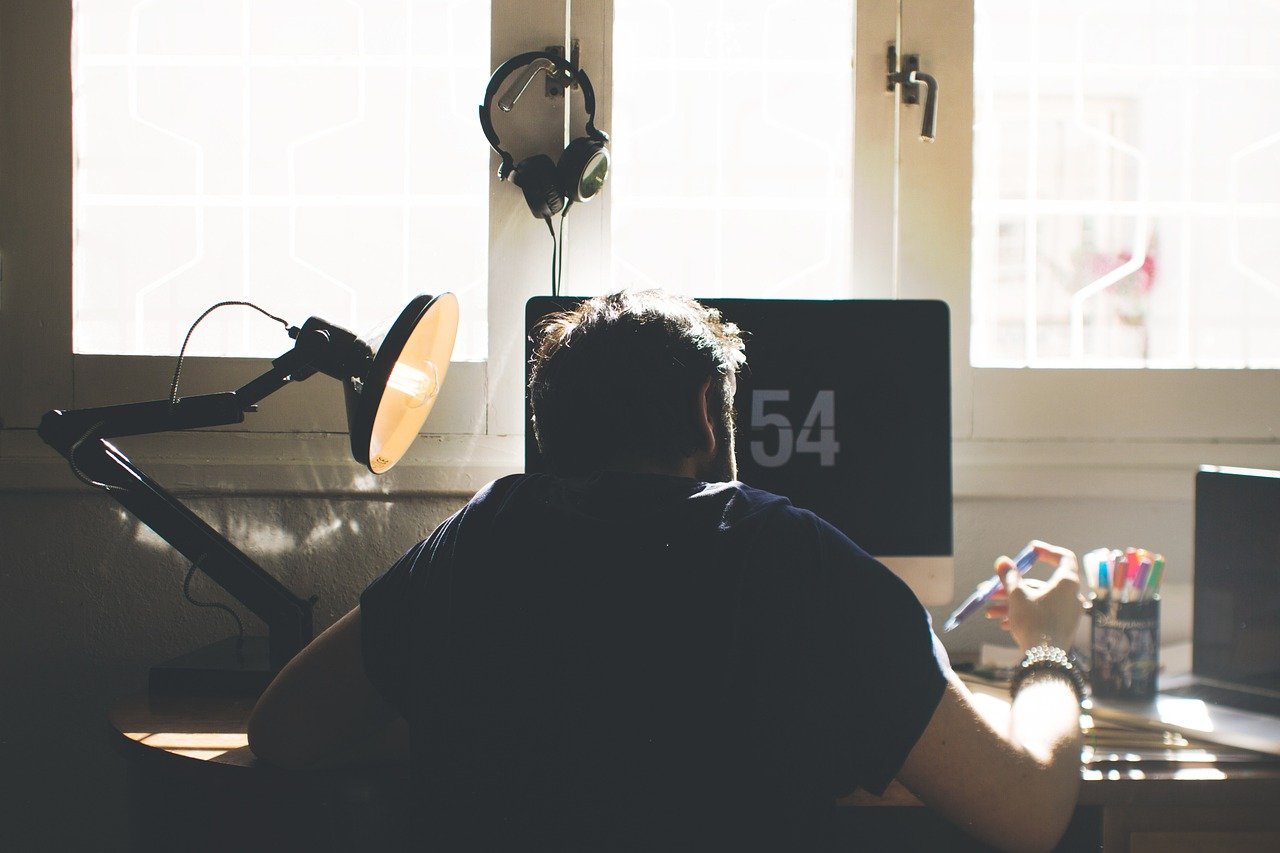
Lighting deserves similar attention. Face a window if possible, but avoid sitting with a bright window directly behind the screen, which turns every video call into a silhouette.
The Human Side: Hours, Boundaries, and Law
A remote work setup is not only physical. It’s also a set of agreements about when work happens and where it stops.
Prevalence data helps frame the conversation. Eurostat’s telework statistics for the EU show roughly one in five employed people aged 15 to 64 usually working from home in recent years, a level well above pre-2020 norms. That scale has pushed governments to formalize rules. The EU’s Directive (EU) 2019/1152 on transparent and predictable working conditions requires employers to inform workers about telework conditions where they apply.
Boundaries matter just as much. France’s 2016 labor reform, known as the El Khomri law, obliges larger companies to negotiate rules on disconnecting from work devices, a formal version of a problem every remote worker knows. The practical version for most people is simpler:
- Set a fixed end time and close the laptop.
- Turn off work notifications outside agreed hours.
- Keep the workspace out of the bedroom if possible.
- Agree with the team on response-time expectations.
Cross-border arrangements add complexity. Working from another country can raise payroll and tax questions, and the OECD Model Tax Convention is the framework tax authorities reference when deciding whether a remote worker creates a taxable presence. Anyone planning to work abroad for weeks should ask before booking the flight.
Does Remote Work Actually Boost Productivity?
The honest answer is: it depends on the task. A widely cited study of call-center workers by Bloom and colleagues, published in Management Science in 2015, found about a 13% performance gain for employees working full-time from home. Later research on hybrid arrangements shows smaller and more mixed effects, with outcomes shaped by task type, team coordination, and how well the setup supports focus.
That nuance matters for setup decisions. Work that requires deep concentration benefits from a quiet, well-equipped space. Work that depends on quick collaboration benefits from reliable video tools and clear communication norms. A setup optimized for one can hurt the other.
Common Mistakes Worth Avoiding
Some patterns show up again and again among people who struggle with remote work:
- Buying gear before fixing posture. The chair and monitor height come first.
- Ignoring upload speed. Most home plans advertise download speeds; video calls depend on upload.
- Using the kitchen table permanently. Setup and teardown every day burns energy.
- Skipping backups until a drive fails. Automate the copy before it’s needed.
- Letting work spread into every room. Physical separation protects rest.
- Assuming the employer handles security. Individual habits still decide most outcomes.
None of these require a big budget. They require attention.
Conclusion
A remote work setup is less about buying the right things and more about removing friction from the day. Fix the body first, then the network, then security, then the small human agreements that keep work from swallowing everything else. The people who thrive working from home are rarely the ones with the most expensive desks. They’re the ones who treated their setup as a system, adjusted it when something broke, and protected the boundary between work and the rest of life. Start with one layer this week, and the rest gets easier.
Frequently Asked Questions
How much should a basic remote work setup cost?
A workable setup can be assembled for very little. A used office chair, a laptop riser, an external keyboard, and a wired connection cover most of the essentials. Spending more helps comfort and speed, but the biggest gains come from posture, lighting, and network reliability, not price tags.
Is a desktop or laptop better for working from home?
A laptop wins on flexibility and travel. A desktop wins on screen size, repairability, and sustained performance. Many people land in the middle: a laptop plus an external monitor and keyboard, which delivers desktop comfort without losing portability.
How do I keep work and personal life separate at home?
Use physical and digital signals. A dedicated room or corner, a separate browser profile, and a fixed end-of-day routine all help. Closing the laptop and silencing work notifications outside agreed hours does more than any app.
Do I need a VPN when working remotely?
If the work involves sensitive data or public networks, yes. A VPN encrypts traffic between the device and the office network. On a trusted home connection with proper device security, the need is lower, but employer policy usually decides the answer.
How can I make video calls look and sound better?
Face a window or a lamp rather than sitting with light behind you. Use a headset or external microphone to cut echo. Raise the camera to eye level, and keep the background simple. These three changes fix most complaints about call quality.
What should I do if my internet drops during calls?
Have a backup ready: a phone hotspot, a mobile tethering plan, or a second connection. Test the hotspot before you need it. For recurring drops, check router placement and congestion before blaming the provider.



