
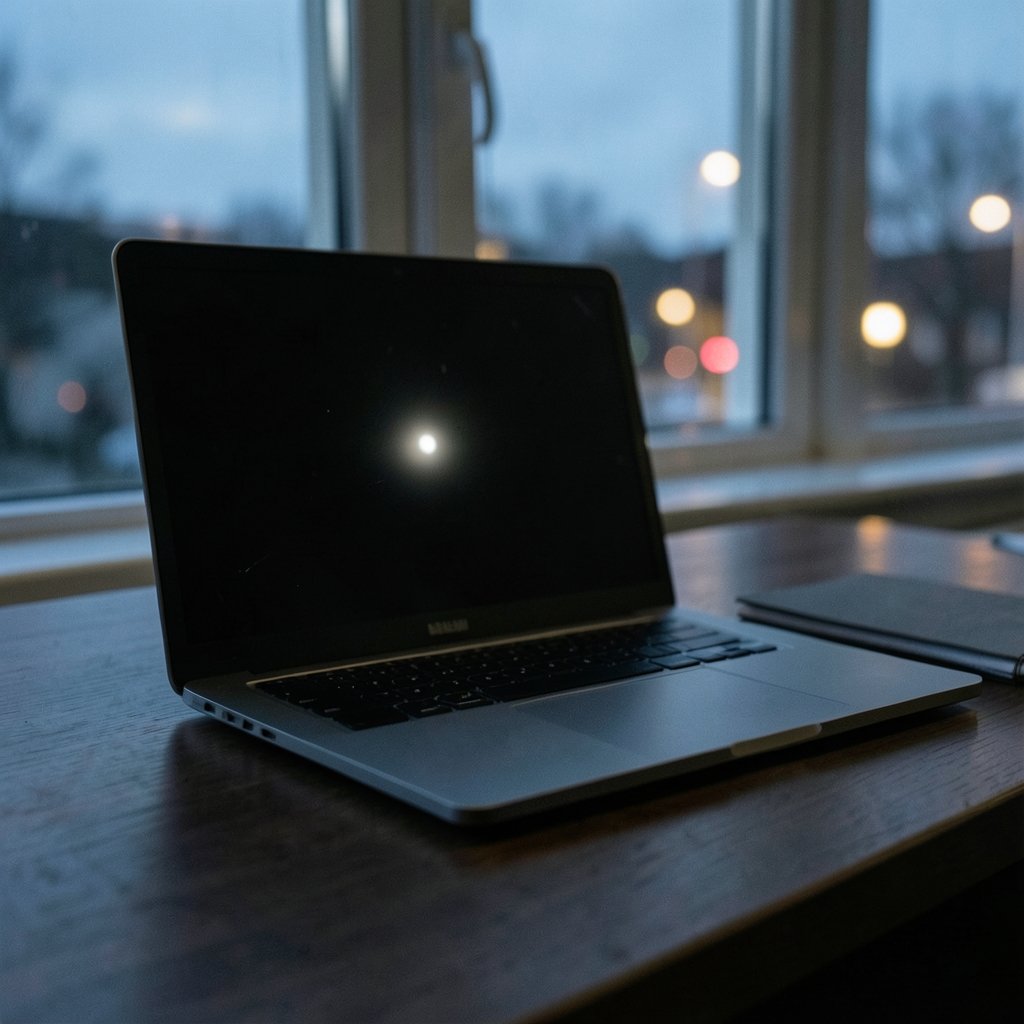
Have you ever opened your Lenovo laptop, looked at the screen, and noticed a bright white patch that wasn’t there before? It’s a small thing, but once you see it, you can’t unsee it. That stubborn white spot on a Lenovo laptop screen can turn every dark movie scene and every spreadsheet into a reminder that something is off.
The good news is that a white spot is rarely a mystery. In most cases it comes down to one of a handful of causes, and each one points to a different fix. Some are free to resolve, some need a setting change, and some mean it’s time to talk to Lenovo support. This guide walks through how to tell them apart, what actually works in practice, and the mistakes that make things worse.
What a White Spot Usually Means on an LCD Panel
Laptop screens are built from layers: a backlight, polarizing films, a liquid crystal layer, and a diffuser that spreads light evenly. When light stops passing through those layers evenly, you get a bright or cloudy patch. The display industry has a name for uneven brightness and cloudiness like this: mura, a Japanese term used in manufacturing quality standards to describe visual unevenness on a panel.
That single concept covers most white spots people notice. The important part is figuring out which type of unevenness you’re looking at, because the cause and the cure differ.
Pressure marks and mura
This is the most common culprit. Something pressed on the lid while the laptop was closed, such as the keyboard itself, a pen left on the palm rest, or a heavy book in a backpack. That pressure can disturb the diffuser layer or the liquid crystal alignment in one small area, leaving a permanent bright patch. Repair technicians see this constantly, and teardown guides on sites like iFixit are full of people asking about it.
A pressure spot tends to have soft, blurry edges and sits anywhere on the panel. It doesn’t move, it doesn’t flicker, and it doesn’t care what’s on screen. If you’ve ever dealt with similar marks elsewhere on a laptop, the pattern of damage is the same idea described in this guide to black pressure marks on laptop screens — only the color of the mark changes.
A single bright pixel
If the spot is a tiny, sharp dot rather than a soft patch, you’re probably looking at a stuck-on pixel — one that stays white even on a black background. This is different from a dead pixel, which stays black. A defective pixel is a manufacturing issue in the transistor that controls that one dot, and no amount of cleaning or driver updates will bring it back to normal.
Backlight bleed
Whitish glow around the edges of the screen, especially visible on dark backgrounds, is usually backlight bleed. It’s extremely common on IPS panels and is considered normal to some degree by most reviewers. It’s not a defect in the strict sense, and it’s a different animal from a localized spot in the middle of the panel.
Software and driver glitches
Occasionally, a white patch is not physical at all. A graphics driver bug or a stuck rendering state can paint a bright rectangle that looks like damage. The tell is simple: if the spot disappears in the BIOS or on a different operating system, it was never a hardware problem. If your screen is showing other odd colors, the diagnostic steps in this laptop green screen troubleshooting plan apply to white patches too, because both often come down to the same display pipeline.
How to Diagnose the Spot in Five Minutes
Before you panic or start shopping for a new panel, run a quick test. It costs nothing and tells you almost everything.
- Restart and enter the BIOS or UEFI setup. On most Lenovo machines you press F2 or Fn+F2 at boot. If the white spot is still there in the BIOS, it’s hardware.
- Switch backgrounds. Open a pure black image, then a pure white one, then a solid gray. A pressure mark shows on all three. A stuck pixel only shows on dark colors. Backlight bleed only shows on black.
- Look at the shape. Soft and blurry means pressure or diffuser damage. Sharp and dot-sized means a pixel. Edge-hugging glow means bleed.
- Press gently around the area. Use a soft cloth and very light pressure. If the spot changes shape or flickers, the panel layers are physically disturbed. If nothing happens, it’s fixed in place.
- Boot a live USB or safe mode. If the spot vanishes outside your normal operating system, it’s software.
That five-minute routine separates the 90 percent of cases that are physical from the small slice that are software. It also gives you something concrete to describe if you end up contacting support.
The Most Common Mistakes People Make
Practical experience with these panels shows a few recurring errors. Avoiding them saves money and, occasionally, the whole screen.
- Pressing hard on the spot to “rub it out.” This is the big one. Pressure marks come from pressure, so adding more pressure almost always makes them worse or creates new ones. Never massage an LCD.
- Assuming a screen cleaner will fix it. Cleaning removes surface marks. A white spot inside the panel layers won’t budge. If you want to clean safely anyway, follow this method for cleaning a laptop screen without damaging the coating — and skip the household glass cleaners.
- Leaving objects on the keyboard when the lid closes. Pens, earbuds, cables, and even a stray keycap are classic causes. Get in the habit of checking before you shut the lid.
- Stuffing the laptop into a tight bag. A backpack pressed against a seat back or a stack of textbooks on top of a closed laptop is enough to cause damage over time.
- Buying a replacement panel before checking the warranty. More on this below, but it’s worth saying now: some spots are covered.
When It’s a Pixel Defect and What Standards Say
If the spot is a single dot, the question becomes whether it counts as a defect worth replacing. The answer depends on standards and on the manufacturer’s own policy.
The relevant international standard is ISO 9241-307, which defines pixel-fault classes and how many defective pixels a display can have while still meeting each class. What surprises many buyers is that most consumer laptop makers do not guarantee a replacement for a small number of bright pixels. A single stuck pixel can sit within the accepted range for a consumer panel. Lenovo publishes its own pixel policy, and it’s worth reading the exact wording for your model before you assume a swap is automatic.
In practice, a lone bright pixel in the middle of the screen is annoying but often not grounds for a free repair. A cluster of them, or a bright pixel near the center of the viewing area, is more likely to be treated as a defect. If you’re within the return window of a retailer, that window is often the fastest route to a replacement, so check it early.
Is a White Spot Covered by Warranty?
This is where things get nuanced, and it’s worth being honest about the split.
| Type of spot | Likely cause | Usually covered? |
|---|---|---|
| Soft white patch, center of screen | Pressure damage | Rarely — physical damage exclusions |
| Cloudy patch with no impact history | Manufacturing diffuser defect | Sometimes, if reported early |
| Single bright pixel | Pixel defect | Depends on Lenovo’s pixel policy and count |
| Edge glow on black backgrounds | Backlight bleed, normal IPS behavior | Usually not, unless severe |
| Spot that vanishes in BIOS | Software or driver | Not a hardware claim at all |
Standard warranties typically exclude accidental physical damage, and pressure marks fall into that bucket. A panel that arrived with uneven brightness or a manufacturing flaw is a different story and may be covered. The practical move is to document everything: photograph the spot on a black background, note when you first saw it, and report it as soon as possible. Waiting six months weakens your case because it becomes harder to argue the issue was there from the start.
Local consumer law also matters. In many regions, goods must be of satisfactory quality, and a display defect present on delivery can be grounds for a remedy regardless of the manufacturer’s policy. Check the rules where you bought the laptop.
Repair Options and What They Really Cost
If the spot is hardware and out of warranty, you have three realistic paths.
Live with it. For a single bright pixel off to the side, many people do. It’s free, and it stops bothering you faster than you’d expect. A dark wallpaper and dark mode in your apps make it far less noticeable.
Replace the panel. A new LCD assembly is the only real fix for pressure damage or a diffuser defect. Costs vary widely by model and region, and labor adds to it. On budget machines, a panel swap can approach a meaningful fraction of the laptop’s value, which is why it’s worth weighing before you commit. If you’re shopping for a machine and want to avoid this whole problem, look at what budget buyers should check on models like the Lenovo Xiaoxin 14 SE and its Wildcat Lake chip — panel quality is part of the value equation.
Add an external display. If the laptop still works and you mainly use it at a desk, a second screen sidesteps the issue entirely. A lightweight option can travel with you, and a good one earns its place in your bag — the same logic behind these picks for portable monitors that actually earn a spot in your bag.
For anyone comfortable with a screwdriver, panel replacement is a moderate DIY job on many Lenovo models. The catch is sourcing the exact compatible panel and being careful with the fragile ribbon cable. If that sounds risky, a repair shop is the safer call.
Preventing the Next White Spot
Prevention is unglamorous but effective, and it costs almost nothing.
- Close the lid on a clean keyboard. No pens, no earbuds, no cable ends.
- Carry the laptop in a sleeve with a rigid panel, and avoid stacking heavy items on it.
- Don’t press on the lid when pointing at something on screen — gesture at the display, not through it.
- Keep the hinge area clear so the lid doesn’t flex when closing.
- Store it somewhere nothing rests on top, especially in a crowded bag.
These habits matter more than any accessory. Most pressure marks trace back to one careless moment, not to a manufacturing flaw.
Conclusion
A white spot on a Lenovo laptop screen is almost always one of four things: a pressure mark, a stuck pixel, backlight bleed, or a software glitch. The five-minute diagnostic routine tells you which one you’re facing, and that determines whether you clean, adjust, claim, repair, or simply live with it. The single most important rule is to stop pressing on the spot — pressure caused it, and pressure will make it worse. Document the issue early, check your warranty and local consumer rights, and weigh a panel replacement against the laptop’s actual value before spending. In many cases, the smartest fix is a dark wallpaper and a bit more care when you close the lid.
Frequently Asked Questions
Can a white spot on a laptop screen fix itself?
Almost never if it’s physical. Pressure marks and pixel defects are permanent changes to the panel layers. The one exception is a software glitch, which disappears after a reboot or driver update. If the spot is still there in the BIOS, it won’t heal on its own.
Is a white spot the same as a dead pixel?
No. A dead pixel stays black because it receives no power. A white spot that stays bright is a stuck-on pixel, which is a different fault. A soft, blurry white patch is neither — it’s usually pressure damage or uneven backlight diffusion.
Does pressing on the spot ever help?
No, and it can make things worse. Pressure is a leading cause of these marks in the first place. Adding more pressure can spread the damage or create new spots nearby. Leave the panel alone and let a technician assess it.
Will Lenovo replace my screen under warranty?
It depends on the cause. Manufacturing defects and pixel faults within the published policy may qualify. Physical pressure damage is typically excluded. Photograph the spot, report it early, and check both your warranty terms and your local consumer law before assuming either outcome.
How can I tell backlight bleed from a real defect?
Backlight bleed appears as a glow along the edges, mostly on black backgrounds, and shifts slightly with viewing angle. A true defect is a localized spot in the middle of the panel that stays put regardless of angle or content. Mild edge glow on an IPS screen is normal.
Should I replace the panel or buy a new laptop?
Compare the repair cost to the machine’s current value. On older or budget laptops, a panel swap can cost a large share of what the device is worth, which tips the math toward replacing the laptop or adding an external monitor instead. On newer machines, a repair usually wins.



