

You open your laptop, and there it is: a thin vertical stripe, a flickering horizontal band, or a whole rainbow of lines cutting across your display. Is your screen dead, or is this something you can actually fix yourself?
Here is the short answer: lines on a laptop screen usually come from one of four places. The display cable, the panel itself, the GPU, or a driver problem. The good news is that a simple test can tell you which one you’re dealing with in about five minutes. The less good news is that some causes are cheap to fix and others are not.
This guide walks through the real diagnostic order technicians use, what each result means, and when it’s time to stop poking at the screen and call someone.
What Causes Lines on a Laptop Screen?
Before you panic, know that a line is rarely random. It has a physical or digital origin, and that origin shapes how it behaves.
The display cable (eDP or LVDS ribbon). This flat ribbon carries the image signal from the mainboard to the panel. It flexes every time you open and close the lid, thousands of times over a laptop’s life. A loose connector or a hairline break in the ribbon is the most common cause of lines that appear, shift, or vanish when you move the lid. Repair technicians report this pattern constantly; it’s practitioner consensus rather than a formal statistic.
The panel and its row or column drivers. Inside the display, driver chips control each row and column of pixels. A fault there produces a fixed vertical or horizontal line that never moves, never flickers, and stays put no matter what you do to the lid. This is a hardware failure inside the panel, and it usually means replacement.
The GPU or mainboard. If the graphics chip or its memory is failing, artefacts often show up as lines, checkerboards, or colour noise. These tend to worsen under load, like during gaming or video export.
Software and drivers. Less common for clean, straight lines, but a corrupted display driver or a bad refresh-rate setting can create flicker, tearing, or banding that mimics hardware trouble.
It helps to understand what’s physically happening inside the panel. A liquid-crystal display works by driving individual rows and columns of pixels through a grid of transistors, and a break anywhere in that grid shows up as a line rather than a single bad dot. The technical background on how LCD panels and their row and column drivers work explains why one broken connection can wipe out an entire stripe.
The External Monitor Test: Your First Five Minutes
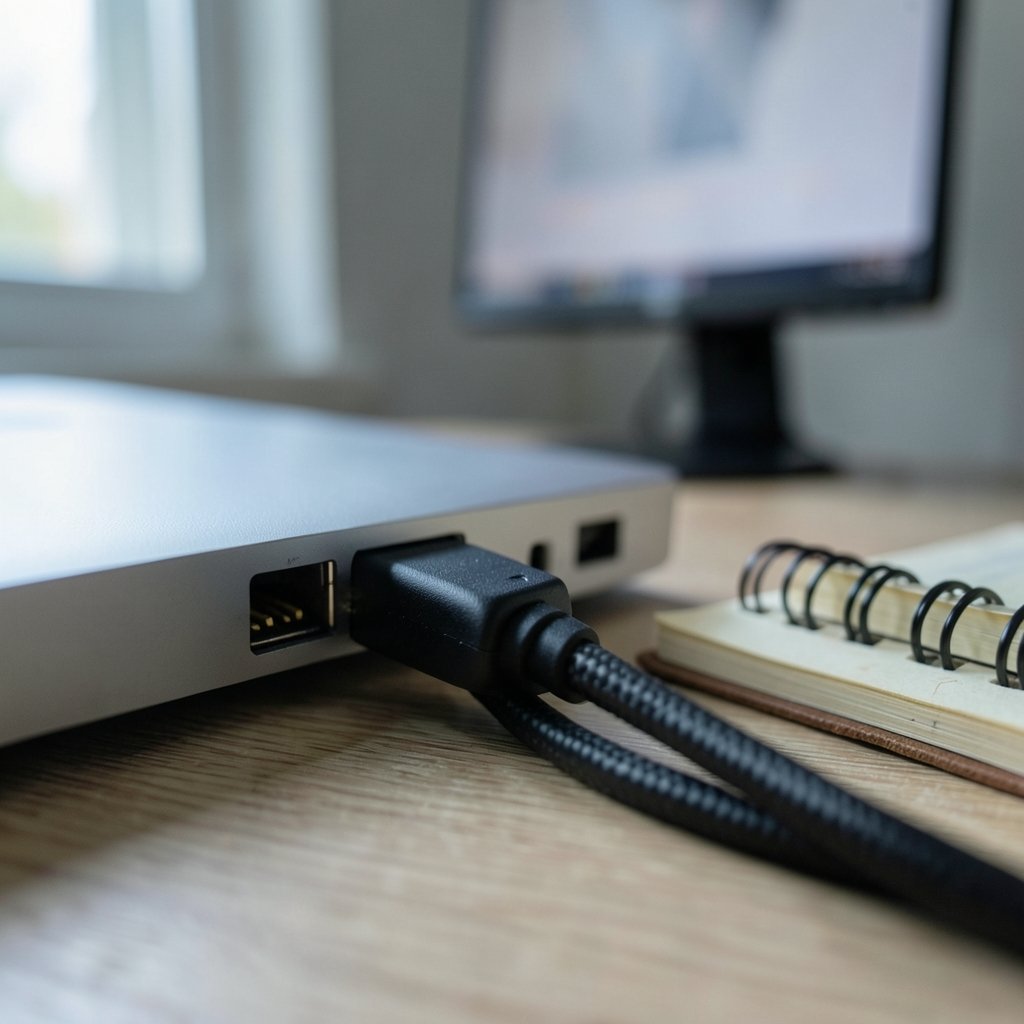
This is the single most useful diagnostic step, and it costs nothing if you have a TV or monitor with an HDMI cable.
Plug the laptop into an external display and watch what happens.
| What you see | Most likely cause | What it means |
|---|---|---|
| Lines on laptop screen only, external monitor clean | Panel or display cable | The GPU is fine; the fault is inside the laptop’s display assembly |
| Lines on both screens | GPU, mainboard, or driver | The signal itself is corrupted before it reaches any screen |
| Lines on laptop screen, external works, and lid movement changes the lines | Display cable | Classic loose or damaged ribbon connector |
| Lines appear only in one app or after a driver update | Software | Roll back the driver before touching hardware |
If the external monitor is clean, stop worrying about the graphics card. That’s a genuinely reassuring result. If both screens show the same lines, the problem is upstream of the display, and that’s a more serious (and more expensive) conversation. (Troubleshooting graphics issues (Intel support))
One practical tip from people who do this daily: test with a known-good cable. A bad HDMI cable produces its own artefacts and will send you chasing the wrong fault entirely.
Does Moving the Lid Change the Lines?
This is the second test, and it’s remarkably revealing.
Open and close the lid slowly while watching the screen. Then, with the laptop on and the screen visible, apply very gentle pressure to the bezel around the edges and corners.
If the lines flicker, shift, or disappear when the lid moves, the display cable is the prime suspect. The connector may be partially unseated, or the ribbon may have a break that opens and closes with flex. This is often a cheaper repair than a panel swap, because the cable is a small part.
If pressing the bezel changes the lines, the fault is likely in the panel’s own bonding or connectors. Pressure-related artefacts are a known warning sign. If you’ve noticed dark blotches alongside the lines, that’s a related but separate issue covered in this guide to black pressure marks on a laptop screen and how warranty claims work.
A word of caution: don’t press hard. Bezel pressure can turn a repairable cable fault into a cracked panel, and a cracked panel is never covered under warranty.
Ruling Out Software Before You Open Anything
Before any screwdriver comes out, eliminate the easy stuff.
- Boot into safe mode. If the lines vanish, a driver or startup app is involved.
- Try a live USB of another operating system. If the lines persist in a completely different OS, it’s hardware. No debate.
- Check the refresh rate. A panel running above its supported refresh rate can show flicker or banding. Drop it to 60 Hz and see.
- Update or roll back the graphics driver. If the lines started right after an update, this is your answer.
- Check the colour depth and resolution. Non-native resolutions sometimes produce scaling artefacts that look like lines.
If lines survive all five steps, you’re dealing with hardware. That’s not bad news; it’s clarity. A step-by-step recovery plan for a black screen on Windows 11 covers the software side in more depth if your symptoms are broader than just lines.
When the Lines Are Green, Pink, or Rainbow-Coloured
Colour matters. A single white or black vertical line usually points to a column driver fault. A screen washed entirely in green or magenta often points to a cable or connector issue, or a failing GPU output.
If your whole display has taken on a green cast, that’s a specific enough symptom to warrant its own diagnostic path. This step-by-step guide to fixing a laptop green screen walks through the cable, driver, and panel checks in order.
Rainbow or multi-coloured static across the whole panel, especially under load, is the pattern most associated with GPU or VRAM problems. Those are the cases where professional diagnosis is worth the money, because reflow and reball repairs are a practice rather than a guaranteed fix, and results vary.
Dead Pixels vs Lines: Not the Same Problem
People often lump these together, but they’re different faults with different outcomes.
A dead pixel is permanently off and shows as a black dot. A stuck pixel shows a fixed colour, usually red, green, or blue. Both are single-pixel issues. A line is a row or column failure, affecting hundreds of pixels at once.
Why does the distinction matter? Because manufacturers treat them differently under warranty. Most brands follow a pixel-defect policy based on the ISO 9241-307 pixel-defect classification standard, which sorts defects into classes and sets acceptable counts. A handful of dead pixels may fall within spec and not qualify for replacement. A persistent line across the panel almost always does. Knowing which category your problem falls into tells you how to argue your case.
Heat, Load, and the GPU Question
Here’s a pattern worth watching for: lines that only appear after twenty minutes of gaming or video editing, then disappear when the laptop cools.
That’s a thermal signature. It suggests a component is expanding with heat and losing contact, or that the GPU is struggling under load. Practical steps that genuinely help:
- Clean the vents and fan. Dust buildup is the most common cause of overheating in laptops over two years old.
- Elevate the rear of the laptop so the intake can breathe.
- Check the fan is actually spinning. A failed fan is cheap to replace and prevents a much bigger problem.
- Monitor temperatures. If the GPU is hitting its thermal limit within minutes, the cooling system needs attention.
None of this repairs a failing GPU, but it can delay the problem and rule out heat as the trigger. If lines persist at idle on a cold machine, thermal management isn’t your answer.
Repair or Replace? A Realistic Cost View
Once you know the cause, the decision gets easier.
| Fault | Typical fix | Relative cost | Notes |
|---|---|---|---|
| Loose or damaged display cable | Reseat or replace ribbon | Low | Often the cheapest real fix; worth trying first |
| Panel row or column fault | Replace the LCD panel | Medium to high | Part cost varies enormously by model and region |
| GPU or VRAM failure | Board-level repair or mainboard swap | High | Not always economically sensible on older laptops |
| Driver or software fault | Rollback or reinstall | Free | Always try this first |
The honest advice: get a quote before you commit. On a budget laptop, a panel replacement can approach half the machine’s value. On a premium model, it’s usually worth it. And if the laptop is still under a legal guarantee, don’t open it yourself. In the EU, the Sale of Goods Directive (EU) 2019/771 sets a minimum two-year legal guarantee period for goods, with the burden of proof reversed in the buyer’s favour for the first year in many member states. National rules vary, so check your country’s specifics, but the principle is clear: a screen that fails early is the seller’s problem, not yours.
Mistakes People Make With a Liney Screen
A few recurring errors are worth naming, because they turn a cheap fix into an expensive one.
Pressing hard on the bezel. It feels diagnostic. It isn’t. It cracks panels.
Assuming it’s the GPU. Most lines on a laptop-only display are panel or cable faults. The external monitor test settles this in minutes, yet plenty of people skip it and start researching graphics card replacement.
Buying a panel before testing the cable. If the fault is a £15 ribbon, a £150 panel is a waste.
Ignoring the warranty clock. Opening the chassis often voids coverage. Check the guarantee status before the screwdriver comes out.
Cleaning the screen with the wrong products. Aggressive cleaners can damage the anti-glare coating and create a hazy, streaky appearance that gets mistaken for display faults. This guide to cleaning a laptop screen without damaging the coating covers what’s actually safe.
Confusing a line with a scratch. Hold a light at an angle. A scratch sits on the surface; a line lives inside the panel.
Conclusion
Lines on a laptop screen are rarely mysterious once you run the right tests in the right order. Plug in an external monitor. Move the lid. Boot into safe mode. In most cases, those three steps tell you whether you’re facing a cheap cable fix, a panel replacement, or something deeper in the graphics hardware.
The pattern to remember is simple. Lines that respond to lid movement point to the cable. Lines that never budge point to the panel. Lines on every screen point to the GPU or the software driving it. Match the symptom to the cause, get a quote before committing, and check your warranty before you touch a single screw. Your screen is telling you something specific. Now you know how to listen.
FAQ
Why does my laptop screen have a vertical line down one side?
A single fixed vertical line is usually a column driver fault inside the panel, or a partially seated display cable. Test by moving the lid gently: if the line flickers or shifts, suspect the cable. If it stays perfectly still across reboots and safe mode, the panel itself is the likely culprit.
Can a laptop screen with lines be fixed without replacing the panel?
Sometimes, yes. If the cause is a loose or damaged display cable, reseating or replacing that ribbon restores the image for a fraction of a panel’s cost. If the fault is a driver or refresh-rate issue, a software fix costs nothing. Only a confirmed row or column driver failure inside the panel requires replacement.
Do lines on a laptop screen always mean the GPU is failing?
No, and this is the most common misdiagnosis. Most lines that appear only on the laptop’s own display come from the panel or the display cable. Plugging into an external monitor settles it quickly: if the external screen is clean, the graphics chip is almost certainly fine.
Why do the lines appear only when the laptop gets hot?
Heat-related lines suggest a component losing contact as it expands, or a GPU struggling under sustained load. Dust-clogged vents and a failing fan are the usual triggers. Clean the cooling system and monitor temperatures before assuming the worst, but if lines persist on a cold machine, heat isn’t the cause.
Will a warranty cover lines on my laptop screen?
It depends on the cause and your region. A line across the panel usually qualifies as a manufacturing defect. A handful of dead pixels may fall within the acceptable range defined by pixel-defect standards. In the EU, a minimum two-year legal guarantee applies, with national variations, so check your seller’s terms before paying for a repair yourself.
How can I tell a screen line from a scratch?
Hold a light source at a low angle across the display. A scratch sits on the outer surface and catches the light. A line exists inside the panel and stays visible at every angle without reflecting. Scratches also tend to be irregular, while hardware lines are perfectly straight.



