A black screen is one of the most common Windows 11 complaints on Microsoft’s own support forums, and it’s also one of the most misunderstood. The screen goes dark, the fans keep spinning, and the PC seems alive — but nothing appears. Here’s the uncomfortable truth: “black screen” isn’t a single bug. It’s a symptom with at least half a dozen different causes, from a loose HDMI cable to a corrupted GPU driver to a failed Windows update. That’s why random fixes found online often fail: they solve the wrong problem.
This guide walks through a practical diagnostic sequence, starting with the cheapest and most likely fixes and ending with the recovery tools built into Windows 11 itself. Work through it in order and most black screens resolve within twenty minutes.
Start With the Boring Stuff: Cables, Inputs, and Power
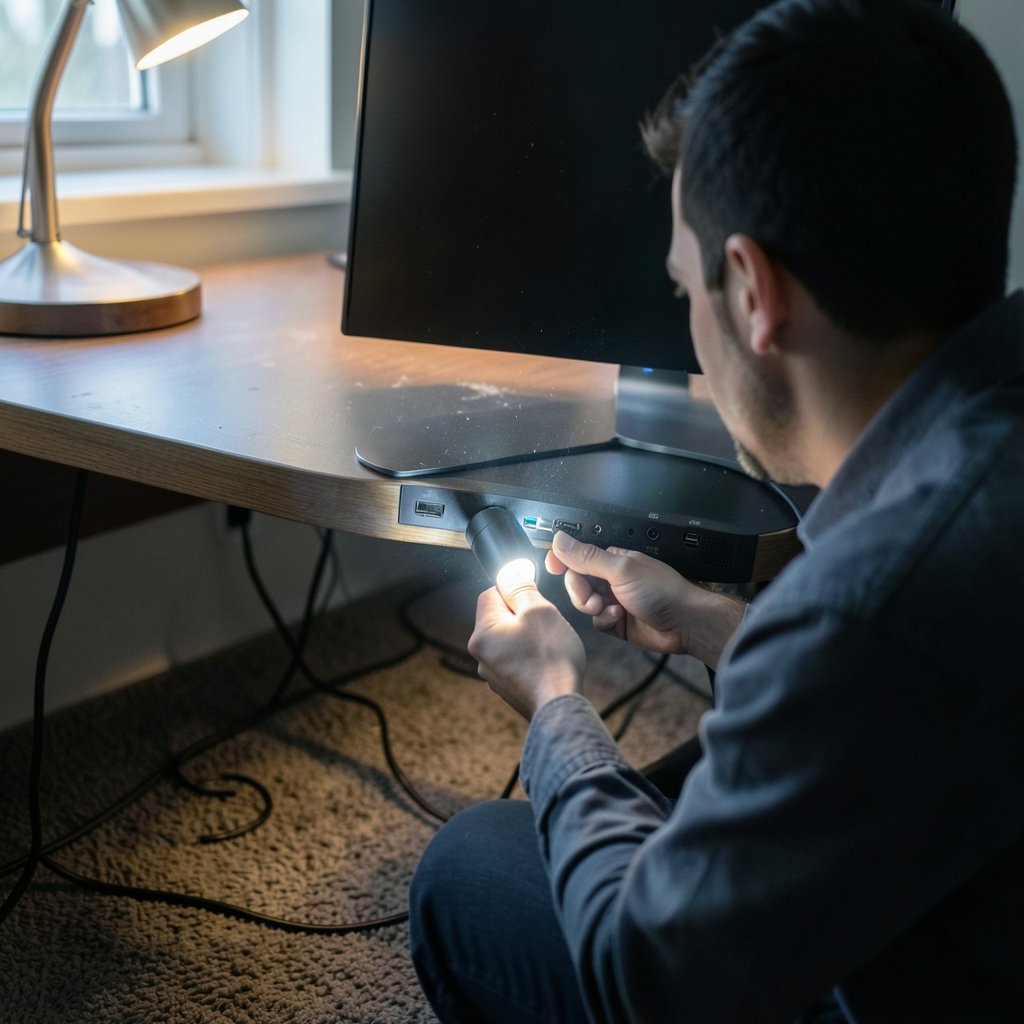
Before touching software, rule out the physical layer. A surprising share of “my PC won’t display anything” cases turn out to be a monitor set to the wrong input, a dead DisplayPort cable, or a GPU output that stopped handshaking after a sleep cycle.
- Force a full shutdown. Hold the power button for about 10 seconds until the machine powers off completely, unplug peripherals, wait 30 seconds, then power back on. This clears a stuck display state that a normal restart won’t touch.
- Test a different cable and port. Swap HDMI for DisplayPort (or vice versa) and try another port on the GPU. If the motherboard has integrated graphics, plug the monitor there instead — a signal from integrated graphics but not the discrete GPU points straight at a graphics card problem.
- Check the monitor itself. Confirm the input source in the monitor’s on-screen menu, and if possible connect a laptop or console to the same screen. If the monitor shows nothing from any device, the display is the problem, not Windows.
- Listen and look for signs of life. Keyboard backlights, fan spin-up, and drive activity lights tell you whether the system is posting. A PC that never reaches the BIOS splash screen has a hardware-level issue, not a Windows issue.
If the machine posts but Windows never appears, skip ahead to the recovery environment section. If Windows loads and then the screen goes black, the cause is almost always software.
Identify Which Black Screen You Have
Not all black screens behave the same way, and the pattern is a diagnostic clue in itself. Match your situation to the table below before trying fixes.
| Symptom | Most likely cause | Where to start |
|---|---|---|
| Black screen immediately after login, cursor visible | Explorer.exe failing to start or a bad GPU driver | Restart Explorer, then roll back the driver |
| Black screen after a Windows update | Incompatible update or driver bundled with it | Uninstall the latest update via recovery options |
| Black screen with no cursor, PC still running | Display output, cable, or GPU fault | Cable and port swap, then safe mode |
| Screen flickers to black intermittently | Failing cable, overheating GPU, or power delivery | Hardware diagnostics |
| Black screen on wake from sleep | Display driver power-state bug | Update or roll back the GPU driver |
Getting this classification right saves the most time. A cursor-visible black screen is almost never a hardware fault, while a totally dead panel with a running PC usually is.
Fix 1: Restart the Graphics Driver and Explorer
Windows 11 has a built-in shortcut that restarts the display driver without rebooting: press Win + Ctrl + Shift + B. The screen flashes and the system beeps. If the black screen was caused by a hung driver, this often brings the desktop back instantly.
If the desktop returns but only the taskbar or wallpaper is missing, Explorer.exe has crashed. Press Ctrl + Shift + Esc to open Task Manager, choose Run new task, type `explorer.exe`, and press Enter. The shell rebuilds itself. This is one of those Windows keyboard shortcuts everyone should know that pays for itself the first time you need it — and if you ever need to capture what’s on screen for a support ticket, here’s how to take a screenshot on Windows even when the display is misbehaving.
Fix 2: Boot Into Safe Mode to Isolate the Culprit
Safe Mode loads Windows with a minimal driver set, which instantly tells you whether a third-party driver or startup app is to blame. From the sign-in screen, hold Shift while clicking Restart, then choose Troubleshoot > Advanced options > Startup Settings > Restart and select Safe Mode.
If the screen works in Safe Mode but not in normal mode, the fault lies with a driver or a startup program. Two things to try:
- Roll back the GPU driver. Open Device Manager, expand Display adapters, right-click your GPU, and select Properties > Driver > Roll Back Driver. This is the single most effective fix when the black screen appeared right after a driver update.
- Clean up startup apps. In Task Manager’s Startup tab, disable everything non-essential and reboot. Re-enable items one at a time to find the offender.
If the black screen persists even in Safe Mode, the problem is deeper — move on to the recovery environment.
Fix 3: Use the Windows Recovery Environment
The Windows Recovery Environment (WinRE) is a separate mini-operating system that loads before Windows itself. Microsoft documents its full capabilities in the official WinRE technical reference, and it’s the tool of last resort before a reinstall. Access it by interrupting the boot three times in a row (power on, hold the button to force off, repeat) or via Shift + Restart.
From WinRE, these options matter most:
- Startup Repair — automatically fixes boot configuration and missing system files. Run this first; it’s non-destructive.
- System Restore — rolls Windows back to a restore point before the problem appeared. Effective for black screens caused by a bad update or driver install.
- Uninstall Updates — removes the most recent quality or feature update. Microsoft’s Windows release health dashboard is worth checking here: if a specific cumulative update is listed as causing display problems, removing it is the correct move rather than guessing.
- System Restore from a full image — only if you have a backup. Most people don’t, which is exactly why creating restore points matters.
Fix 4: Rule Out Hardware Failure
If none of the software fixes work, treat it as a hardware problem. A failing GPU, a loose RAM stick, or an aging power supply can all produce a black screen with no Windows involvement whatsoever. Practical steps:
- Reseat the RAM and GPU. Power off, unplug, ground yourself, and firmly re-seat both. Oxidation on contacts is a real cause of intermittent no-display faults.
- Run OEM diagnostics. Dell, HP, and Lenovo all ship built-in hardware test suites accessible from the boot menu (usually F12 or Esc at startup). They’ll flag a dead GPU or bad memory in minutes.
- Test the PSU. If the system powers on but the GPU never initializes, an underperforming power supply is a common culprit, especially after adding new hardware.
Don’t skip this stage because the software fixes felt more scientific. Hardware faults masquerade as software problems constantly, and no amount of driver reinstalling will fix a dying graphics card.
Fix 5: The Nuclear Options
When everything else fails, two options remain. Reset this PC (Settings > System > Recovery) reinstalls Windows while optionally keeping your files. A clean install from USB media wipes everything and starts fresh — the most reliable fix, and the one to choose if the black screen returns repeatedly.
Before either, back up your data. If the machine won’t boot at all, pull the drive and connect it to another PC with a USB adapter. It’s tedious, but it’s far less painful than losing documents. And while you’re in cleanup mode, running one of the best free virus removal tools for Windows afterward is sensible — malware occasionally corrupts display drivers and shell components.
Common Mistakes That Make It Worse
People routinely sabotage their own recovery. The most frequent errors:
- Reinstalling Windows first. It’s the slowest fix and destroys data. Try the driver rollback and WinRE options first.
- Ignoring the timing. A black screen that starts after login and one that starts before the logo have completely different causes. Note exactly when it happens.
- Downloading “black screen fixer” utilities. These are frequently adware. Windows already includes every tool you need.
- Skipping restore points. Enable System Protection now, while everything works. Ten seconds of setup saves hours later.
Patience beats panic here. Most black screens are recoverable, and the diagnostic order above resolves the large majority without a reinstall.
When to Seek Professional Help
Take the machine to a repair shop if you’ve completed every software step and the screen is still dark, if you hear beep codes or see diagnostic LEDs on the motherboard, or if the system won’t power on consistently. Those signals point to component-level failure that requires physical testing equipment. If the black screen only affects a specific app or game rather than Windows itself, the issue is application-specific — a different troubleshooting path entirely, much like the fixes in this guide to Decky loader not working on Steam Deck.
Conclusion
A black screen on Windows 11 is rarely fatal, but it is rarely simple either. The winning approach is a disciplined sequence: verify the display hardware, classify the symptom, restart the driver and shell, isolate with Safe Mode, then escalate to WinRE and hardware diagnostics. Each step narrows the cause, and most users find their answer within the first three.
The deeper lesson is preventive. Keep restore points enabled, install GPU drivers deliberately rather than automatically, and know your recovery shortcuts before you need them. A machine that boots to a black screen is stressful; a machine with a restore point from last Tuesday is merely inconvenient. Start with the cable, end with the reinstall, and don’t let anyone sell you a “fixer” app in between.
Frequently Asked Questions
Why does my Windows 11 screen go black but the PC stays on?
The computer is still running, so power isn’t the issue — display output is. Common causes include a hung graphics driver, a monitor on the wrong input, a failed cable, or Explorer.exe not starting after login. Try Win + Ctrl + Shift + B to restart the display driver, then test another cable and port before assuming a hardware fault.
How do I fix a black screen after logging into Windows 11?
If you can see a cursor, the shell has likely failed. Open Task Manager with Ctrl + Shift + Esc, run a new task called `explorer.exe`, and the desktop should rebuild. If the black screen returns every login, roll back your GPU driver through Device Manager, since a recent driver update is the usual trigger.
Can a Windows update cause a black screen?
Yes. Certain cumulative updates have been linked to display problems, and Microsoft tracks known issues on its release health pages. Boot into the Windows Recovery Environment via Shift + Restart, then choose Uninstall Updates to remove the most recent one. Check whether your build has a documented display issue before rolling anything back.
Does Safe Mode fix a black screen permanently?
No — Safe Mode is a diagnostic tool, not a repair. It loads Windows with minimal drivers, so if the screen works there, you’ve confirmed that a third-party driver or startup app is responsible. The permanent fix is identifying and removing or rolling back that specific component.
Is a black screen always a hardware problem?
No, and assuming so leads people to replace working parts. Software causes — drivers, updates, corrupted system files — are far more common. Hardware becomes the likely explanation only when the screen stays black in Safe Mode, during BIOS, or when the PC never reaches the boot logo at all.
Will resetting Windows fix a black screen for good?
A reset or clean install removes corrupted system files and conflicting software, so it usually does fix software-caused black screens. However, it won’t help if the underlying cause is a failing GPU, RAM, or power supply. Run hardware diagnostics first, and always back up your files before resetting.