

What if the emulator you pick says less about the games you want to play and more about how you actually work? That sounds backwards, but it is the truth in 2027. Three big names dominate the conversation, and they barely compete with each other once you look closely. Google Play Games on PC is a walled garden for a hand-picked catalog. GameLoop is a wide-open playground for mobile gamers. Genymotion is a developer’s test bench dressed up as an emulator.
Pick the wrong one and you will spend an evening fighting BIOS settings or wondering why your favorite game simply will not install. Pick the right one and everything just clicks. This guide walks through the real workflow differences, the setup traps people hit, and the small habits that separate a smooth experience from a frustrating one.
The Core Difference: What Each Tool Will Actually Run
The fastest way to choose is to ask one question: what do you need to run?
Google Play Games on PC is Google’s official emulator, but it only runs a curated catalog of Android games that Google has onboarded. It launched in beta in select regions in January 2022 and expanded gradually. You cannot sideload arbitrary APKs. If a game is not in the catalog, it does not exist for this tool. That single rule defines its entire workflow.
GameLoop, built by Tencent, is a general Android emulator aimed at mobile gamers. It supports installing APKs, handles titles that are not on Google Play, and serves as the official PC client for PUBG Mobile and several Tencent games. It also offers multi-instance support and key-mapping, which are the features gamers actually notice day to day.
Genymotion is a different animal entirely. It is built for developers and QA teams, with desktop editions and cloud editions running on AWS and GCP, plus Android device images and ADB integration. Nobody at Genymobile is trying to win your gaming hours. They are trying to win your test pipeline.
| Tool | What it runs | Built for | Sideloading APKs |
|---|---|---|---|
| Google Play Games on PC | Curated catalog only | Players of approved titles | No |
| GameLoop | Broad game catalog plus APKs | Mobile gamers | Yes |
| Genymotion | Any Android app or APK | Developers and QA | Yes |
A quick rule of thumb works well here. If the game is in Google’s catalog, use Google’s tool. If it is not, GameLoop is your next stop. If you are testing an app you built yourself, skip both and open Genymotion.
Setup Workflows: Virtualization Is Where People Get Stuck
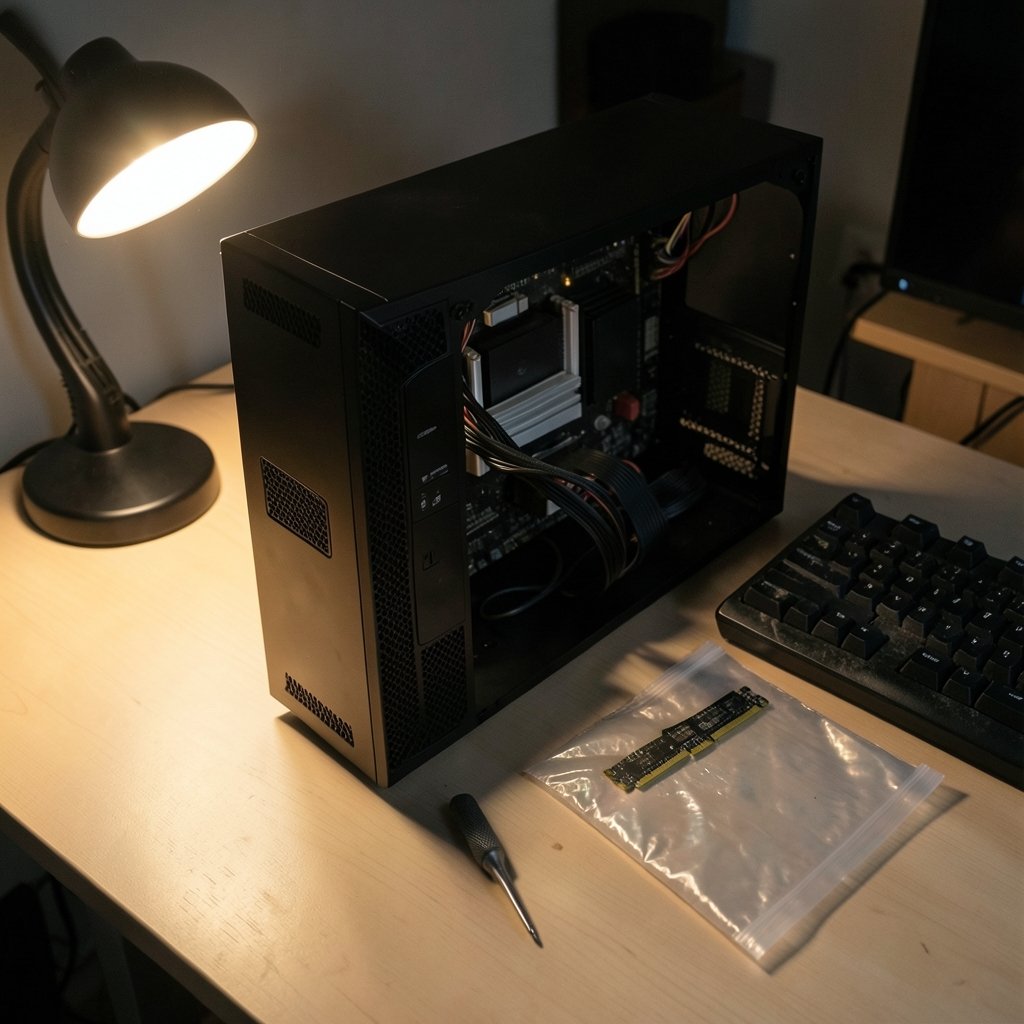
Here is the part nobody warns you about. All three tools depend on virtualization, and the way each one uses it creates very different setup experiences.
Google Play Games on PC relies on the Windows Hypervisor Platform and Hyper-V. Google’s system requirements list Windows 10 or 11, an SSD, and CPU virtualization enabled in the BIOS. That last point trips up a huge number of people. You reboot, dive into BIOS, hunt for the virtualization toggle, and hope you found the right one.
The bigger trap is conflict. If you already run Docker Desktop or WSL2, Hyper-V is likely active, and that can clash with emulators that expect a different virtualization layer. Genymotion Desktop historically used VirtualBox, with a Hyper-V-compatible mode added later. GameLoop ships its own engine. The practical lesson: decide which emulator you want before you install anything else that touches virtualization, or you will spend an hour untangling the mess.
A few habits that actually work in practice:
- Enable virtualization in BIOS first, before installing any emulator.
- Check whether Docker, WSL2, or Hyper-V is already running and note which mode they use.
- Install one emulator, test it fully, then add the next if you genuinely need it.
- Keep your GPU drivers current, since rendering issues cause most “the emulator is broken” complaints.
If you prefer to see how these setups behave on a specific platform, a breakdown of the Android emulator on Windows 11 and how Google Play support differs across BlueStacks and similar tools can save you a lot of trial and error.
The Account and Licensing Layer
Workflow is software, and it is also what you sign into and what you pay.
Google Play Games on PC ties into a Google account and your Play Games profile. That means your progress, achievements, and library follow you, which is convenient if you live inside Google’s ecosystem and mildly annoying if you do not. (Use google ai studio practical workflow prompt builders)
GameLoop is free, with Tencent account integration for some titles. The catch is regional. Tencent has shipped different builds in different markets, so the GameLoop someone in one country uses may not match the one you download. Always note which build and region you are describing before comparing features.
Genymotion Desktop offers a free personal-use license alongside paid business and cloud tiers. The free tier is generous for solo developers, but teams doing automated testing will eventually need the paid path. Pricing changes, so check the current terms rather than trusting a year-old blog post.
The Automation Gap: Why Developers Ignore Gaming Emulators
This is the workflow difference that matters most and gets discussed least. Genymotion provides command-line tools and cloud device APIs designed for automated testing. You can script device creation, run tests in CI, and spin up cloud instances on demand. Google Play Games on PC and GameLoop are not built as CI test targets. They are consumer clients, and treating them like test infrastructure leads to pain.
If you are a developer, the choice is essentially made for you. Genymotion fits the testing, automation, and app deployment workflow. The other two fit entertainment. The official Android emulator documentation is worth reading if you want to understand the virtualization concepts underneath all of this, since the standard Android emulator shares DNA with these tools. (Android (operating system)))
For everyone else, the automation gap is irrelevant. Gamers do not need CI pipelines. They need a game to launch without stuttering.
Performance and Day-to-Day Feel
Raw benchmarks are a rabbit hole. What matters is how each tool feels during a normal session.
Google Play Games on PC tends to feel polished because Google controls the catalog. Onboarded games are tuned for the platform, and the experience is consistent. The trade-off is that consistency comes from restriction.
GameLoop feels more flexible but less predictable. Multi-instance support is genuinely useful if you run multiple accounts or want to keep a game open while doing something else. Key-mapping lets you translate touch controls to keyboard and mouse, which many players consider essential for shooters. The cost is occasional instability after updates.
Genymotion feels like a tool, because it is one. It is not trying to be fun. It is trying to be reliable and scriptable, and it succeeds at that.
If gaming is your focus and you want a broader sense of what is out there, a look at the landscape of free to play games helps you judge which titles are worth the setup effort in the first place.
Common Mistakes People Make
A few errors show up again and again, and each one wastes real time.
Installing all three at once. Virtualization conflicts turn a simple comparison into an afternoon of troubleshooting. Test one at a time.
Assuming Google Play Games on PC runs everything. It does not. The curated catalog is the whole point, and sideloading is not an option.
Downloading GameLoop from the wrong regional build. Features and supported titles vary. Match the build to your region.
Expecting Genymotion to be a gaming client. It can run games, technically, but it is not tuned for them, and you will notice.
Skipping the BIOS step. If virtualization is off, nothing works, and the error messages rarely say so plainly.
Ignoring the update cycle. All three tools change frequently. A guide written in 2025 may describe a product that no longer exists in its old form. Verify current documentation before you commit.
There is a parallel lesson in troubleshooting guides for the Play Store itself: most “broken” experiences come down to a setting, a region, or a version mismatch rather than a fundamental flaw. The same logic applies to emulators. Check the boring stuff first.
Choosing by Use Case
The cleanest way to decide is to match the tool to the job.
| Your situation | Best fit | Why |
|---|---|---|
| You play mainstream Android games from Google’s catalog | Google Play Games on PC | Polished, curated, low friction |
| You play titles outside the catalog or sideload APKs | GameLoop | Broad support, key-mapping, multi-instance |
| You test or automate Android apps | Genymotion | CLI tools, cloud devices, CI integration |
| You want to explore many options before committing | Compare by use case | Avoids locking into the wrong workflow |
That last row matters more than it looks. People often pick an emulator because a friend recommended it, then discover it cannot run the one game they care about. Matching the tool to your actual use case, rather than to popularity, is the single biggest workflow upgrade available. A rundown of Google Drive alternatives organized by use case shows the same principle at work in a completely different category: the best tool is the one shaped around your job, not the one with the loudest marketing. (Application fundamentals)
What to Watch in 2027
All three products move fast, and any comparison has a shelf life. Google has repeatedly adjusted the name and scope of Play Games on PC, shifting from beta to broader availability in some markets. Tencent maintains regional variants of GameLoop. Genymobile keeps evolving its cloud offerings. Before you commit, check the current official documentation for each tool and note the version and region you are running.
One thing is historically certain: Android emulation on PC predates all three of these tools, going back to the early Android SDK emulator in 2008 and 2009. These are workflow choices, not the only options. Framing them that way keeps you flexible when the next tool arrives.
Conclusion
The Google Play Games vs GameLoop vs Genymotion question has a surprisingly simple answer once you strip away the marketing. Google’s tool is a curated, polished garden for approved games. GameLoop is the flexible, gamer-first option that handles almost anything you throw at it. Genymotion is a developer’s instrument that happens to run Android apps.
None of them is universally better. The workflow differences are the whole story: what each tool will run, how it handles virtualization, what account it ties into, and whether it was built for play or for testing. Match the tool to your job, install one at a time, and check the current docs before you commit. Do that, and you will skip the evening lost to BIOS settings and get straight to what you actually wanted to do.
FAQ
Is Google Play Games on PC a full Android emulator?
No. It runs a curated catalog of Android games that Google has onboarded. You cannot install arbitrary APKs, so it functions as an official client for approved titles rather than a general-purpose emulator.
Can GameLoop run games that are not on Google Play?
Yes. GameLoop supports installing APKs and handles titles outside the Play Store catalog, which is one of its main advantages over Google’s official tool.
Is Genymotion good for playing games?
It can run games, but it is not designed for them. Genymotion targets developers and QA teams, with command-line tools and cloud devices built for testing and automation rather than entertainment.
Why does my emulator keep failing to start?
The most common cause is disabled CPU virtualization. Check your BIOS settings and confirm whether Hyper-V, Docker, or WSL2 is already active, since these can conflict with emulators that expect a different virtualization layer.
Do I need to pay for any of these tools?
GameLoop is free, and Genymotion Desktop offers a free personal-use license alongside paid business and cloud tiers. Google Play Games on PC is free but limited to its catalog. Pricing and licensing change, so verify current terms.
Which emulator is best for automated app testing?
Genymotion is the clear choice. Its command-line tools and cloud device APIs are built for CI pipelines and scripted testing, while the gaming-focused emulators are consumer clients not intended as test targets.



