
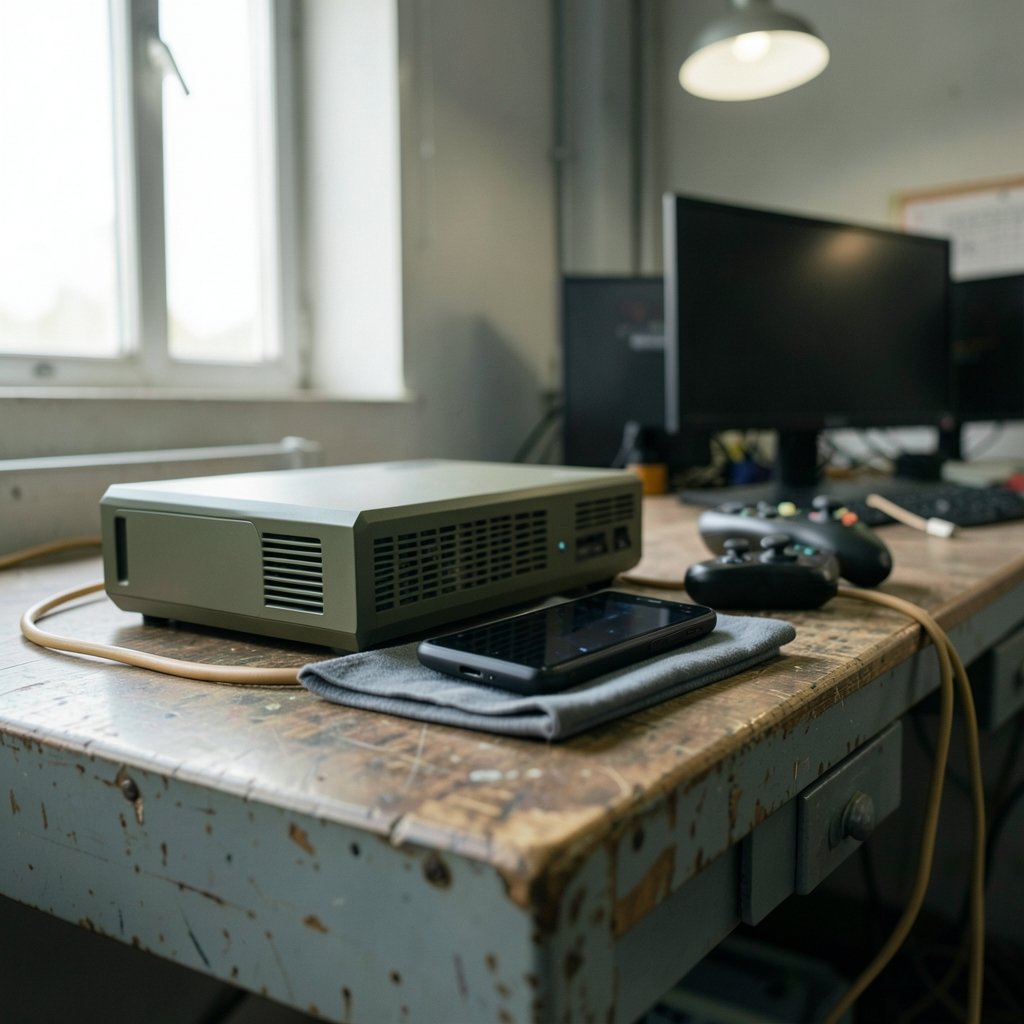
Can you trust a little green checkmark when it was awarded for a completely different machine? That is the question thousands of PC gamers are asking as they weigh a living-room upgrade against the handheld they already own. Valve’s compatibility badges have become the closest thing PC gaming has to a guarantee, but those badges were built around one specific device with one specific screen and one specific set of controls. When the hardware underneath changes, the meaning of that checkmark gets slippery. This guide walks through what the ratings actually measure, why they do not automatically carry over, and how to verify a game’s status yourself before spending money on new hardware.
What the Steam Deck Verified badge actually measures
Valve introduced its four-tier compatibility system in 2021, ahead of the Steam Deck’s February 2022 launch. The categories are Verified, Playable, Unsupported, and Unknown. Verified means a game runs well with default settings, reads clearly on the small screen, shows correct controller icons, and never demands a physical keyboard or mouse. Playable means it works but needs fiddling: small text, manual graphics tweaks, or an on-screen keyboard at some point.
The critical detail most buyers miss is that the rating is per-device, not universal. The checks are tied to a specific screen size, a specific control layout, and a specific performance target. A game can be Verified on one device and Unsupported on another without a single line of code changing, simply because the hardware context is different. Valve’s own compatibility documentation lays out how the review process scores input, legibility, performance and system support, and it is worth reading before you treat any badge as a promise.
Why Valve’s ratings are device-specific by design

Think about what “Verified” is really saying. It is not saying “this game works.” It is saying “this game works here, on this screen, with these controls, at this frame rate.” Change any of those variables and the verdict can flip.
The Steam Deck is a handheld with a 1280×800 screen, built-in trackpads, and a modest power budget. A living-room machine implies a television, a separate controller, and more performance headroom. Text that is perfectly legible at arm’s length may be unreadable from a couch. A control scheme tuned for trackpads may feel wrong on a gamepad. None of that is a defect in the game. It is a mismatch between the game and the context the rating was written for.
This is why the smartest habit you can build is checking the compatibility panel on the store page of the device family you are actually browsing on, rather than trusting a badge you saw on a different product page six months ago.
The Steam Machine question nobody can answer with certainty yet
Here is where honesty matters more than confidence. Valve announced a new Steam Machine in November 2025, alongside a new Steam Controller and a standalone Steam Frame VR headset, describing the machine as a living-room PC running SteamOS. Valve’s stated launch window at the time was early 2026.
What Valve has not clearly published is a separate public Steam Machine Verified tier with its own badge. Whether the new machine reuses Deck ratings, receives its own category, or gets folded into a broader “SteamOS compatible” label is genuinely unconfirmed. Any article that presents a distinct, formally named “Steam Machine Verified Program” as settled fact is ahead of the primary sources.
That uncertainty has a practical consequence. If you are planning an upgrade and someone tells you a game is “Steam Machine Verified,” ask where that rating lives. A real rating should appear on the game’s own store listing, in the compatibility panel, tied to that device family. If it only appears in a forum post or a video thumbnail, treat it as a rumor.
How to check compatibility yourself, step by step
You do not need to wait for an official program to make a smart decision. The verification work is something you can do in about ten minutes per game.
- Open the game’s store page and find the compatibility panel. Confirm which device family the page is currently showing, because the panel reflects the device context you are browsing in.
- Read the tier in addition to the color. Playable is not a failure, but it tells you to expect manual settings, small text, or an on-screen keyboard.
- Cross-check with community data. ProtonDB collects user-reported results for Windows games running through Proton on Linux and SteamOS, and it is explicitly not an official Valve rating. That independence makes it useful: it catches problems official checks miss.
- Look at the game’s control scheme. If it assumes a mouse or relies heavily on trackpad precision, a couch setup will need extra thought.
- Check the text size in screenshots. If you cannot read the UI in a full-size image, you will not read it from across a room.
- Test on hardware you already own if possible. A refund window on a store purchase is a legitimate compatibility test, not an abuse of the system.
If you are upgrading a desktop rather than buying new gaming hardware, run through a quick check that your PC supports Windows 11 before you upgrade, since the operating system requirements trip up more people than the game requirements do.
What Proton has to do with all of this
Underneath every SteamOS rating sits Proton, Valve’s Wine-based compatibility layer that lets Windows games run on Linux. SteamOS 3 is Arch Linux-based, and Proton is the translator that makes most of the library work at all. If you want to understand the machinery behind the badges, Valve’s Proton project documentation on GitHub is the primary source, and it explains the layer’s scope better than any summary can.
The practical takeaway: a game’s SteamOS performance depends on Proton version, driver maturity, and the specific hardware. That is why community databases matter. They track which Proton build works for which title, information no static badge can capture.
Steam Deck vs a living-room machine: where ratings diverge
The differences that break compatibility assumptions are concrete. Here is how the two contexts compare on the factors that actually drive a rating.
| Factor | Steam Deck (handheld) | Living-room SteamOS machine |
|---|---|---|
| Screen | 1280×800, held close | Television, viewed from a distance |
| Controls | Built-in gamepad plus trackpads | Separate controller, no trackpads by default |
| Text legibility | Judged at arm’s length | Judged from a couch, much harsher |
| Performance target | Battery and thermal limited | More headroom, different frame targets |
| Rating transfer | Baseline for existing badges | Not automatically inherited |
The row that matters most is the last one. A badge earned in one context does not migrate to another just because both devices run the same operating system. This is the single most common mistake buyers make: assuming “it says Verified” is a property of the game rather than a property of the pairing between game and device.
Common mistakes people make before upgrading
A few patterns show up again and again among people who end up disappointed.
Trusting a screenshot of a badge. Ratings get updated. A game that was Playable at launch may be Verified now, or the reverse after a major patch. Always check live.
Confusing ProtonDB reports with official ratings. Community data is valuable precisely because it is independent, but it reflects individual users’ hardware and tinkering. A “Gold” rating on ProtonDB is not the same claim as Verified.
Ignoring the input problem. Performance gets all the attention, but controls derail more living-room setups than frame rates do. A game that plays beautifully on a handheld’s trackpads can be miserable on a standard controller.
Forgetting the launcher. Some titles boot into a separate launcher that wants a mouse click before the game even starts. That is a classic Playable-level annoyance that a badge will flag, but only if you read past the color.
Buying hardware for one game. Check the ten games you actually play, not the one you are excited about this week. If three of them are Unsupported, the upgrade math changes.
If your upgrade path runs through a handheld rather than a living-room box, it is worth comparing the Legion Go S vs Steam Deck and the Switch 2 vs Steam Deck before committing, since the compatibility picture differs across all three. (Steam Machine)
Getting the most out of whatever you buy
Compatibility is the floor, not the ceiling. Once a game is confirmed to run, the next question is how well. Handheld owners get real gains from tuning, and the same discipline applies to any SteamOS device: cap frame rates, manage thermal headroom, and adjust settings per game rather than globally. A practical guide to setting up your Steam Deck for best performance covers the tuning approach that transfers to living-room hardware almost unchanged.
Two more habits pay off. First, if you use plugins and something breaks after a system update, work through a fix for Decky Loader not working on Steam Deck rather than reinstalling everything. Second, keep a short list of known issues for your most-played titles, because the common Steam Deck problems and their real fixes tend to reappear after major Proton updates.
And if you are shopping for a handheld in a market where stock is erratic, it helps to know the Steam Deck out-of-stock alternatives for 2026 before you settle on a device whose compatibility ratings you have already researched.
What to expect from 2027
The honest answer is that 2027 compatibility depends on decisions Valve has not fully documented in public. What is reasonable to expect, based on how the system has worked since 2021, is that ratings will remain device-specific and that the store page compatibility panel will stay the authoritative place to check. Whether a formally separate Steam Machine tier appears, and what it is called, remains unconfirmed.
That uncertainty is not a reason to wait. It is a reason to verify. The checks described above work regardless of what Valve names its program, because they rely on the game’s own listing and on independent community data rather than on a label’s marketing.
Conclusion
The appeal of a green checkmark is obvious: it saves you the work of researching. But the checkmark was never a universal promise. It is a statement about one game running on one device in one context, and it deserves to be read that way. Before a 2027 upgrade, spend ten minutes per game on the store page compatibility panel, cross-check anything borderline against community reports, and pay attention to the boring factors, text size and control schemes, that actually determine whether you will enjoy the thing. Hardware reviews tell you what a machine can do. Compatibility checks tell you whether it can do what you want. Do the second one, and the upgrade decision becomes far less of a gamble.
Frequently asked questions
Is Steam Deck Verified the same as Steam Machine Verified?
No, and the distinction matters. The Verified, Playable, Unsupported and Unknown tiers introduced in 2021 were built around the Steam Deck’s specific screen, controls and performance target. Ratings are per-device, so a title can be Verified on one device and Unsupported on another. Valve has not clearly published a separate public Steam Machine Verified tier with its own badge, so treat any claim of one as unconfirmed until it appears on a game’s own store listing.
How do I check if a game works on a SteamOS living-room machine?
Open the game’s store page and look at the compatibility panel, making sure the page is showing the device family you are actually shopping for. Read the tier rather than just the color, then cross-check borderline titles against community-reported results. Also look at the control scheme and the text size in screenshots, since those two factors sink more couch setups than raw performance does.
Does a Verified rating guarantee the game will run well on my TV?
No. Verified means the game passed checks tied to a handheld context: legibility at arm’s length, correct controller icons, no forced keyboard input. A television viewed from a couch changes the legibility equation entirely. A game can pass every check on a small screen and still be hard to read from across a room, which is exactly the gap the Playable tier exists to flag.
What is Proton, and why does it affect compatibility?
Proton is Valve’s Wine-based compatibility layer that lets Windows games run on SteamOS, which is Arch Linux-based. Because games are running through a translation layer rather than natively, results depend on the Proton version, driver maturity and specific hardware. That is why community databases tracking which Proton build works for which title remain useful even when an official badge exists.
Should I trust community compatibility reports over official ratings?
Use both, for different jobs. Official ratings tell you what Valve tested on a specific device. Community reports tell you what actual users experienced across many hardware combinations and Proton versions, including problems official checks can miss. They are not equivalent claims, and community data is explicitly not an official rating, but treating them as complementary gives you a far more realistic picture.
Can I test compatibility without risking my money?
Often, yes. Many store purchases come with a refund window that functions as a legitimate compatibility test, provided you stay within its terms. Install the game, launch it, check the text size from your actual viewing distance, try your actual controller, and confirm it reaches a frame rate you find acceptable. If it fails, request the refund. That hands-on check beats any badge.



