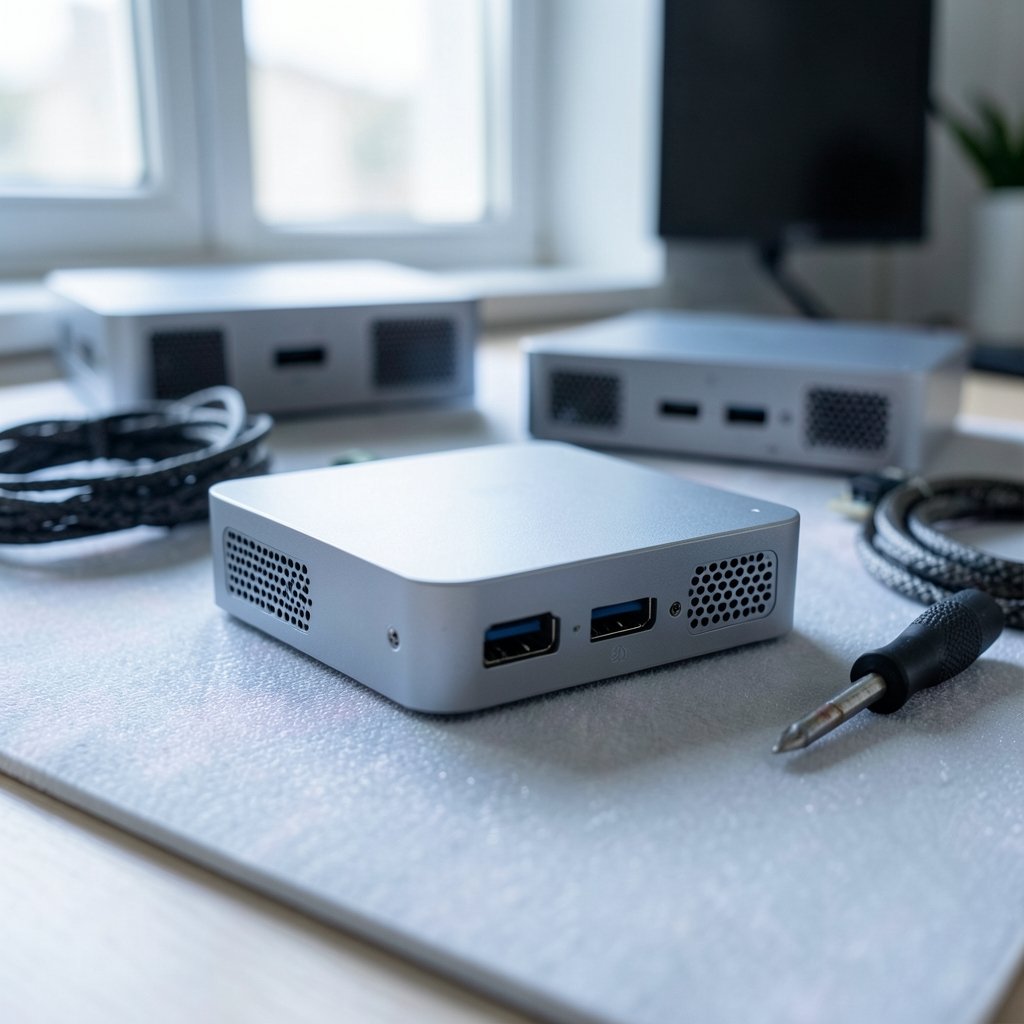
What if you bought an external GPU dock today, and it stopped behaving nicely with your laptop two years from now? That is the worry behind every “OneXGPU vs DEG1 vs Aoostar AG02” comparison, and it is a fair worry. These three devices look similar in photos, yet they use different connection methods, ship in different configurations, and lean on different parts of your laptop’s hardware. None of them comes with a guarantee about 2027. What you can do is check the things that actually decide whether an upgrade ages well. (Cursor alternatives have real limits check before switching)
This guide walks through those checks in plain language. It compares the three docks honestly, explains the standards behind them, and shows what to verify before you spend money.
What each device actually is
All three are external GPU (eGPU) enclosures or docks. You put a desktop graphics card inside, connect the box to a laptop or handheld, and the machine borrows the card’s power. The differences sit in how the data travels and what else the box does.
The OneXGPU is a combined eGPU and dock, announced around 2024, with a follow-up OneXGPU 2 using an AMD GPU arriving around 2024 to 2025. It aims to be an all-in-one hub: graphics, ports, and power in one chassis. The DEG1 is a JSAUX dock built around OCuLink, announced around 2024. The Aoostar AG02 is also an OCuLink eGPU dock, announced around 2024 to 2025.
| Feature | OneXGPU | DEG1 | Aoostar AG02 |
|---|---|---|---|
| Type | eGPU plus dock | OCuLink eGPU dock | OCuLink eGPU dock |
| Connection | Depends on model and SKU | OCuLink (PCIe over cable) | OCuLink (PCIe over cable) |
| GPU included | Yes, on most versions | Usually bring your own | Usually bring your own |
| Extra ports | Yes, dock-style | Minimal | Minimal |
| Best for | One-box setups | Tinkerers with an OCuLink port | Tinkerers with an OCuLink port |
Treat that table as a starting point, not gospel. Vendors revise SKUs quietly, and the exact GPU, power supply rating, and port layout can change between revisions.
The connection is the whole ballgame

Here is the single most important idea in this article. OCuLink is not USB. It is a PCIe-over-cable standard built on the SFF-8611 and SFF-8612 connector family. Because it carries PCIe lanes directly, your computer has to have an OCuLink port or an M.2-to-OCuLink adapter. A regular USB-C port will not do. (USB Charger (USB Power Delivery))
That matters because most laptops do not ship with OCuLink. Many people use the M.2 slot normally reserved for a second SSD, which raises a practical question: does your machine have a spare slot, and will using it disable storage or share lanes with something else? The answer varies by model. Some laptops route OCuLink through one specific port only.
Thunderbolt and USB4 are the other road. These are tunneled standards, and eGPU behavior depends heavily on the host’s Thunderbolt version and the platform’s eGPU support. On Windows, Thunderbolt eGPU support has historically leaned Intel-centric, and AMD plus newer Intel platforms vary. On macOS, Apple Silicon does not support eGPUs at all, though Intel Macs did. If you are on a modern Mac, none of these three docks is a path forward. (PCI Express)
If you are upgrading a Windows machine anyway, it is worth checking the basics first, such as whether your PC supports Windows 11 before you upgrade. A dock cannot fix an operating system or platform that was never going to cooperate.
Power, size, and the mistakes people make
Three physical checks catch most bad purchases.
Power supply sizing. Enclosures differ in included PSU wattage and in whether they send power to the host laptop. A graphics card’s transient power spikes can exceed its nominal TDP, so compare the enclosure’s PSU rating against the card maker’s recommended PSU. Undersizing here causes shutdowns that look like driver bugs.
Physical clearance. Check maximum GPU length, thickness (2-slot versus 3-slot), and whether the enclosure actually supports the card’s weight. A card that fits but sags is a card that will eventually misbehave.
Lane allocation. Using an M.2 slot for OCuLink may disable that SSD slot or share lanes. Confirm this in your laptop’s manual before you buy an adapter.
The most common mistakes follow a pattern. People buy the dock first and check compatibility second. They assume a USB-C port means Thunderbolt. They forget that the GPU inside the box needs its own power headroom. And they skip the vendor’s spec page, which is the only place SKU-specific numbers live. If you are the type who researches before switching tools, apply the same discipline here: a quick look at why people check Notion alternatives and their limitations before switching shows how much trouble a pre-purchase check saves.
Why “2027 compatibility” is a claim nobody can make yet
No vendor has published 2027 roadmaps for these specific products. Any article promising 2027 readiness is speculating. What you can evaluate is risk, and the biggest risk is firmware and driver support.
OCuLink docks often need BIOS or firmware updates on the host. eGPU behavior can shift with OS updates, whether a Windows feature release or a macOS version. Whether these docks support hot-plug or require a reboot varies, and vendor documentation has conflicted across firmware versions. Thunderbolt 5, announced in 2023 and shipping in some 2024 and 2025 devices, may change eGPU bandwidth assumptions by 2027, but that is unverified for these products.
So the honest framing is this: you are not buying a 2027-proof box. You are buying a box from a vendor with a track record of updates, connected to a laptop whose platform you have verified. That is the best anyone can do.
A step-by-step compatibility check
Work through these in order. Stop as soon as something fails.
- Identify your exact laptop model and platform. Note the CPU generation and whether it is Intel or AMD. This decides your Thunderbolt and USB4 options.
- Check for an OCuLink port or a usable M.2 slot. Read the manual. Confirm what gets disabled.
- Confirm your OS supports eGPUs on your platform. Apple Silicon is out. Windows support varies by platform and Thunderbolt version.
- Pick your GPU, then size the PSU. Use the card maker’s recommended PSU as the floor, not the ceiling.
- Measure the card against the enclosure’s limits. Length, slot width, and mounting support.
- Read the vendor’s spec page for your exact SKU. GPU model, PSU wattage, and port layout change between revisions.
- Check the firmware update history. A vendor that ships fixes is worth more than one that does not.
- Decide how you will handle updates. Plan to re-test after major OS releases.
If any of that sounds like a lot, it is. But it is a few hours once, versus a purchase you regret for years.
Money checks that belong in the same conversation
An eGPU upgrade is a purchase, and purchases attract the same noise as any other. Before you send money to a seller or a financing outfit, run the same scrutiny you would apply to any deal. If a lender or reseller is involved, read independent feedback first, the way you would review BMG Money reviews borrowers should check before signing. If a payment platform is in the mix, do a Money Pilot legit check before you risk your money. And if a vendor asks for a transfer before shipping, run a Titaniuminvest com money check before you send a cent.
The pattern is consistent: verify the counterparty before the transaction, not after.
Practical tips that actually work
Buy the dock that matches your port, not the one with the best photos. If your laptop has OCuLink, the DEG1 or AG02 makes sense. If it has Thunderbolt, look at Thunderbolt-capable options instead.
Keep the box cool and the cable short. OCuLink cables are short by design. Plan your desk layout around that.
Test with one game and one benchmark before you trust it. A single stress test catches power and thermal problems early.
Keep your old SSD. If you gave up an M.2 slot, you may want it back later.
Watch for software that promises more than it delivers. The same caution applies to AI coding tools; a look at Cursor alternatives and their real limits before switching is a useful reminder that marketing outruns reality.
Don’t overlook the small stuff. If your upgrade plan includes a repair, check the shop first, just as you would check an auto glass window repair near me before you book. And if you are weighing a free VPN to go with the new setup, check whether that free VPN is actually safe before you install it.
Which one should you pick?
There is no universal winner, only a fit.
Choose the OneXGPU if you want one box that handles graphics, ports, and docking, and you accept that you are buying a specific SKU with a specific GPU inside. Choose the DEG1 or Aoostar AG02 if you already have a graphics card, your laptop has OCuLink or a spare M.2 slot, and you want to control the card choice yourself. Between the two OCuLink docks, the deciding factors are PSU rating, card clearance, and firmware history, not brand loyalty.
If your laptop has neither OCuLink nor a supported Thunderbolt path, none of these is the right upgrade. Spend the money elsewhere.
Conclusion
The OneXGPU, DEG1, and Aoostar AG02 solve the same problem in different ways, and the differences matter more than the marketing. OCuLink carries PCIe directly and demands the right port. Thunderbolt and USB4 depend on your platform and OS. Power, clearance, and lane allocation decide whether the build works in practice. And no one can promise 2027 compatibility, because no vendor has published a roadmap for these products. What you can do is verify your host, size your power, read the SKU page, and pick a vendor that ships firmware updates. Do that, and your upgrade has a real chance of aging well.
FAQ
Is OCuLink the same as Thunderbolt?
No. OCuLink is a PCIe-over-cable standard using the SFF-8611 and SFF-8612 connector family, and it carries PCIe lanes directly. Thunderbolt and USB4 are tunneled standards with different compatibility rules. A laptop with one does not automatically support the other.
Can I use these docks with an Apple Silicon Mac?
No. Apple Silicon Macs do not support eGPUs. Intel-based Macs did, but that era is over for new buyers. If you are on a modern Mac, these docks are not a path forward.
Do I need a spare M.2 slot for an OCuLink dock?
Often, yes. Many laptops lack a native OCuLink port, so people use an M.2-to-OCuLink adapter. Check your manual first, because using that slot may disable an SSD or share lanes with another component.
How big a power supply do I need?
Size it against the graphics card maker’s recommended PSU, not the card’s nominal TDP. Transient power spikes can exceed the rated figure, and an undersized PSU causes shutdowns that look like software bugs.
Will these docks still work in 2027?
Nobody can confirm that. No vendor has published 2027 roadmaps for these products. The main risk is firmware and driver support, since eGPU behavior can change with OS updates and host BIOS revisions. Pick vendors with a history of shipping fixes.
What is the biggest mistake buyers make?
Buying the dock before checking the host. Confirm your port type, platform support, lane allocation, and card clearance first. Then choose the enclosure that fits, rather than making the hardware fit the enclosure.