
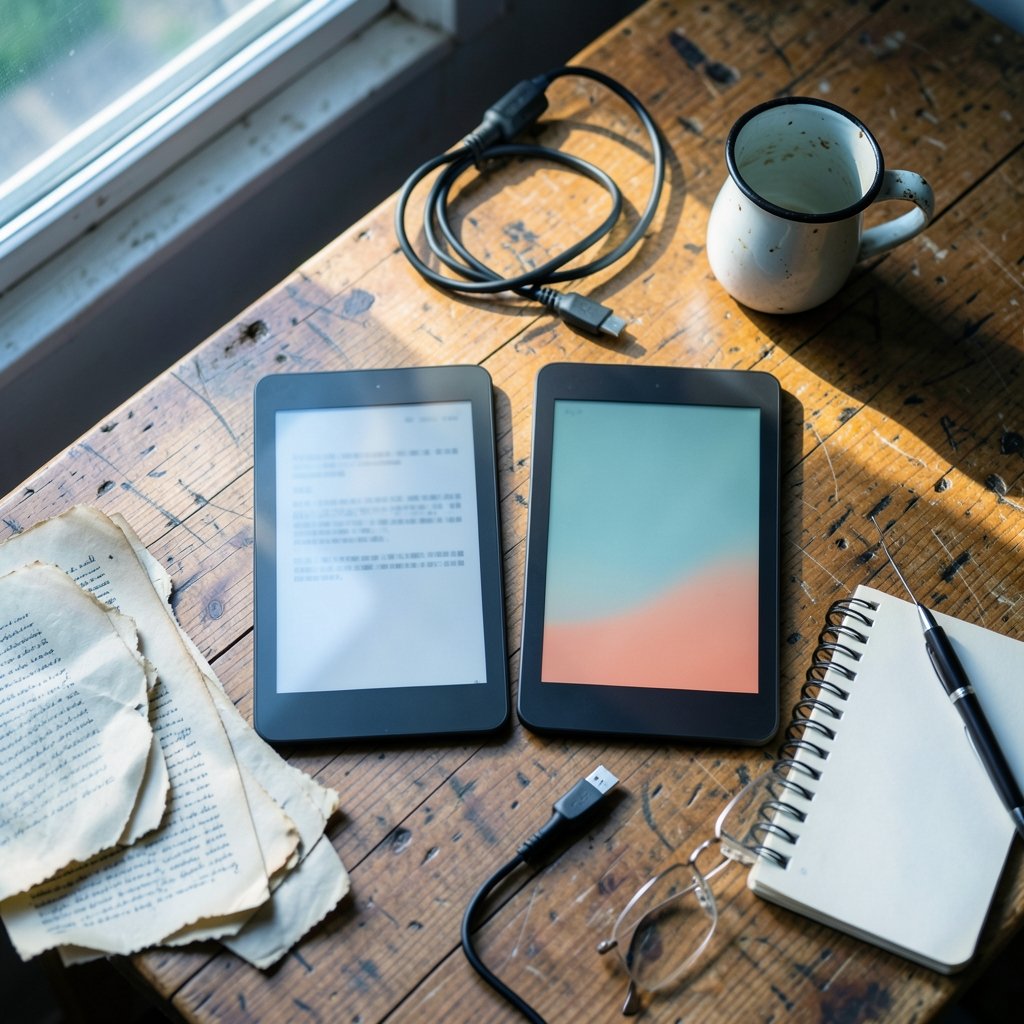
What actually changes about your reading day when you switch between a Kindle Paperwhite and a Kobo Libra Colour? Not the screen size. Not the price tag. The real difference shows up at 7 a.m. when you try to get a work document onto the device, or at 11 p.m. when you want to highlight a passage and find it again on your phone. In 2027, both devices read books beautifully. The friction lives in the workflow around the book. (E-book)
This comparison focuses on that friction. It looks at how files get in, how notes get out, how colour changes annotation habits, and where each ecosystem pushes you toward a habit you may not want. Hardware specs get a brief nod, but the practical, daily-use differences get the attention.
Why the workflow matters more than the spec sheet
Most e-reader buyers compare screens and battery life, then get surprised three weeks later when their PDF workflow collapses or their highlights are trapped on one device. The hardware is the easy part. The pipeline is where people quit.
A quick note on scope: no verified information exists about 2027-specific hardware models. Everything here is extrapolated from documented behaviour of the Kindle Paperwhite line and the Kobo Libra Colour, plus the format and sync rules both companies have followed for years. Treat the 2027 framing as a forecast of workflow patterns, not a product announcement.
How files get onto each device

This is the single biggest practical split, and it shapes everything downstream.
The Kindle route: cloud first
Amazon’s Send to Kindle service accepts EPUB, PDF, DOC and DOCX, TXT, HTML, RTF, and images, then converts them into Kindle formats. Amazon added native EPUB support in 2022 and retired MOBI as an upload format at the same time. The practical result is that you email or upload a file, and it appears on the device through the cloud. (W3C EPUB 3.3 specification)
That cloud-first design is convenient, but it means your documents pass through an account. If you read unpublished manuscripts, internal reports, or anything sensitive, that routing deserves a thought before you hit send.
The Kobo route: file first
Kobo’s ecosystem is built around EPUB, which is the open standard most publishers and libraries already use. You can drag files over USB, use Adobe Digital Editions for DRM-protected library books, or sync through a Kobo account. The device behaves more like a folder you own.
For anyone who already manages a local library, this feels natural. For anyone who expects magic, it feels like extra steps.
| Task | Kindle Paperwhite | Kobo Libra Colour |
|---|---|---|
| Native book format | AZW3/KFX, converted from EPUB | EPUB 2 and EPUB 3 |
| Document upload | Send to Kindle (cloud) | USB drag-and-drop, Adobe Digital Editions |
| Library lending | Libby via Read with Kindle (US) | OverDrive/Libby built into device |
| Cross-device sync | Whispersync across Kindle apps | Kobo account sync, narrower third-party support |
| Stylus support | Scribe line only | Libra Colour supports stylus annotation |
| Colour screen | No | Yes, Kaleido 3 panel |
The bridge both devices share
Calibre, the open-source e-book manager, handles conversion and transfer for both ecosystems, with device-specific drivers for Kindle and Kobo hardware. If you plan to move between brands or keep a mixed household, learning Calibre once saves repeated headaches. The Calibre documentation walks through device setup and format conversion in more depth than any buying guide will.
The colour question and what it does to annotation
The Kobo Libra Colour uses a Kaleido 3 colour E Ink panel, while the Kindle Paperwhite remains monochrome. That sounds like a simple win for Kobo. It is not.
Colour E Ink panels have lower contrast and slower refresh than monochrome Carta panels. The technology entry on electronic paper explains why: colour filters sit above the same reflective layer, which dims the light reaching your eye. In practice, black text on a colour panel looks slightly softer than black text on a monochrome panel.
Where colour earns its place is annotation. Highlighting in four colours turns a book into a visual system: yellow for arguments, blue for facts, red for disagreements, green for quotes. If you read research material, that system is genuinely useful. If you read novels in bed, the trade-off in contrast may not be worth it.
The stylus matters here too. The Libra Colour supports stylus annotation with export to common formats. On the Kindle side, stylus support lives in the Scribe line, not the Paperwhite. So if handwriting notes in margins is central to your workflow, the Paperwhite is the wrong device regardless of generation.
For a closer hardware-to-hardware breakdown, the comparison of Kindle vs Kobo Paperwhite vs Libra Colour 2026 covers screen and build differences that carry forward.
Notes, highlights, and where they end up
Here is the mistake almost everyone makes: they assume highlights are portable. They are portable within an ecosystem, not across one.
Kindle’s Whispersync pushes annotations, progress, and highlights across Kindle devices and apps. Kobo syncs through a Kobo account, but third-party app integration is narrower. Neither system exports cleanly to a note-taking tool without a manual step.
The practical workaround is to treat the e-reader as a capture device and something else as the library. Many readers export highlights to a notes app and build a permanent archive there. If that is your plan, a local-first tool such as Obsidian or Logseq fits the job better than a cloud notebook. This comparison of Obsidian vs Logseq by local-first workflow breaks down which one suits heavy annotation habits.
A simple routine that works in practice:
- Highlight on the device while reading.
- Export highlights weekly, not monthly, so the context is still fresh.
- Paste them into a notes file with the book title and date.
- Add one sentence of your own commentary per highlight.
Step four is the one people skip, and it is the one that makes the archive worth keeping.
Borrowing library books: the quiet dividing line
Library lending is where the two ecosystems diverge in ways buyers rarely check before purchase.
Kobo devices support library lending through OverDrive and Libby integration in supported regions. Kindle supports Libby through the Read with Kindle option in the US. Regional availability varies, and that variation matters more than any spec.
The Libby help documentation explains how lending works on supported devices, including the borrowing limits and loan periods that apply. If library books are most of your reading, check your region’s support before choosing a brand. A device that cannot borrow from your local library is a device that costs you money every month.
For a deeper look at how borrowing and hardware interact, the breakdown of Kindle vs Kobo on books, borrowing, and hardware is worth reading before you commit.
DRM, ownership, and the legal line
Both ecosystems sell DRM-protected books, and both restrict what you can do with those files. In the US, the Digital Millennium Copyright Act’s anti-circumvention provisions apply, with exemptions reviewed every three years by the Librarian of Congress. The Copyright Office page on section 1201 exemptions explains the current legal framework.
This is not a moral lecture. It is a workflow consideration. If you buy books expecting to move them between devices forever, DRM will interrupt that plan at some point. Buying DRM-free where possible, and using Calibre for your own documents, keeps your library portable.
Jurisdiction matters here. US rules are not global rules, and advice written for one country can be wrong in another.
Writing and document workflows
A surprising number of people use e-readers for work documents: drafts, reports, long PDFs. This is where the Kindle Paperwhite struggles most. PDF rendering on a small monochrome screen is workable but cramped, and annotation is limited without a stylus.
The Libra Colour handles PDFs better for one reason: colour and stylus support let you mark up a document the way you would on paper. It is not a tablet replacement, but for reviewing a 40-page report, it is closer to the job.
If your workflow involves drafting text with AI assistance and then reviewing it on an e-reader, a practical Claude writing workflow that actually works covers the drafting side, and the e-reader becomes the review stage. That split, machine for drafting, e-reader for reading, is a sensible division of labour.
File storage is the other half of a document workflow. If your PDFs live in Dropbox or Google Drive, you will want a sync setup that does not fight your e-reader. These guides to Dropbox alternatives by use case and Google Drive alternatives by workflow help you pick storage that plays nicely with manual file transfer.
Practical buying advice that survives the hype
Skip the spec war. Ask four questions instead:
- Where do my books come from? If the answer is “my local library,” check Libby support in your region first.
- Do I annotate with a pen? If yes, the Paperwhite is out and the Libra Colour or a Scribe is in.
- Do I read PDFs or work documents? Colour and stylus help; monochrome is fine for plain text.
- Do I need my highlights in another app? Both ecosystems require manual export, so plan the destination.
The most common mistake is buying for the reading experience and ignoring the retrieval experience. A highlight you cannot find again is a highlight you wasted.
Conclusion
The Kindle Paperwhite and the Kobo Libra Colour are both excellent reading devices, and in 2027 the gap between them will likely be about ecosystems, not screens. Kindle wins on cloud convenience and cross-device sync. Kobo wins on open formats, colour annotation, and library integration in supported regions. Neither wins outright, because the right answer depends on where your files come from and where your notes need to go.
Pick the pipeline first. The device will follow.
FAQ
Which device is better for library books?
It depends on your region. Kobo devices have OverDrive and Libby integration built in for supported regions, while Kindle handles Libby through the Read with Kindle option in the US. Check local library support before buying, because a device that cannot borrow from your library costs you money every month.
Does the Kobo Libra Colour have worse text contrast than the Paperwhite?
Generally yes, slightly. Colour E Ink panels use filters above a reflective layer, which reduces contrast compared with monochrome Carta panels. Most readers adjust within a day, but if crisp black text is your priority, the monochrome Paperwhite has the edge.
Can I move my Kindle highlights to another app?
Not automatically. Kindle syncs highlights across Kindle devices and apps, but exporting to a third-party notes tool requires a manual step. The same is true for Kobo. Plan a weekly export routine into a notes app if you want a permanent archive.
Is colour worth it if I only read novels?
Usually not. Colour earns its place through annotation systems, PDFs, and illustrated books. For plain-text fiction read in bed, the contrast advantage of a monochrome screen is the better trade.
Do I need Calibre if I own both a Kindle and a Kobo?
It helps a lot. Calibre converts between formats and transfers files to both device families with the right drivers installed. In a mixed household, it is the simplest way to keep one library working across two ecosystems.
Can I read work documents on a Paperwhite?
Yes, through Send to Kindle, which accepts PDF, DOCX, and other formats and converts them. The limitation is annotation: without a stylus, marking up a long PDF is clumsy. For document review, a colour device with stylus support is the more practical choice.



