What actually changes about your day when you swap one webcam for another? Most people assume the answer is “better picture.” In practice, the bigger shift is in how you work. The Elgato Facecam Pro, the Logitech StreamCam, and the Razer Kiyo Pro Ultra each push you toward a different set of habits, from how much USB bandwidth you budget to whether your settings survive a move to another computer. That workflow layer is what this comparison is about.
Why the Workflow Angle Beats a Spec Sheet
Spec sheets are easy. The Facecam Pro does 4K at 60 frames per second. The Kiyo Pro Ultra tops out at 4K at 30. The StreamCam sits at 1080p at 60. Read those three lines and you might think the choice is obvious. But specs only describe what a camera can do in ideal conditions. They say nothing about what happens on a Tuesday afternoon when you are late for a call, your vendor app failed to launch, and the camera quietly reverted to its default look.
That gap between advertised capability and daily reality is where workflow lives. A camera that produces a stunning image only after five minutes of fiddling is worse for a podcast host than a camera that looks good the moment it turns on. The same logic applies to teams, classrooms, and anyone running a multi-camera setup. The right question is not “which has the best sensor” but “which one fits the way I actually produce video.” This is the same lesson that shows up across the software world, where two tools with near-identical features behave very differently once real projects start. Anyone who has compared One com vs hostinger workflow differences knows that the interface and the habits it encourages often matter more than the feature list.
The Three Cameras at a Glance
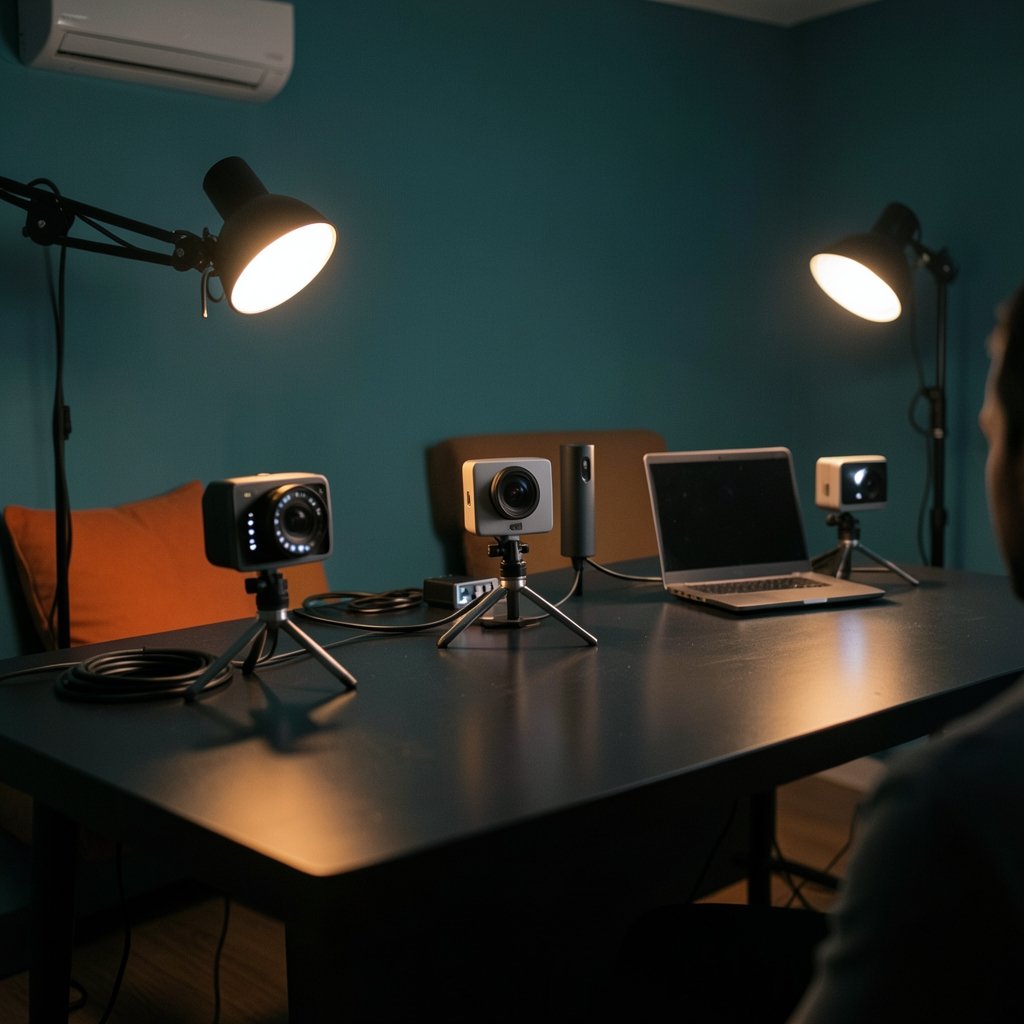
Here is the baseline before the workflow discussion.
| Feature | Elgato Facecam Pro | Logitech StreamCam | Razer Kiyo Pro Ultra |
|---|---|---|---|
| Top resolution and frame rate | 4K at 60fps | 1080p at 60fps | 4K at 30fps |
| Launch window | Around September 2023 | 2019 | Around January 2023 |
| Control software | Camera Hub | Logi Tune / Logitech Capture | Razer Synapse |
| Sensor and lens | Large sensor, fixed focus | Standard sensor, autofocus | Large sensor, wide aperture |
| Mounting style | Horizontal, desk-oriented | Rotating portrait/horizontal mount | Horizontal, wide field of view |
| Settings storage | On-device | Host-side | Host-side, software-assisted |
Two things jump out immediately. First, the resolution ceilings are not close. Second, the control model differs in a way that shapes your entire setup.
Bandwidth and Encoding: The First Real Fork
The 4K60 ceiling on the Facecam Pro is the single biggest workflow decision in this group. Pushing 4K at 60 frames per second requires USB 3.x bandwidth, and it also demands more CPU or GPU headroom for encoding. On a dedicated streaming rig, that is fine. On a laptop that is also running a browser with thirty tabs, a chat client, and a recording app, it can turn a smooth stream into a stuttering mess.
The StreamCam’s 1080p60 ceiling is far lighter. For most streaming platforms, 1080p at 60 is already the practical sweet spot. Viewers rarely see the extra sharpness of 4K after compression, but they always notice dropped frames. The Kiyo Pro Ultra’s 4K30 sits in the middle: sharper stills and a more cinematic look, but half the motion smoothness of 60fps.
Practical tip: Match the camera to the machine, not the other way around. If you record on a single laptop, 1080p60 is the safer default and the StreamCam removes that decision for you. If you have a desktop with a discrete GPU, the Facecam Pro’s 4K60 becomes a genuine advantage.
Common mistake: Buying a 4K60 camera and then running it at 4K60 on a USB hub shared with an external drive and a capture card. Bandwidth contention causes intermittent dropouts that people blame on the camera. Direct connection to a USB 3 port solves most of these cases.
Software Control: Where the Cameras Really Diverge
All three cameras are UVC devices, meaning they plug in and work without a driver on most operating systems. That is the plug-and-play standard that makes webcams painless. But full manual control, the exposure, white balance, ISO, and shutter adjustments that make a camera look professional, lives in each vendor’s own app.
That creates a hidden dependency. Elgato’s Camera Hub, Logitech’s Logi Tune or Capture, and Razer’s Synapse each expose different controls and each must be installed and running for the camera to look its best. Without the app, the camera falls back to UVC defaults. Those defaults are usually fine, but they are not your carefully tuned look.
This matters most in three scenarios:
- Multi-camera setups. Running two or three cameras means running two or three vendor apps, each with its own quirks and update cycle.
- Linux and Chromebook workflows. Vendor apps may not be available at all, so you get UVC defaults whether you like them or not.
- Shared machines. If you move between a home desk and an office desk, you may not have admin rights to install the control software.
The Elgato approach stores settings on the camera itself, which means your look can travel with the hardware. Razer’s low-light processing leans more on the host and its software. Logitech’s controls live in its app. If portability of settings matters to you, that distinction is worth checking against current vendor documentation before you buy, since firmware updates can change it.
Mounting and Field of View: Portrait vs Desk
The StreamCam’s rotating mount is its most underrated workflow feature. It flips between horizontal and portrait framing, which suits creators who shoot vertical video for social platforms. If your week involves recording short-form clips alongside standard streaming, that flexibility saves you from buying a second camera.
The Facecam Pro and Kiyo Pro Ultra are built for horizontal framing at a desk and in a streaming setup. The Kiyo Pro Ultra’s wide field of view and large aperture aim at low-light rooms, where a standard webcam turns grainy. The trade-off is that a wide field of view captures more of your room, which means more attention to background and lighting.
What actually works in practice: Decide your primary output format first. If vertical video is a core part of your work, the rotating mount is a real advantage. If you mostly stream or take calls, a horizontal-format camera with good low-light performance will serve you better.
Low Light, Autofocus, and the “Set and Forget” Test
Low-light behavior separates these cameras in daily use. The Kiyo Pro Ultra’s large sensor and wide aperture are designed to pull a usable image out of a dim room. The Facecam Pro’s large sensor helps too, and its manual controls let you dial in exposure precisely. The StreamCam relies on autofocus and automatic exposure, which is convenient but less predictable under tricky lighting.
The “set and forget” test is simple: turn the camera on in your normal lighting, launch your usual app, and see how it looks without touching anything. A camera that passes this test earns its place. One that requires adjustment every session becomes a chore.
Here is where the workflow mindset pays off. Tools that look similar on paper can demand very different routines, a pattern that shows up everywhere from databases to message queues. Teams weighing Rabbitmq vs kafka workflow differences face the same question: which option fits the operating rhythm you already have? A webcam is no different. The best camera is the one whose default behavior matches your habits.
Matching Each Camera to a Real Workflow
Abstract comparisons only go so far. Here is how each camera tends to fit different working styles.
The Facecam Pro fits: desktop streaming rigs with GPU headroom, creators who want manual control and settings that persist across machines, and anyone producing 4K content for platforms that preserve the detail. It rewards tinkerers and punishes underpowered laptops.
The StreamCam fits: laptop-based streamers, call-heavy remote workers, and creators who need portrait video. Its lighter bandwidth and rotating mount make it the most flexible for mixed use, at the cost of resolution headroom.
The Kiyo Pro Ultra fits: dim rooms, cinematic-looking 4K at 30fps, and users already comfortable in Razer’s software ecosystem. It is a strong pick for talking-head recording where motion smoothness matters less than image quality.
A useful exercise borrowed from software teams is to map your workflow before you shop. If you have ever compared Airtable vs notion workflow differences, you know the drill: list what you actually do each week, then pick the tool that removes friction from those tasks. For webcams, that list might include streaming hours, call volume, vertical video, lighting conditions, and how many machines you use.
Common Mistakes That Wreck a Good Camera
Even a great camera underperforms when the setup fights it. These mistakes come up again and again.
- Ignoring the control app. Without Camera Hub, Logi Tune, or Synapse, you are using defaults. Install the app, tune once, and save the profile.
- Overloading a USB hub. High-bandwidth modes need a clean path to the machine. Move the camera to a direct port.
- Skipping lighting. No sensor fully replaces a decent key light. A cheap softbox often improves image quality more than a camera upgrade.
- Recording at the maximum setting by default. If your machine struggles, drop to 1080p60 and gain stability.
- Assuming settings travel. Unless the camera stores them on-device, a new machine means a fresh setup.
What to Verify Before Buying in 2027
Specs from 2023 and 2024 do not automatically describe 2027 behavior. Firmware updates can add frame rates, change control options, or alter software support. Before committing, check the current official support documentation for each model, confirm whether Linux and macOS support has changed, and look for any firmware notes about new capture modes. Treat any older spec sheet as a starting point, not a promise.
The broader lesson is that hardware decisions are workflow decisions. That holds whether you are choosing a webcam, an editor, or a database engine. Teams comparing Sql vs nosql workflow differences are really asking which tool fits their operating rhythm. The same question applies here, and it is the one that produces better buying decisions.
Conclusion
The Facecam Pro, StreamCam, and Kiyo Pro Ultra are all capable cameras, and the right choice depends far less on the spec sheet than on how you work. The Facecam Pro rewards powerful machines and manual control, with settings that can travel on the device. The StreamCam wins on flexibility and lightness, especially for laptop users and portrait creators. The Kiyo Pro Ultra trades motion smoothness for image quality and low-light strength in dim rooms.
Before you decide, write down your actual workflow: the machine you use, the platforms you publish to, the lighting in your room, and how many computers you move between. Then pick the camera that removes friction from that list. That approach beats any comparison table, and it will still hold up long after 2027.
Frequently Asked Questions
Which of these three cameras is best for streaming?
For most streamers, the StreamCam’s 1080p60 is the practical sweet spot because it is light on bandwidth and encoding power. Streamers with a strong desktop GPU may prefer the Facecam Pro’s 4K60 for extra detail.
Does the Facecam Pro really need USB 3?
Yes, 4K at 60 frames per second requires USB 3.x bandwidth. Running it through a busy hub or a USB 2 port will limit performance or cause dropouts. Connect it directly to a USB 3 port when possible.
Can I use these cameras without the vendor software?
All three are UVC devices, so they work without any driver or app. However, full manual control of exposure, white balance, and ISO depends on Camera Hub, Logi Tune or Capture, or Razer Synapse. Without the app, you get default settings.
Is the Kiyo Pro Ultra good in low light?
Its large sensor and wide aperture are designed for dim rooms, and Razer markets software-assisted low-light processing. It is generally the strongest of the three for low-light image quality, though a key light still helps any camera.
Do camera settings carry over to a new computer?
It depends on the model. The Facecam Pro stores settings on the camera itself, so your look can travel with the hardware. The StreamCam and Kiyo Pro Ultra rely more on host-side software, so moving machines usually means setting things up again.
Will these cameras still be supported in 2027?
That cannot be guaranteed from older spec sheets. Firmware updates can change features and software support over time. Check the current official support documentation for each model before buying, and confirm Linux and macOS support if those matter to your workflow.