What actually changes about your day when you plug a handheld or laptop into one dock instead of another? That question sounds trivial until you have spent twenty minutes chasing a black screen, a charger that refuses to deliver full wattage, or a firmware quirk that only appears after a system update. Docks look like dumb plastic and metal, but each brand makes a different set of assumptions about who you are and what you plug in. Those assumptions become workflows, and workflows are what you feel every single day.
This comparison looks at Valve, Jsaux, Ugreen, and Anker through that lens. Not spec-sheet bragging rights, but the practical rhythm of setting up, updating, troubleshooting, and living with each dock in a 2027 context where handheld PCs, USB-C laptops, and mixed operating systems share the same desk.
Why docks are really workflow decisions
A dock is a bundle of standards wrapped in a brand promise. The standards do the heavy lifting: USB Power Delivery negotiates charging, DisplayPort Alt Mode carries video over a USB-C cable, and HDMI and DisplayPort versions set the bandwidth ceiling. None of that is brand-specific. What differs is how much of the setup the vendor hides from you, how updates arrive, and who you call when something breaks.
That distinction matters more than most buyers expect. Two docks with identical port lists can behave completely differently on the same machine because one relies on a host driver and the other leans on native Alt Mode. On Windows the difference may be invisible. On Linux or SteamOS it can decide whether the dock works at all.
The same logic shows up across the software world. Teams comparing Airtable vs Notion workflow differences discover that feature parity on paper says nothing about daily friction. Hardware follows the same rule.
Valve’s dock: the closed-loop, zero-maintenance path
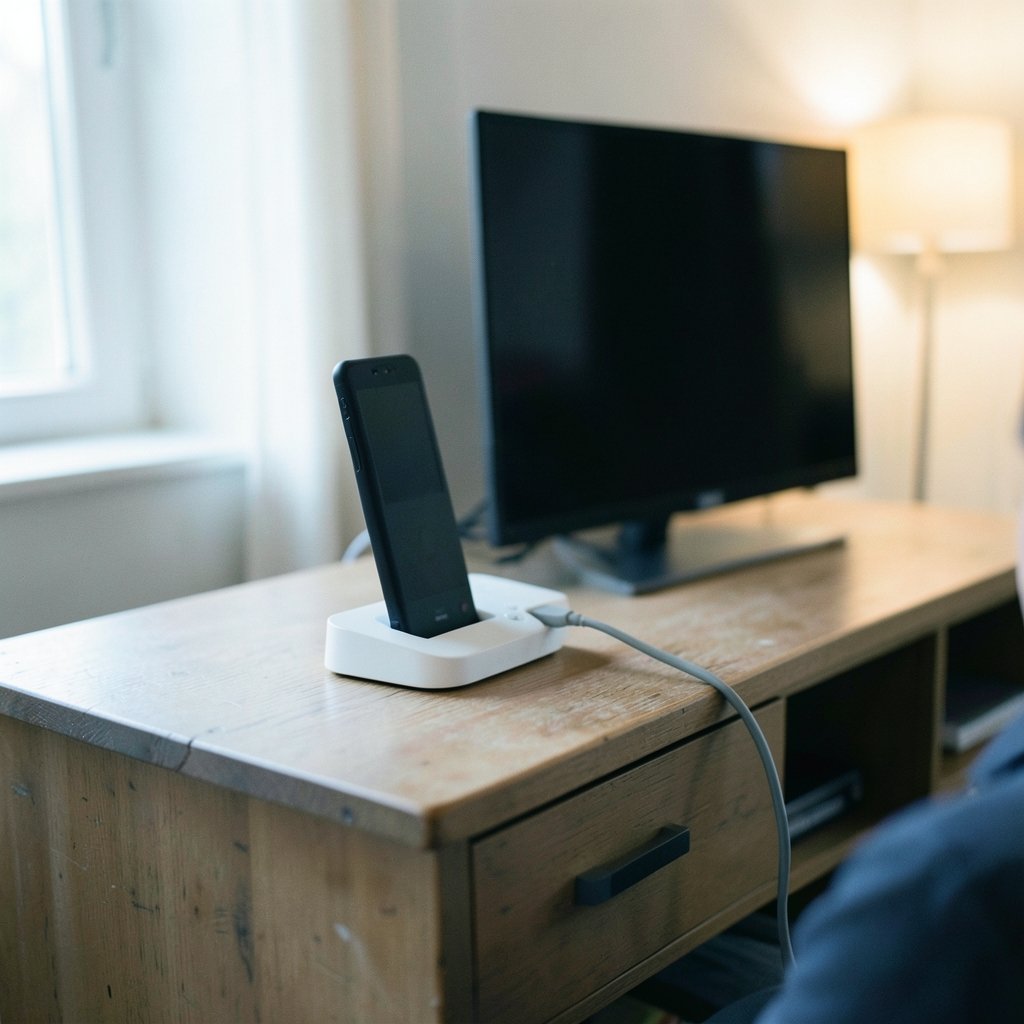
Valve’s official Steam Deck Dock was announced alongside the Steam Deck in 2021 and shipped in October 2022 after delays. It offers USB-A ports, DisplayPort 1.4, HDMI 2.0, Gigabit Ethernet, and a stand. The port list is modest compared with third-party rivals, and that is the point.
The workflow here is managed by SteamOS, not by a vendor utility. Resolution and refresh-rate switching, external display handling, and dock-related behavior arrive through SteamOS and Steam client updates. There is no companion app, no third-party firmware updater, and no driver to install. You plug in, the system recognizes the display, and you play.
Practical strengths:
- Predictable behavior because one company controls both the hardware and the operating system.
- Updates arrive with normal system updates, so there is nothing separate to remember.
- The stand and cable are designed together, which reduces the classic “wrong cable, no video” failure.
Practical limits:
- Fewer ports than rivals, and no card readers or storage expansion on the official unit.
- Regional availability is limited to markets where Valve sells hardware directly.
- It is built around the Steam Deck first; using it as a general laptop dock works but wastes its design intent.
If your priority is a dock you never think about, this is the one. If you want to think about your dock as a project, keep reading.
Jsaux: the tinkerer’s dock with expansion ambitions
Jsaux rose to prominence in 2022 and 2023 with Steam Deck accessories, including docks and the ModCase. Its docks typically add more ports than Valve’s, with USB 3.0, SD and microSD readers on some models, and certain units even include M.2 SSD enclosures.
That extra hardware changes the workflow in a specific way: you gain capability and you inherit maintenance. More ports mean more negotiation between devices. An M.2 enclosure means storage that needs to be recognized, formatted, and occasionally troubleshot. Card readers mean drivers or kernel support that varies by operating system.
The honest advice for Jsaux buyers is to check the exact SKU rather than the brand. Model lineups shift frequently, and port specifications vary within a single brand’s catalog. A dock that works flawlessly for one buyer may be a different revision than the one you receive. Buy from a seller with a clear return window, test every port in the first week, and confirm which ports share bandwidth before you plan a multi-monitor setup.
This is the same lesson developers learn when comparing Cline vs Cursor workflow differences: the tool’s surface looks similar, but the underlying assumptions decide whether it fits your habits.
Ugreen: standards-first hardware with no handheld allegiance
Ugreen is a general-purpose accessories brand covering cables, hubs, chargers, and NAS gear. Its USB-C docks are not Steam Deck-specific. They follow generic USB-C, DisplayPort Alt Mode, and USB Power Delivery standards, which means behavior depends heavily on the host device’s USB-C implementation.
The workflow consequence is straightforward. There is no SteamOS-specific tuning and no vendor utility tuned to your handheld. On a modern laptop with a well-implemented USB-C port, a Ugreen dock is often the least dramatic option available: plug in, displays light up, charging begins. On a device with an unusual port configuration, you may find that one port refuses to output video or that charging passthrough tops out below your expectation.
Two habits make Ugreen docks work well in practice:
- Match the dock’s power input to the charger you actually own, and check the passthrough wattage rather than the total wattage printed on the box.
- Test display output at your target resolution and refresh rate on day one, not the day you need it for a presentation.
Ugreen’s advantage is breadth and availability. Its weakness is that nobody at the company is optimizing for your specific handheld.
Anker: laptop-first docking and the driver fork
Anker, including sub-brands like AnkerWork and Anker Prime, sells USB-C docking stations and hubs aimed at laptops rather than handhelds. Most rely on either DisplayPort Alt Mode or DisplayLink, and that distinction is the single biggest workflow fork for Linux and SteamOS users.
DisplayLink requires a host driver. On Windows that is usually a quick install. On Linux and SteamOS, driver support is more complicated and sometimes absent for a given kernel version. A dock that works perfectly on a work laptop can be a paperweight on a Steam Deck.
So the practical rule for Anker buyers is blunt: confirm whether the model uses DisplayLink or Alt Mode before you buy. If you split your time between Windows and Linux, favor Alt Mode models. If you need to drive three or four displays from a laptop that supports only two natively, DisplayLink is the tool that makes it possible, and you accept the driver dependency as the price.
Anker’s build quality and support network are real advantages. The trade-off is that its docks are designed for a laptop workflow, not a handheld one, and the software assumptions reflect that.
Side-by-side: how the workflows differ
| Workflow factor | Valve | Jsaux | Ugreen | Anker |
|---|---|---|---|---|
| Primary design target | Steam Deck and SteamOS | Steam Deck plus expansion | General USB-C devices | Laptops |
| Software or firmware updates | Via SteamOS and Steam client | Generally none user-facing | Generally none user-facing | Sometimes requires host driver |
| Driver dependency risk | Very low | Low to moderate | Low | Moderate to high with DisplayLink models |
| Port variety | Modest | High | Moderate to high | Moderate to high |
| Card readers or storage expansion | No | On some models | Rarely | Rarely |
| Regional availability | Limited to Valve’s markets | Broad retail | Broad retail | Broad retail |
| Best fit | Zero-maintenance handheld play | Tinkerers who want ports | Mixed-device desks | Multi-display laptop setups |
Read that table as a map of trade-offs, not a ranking. The dock that frustrates one user delights another because their workflows are different.
The update model is the hidden variable
Here is the difference almost nobody mentions in reviews: how the dock gets fixed when something breaks.
Valve pushes dock-related behavior through SteamOS and Steam client updates. If a display handoff bug appears, a system update can address it. Third-party docks generally have no user-facing firmware update path, or they require Windows-only tools that may never see a Linux release. That means a compatibility quirk on a Jsaux, Ugreen, or Anker dock is more likely to be something you work around than something you patch.
This mirrors a pattern familiar from infrastructure choices, where RabbitMQ vs Kafka workflow differences come down less to raw capability and more to who operates and maintains the system over time. The maintenance model is the product.
A practical tip that saves real frustration: keep a known-good USB-C cable and a known-good charger separate from your dock setup. When something fails, swapping one variable at a time tells you whether the dock, the cable, the charger, or the host is at fault. Most “broken dock” reports turn out to be a cable that does not carry DisplayPort Alt Mode or a charger that does not support the right Power Delivery profile.
Common mistakes buyers make
The same errors appear again and again in dock discussions, and each one is avoidable.
- Buying by brand instead of SKU. Port specs vary within a brand’s own catalog. Check the exact model number.
- Assuming wattage printed on the box reaches the device. Passthrough wattage after the dock’s own consumption is what matters.
- Ignoring the cable. A charge-only cable will never carry video. This is the most common cause of a dead external display.
- Skipping the day-one test. Plug in every port, every display, and every card slot in the first week while returns are still easy.
- Forgetting the operating system. A dock that shines on Windows may need a driver that Linux does not have.
- Expecting firmware fixes on third-party hardware. Assume the behavior you unbox is the behavior you keep.
The broader lesson is the same one that shows up when people compare Rust vs C workflow differences: the tool’s constraints shape your habits, and ignoring those constraints costs more than choosing carefully in the first place.
What to pick for your actual setup
Match the dock to the workflow you already have, not the one you imagine.
If you own a Steam Deck and want it to behave like a console, Valve’s dock is the least friction you can buy. If you want a handheld workstation with card readers and storage, Jsaux is built for that ambition, provided you verify the SKU. If your desk hosts a mix of laptops and handhelds from different makers, Ugreen’s standards-first approach keeps things boring in the best way. If you run a multi-monitor laptop setup and accept a driver dependency, Anker earns its place.
One more consideration worth naming: regional availability and support differ sharply. Valve sells its dock in limited regions through its own store. Jsaux, Ugreen, and Anker sell broadly through retail and e-commerce, which usually means faster replacement but less tightly integrated software. Neither model is better in the abstract. They suit different tolerances for friction.
Conclusion
The gap between these four docks is not really about ports or plastic. It is about who owns the problem when something goes wrong. Valve owns it end to end and hands you a closed, quiet system. Jsaux hands you more capability and expects you to manage it. Ugreen stays neutral and lets the standards decide. Anker optimizes for laptops and asks you to accept a driver in exchange for display flexibility.
In 2027, with handheld PCs and USB-C laptops sharing more desk space than ever, that choice matters more than the spec sheet suggests. Pick the workflow you want to live with, verify the exact model, and test it hard in the first week. The dock you never think about is the one you chose well.
FAQ
Which dock is best for a Steam Deck in 2027?
For most Steam Deck owners, Valve’s official dock remains the lowest-friction choice because its behavior is managed through SteamOS updates rather than a separate utility. Third-party docks can offer more ports, but you should verify the exact model and test every port early.
Do Jsaux, Ugreen, and Anker docks get firmware updates?
Generally, third-party docks have no user-facing firmware update path, or they require Windows-only tools. Valve updates dock-related behavior through SteamOS and the Steam client. Assume the behavior you unbox is close to the behavior you keep.
Why does my dock show no video on Linux or SteamOS?
The most common cause is a cable that does not support DisplayPort Alt Mode, followed by a dock that relies on DisplayLink, which needs a host driver that may not exist for your kernel. Swap the cable first, then check whether the dock model uses Alt Mode or DisplayLink.
Does charging wattage passthrough really matter?
Yes. The wattage printed on a dock’s box is not the wattage that reaches your device. The dock consumes some power itself, and the passthrough figure is what your handheld or laptop actually receives. Check that number before buying.
Can I use a laptop dock with a handheld PC?
Usually yes, as long as the dock uses standard USB-C, DisplayPort Alt Mode, and USB Power Delivery rather than a proprietary or driver-dependent approach. Ugreen’s general-purpose docks are a common fit, while DisplayLink-based Anker models are riskier on SteamOS and Linux.
Should I buy by brand or by model number?
Buy by model number. Port specifications and internal hardware vary within a single brand’s catalog, and revisions change without notice. Confirm the exact SKU, check its port list and passthrough wattage, and buy from a seller with a clear return window.