
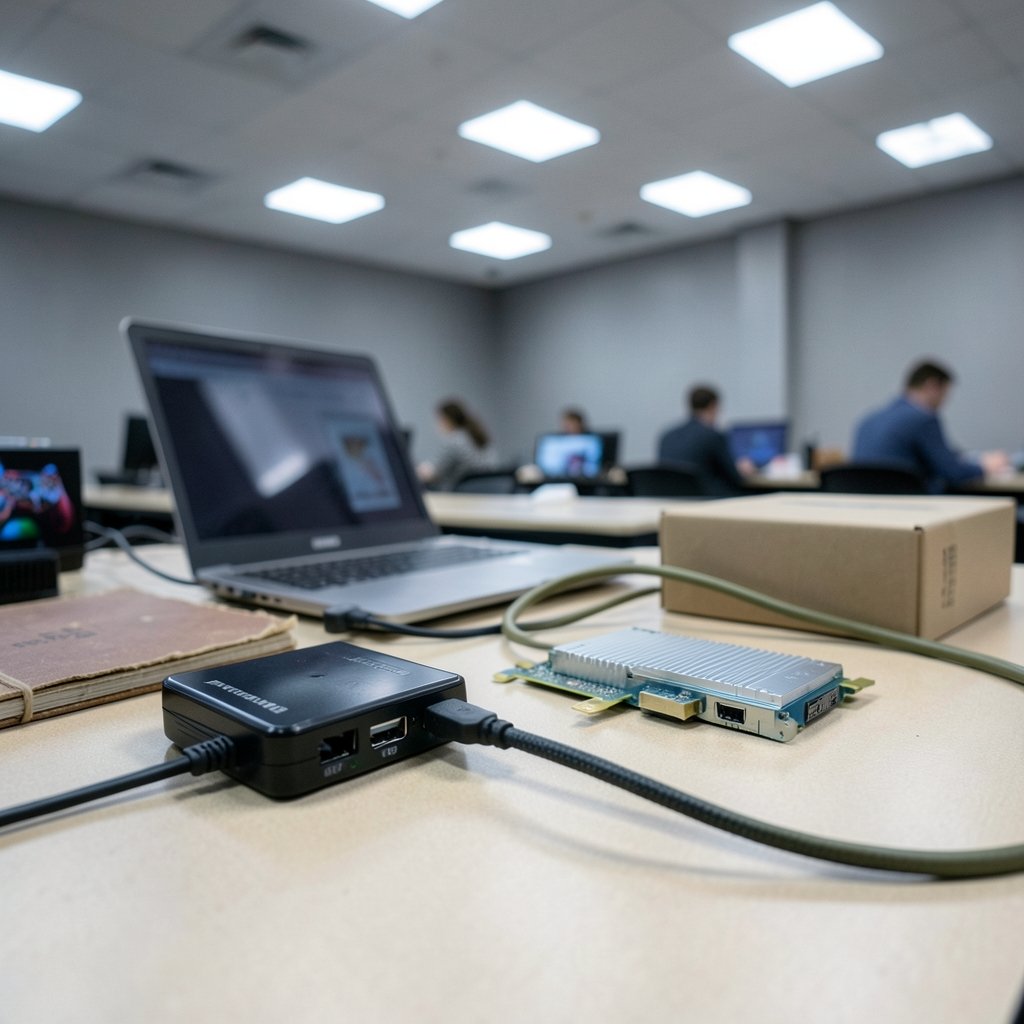
Quick Answer: Which capture cards work well with OBS?
Most capture cards work well with OBS, as long as they present themselves as a standard video device to your operating system. On Windows, OBS picks up USB cards through DirectShow, on macOS through AVFoundation, and on Linux through V4L2, so any card that follows the USB Video Class standard usually appears in OBS without extra drivers.
PCIe cards are the big exception. Models like the Elgato 4K60 Pro or AVerMedia Live Gamer 4K need vendor drivers on Windows and will not show up on macOS or Linux at all. Before buying, check the connection type, HDCP handling, USB generation, resolution and frame rate limits, and whether the maker offers drivers for your operating system.
So You Bought a Capture Card and OBS Won’t See It
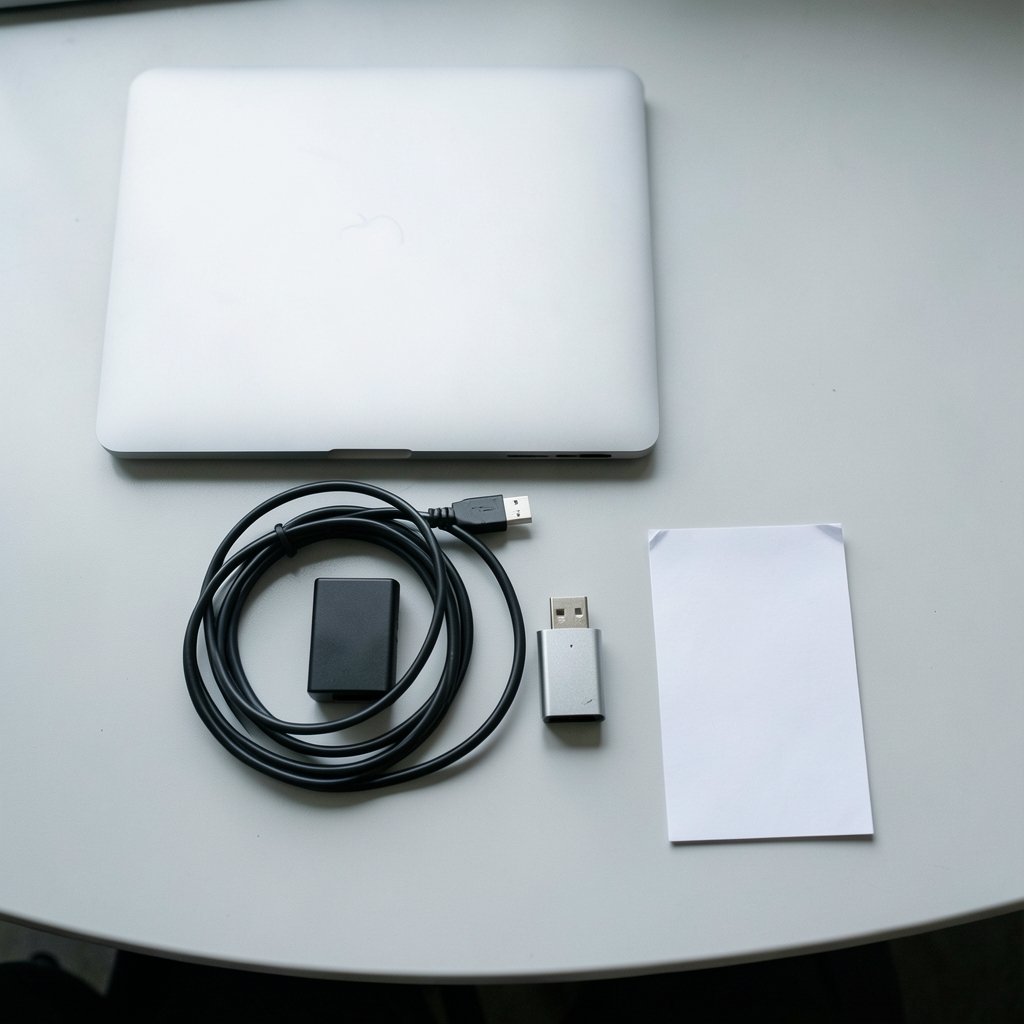
Few things deflate a streaming setup faster than plugging in a shiny new capture card, opening OBS, and finding an empty device list. The card is fine. The cable is fine. OBS just stares back at you like a blank page. The good news is that this problem is almost always about how the card talks to your computer, not about whether OBS likes it. Once you understand that relationship, picking a card that works well with OBS becomes a lot less mysterious.
OBS Studio does not maintain a list of approved capture cards. Instead, it leans on your operating system’s standard video frameworks. On Windows that means DirectShow, on macOS it means AVFoundation, and on Linux it means V4L2. Any card that shows up as a normal video device through those APIs will generally work. That single fact explains most compatibility questions people have.
The Two Families of Capture Cards
Capture cards split into two broad groups, and the difference matters enormously for OBS users.
USB capture cards plug into a USB port and almost always follow the USB Video Class (UVC) standard. That means they behave like a webcam. OBS sees them immediately, no vendor software required. Elgato’s Cam Link and most of Elgato’s USB devices are UVC-compliant, and the company’s own support documentation treats its 4K Capture Utility as optional for OBS users. Cheap no-name HDMI-to-USB dongles usually follow the same path, though quality varies wildly.
PCIe capture cards slot into your motherboard and need vendor drivers on Windows. They expose a DirectShow source to OBS once installed. Because they depend on those drivers, they simply do not function on macOS or Linux. If you split your time between operating systems, this is a dealbreaker worth knowing before checkout.
| Feature | USB capture card | PCIe capture card |
|---|---|---|
| Setup | Plug and play (UVC) | Requires vendor driver |
| Works on macOS/Linux | Usually yes | Usually no |
| Latency | Varies widely | Generally lower |
| Max throughput | Limited by USB generation | Limited by PCIe lane |
| Best for | Laptops, portability, quick setups | Desktop rigs, high frame rates |
Why Some Cards Show a Black Screen
Here is the mistake almost everyone makes at least once. You connect a console, open OBS, and get a black screen or an error. The card is not broken. The culprit is usually HDCP, the copy protection standard that many source devices enforce. When a console, Blu-ray player, or streaming stick detects a capture device on the other end, it can refuse to send a clean signal.
The fix is often simple: dig into the console’s display settings and turn HDCP off. Most modern consoles allow this. If the source is a streaming stick or a disc player that will not budge, you may need an HDMI splitter that strips the protection, though that comes with its own legal and practical caveats. Either way, a black screen in OBS is a signal problem far more often than a software one.
USB Bandwidth: The Silent Killer
Even a perfectly compatible card can misbehave if you ignore USB bandwidth. Plug two capture devices into the same USB controller and you may see dropped frames, stuttering, or a device that refuses to appear at all. Plug a USB 3.0 card into a USB 2.0 port and the same thing happens.
A few practical habits go a long way. Spread capture devices across separate controllers when possible. Use the ports on the back of a desktop rather than a passive hub. And check the card’s spec sheet carefully: many so-called “4K” USB cards only manage 4K at 30 fps, or cap out at 1080p60 over USB 3.0. True 4K at 60 fps typically needs USB 3.1, USB 3.2, or a PCIe slot. Vendor spec sheets list maximum resolution and frame rate under ideal conditions, so real-world results can differ, especially on older machines. If you are already deep in the OBS ecosystem, the same logic applies to understanding what OBS Studio really costs you in time and hardware once you factor in capture gear.
Matching the Card to Your Actual Setup
The right card depends less on brand loyalty and more on what you are capturing and where.
For console streaming from a laptop, a UVC USB card is the obvious pick. It travels well, needs no drivers, and works across operating systems. A 1080p60 card is plenty for most streamers, and the price gap to 4K models is steep.
For a dedicated desktop with a dual-PC setup, a PCIe card earns its keep. Lower latency and higher sustained throughput matter when you are pushing high frame rates and high resolutions. Just accept that you are locking yourself into Windows.
For camera workflows, a cam link-style device is often the simplest answer. It turns a mirrorless camera into a webcam, appears in OBS instantly, and skips the vendor software entirely.
For retro consoles and oddball sources, compatibility gets murkier. Older hardware sometimes outputs unusual resolutions or refresh rates that budget cards handle poorly. Reading user reports for your specific console before buying saves a lot of returns.
If you are still assembling your capture and editing toolkit, it helps to think about the software side too. Tools like the ones compared in this roundup of capture and screen recording options behave very differently with capture hardware, and picking the right combination up front avoids a lot of fiddling later.
Settings Inside OBS That Fix Most Problems
Once the card appears in OBS, a handful of settings determine whether your capture is smooth or a stuttering mess.
Start by adding a Video Capture Device source. On Windows you will see a Configure Video button that opens the card’s own property page, where you choose resolution, format, and frame rate. This is where many people go wrong. Some cards expose limited formats, and picking the wrong one, such as MJPEG instead of an uncompressed format, changes both CPU load and latency. MJPEG is lighter on bandwidth but softer in quality. Uncompressed looks better but demands more from your system.
Then consider the Buffering option in the source properties. Enabling it smooths playback at the cost of added delay. For a live commentary stream, that delay can make your reactions feel off. For a recording where timing does not matter, buffering is a useful safety net.
Finally, keep your OBS version current. Device enumeration and format handling have improved steadily over the years, and older builds sometimes fail to list devices that newer ones detect without complaint.
Latency: What to Expect and What to Ignore
Latency is where marketing claims and lived experience part ways. PCIe cards generally beat USB cards, and USB cards vary enormously from model to model. OBS itself does not add significant buffering on its own, so most of the delay you feel comes from the card and the connection.
Rather than chase millisecond figures, test your own chain. Clap on camera and watch the monitor. If the gap bothers you, adjust the buffering setting, switch formats, or move to a faster connection. A card that reviews well might still feel laggy in your specific setup, and that is normal.
macOS and Linux: Read the Fine Print
This is the area where buyers get burned most often. OBS on macOS has historically offered more limited capture-card support than Windows, partly because of how AVFoundation and driver availability work. Some PCIe cards simply have no macOS driver, full stop. Support has improved over time, but it remains uneven.
Linux users face similar constraints. UVC devices generally work through V4L2 without fuss, while PCIe cards are usually a non-starter. If cross-platform flexibility matters to you, a UVC USB card is the safer bet nine times out of ten.
Common Mistakes Worth Avoiding
A few habits separate smooth setups from endless troubleshooting.
- Assuming the card is broken when HDCP is the issue. Check the source device settings first.
- Ignoring USB generation. A USB 3.0 card in a USB 2.0 port will disappoint you.
- Daisy-chaining capture devices on one controller. Split them across ports.
- Leaving the vendor software running alongside OBS. Sometimes it grabs the device first.
- Buying for maximum specs instead of your actual needs. A 1080p60 card is right for most people.
- Confusing a capture card with a virtual camera. A capture card is hardware that ingests an HDMI signal. OBS’s built-in Virtual Camera, available since version 26, is software that presents OBS output as a webcam. They solve different problems.
That last point trips up a surprising number of newcomers. If your goal is to send your OBS scene into Zoom or Teams, you do not need a capture card at all. If your goal is to bring a console or camera signal into OBS, you do.
Conclusion
The capture cards that work well with OBS are the ones that speak your operating system’s language. UVC USB cards win on compatibility, portability, and cross-platform support, appearing in OBS without any driver dance. PCIe cards win on latency and throughput, but they tie you to Windows and demand vendor drivers. Neither family is universally better; the right answer depends on your hardware, your sources, and how much fiddling you are willing to tolerate. Check the connection type, HDCP behavior, USB generation, resolution and frame rate limits, and operating system support before you buy. Get those five things right, and OBS will treat your card like it has been there all along.
FAQ
Do I need to install the manufacturer’s software to use a capture card with OBS?
Usually not for USB cards. Most UVC devices appear in OBS the moment you plug them in, and vendor utilities like Elgato’s 4K Capture Utility are optional for OBS users. PCIe cards are the exception, since they need vendor drivers on Windows before OBS can see them. If a device is not showing up, close any vendor app that might be holding onto it first.
Why does my capture card show up in OBS but display only a black screen?
The most common cause is HDCP. Many consoles, streaming sticks, and disc players enforce copy protection and will refuse to send a clean signal to a capture device. Check the source device’s display settings and disable HDCP if the option exists. If the source will not allow it, the card cannot capture that signal.
Can I use a PCIe capture card with a Mac?
Generally no. PCIe capture cards rely on Windows drivers and expose a DirectShow source, so they do not function on macOS or Linux. If you need cross-platform compatibility, a UVC USB capture card is the practical choice. Always confirm driver support for your specific operating system before buying.
How many capture cards can I run at once in OBS?
OBS can handle multiple video capture sources, but USB bandwidth is the real limit. Two devices on the same USB controller often cause dropped frames or detection failures. Spread them across separate controllers, avoid passive hubs, and make sure each device gets the USB generation it needs.
Is a capture card the same thing as OBS’s virtual camera?
No. A capture card is physical hardware that takes an HDMI signal and feeds it into your computer. OBS’s Virtual Camera, built in since version 26, does the opposite: it presents your OBS output as a webcam feed for apps like Zoom or Teams. One brings video in, the other sends video out. (Best calendar apps 2026 which one actually fits you work)
Does a more expensive capture card always mean better OBS performance?
Not necessarily. Price often buys higher resolution, higher frame rates, and lower latency, but those gains only matter if your sources and computer can use them. A 1080p60 USB card suits most streamers perfectly well. Match the card to your actual workflow rather than to the spec sheet’s biggest number.



