
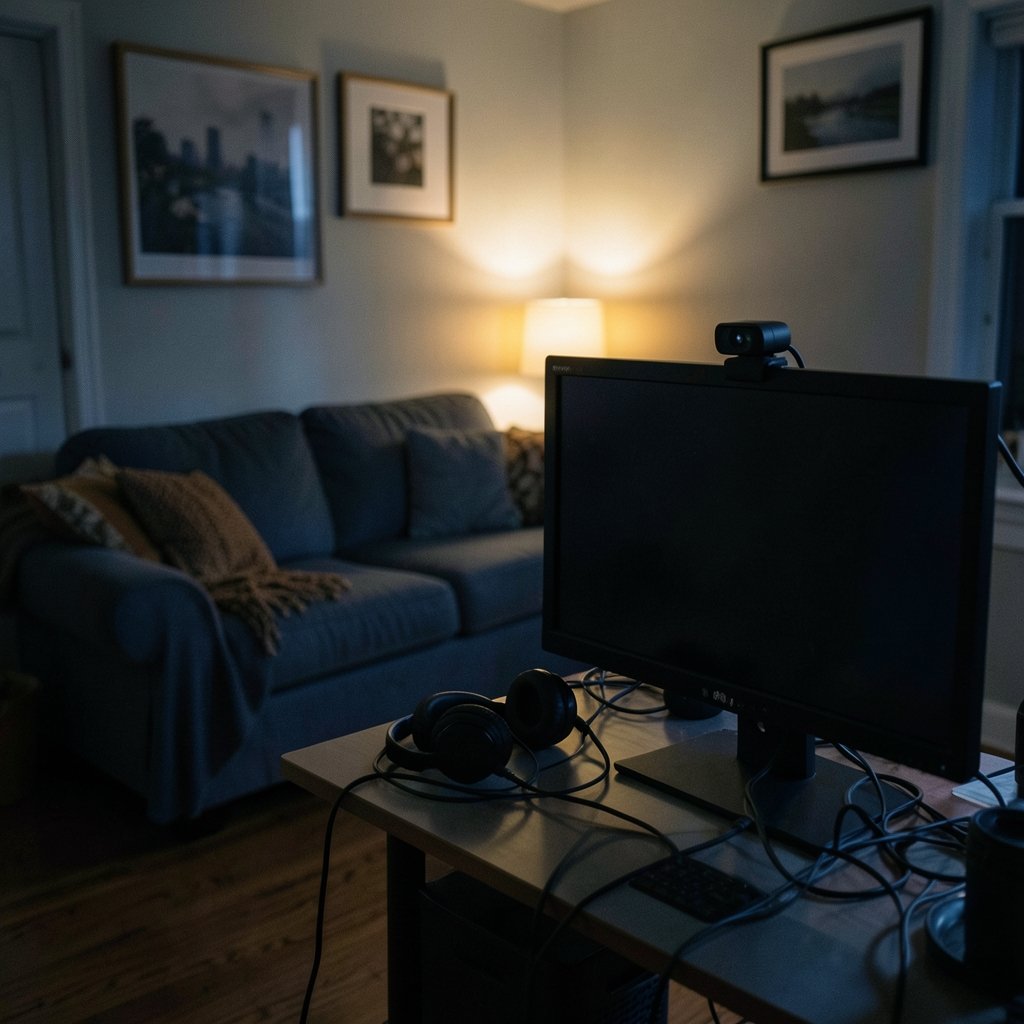
What if the single biggest upgrade to your stream has nothing to do with your personality, your lighting rig, or even your internet speed, but with a small plastic box perched on top of your monitor? That box is doing more work than most streamers realize. A blurry, grainy, washed-out webcam makes even a great show feel amateur, while a sharp, well-exposed image makes viewers stay a little longer without knowing why.
Quick Answer: How do I choose streaming webcams?
Choose a streaming webcam by matching its specs to how you actually stream, not to the biggest number on the box. Start with 1080p at 30 fps as the baseline, step up to 1080p at 60 fps or genuine 4K if your content and computer can handle it, and confirm the camera is USB Video Class (UVC) compliant so it works without vendor software.
Alternatives matter too: a dedicated webcam is the simplest path, but a camcorder or mirrorless camera with a capture card can beat any webcam on image quality at a higher cost and complexity. A phone used as a webcam sits in between and works well for occasional streams. (Figma alternatives beginners choose right design tool)
Before buying, compare resolution and frame rate, sensor size, field of view, autofocus versus fixed focus, low-light and HDR claims, microphone quality, privacy shutter, mounting options, and the USB version the camera requires.
The Specs That Actually Change How You Look
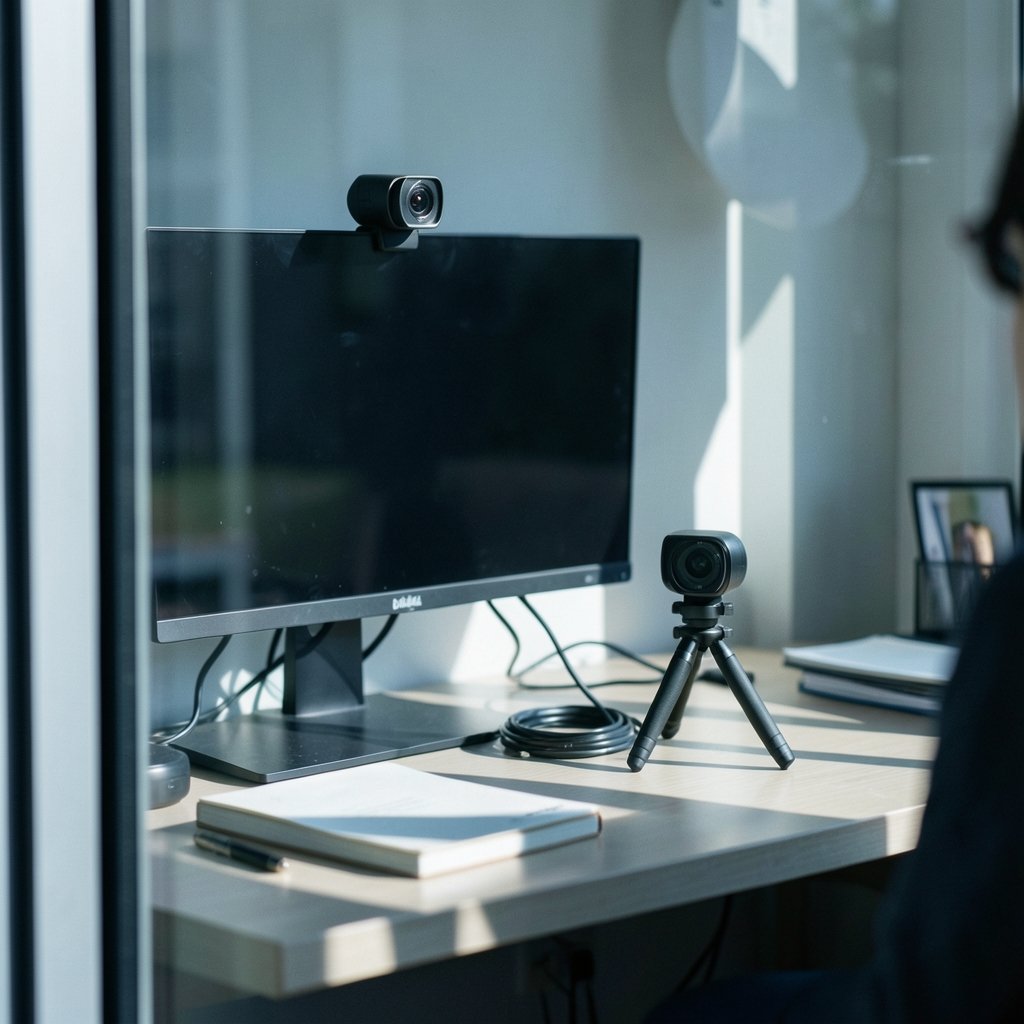
Marketing pages love big numbers. The problem is that a few specs do almost all the real work, and the rest are decoration. Here is the short list worth caring about, and what each one does to your image.
| Spec | What it controls | What to aim for |
|---|---|---|
| Resolution | Detail and sharpness | 1080p minimum; 4K only if it runs at a usable frame rate |
| Frame rate | Motion smoothness | 30 fps for talking heads; 60 fps for movement and games |
| Sensor size | Low-light quality and depth | Larger sensors generally win in dim rooms |
| Field of view | How much room appears | Around 65–78° for solo streams; wider for groups |
| Focus | Sharpness as you move | Fixed focus is fine if you sit still; autofocus if you move |
| USB version | Whether full quality is possible | USB 3.x for 1080p60 and 4K |
Resolution and frame rate: read the fine print
1080p at 30 fps is the common minimum for streaming, and it is genuinely enough for most talking-head content. The step-ups are 1080p at 60 fps or 4K at 30 fps. Here is the trap: many cameras sold as “4K” deliver 4K only at 30 fps and drop to 1080p when you ask for 60 fps. That is not a scam exactly, but it is a spec sheet you need to read line by line instead of trusting the product name.
There is a second layer of fog. Marketing resolution sometimes refers to interpolated or upscaled output, and independent reviews regularly find the real sensor resolution is lower than the label suggests. No standards body certifies webcam resolution claims, so treat the box as a claim and the spec sheet as evidence.
Sensor size beats megapixels in a dim room
A 1/2.8-inch sensor with larger pixels generally beats a higher-megapixel 1/4-inch sensor in low light. That is basic camera physics: bigger pixels collect more light, so the image needs less amplification and shows less noise. Vendors rarely publish pixel size, which makes this a buying heuristic rather than a hard rule. When two cameras cost the same and one advertises a bigger sensor, that is usually the more honest signal.
Field of view: wide is not always better
A wide field of view, around 90 degrees, suits room shots and group calls. A narrower 65 to 78 degrees gives a tighter, more flattering framing for solo streaming. Watch for one detail: most webcams list diagonal field of view, which overstates the horizontal angle you actually see. If the number looks huge, assume the usable width is smaller than advertised. (Best ai transcription tools choose one that actually fits)
Autofocus, fixed focus, and the moving-object problem
Fixed-focus lenses are set somewhere around 50 cm to 1 m and are perfectly fine for seated streaming. Autofocus helps if you move around or hold objects up to the camera. Some models offer manual focus inside vendor software, which is the most controllable option of the three. The common mistake here is buying autofocus for a static setup and then getting distracted by the lens hunting every time you lean back.
Compatibility, Mounting, and the Stuff People Forget
A webcam that fights your software is worse than a cheaper one that just works. This is where UVC compliance earns its keep. A UVC-compliant camera works on Windows, macOS, and Linux without vendor software, because the driver support lives in the operating system itself. The USB-IF maintains the current class specification revision, UVC 1.5, and compliance is the closest thing to a guarantee that your camera will appear in OBS, Zoom, and Teams without drama.
Bandwidth is the quiet failure point. 1080p60 and 4K streams need USB 3.x bandwidth, and some cameras fall back to compressed or lower-quality modes on USB 2.0 ports. Check the required USB version before you blame the camera for looking soft.
Mounting deserves thirty seconds of thought. Confirm the clip fits your monitor thickness, and check for a 1/4″-20 tripod thread if you plan to use a stand. That thread size is not arbitrary; it comes from the ISO 1222:2010 standard for photographic tripod connections, which specifies the 1/4″-20 and 3/8″-16 threads. A camera with a standard thread is future-proof in a way a clip-only design is not. (Best places study abroad choose country that fits you)
The Microphone Problem Nobody Warns You About
Most webcams have adequate-but-not-good microphones. They will get you through a call. They will not carry a stream. For streaming, a separate USB or XLR mic is commonly recommended, and it is the upgrade most people notice immediately, because bad audio drives viewers away faster than bad video.
The practical rule: budget for the camera and the microphone together, not the camera alone. A mid-range webcam plus a decent USB mic beats a premium webcam with a built-in mic every time.
Low-Light Claims, HDR, and a Healthy Dose of Skepticism
Many webcams from the 2020s advertise HDR and “AI” exposure. Results vary widely, and they are genuinely hard to compare from spec sheets alone. No neutral benchmark body publishes standardized webcam low-light scores, so vendor low-light claims should be treated as claims until independent reviews back them up.
What actually works in practice is boring and reliable: put a light source in front of you, not behind you. A window or a cheap desk lamp aimed at your face will improve a mid-range webcam more than an HDR badge on a premium one. Buy for a decent sensor, then fix the room.
A Step-by-Step Buying Process That Saves Money
- Write down what you stream. Talking head, gaming, group calls, or product demos. Each one pulls you toward different specs.
- Set your resolution and frame rate target. 1080p30 for most people, 1080p60 if you show fast motion, 4K only if your computer and upload speed can carry it.
- Check UVC compliance. If the listing does not say, assume you may need vendor software.
- Compare sensor size between your final two or three candidates. Bigger wins in dim rooms.
- Confirm the field of view suits your framing, and remember it is probably diagonal.
- Decide on focus. Fixed for a seated setup, autofocus if you move.
- Verify the USB version required for full quality.
- Check the mount: monitor thickness and a 1/4″-20 thread.
- Read independent reviews for low-light performance. Ignore the badge, trust the sample footage.
- Reserve budget for a separate microphone.
That sequence sounds slow, but it takes about twenty minutes and prevents the most common regret: buying on resolution alone and discovering the camera struggles in your actual room.
Common Mistakes That Cost Real Money
The first mistake is buying the biggest resolution number. A 4K camera that drops to 1080p for smooth motion is a 1080p camera with extra marketing. The second is ignoring the room. People blame the camera for grain that a lamp would fix. The third is skipping the microphone budget, then wondering why viewers leave. The fourth is assuming the clip fits a thick monitor or a thin laptop lid; it often does not, and a tripod thread would have solved it.
The fifth mistake is subtler: not checking whether the camera plays nicely with your streaming software before you buy. UVC compliance usually settles it, but a quick search for your specific model plus OBS is cheap insurance.
Webcam, Phone, or Camera: Picking the Right Tool
A dedicated webcam is the simplest path and the right default for most streamers. A phone used as a webcam works well for occasional streams and costs nothing extra, though it ties up the phone and adds a little setup friction. A camcorder or mirrorless camera with a capture card beats any webcam on image quality, but it costs more, needs more desk space, and introduces failure points like batteries and capture software.
The honest ranking for a typical streamer is webcam first, phone as a stopgap, camera only when image quality is the core product.
Conclusion
Choosing a streaming webcam comes down to fit, not flash. Start with 1080p at 30 fps, step up only if your content and hardware justify it, and confirm UVC compliance so the camera works without a fight. Compare sensor size, field of view, focus type, USB requirements, and mounting before you compare brand names. Then spend what is left on a microphone and a lamp, because those two upgrades quietly outperform most spec-sheet bragging. Read the fine print, trust independent sample footage over badges, and buy the camera that matches your room and your show.
Frequently Asked Questions
Is 1080p at 30 fps enough for streaming?
For most talking-head streams, yes. 1080p at 30 fps is the common minimum and looks clean when the lighting is decent. Step up to 1080p at 60 fps if you show fast motion like games, and consider 4K only if your computer and upload speed can carry it without dropping frames.
Do I need a 4K webcam to look professional?
Not usually. Many 4K webcams deliver 4K only at 30 fps and fall back to 1080p for 60 fps, and some marketing resolution refers to upscaled output rather than true sensor resolution. Good lighting and a clean 1080p signal often look more professional than a strained 4K one.
What does UVC compliance mean for a webcam?
UVC stands for USB Video Class, a standard that lets a camera work on Windows, macOS, and Linux without vendor software. A UVC-compliant camera usually appears automatically in OBS, Zoom, and Teams. The current class specification revision is UVC 1.5, maintained by the USB-IF.
Should I use autofocus or fixed focus?
Fixed focus is fine for seated streaming and never hunts. Autofocus helps if you move around or show objects to the camera. Some models also offer manual focus in vendor software, which gives the most control if you are willing to set it once and leave it.
Why does my webcam look grainy in a dim room?
Sensor size and pixel size matter more than megapixels in low light. A larger sensor with bigger pixels collects more light and shows less noise. Vendors rarely publish pixel size, so compare sensor sizes between candidates and add a light in front of you, which fixes more grain than any setting.
Do I need a separate microphone with a webcam?
Usually, yes, if you are streaming rather than taking calls. Most webcams have adequate-but-not-good microphones. A separate USB or XLR mic is commonly recommended because viewers forgive soft video more readily than bad audio, and it is often the upgrade people notice first.



