
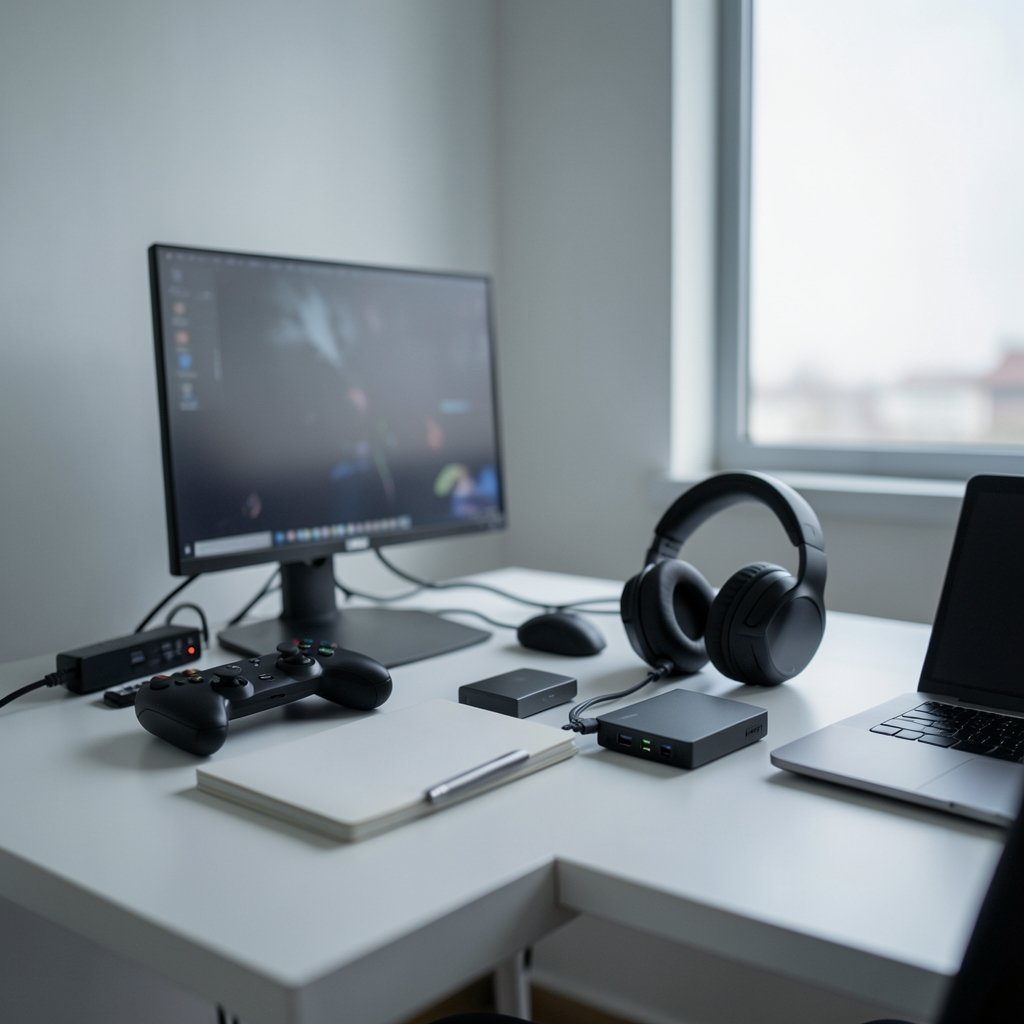
Quick Answer: What are the best video editing software for gaming for new streamers?
The best setup for most new streamers is a free two-tool combo: OBS Studio for capturing and streaming, plus a free editor like DaVinci Resolve, CapCut, or Shotcut for cutting clips and VODs. That pairing costs nothing and covers both jobs a streamer actually has: recording gameplay and turning it into watchable clips.
The alternatives split by use case. CapCut and Shotcut favor speed and simplicity for short-form clips, DaVinci Resolve covers editing, color, and audio in one free application, and Adobe Premiere Pro is the subscription-based professional standard for creators who plan to edit full time.
Before committing, compare cost, hardware demands, codec support, watermark rules, learning curve, and audio tools.
Does the thought of editing your first gaming highlight feel more intimidating than going live in front of strangers? Plenty of new streamers freeze at exactly that point. They have hours of footage, a decent mic, and no clue which program deserves their time. The good news: the software question has a genuinely practical answer, and it does not require spending a cent.
Two Jobs, Not One: Capture Software and Editing Software
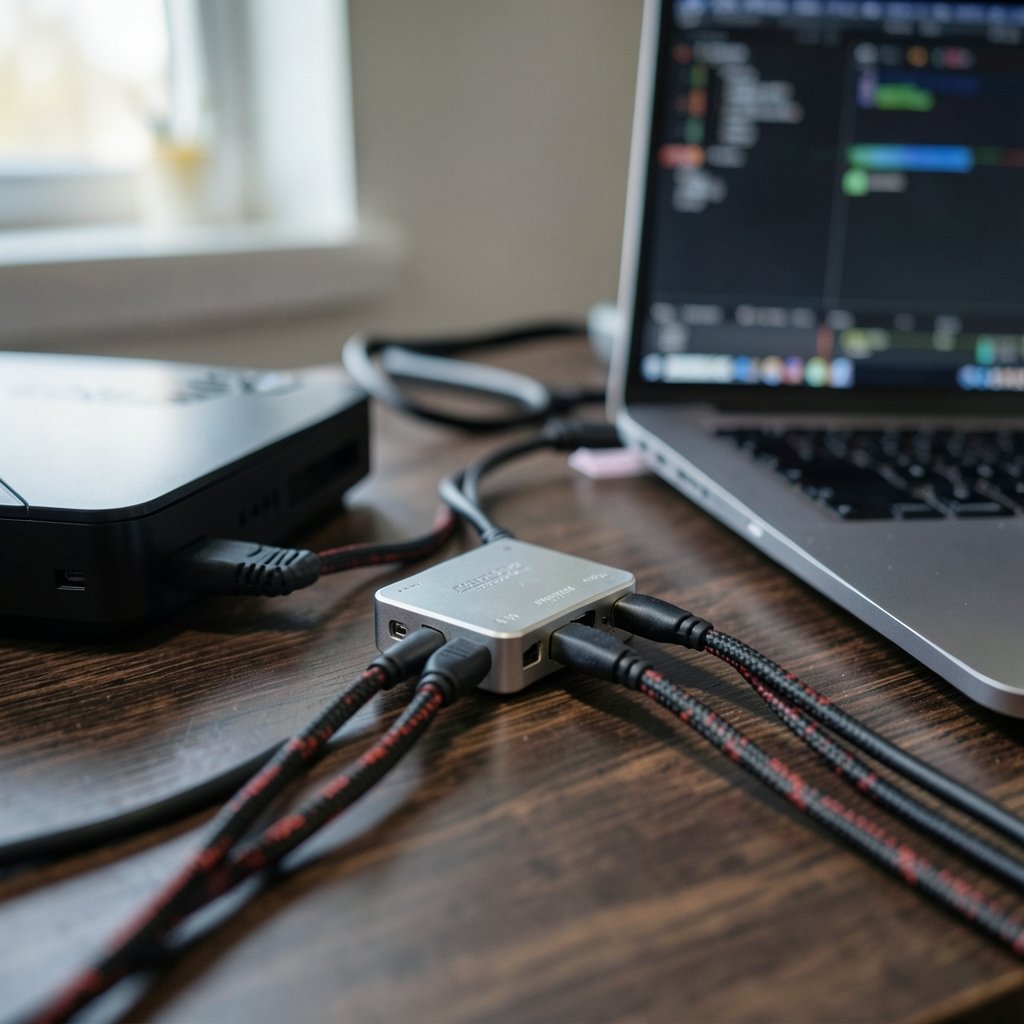
The first mistake new streamers make is assuming one program does everything. In practice, streaming and editing are separate jobs, and mixing them up leads to bloated, confusing setups.
Capture and broadcast software records gameplay and sends it live. OBS Studio is free, open-source, and runs on Windows, macOS, and Linux, which is why it is the most commonly recommended starting point for streaming. It handles scene switching, overlays, and multiple audio tracks.
Editing software takes the raw recording and turns it into a highlight reel, a YouTube VOD, or a vertical clip. This is where the real choices begin.
A workable workflow looks like this:
- Record gameplay in OBS Studio with game audio and mic audio on separate tracks.
- Export in a format your editor handles natively, such as MP4 with H.264, to avoid transcoding time.
- Import into your editor, cut the dead air, clean the audio, and export for each platform.
Skipping the separate audio tracks is a common beginner error. Once game sound and voice are fused into one channel, no editor can fix a moment where the mic clipped or the game audio drowned out commentary.
The Main Contenders at a Glance
Here is how the most realistic options compare for someone just starting out.
| Software | Cost | Best for | Platform | Learning curve |
|---|---|---|---|---|
| OBS Studio | Free, open source | Live capture and streaming | Windows, macOS, Linux | Moderate |
| DaVinci Resolve (free) | Free edition available | All-in-one editing, color, audio | Windows, macOS, Linux | Steep |
| CapCut | Free tier with paid extras | Short-form clips, auto-captions | Desktop and mobile | Gentle |
| Shotcut | Free, open source | Simple cutting on a budget | Windows, macOS, Linux | Gentle |
| Kdenlive | Free, open source | Open-source editing on Linux | Windows, macOS, Linux | Moderate |
| Adobe Premiere Pro | Subscription only | Professional, full-time editing | Windows, macOS | Steep |
No single row wins. The honest framing is by use case: live capture, highlight editing, or short-form clips, and by budget.
DaVinci Resolve: The Free Editor That Punches Above Its Weight
Blackmagic Design distributes a free edition of DaVinci Resolve alongside a paid Studio version. The free edition covers editing, color, and audio in one application, which is unusual at zero cost.
For gaming content, the color tools matter more than newcomers expect. Game captures often look flat or washed out after compression, and Resolve’s color page can rescue them. The audio page handles voice cleanup and level balancing without a second program.
The trade-off is the learning curve. Resolve assumes you want professional control, and its interface reflects that. A new streamer should expect a weekend of tutorials before the first smooth edit.
Two practical tips from people who use it daily:
- Set your project frame rate to match your capture before importing anything. Mismatched frame rates cause stutter that looks like a hardware problem.
- Use proxy media for high-bitrate recordings. It creates lighter copies for editing while keeping full quality for the final export.
If you are weighing which machine can handle this kind of workload, the guide to the best laptops for video editing that actually earns its price covers the specs that matter. Mac users should check the best MacBook for video editing picks before assuming any laptop will do.
CapCut and Shotcut: Speed Over Depth
Short-form clips drive discovery for new streamers, and CapCut is widely used for gaming clips on TikTok, Shorts, and Reels because of its templates, auto-captions, and availability on both desktop and mobile.
That convenience comes with caution. CapCut’s terms, watermark rules, and feature availability have changed repeatedly since 2023, so check the current terms before building a workflow around it. Nothing stings like finishing a batch of clips and discovering an export restriction.
Shotcut takes a different route. It is free, open-source, and refreshingly plain. It will not auto-caption your rant about a boss fight, but it will cut footage quickly without demanding a powerful machine.
Who should pick which?
- Choose CapCut if your output is vertical clips and you want captions fast.
- Choose Shotcut if you want a free editor with no account requirements and simple cuts.
- Choose neither if you plan to color grade or mix multi-track audio seriously.
Kdenlive sits alongside Shotcut as another free, open-source option, though stability and codec support vary by platform and release. Test with your own footage before committing.
Adobe Premiere Pro: The Professional Path
Adobe Premiere Pro is the industry-standard non-linear editor for professional editing and integrates with Adobe’s other creative tools. It is subscription-only, and pricing and plan structure change frequently, so check current plans rather than trusting an old figure.
For a brand-new streamer, Premiere Pro is usually overkill. It shines when editing becomes a job: client work, sponsored content, or a channel with a demanding upload schedule. The subscription also makes sense for creators already inside Adobe’s ecosystem.
The practical middle path is to start free and upgrade when a specific limitation blocks you. If free tools genuinely cannot do what you need, that is the signal to pay. Not before.
Why Hardware Matters More Than the Software Choice
Here is the uncomfortable truth: at entry level, hardware affects your results more than which editor you install. A free editor on a capable machine beats a subscription editor on a struggling laptop every time.
GPU-accelerated encoding matters for both streaming and editing. NVIDIA’s NVENC, plus AMD and Intel equivalents, offloads video encoding from the CPU so gameplay and recording can run together. RAM determines whether editing and streaming can coexist without stuttering.
Specific minimum specs vary by software version and resolution, so check each vendor’s current system requirements rather than trusting a general figure. A few habits that actually help:
- Record to a fast drive, ideally separate from the one running your game.
- Close browser tabs during recording. Stream overlays and chat already consume resources.
- Test a five-minute recording before a three-hour stream.
Network stability deserves equal attention. Dropped frames ruin a VOD, and no editor fixes a corrupted capture. The advice on how to prioritize devices for smoother video calls and gaming applies directly to streaming setups.
Audio Cleanup: The Gap Most Beginners Ignore
Ask experienced streamers what separates amateur clips from polished ones, and audio comes up fast. Noise suppression and level normalization are built into OBS filters and most editors, yet many new creators skip them entirely.
The standard fix is straightforward:
- Keep game audio and microphone on separate tracks.
- Apply noise suppression to the mic track only.
- Normalize voice levels so shouting and whispering both stay audible.
- Duck game audio slightly under commentary during key moments.
Filter names and locations differ between OBS versions, so check the current documentation rather than following an old tutorial screenshot.
Music, Licensing, and Staying Out of Trouble
Using copyrighted music in VODs or clips can trigger platform claims or takedowns. This is not a rare edge case; it happens to new channels constantly, and a claim can mute or demonetize an entire video.
The safe approach is to use licensed tracks or platform-provided audio libraries. Platform policies change, so verify current music guidelines before publishing anything with a soundtrack.
The same caution applies to visual assets. If you branch into thumbnails and channel art, the best photo editing software roundup helps you pick tools, and budget-conscious creators can start with the best free photo editing software that actually works in practice.
Matching Software to Your Actual Content
The right pick depends on what you publish, not on what ranks highest in a search.
Highlight channels that post ten-minute compilations need solid cutting, audio cleanup, and decent export options. DaVinci Resolve free or Shotcut covers this.
Short-form creators chasing TikTok and Shorts audiences need captions, templates, and vertical framing. CapCut is built for exactly this.
Full-time aspirants planning sponsored content and client work should learn Premiere Pro or Resolve Studio, ideally after free tools stop being enough.
Streaming-first creators who mostly go live and post raw VODs barely need an editor at all. OBS Studio plus light trimming gets the job done.
If you are still mapping out the basics, this breakdown of the best video editing software for beginners that actually works is a sensible starting point before committing to any one program.
Common Mistakes That Waste Weeks
Certain errors show up again and again in beginner workflows.
- Recording in a format the editor cannot handle natively. This forces a long transcode before editing even starts.
- Editing before organizing. Renaming clips and sorting by session saves hours later.
- Ignoring export settings. A perfect edit uploaded at the wrong bitrate looks worse than a rough cut exported correctly.
- Chasing every new tool. Switching editors monthly means never getting past the basics.
- Skipping backups. Losing a week of footage to a drive failure ends more channels than bad editing does.
The pattern is consistent: process beats software. A disciplined workflow in a free editor outperforms chaos in a paid one.
Conclusion
For new streamers, the best video editing software for gaming is not one program but a small, deliberate stack. OBS Studio handles capture and streaming for free. DaVinci Resolve, CapCut, or Shotcut handles the edit, also for free. Premiere Pro and Resolve Studio become worthwhile only when editing turns into paid work or a hard technical limit appears.
Start free, learn the workflow, keep audio on separate tracks, respect music licensing, and let hardware and process carry the quality. Upgrade when a real limitation blocks you, not because a comparison table said so.
Frequently Asked Questions
Do I need paid software to edit gaming videos?
No. Free tools cover capture, cutting, audio cleanup, and export well enough for a new channel. Paid software earns its cost when editing becomes paid work or when a specific feature, such as advanced color or collaboration, becomes essential.
Can OBS Studio edit videos?
OBS Studio is built for capture and streaming, not editing. It can trim the start and end of a recording, but cutting out clips, adding captions, and mixing audio require a separate editor.
Is CapCut safe to use for gaming clips?
CapCut is widely used, but its terms, watermark rules, and feature availability have changed repeatedly since 2023. Check the current terms before relying on it, especially for monetized content.
How much RAM do I need to edit and stream at the same time?
Requirements vary by software version and resolution, so check each vendor’s current system requirements. As a rule, running a game, a stream, and an editor together demands noticeably more memory than any one of them alone.
Which editor is easiest for a complete beginner?
Shotcut and CapCut have the gentlest learning curves. DaVinci Resolve offers more power but demands more study, and Premiere Pro assumes familiarity with professional editing conventions.
Can I use popular music in my gaming VODs?
Using copyrighted music can trigger platform claims or takedowns. Use licensed tracks or platform-provided audio libraries, and verify current music guidelines before publishing.



