

Quick Answer: What should I check before paying for gaming SSDs?
Before paying for a gaming SSD, confirm the drive’s interface and protocol (PCIe generation and lane count, not the word “NVMe” by itself), because those set the real speed ceiling on your system. Then check the form factor and keying against your device manual, since an M.2 2280 drive will not fit a slot that needs a 2230.
Sequential speed headlines are a ceiling, not a predictor of game loads. Budget drives that skip a DRAM cache and lean on Host Memory Buffer behave differently under sustained writes, and console compatibility is model-specific rather than universal.
The key factors to compare are PCIe generation and lanes, DRAM versus HMB, sustained write after cache exhaustion, TBW endurance against warranty length, form factor and keying, heatsink clearance, firmware history, and RMA region.
A fast drive is not automatically the right drive
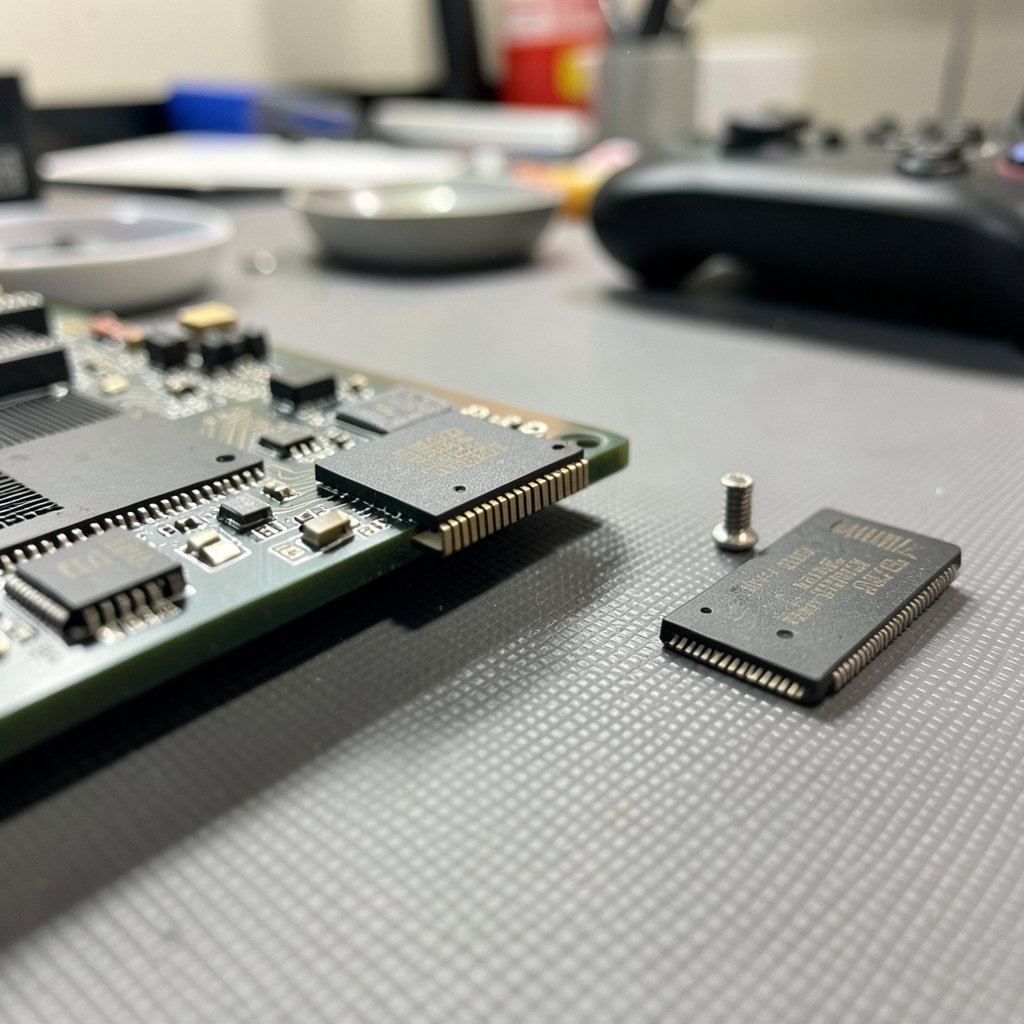
Ever bought a drive that promised 7,000 MB/s and then watched a game load at roughly the same speed as your old one? You are not imagining it. The number on the box is a best-case sequential figure, and games mostly ask storage for small, scattered reads. Those two workloads are cousins, not twins.
That gap between marketing and reality is where most bad SSD purchases happen. The good news is that a short checklist catches nearly all of it. This guide walks through what actually matters, in the order a sensible buyer would check it, so the money leaves your account only after the important questions have answers.
Start with the interface and protocol, not the brand
NVMe is a logical protocol. PCIe is the physical link underneath it. A drive’s real ceiling depends on both the PCIe generation and the lane count, so a PCIe 4.0 x4 drive and a PCIe 5.0 x4 drive do not share a ceiling even if both say “NVMe” on the label.
Here is the practical trap. If your motherboard slot runs PCIe 3.0, a PCIe 5.0 drive will usually drop back to that slower link. You pay the premium and get none of the speed. Before buying, look up your board or laptop model and confirm which generation and how many lanes the M.2 slot actually provides. The same logic applies to other upgrade paths where compatibility quietly decides value, much like the checklist in this guide to AMD vs Intel CPU compatibility before a 2027 upgrade — the part is only as good as the slot it lands in.
Sequential speeds are a ceiling, not a promise
Vendor headline figures are sequential reads. Game loading is dominated by random reads at low queue depth, and vendors rarely publish those numbers. Treat the big number as the roof of the house, not the floor you will stand on.
Worse, sequential claims are not measured the same way across vendors, so cross-brand comparison is shaky. A drive advertising 7,000 MB/s and another advertising 6,800 MB/s may behave identically in your machine, or the slower-sounding one may win. The only reliable signal is independent testing that measures game load times and random reads, not the sticker.
DRAM, HMB, and the cache cliff
Many budget NVMe drives skip a DRAM cache and rely on Host Memory Buffer (HMB), a feature that has been part of the NVMe specification since version 1.2 in 2015. HMB borrows a slice of system memory for the drive’s mapping table. It works, but it can hurt sustained and random performance compared with a drive that has its own DRAM.
Next, SLC caching. Consumer drives write fast into a pseudo-SLC cache and then slow sharply once it fills. For everyday gaming this is invisible. For a 100 GB game install or a big patch, it is very visible. Look for reviews that measure sustained write speed after the cache is exhausted, rather than only the first few seconds.
| What to check | Why it matters | Where to look |
|---|---|---|
| DRAM cache present | Better sustained and random performance | Spec sheet or teardown review |
| HMB support | Budget fallback, not a substitute for DRAM | NVMe feature list |
| SLC cache size | Predicts the write-speed cliff | Sustained-write testing |
| Controller model | Known firmware bugs vary by controller | Manufacturer support page |
Endurance: read TBW against the warranty
Endurance is rated in TBW (terabytes written) and sometimes DWPD (drive writes per day). The standards behind those ratings come from JEDEC’s SSD endurance work, including JESD218 and JESD219, first published around 2010 and revised since.
Here is the nuance most buyers miss: TBW ratings are not directly comparable across vendors because test conditions differ. So use TBW as a rough sanity check, not a leaderboard. Compare it against the warranty years. A high TBW paired with a short warranty, or a low TBW paired with a long one, is a signal worth pausing on. For a gaming drive that mostly reads, endurance is rarely the limiting factor, but the ratio tells you how confidently the maker stands behind its own silicon.
Fit, keying, and the heatsink squeeze
M.2 2280 is the common size, but some laptops and handhelds need 2230. Check three things before ordering: the length, the keying (M-key versus B+M), and whether the slot accepts a single-sided or double-sided drive. Your device manual is the authority here, not the retailer listing.
Cooling is the next trap. PCIe 4.0 and 5.0 drives can throttle without adequate cooling. Check whether your board or slot has a heatsink and whether a drive that ships with one will actually fit. Console and handheld clearances are tight, and a chunky heatsink can turn a great drive into a return. If you are weighing a headset purchase at the same time, the same “measure before you commit” discipline shows up in this look at gaming headsets in 2026 and what actually matters before you buy.
Console compatibility is model-specific
This is where generic advice fails. For PlayStation 5, the platform holder publishes requirements covering PCIe generation, the M.2 2280 size, heatsink dimensions, and a capacity range. For Xbox Series X|S, expansion uses proprietary cards, and standard M.2 drives simply do not work.
Verify against the platform’s official requirements page at the time of purchase, not a retailer’s compatibility badge. Console compatibility lists also change with firmware updates, so a list you read last year may be stale. If you are comparing VR hardware too, the compatibility-first mindset in this breakdown of Steam Frame vs Meta VR glasses and checking compatibility first follows the same logic: the spec sheet decides, not the marketing.
Firmware history and the RMA region
Some controllers have shipped with firmware bugs that affected performance or data integrity. Before buying, visit the manufacturer’s support page and check for firmware updates and known issues, then skim recent owner reports for your exact model. A drive with a clean firmware history is worth more than a slightly faster one with a troubled one.
Warranty terms deserve the same scrutiny. Confirm the length, whether it is limited, and whether RMA is handled locally or requires shipping abroad. Warranty terms change, so verify on the manufacturer’s official page at the moment of purchase. Buyers who skip this step often discover the fine print only when something fails, a lesson that repeats across product categories — the same due diligence runs through this BMG Money reviews guide for borrowers before signing.
A practical buying sequence that works
Theory is fine, but a sequence is better. Here is the order that avoids most mistakes:
- Identify your slot’s PCIe generation and lane count from the board or device manual.
- Confirm the required form factor, length, and keying.
- Decide whether you need DRAM or whether HMB is acceptable for your workload.
- Find a review that measures sustained write after cache exhaustion.
- Compare TBW against warranty years as a ratio, not a single number.
- Check heatsink clearance, especially in consoles and handhelds.
- Verify firmware history and RMA coverage for your region.
- Only then compare prices across models that passed steps one through seven.
Common mistakes people actually make
The most frequent error is buying for a slot that does not exist. Someone sees a bargain PCIe 5.0 drive, orders it, and discovers the laptop slot is PCIe 3.0 or physically too short. The second most common is trusting the sequential number as a load-time predictor. The third is ignoring the heatsink, which turns a fast drive into a throttled one inside a cramped case.
A quieter mistake is buying a DRAM-less drive for a workload that writes heavily, such as recording gameplay while playing. HMB is fine for a game library that mostly reads. It is less fine when the drive is also the capture target.
What actually works in practice
Buy slightly below the bleeding edge. A well-reviewed PCIe 4.0 drive with DRAM and a sensible heatsink will serve a gaming PC better than a throttling flagship. Match capacity to your real library plus headroom for patches, since large updates hit the write cache hard. And keep a note of your firmware version so you notice when an update lands.
If you are also shopping for software subscriptions, the same “read the terms before paying” habit appears in this guide to AI chatbot lifetime deals in 2027 that buyers should actually check, and in this review of Nvidia’s AI box pitch and what buyers should actually check. Different products, identical principle: the spec sheet and the fine print beat the headline.
Conclusion
A gaming SSD purchase rewards patience more than brand loyalty. The drive that wins is the one whose interface matches your slot, whose form factor fits your device, whose cache strategy suits your workload, and whose warranty and firmware history you have actually verified. None of those checks takes long, and together they prevent the two outcomes buyers regret most: a drive that cannot reach its rated speed, and a drive that will not physically fit.
Start with your slot, work outward to the drive, and let independent testing settle the speed question. The headline number is the least trustworthy thing on the box. The checklist is the most valuable thing you can bring to the checkout page.
FAQ
Is a PCIe 5.0 SSD worth it for gaming?
Usually not on its own. If your slot only provides PCIe 4.0 or 3.0 lanes, a PCIe 5.0 drive drops back to that link and you pay a premium for speed you cannot use. Games also lean on random reads rather than the sequential figures where the newest generation shines brightest.
Does a DRAM-less SSD hurt gaming performance?
It can, depending on the workload. Drives without a DRAM cache rely on Host Memory Buffer, which borrows system memory for the mapping table. For a library that mostly reads, that is often acceptable. For heavy sustained writes, such as recording gameplay to the same drive, a DRAM-equipped model is the safer choice.
How much TBW do I actually need?
For a gaming drive that mostly reads, endurance is rarely the limiting factor, so a modest TBW is usually fine. The more useful check is the ratio between TBW and warranty years. A high TBW with a short warranty, or the reverse, is worth questioning before you pay.
Can I put a standard M.2 drive in a console?
It depends on the platform. PlayStation 5 accepts certain M.2 2280 drives that meet published requirements, including heatsink dimensions and a capacity range. Xbox Series X|S uses proprietary expansion cards, so standard M.2 drives do not work there. Always confirm against the platform’s official requirements at purchase time.
Why does my SSD slow down during big game installs?
That is the SLC cache filling up. Consumer drives write fast into a pseudo-SLC cache, then slow sharply once it is exhausted. Large installs and patches push past that point. Reviews that measure sustained write after cache exhaustion show the real behavior, which headline sequential figures hide.
Do I need a heatsink on a gaming SSD?
It depends on the drive and the space around it. PCIe 4.0 and 5.0 drives can throttle without adequate cooling. Check whether your board or slot already has a heatsink and whether a drive that ships with one will physically fit, especially in consoles and handhelds where clearance is tight.



