
Quick Answer: How do I choose streaming software?
Start by matching the software to what you actually stream: a free, open-source tool like OBS Studio covers most needs, while paid tools add built-in multistreaming, simpler layouts, or Mac-specific features. The practical path is to test two or three options against your hardware, platform, and budget before committing to one.
Alternatives differ mainly in cost model, platform support, and how much setup work they demand. Some tools are free and plugin-driven, others are freemium with polished templates, and a few are locked to a single operating system.
Before deciding, compare price and license, operating system support, hardware encoder compatibility, platform bitrate limits, multistreaming needs, available plugins, and local recording options.
What separates a stream that looks professional from one that stutters, drops frames, or eats your whole evening in setup? Usually it is not the camera or the microphone. It is the software running underneath, quietly juggling capture, encoding, and upload. Pick the wrong tool and you spend weeks fighting settings. Pick the right one and it mostly disappears into the background, which is exactly what good software should do.
Start With What You Actually Stream
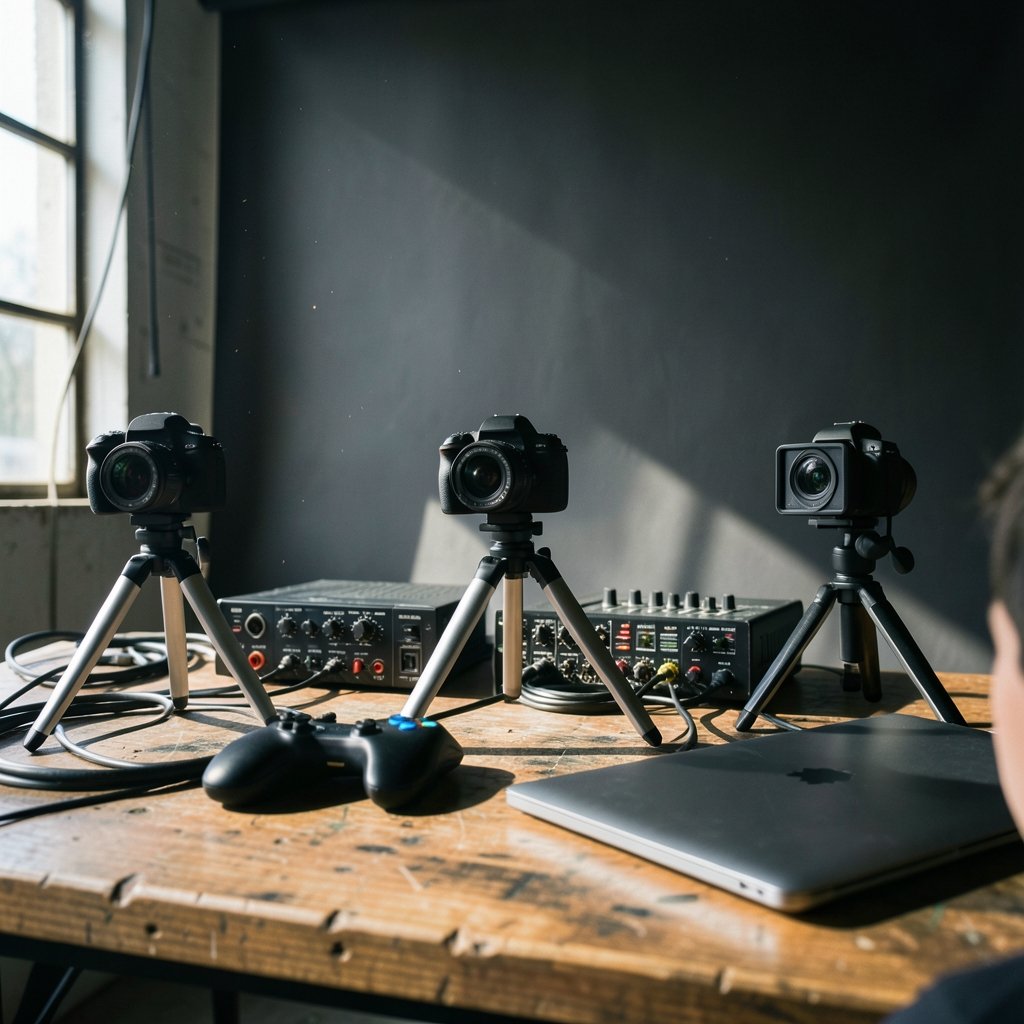
The most common mistake is downloading whatever a popular creator uses without asking what that creator streams. A competitive first-person shooter player has different needs than someone running a talk show, a cooking channel, or a church service with three camera angles.
Ask three questions before you install anything:
- What is on screen most of the time: a game, a desktop application, a camera, or a mix?
- How many inputs do you need at once: one game capture, or a game plus webcam plus overlay plus alerts?
- Do you need to broadcast to more than one platform simultaneously?
A single-game streamer with one webcam needs very little. A multi-camera production with prerecorded video, scene transitions, and a co-host on a second machine needs considerably more. Writing those answers down first saves hours of trial and error later.
Understand the Scene-and-Source Model
Nearly every serious streaming tool borrows the same mental model, and learning it once transfers across software. Scenes are collections of sources that you switch between, such as a “Starting Soon” screen, a “Gameplay” layout, and a “Just Chatting” view. Sources are the individual ingredients: a game capture, a display capture, a webcam, an image, a browser overlay, a media file.
Profiles, meanwhile, store separate settings bundles so you can keep one configuration for a podcast and another for gaming without rebuilding everything. Once you understand scenes, sources, and profiles, moving between tools feels far less intimidating.
This architecture is why OBS Studio, the free and open-source (GPL-2.0) cross-platform standard maintained since 2012, has become the baseline everyone compares against. It runs on Windows, macOS, and Linux, and most competitors either copy its layout or deliberately simplify it.
Match the Software to Your Operating System
This sounds obvious and still trips people up. Some tools are macOS-only, others are Windows-only, and a few have no Linux build at all. If your workflow spans two machines, check compatibility before you get attached to an interface.
| Software type | Typical platform support | Best for |
|---|---|---|
| Free open-source (OBS Studio) | Windows, macOS, Linux | Budget-conscious streamers who want full control |
| Freemium commercial tools | Mostly Windows, some macOS | Beginners who want templates and built-in extras |
| macOS-only tools | macOS only | Mac users who want a polished, simple app |
| Browser-based tools | Any modern browser | Quick one-off streams with no install |
The practical tip: install your candidate on the exact machine you will stream from, not a spare laptop. Driver behavior and capture performance differ more than spec sheets suggest.
Weigh Hardware Encoding Against Software Encoding
This is where most quality problems begin. Video has to be encoded before it goes out, and you have two families of encoders.
Hardware encoding uses a dedicated block on your graphics card, such as NVENC on NVIDIA, AMF on AMD, Quick Sync on Intel, or VideoToolbox on Apple silicon. It offloads the work from your processor, leaving headroom for the game or application you are streaming. For most live streamers, this is the sensible default.
Software encoding (x264) runs on the CPU and can deliver better quality per bitrate, which matters for low-bitrate or high-motion content. The cost is processor load, which can drag down whatever else the machine is doing.
There is no permanent winner here. The relative quality of hardware and software encoders shifts with each GPU generation and depends on the content itself. The practical approach is to test both on your own machine with your own game, then compare the recording side by side. If you are also weighing security tools for the machine you broadcast from, it helps to choose endpoint detection response software that fits your hardware rather than overloading a modest setup.
Respect the Platform’s Limits
Here is a fact that surprises many new streamers: the software does not decide your maximum bitrate. The platform does. A tool cannot push past a cap the service enforces, no matter how many sliders it offers.
Long-standing platform guidance has recommended roughly 6,000 kbps for most non-partner 1080p60 streams, with lower caps in some regions, while other platforms support higher bitrates and 4K. Those numbers change, so check the current official settings page for your platform before you tune anything.
The practical rule: set your bitrate to the platform’s ceiling, then adjust resolution and frame rate to keep the picture clean. Cranking bitrate past the cap only wastes upload bandwidth and can cause buffering for viewers.
Decide Whether You Need Multistreaming
Sending one stream to several platforms at once is a genuine differentiator. Some commercial tools build it in natively. OBS requires a third-party plugin or a restreaming service sitting between you and the platforms.
Feature availability shifts with every release, so verify against current documentation rather than a year-old review. If multistreaming is central to your plan, weigh the cost of a paid tool against the cost of a restreaming subscription. Sometimes the free tool plus a service is cheaper; sometimes the bundled option wins on simplicity.
Check Plugins and Community Support
A streaming tool is only as flexible as the things built around it. OBS has a large plugin directory and active forums, which means capture card quirks, MIDI controllers, and alert integrations usually have a solution already. Smaller tools may support fewer integrations.
Practical tip: before buying, search the tool’s community for your specific capture card or audio interface. If nobody has posted about it in two years, assume you will be the one debugging it.
Test Before You Commit
The single most effective habit is a dry run. Stream privately or unlisted for twenty minutes and watch the result. Check for dropped frames, audio drift between microphone and desktop, and whether your overlays render at the right size.
Common mistakes worth avoiding:
- Installing three tools at once and confusing which one owns the capture device.
- Leaving the webcam at default exposure and wondering why the picture looks flat.
- Forgetting to record locally alongside the stream, which is standard in OBS and most competitors and makes editing VODs far easier.
- Ignoring the Simple versus Advanced output modes, which change which recording and streaming settings you can even see.
If your streaming machine doubles as a work machine, keep the software stack lean. The same discipline applies when you choose privileged access management software that fits your needs: fewer overlapping tools means fewer conflicts and clearer troubleshooting.
Compare Cost Models Honestly
Free is not always cheapest, and paid is not always better. OBS Studio is free under GPL-2.0. Streamlabs Desktop and XSplit are freemium with paid tiers. Some tools are macOS-only or Windows-only. Prices change, so check the vendor’s current terms rather than trusting a comparison article.
Think about total cost: the software, any restreaming service, plugins that require licenses, and your time. A free tool that takes ten hours to configure may cost more in practice than a paid tool that works in twenty minutes, depending on what your hours are worth.
Factor In Your Long-Term Workflow
Streaming software rarely lives alone. It sits next to a knowledge base for your own troubleshooting notes, a chat bot, alert services, and editing software for VODs. Choosing tools that play well together matters more than any single feature.
Keeping a personal record of settings that worked, encoder choices, and bitrate experiments pays off enormously. A simple approach is to choose knowledge base software you’ll actually use and log every change with a date. When a stream breaks six months later, that log is worth more than any forum thread.
Conclusion
Choosing streaming software comes down to fit, not fashion. Identify what you actually stream, learn the scene-and-source model once, confirm your operating system and hardware encoder are supported, respect your platform’s bitrate ceiling, and test before you commit. OBS Studio remains the free, flexible baseline for most people. Paid tools earn their price when you genuinely need built-in multistreaming, hand-holding templates, or a Mac-native experience. Run a private test stream, keep notes, and let the results decide.
Frequently Asked Questions
Is OBS Studio good enough for professional streams?
For most people, yes. OBS Studio is free, open source, cross-platform, and supports hardware and software encoding plus local recording. Many professional productions run on it. The main gaps are built-in multistreaming and hand-holding onboarding, both of which plugins or a restreaming service can close.
Do I need a paid streaming tool to look professional?
No. Picture quality depends far more on lighting, audio, encoder choice, and staying within your platform’s bitrate cap than on the software’s price tag. Paid tools mainly sell convenience: templates, integrated extras, and simpler setup. If you enjoy configuring things, free software will not hold you back.
What bitrate should I set for a 1080p stream?
It depends on the platform, not the software. Long-standing guidance for the largest platforms has recommended roughly 6,000 kbps for most non-partner 1080p60 streams, with lower caps in some regions, while other platforms allow higher bitrates and 4K. Caps change, so check the current official encoder settings page before tuning.
Should I use hardware or software encoding?
Start with hardware encoding, since it frees your processor for the game or application you are streaming. Software encoding can deliver better quality per bitrate for low-bitrate or high-motion content, but it loads the CPU. The balance shifts with each GPU generation, so test both on your own machine and compare recordings.
Can I stream to multiple platforms at once?
Often yes, but the method varies. Some commercial tools include native multistreaming. OBS requires a third-party plugin or a restreaming service. Feature availability changes with each release, so confirm against current documentation for the version you plan to use rather than relying on older reviews.
How long should I test before settling on software?
Give yourself two or three private or unlisted test streams of at least twenty minutes each. That is usually enough to expose dropped frames, audio drift, and overlay sizing problems. If a tool still fights you after that, it is probably the wrong tool, not a settings problem.
One last consideration: revisit your choice periodically rather than treating it as permanent. Encoder support, plugin compatibility, and platform bitrate ceilings all shift over time, and a tool that fit perfectly two years ago may no longer match your workflow. Set a reminder to re-evaluate once a year, rerun a short private test, and update your notes. If the software still does its job without friction, keep it and spend your energy on content instead. Switching costs are real, so change only when the evidence from your own test streams says the current setup is holding you back.



