
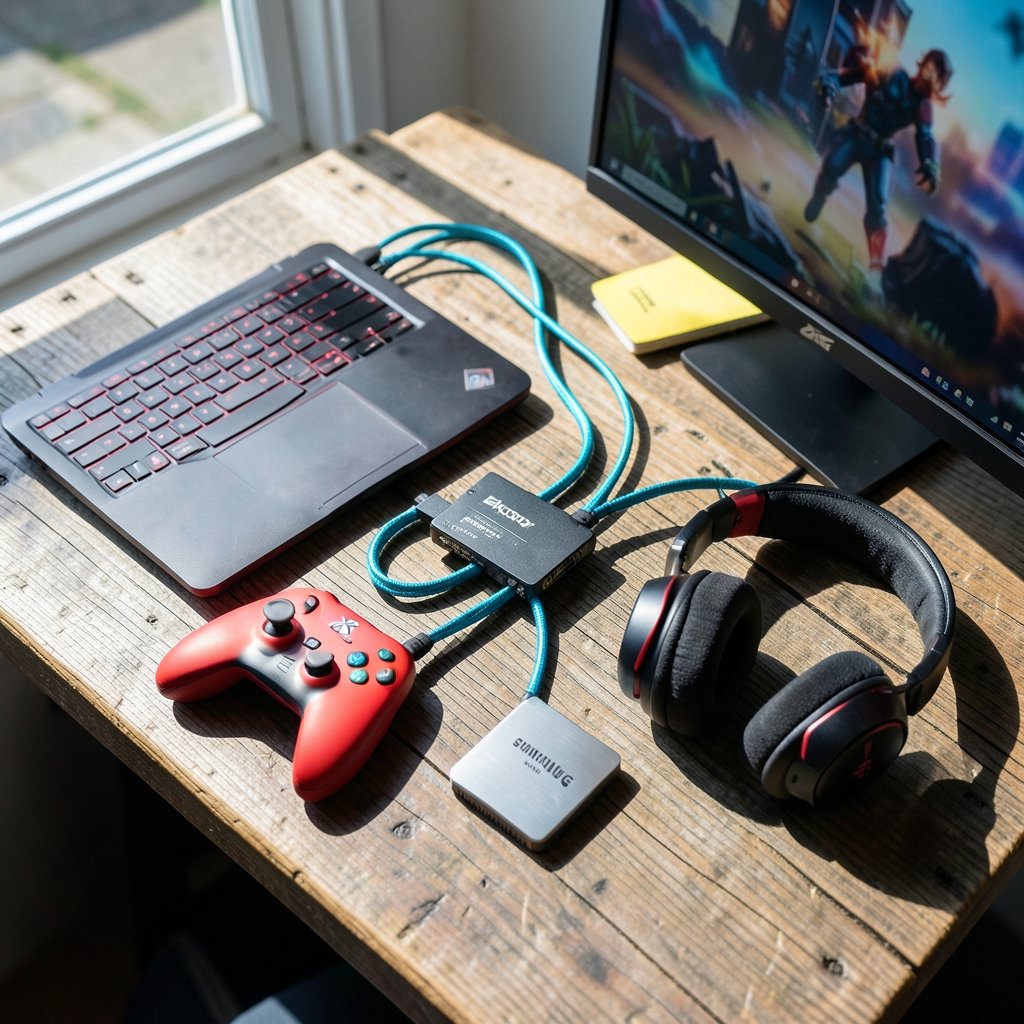
Quick Answer: Which budget video editing software for gaming are worth paying for?
The budget gaming editors genuinely worth paying for are DaVinci Resolve Studio for a one-time perpetual license and VEGAS Pro when you catch it in a discounted bundle. Both let you own the software outright instead of renting it forever. You can also stay on Resolve’s free tier, which is a full editor rather than a trial, and only upgrade when a specific Studio feature blocks you.
The main fork in the road is licensing. Perpetual licenses (Resolve Studio, VEGAS) cost more upfront but stop charging you. Subscriptions (Premiere Pro, CapCut Pro) cost less to start but never end. Free tools like Shotcut and Kdenlive set the price floor, so any paid pick has to beat them on stability, speed, or workflow.
Before you buy, compare the license model, high-frame-rate timeline support, hardware-accelerated export, watermark and resolution limits on free tiers, GPU compatibility, and the real two-to-three-year total cost.
Ever exported a 40-minute gaming session, waited twenty minutes for the render, and then noticed a watermark in the corner? That moment is usually when people start wondering whether paying for an editor is worth it. The answer is less about feature lists and more about math, workflow, and how much of your life you want to spend babysitting a progress bar.
Why Gaming Changes the Buying Decision
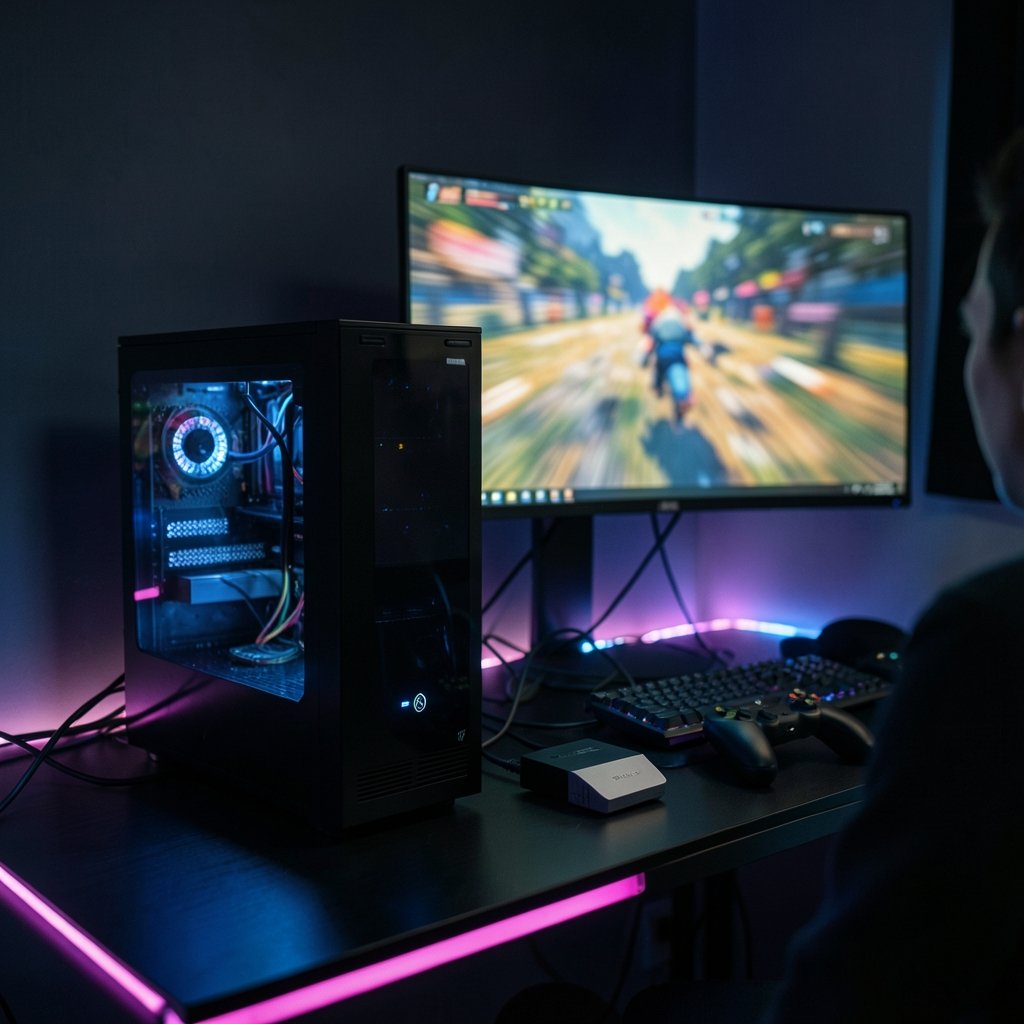
Gaming footage is not like a vlog or a wedding video. It arrives in huge files, often at 120 or 240 frames per second, and it usually comes from a capture card or a screen recorder that has already compressed it once. That combination punishes weak editors.
Three things matter more for gaming than for almost any other genre:
- Capture integration. Editors that read OBS output or capture card files without transcoding save hours.
- High-frame-rate timelines. Smooth 120 fps slow motion requires a timeline that does not choke.
- Hardware-accelerated encode and decode. GPU acceleration for H.264 and H.265 export is the difference between a fast render and a coffee break. Support for newer codecs like AV1 varies by GPU generation and software version, so check your specific card.
A cheap editor that crashes on a 20 GB capture file is not cheap. It costs you an evening. That is the lens to use when judging every option below.
The License Math Nobody Shows You
Here is the part most buying guides skip. A perpetual license and a subscription are not comparable at face value, so do the arithmetic over the period you will actually keep editing.
A one-time license historically priced around US$295 beats a subscription running roughly US$23 per month after about thirteen months. Every month past that point is money the subscriber keeps spending and the owner does not. Over three years, the gap is large enough to fund a storage drive or a capture card.
| Model | Example | Upfront Cost | Recurring Cost | Breaks Even |
|---|---|---|---|---|
| Perpetual | DaVinci Resolve Studio | One payment | None | Immediately after purchase |
| Perpetual | VEGAS Pro | One payment (varies by tier) | None | Immediately after purchase |
| Subscription | Adobe Premiere Pro | None | Monthly or annual | Never stops |
| Freemium | CapCut | None | Pro tier for some features | Depends on features used |
| Free | Shotcut, Kdenlive, Resolve free | None | None | Always free |
Two caveats. First, verify current prices before you buy, because software pricing moves and this arithmetic uses round historical figures. Second, a perpetual license is not a lifetime of free major upgrades in every case, so read the upgrade policy.
If you are also weighing hardware, the same logic applies to machines. Our breakdown of the best gaming laptops under 1000 that actually fits a budget follows the same total-cost thinking.
DaVinci Resolve: The Free Tier That Embarrasses Paid Rivals
Resolve is the strangest product in this category because its free version is not a demo. It is a complete editor with watermark-free export. For a gamer cutting highlight reels, the free tier covers most of what you need, and that alone makes it hard to justify paying anyone else.
The paid Studio license, historically around US$295 as a one-time purchase, unlocks the extras that matter at the margins: more advanced noise reduction, extra effects, and higher-end finishing tools. It is a perpetual license rather than a subscription, and activation has traditionally allowed two concurrent installs per license, though you should confirm current terms.
Where it wins: color tools nobody at this price touches, strong GPU-accelerated export, and a free tier that costs nothing to try for a month before you commit.
Where it stumbles: the learning curve is real. The node-based color page and the sheer number of panels intimidate newcomers. The practical tip is to ignore 80 percent of the interface for your first project. Learn the cut page, the deliver page, and one transition. Add complexity only when a project demands it.
The common mistake is buying Studio on day one, then discovering the free version already did everything you needed. Try free first. Upgrade when a specific feature blocks a specific project.
VEGAS Pro: The Bundle Hunter’s Pick
VEGAS Pro is the other serious perpetual-license option, sold in tiered editions with different feature sets. Its reputation among budget buyers comes from one habit: it appears in steeply discounted bundles several times a year, which can drop the entry price far below list.
For gaming, VEGAS has a loyal following because its timeline feels fast for quick cuts and its audio tools are genuinely good for voiceover-heavy content. If you narrate over gameplay, that matters.
Where it wins: perpetual licensing, frequent discounts, and a workflow that many editors find quicker for fast turnaround.
Where it stumbles: the tiered editions confuse buyers, and the discount timing is unpredictable. The practical tip is to set a price alert and wait for a bundle rather than paying list. If you need the software this week, that strategy fails, and Resolve becomes the safer call.
Adobe Premiere Pro: Powerful, But a Subscription Forever
Premiere Pro remains the industry default, and there is no perpetual purchase option. It is subscription-only, with individual plans historically around US$23 per month on an annual, paid-monthly basis after a price increase. Treat that figure as unverified for 2026 and check the current plan page.
For a hobbyist gamer on a budget, the subscription model is the weakest fit of anything on this list. You pay whether or not you edit that month. The counterargument is ecosystem: if you collaborate with other editors, share project files, or rely on a specific plugin, the compatibility is worth real money.
The honest framing is that Premiere is a professional tool with a professional billing model. It is not a bad product. It is simply a poor match for someone whose main goal is editing gameplay clips on a tight budget.
CapCut and the Freemium Trap
CapCut exploded because its free tier is broad and its interface is friendly. But freemium has a catch that bites budget buyers: some effects, cloud storage, and export options sit behind the Pro tier, and the terms of service drew user concern in early 2025 over data and content licensing. The company indicated it would revise them, so verify the current terms yourself before uploading anything you care about.
The pattern to watch for across all freemium editors is export restrictions. Some tiers cap resolution or add watermarks. A free editor that watermarks your 4K gameplay export is not free in any useful sense.
If you want to explore that end of the market more broadly, this guide to the best free video editing software in 2026 that actually works without paying covers which free tiers hold up in practice.
The Free Tools That Set the Price Floor
Shotcut and Kdenlive are open-source editors that cost nothing and have no watermarks. They are not paid products, but they matter to this decision because they define the floor. Any paid editor has to beat them on stability, performance, or workflow to justify its price.
In practice, they are excellent for learning and fine for simple cuts. They struggle with heavy high-frame-rate footage and complex projects where stability matters most. That gap is exactly what you are paying Resolve or VEGAS to close.
Matching the Editor to Your Actual Workflow
The right pick depends on what you actually do with gameplay footage. A few common profiles:
| Your Situation | Best Budget Pick | Why |
|---|---|---|
| Highlight reels, occasional uploads | Resolve free | Full editor, zero cost, no watermark |
| Serious color work or long projects | Resolve Studio | Perpetual license, pro finishing tools |
| Voiceover-heavy, fast turnaround | VEGAS Pro on discount | Strong audio, quick timeline |
| Collaborating with other editors | Premiere Pro | Ecosystem compatibility |
| Short-form social clips | CapCut free | Fast, template-driven |
| Learning the basics | Shotcut or Kdenlive | Free, no commitment |
A frequent mistake is buying for the editor you aspire to be rather than the one you are today. If you upload twice a month, the free tier of Resolve is almost certainly enough. If you edit weekly and hit the same wall repeatedly, that wall tells you exactly which paid feature to buy.
What to Check Before You Pay
Run through this list before any purchase:
- Confirm the current price and whether it is perpetual or subscription.
- Check whether your GPU is supported for hardware-accelerated export.
- Test your own footage in a free trial or free tier first.
- Read the export limits on any free tier, including watermarks and resolution caps.
- Check the activation terms, including how many machines one license covers.
- Look at the upgrade policy for perpetual licenses.
On point two, if your machine is borderline, the bottleneck may not be the software at all. If you are editing on a MacBook, our guide to the best MacBook for video editing in 2026 and how to pick the right one covers the hardware side. And if renders keep stalling because other devices are hogging bandwidth during cloud sync, it helps to prioritize devices so your Wi-Fi handles smoother video calls and gaming.
If you are still comparing the broader market, this overview of the best video editing software puts the paid options side by side, and this look at the best video editing software beginners actually works focuses on the ones that do not overwhelm new users.
Conclusion
The budget gaming editor worth paying for is the one whose license model matches how long you plan to keep editing. For most people, that means starting on DaVinci Resolve’s free tier, confirming it handles your capture files and frame rates, and then buying the one-time Studio license only when a specific feature blocks real work. VEGAS Pro is the strong alternative if you catch a bundle discount and value fast, audio-friendly editing. Premiere Pro is excellent software with a billing model that punishes casual use, and freemium editors deserve a hard look at their export limits before you trust them with your footage. Do the two-year math, test your own files, and let your actual workflow, not a feature list, make the call.
Frequently Asked Questions
Is the free version of DaVinci Resolve really enough for gaming videos?
For most hobbyist gamers, yes. The free tier is a full editor with watermark-free export, and it handles typical highlight reels well. The limits show up in advanced effects, noise reduction, and finishing tools that matter more for professional work than for gameplay clips.
How long does it take for a perpetual license to beat a subscription?
Using round historical figures, a one-time license around US$295 beats a subscription near US$23 per month after roughly thirteen months. Every month beyond that is pure savings for the owner. Confirm current prices before relying on this arithmetic, since both figures change.
Do I need a high-end GPU to edit gaming footage?
Not necessarily, but it helps. Hardware-accelerated encode and decode for H.264 and H.265 make exports dramatically faster, and support for newer codecs like AV1 depends on your GPU generation and software version. A mid-range card from the last few years usually handles 1080p and 1440p gameplay comfortably.
Can I edit 120 fps or 240 fps gameplay in budget software?
It depends on the editor and your hardware. High-frame-rate timelines are demanding, and free open-source tools tend to struggle with heavy footage. Resolve and VEGAS handle high-frame-rate projects better, which is one of the strongest reasons to pay for either.
What is the catch with free tiers that look generous?
Export restrictions are the usual catch. Some freemium editors cap resolution or add watermarks on the free tier, and some gate popular effects behind a paid plan. Always test an export of your own footage before committing a project to any free editor.
Is it worth paying for an editor if I only upload occasionally?
Usually not. If you post a couple of times a month, a free tier covers the work, and paying mainly buys convenience you may not need. The signal to upgrade is hitting the same limitation repeatedly, not the calendar.



