The right editor depends less on how many effects it has than on whether it fits your device, budget and kind of project. DaVinci Resolve is the strongest free all-around choice, while Adobe Premiere suits paid professional workflows.
Clipchamp, iMovie and mobile apps can make lighter edits easier. Proxy media means lower-resolution copies of original footage that make editing smoother while the original files remain available for final export.
Your footage, publishing format and comfort with editing tools matter as much as price. A simple clip for social media needs less control than a layered project with several audio tracks.
This guide helps you match software to your actual work, whether you are new to editing or ready for a professional workflow. Start by matching the app to the work you actually need to finish, not to the longest feature list.
Key Takeaways
- DaVinci Resolve Free is a capable choice for ambitious projects without a subscription.
- Adobe Premiere fits complex paid workflows and users who rely on Adobe apps.
- Clipchamp and iMovie keep straightforward edits easy to manage.
- Mac, Windows, iPhone and iPad users have different strong options.
- Check export limits before spending time on a project.
- Test your own footage in a short edit before committing.
How do you narrow down the right editor?
A useful shortlist starts with your footage and final destination, not with an editor’s promotional feature count. Start with the file you need to finish, then compare the interface and workflow.
Five checks can rule out a poor fit before you install anything. A 1080p delivery target and a 4K target can have different export needs.
- Supported operating system: confirm the app runs on your computer or phone.
- Source-file compatibility: check support for your camera’s formats and codecs.
- Target resolution and aspect ratio: match the export to the place you will publish.
- Timeline and audio needs: count tracks, cameras and sound sources in your project.
- Free-plan or licensing terms: learn what the edition allows before building a workflow.
H.264 and HEVC are common video codecs, so check import and export support for both. A 16:9 frame often suits standard video, while square and vertical formats serve other destinations.
Rule out any app that cannot export the resolution and aspect ratio your project requires.
A free editor may open a high-resolution source yet restrict the exported master. A one-track edit also needs a simpler interface than a layered, multicamera project.
Write down the final file you need before comparing features. That one detail can prevent a polished edit from ending in an unusable export.
Best Video Editing Software for Most Users
For a capable editor without a subscription, DaVinci Resolve is the strongest starting recommendation for most users willing to learn its interface. It offers breadth, though it is not the easiest editor to learn.
DaVinci Resolve is the best video editing software for users who value breadth without a subscription. Other video editors stand out for specific workflows.
- DaVinci Resolve: choose it for ambitious free editing and room to grow.
- Adobe Premiere: choose it for advanced paid work and a broad creative workflow.
- CyberLink PowerDirector: choose it for consumer-focused multicamera or 360-degree projects.
- Final Cut Pro: choose it for a more involved Mac editing workflow.
- Clipchamp or iMovie: choose either for quick, simple edits with fewer controls.
These tools suit different project sizes, not just different skill levels. A creator making weekly tutorials may need more timeline control than someone trimming family clips.
Adobe Premiere makes sense when professional tools and Adobe integration support work you do often. PowerDirector offers a more consumer-oriented path for projects involving multiple cameras or 360-degree footage.
Mac users who want an advanced desktop workflow can consider Final Cut Pro. Clipchamp and iMovie keep simple edits less demanding, especially when speed matters more than detailed control.
Choose the simplest app that can finish your current project, unless you already know you need advanced controls.
What can DaVinci Resolve Free handle?
Resolve Free costs nothing and includes editing, visual effects, color, audio and delivery workflows in one application. It is a full workflow, not merely a trial of the paid edition.
The best video editing software for free is DaVinci Resolve when you want professional workflows and can accept a substantial learning curve.
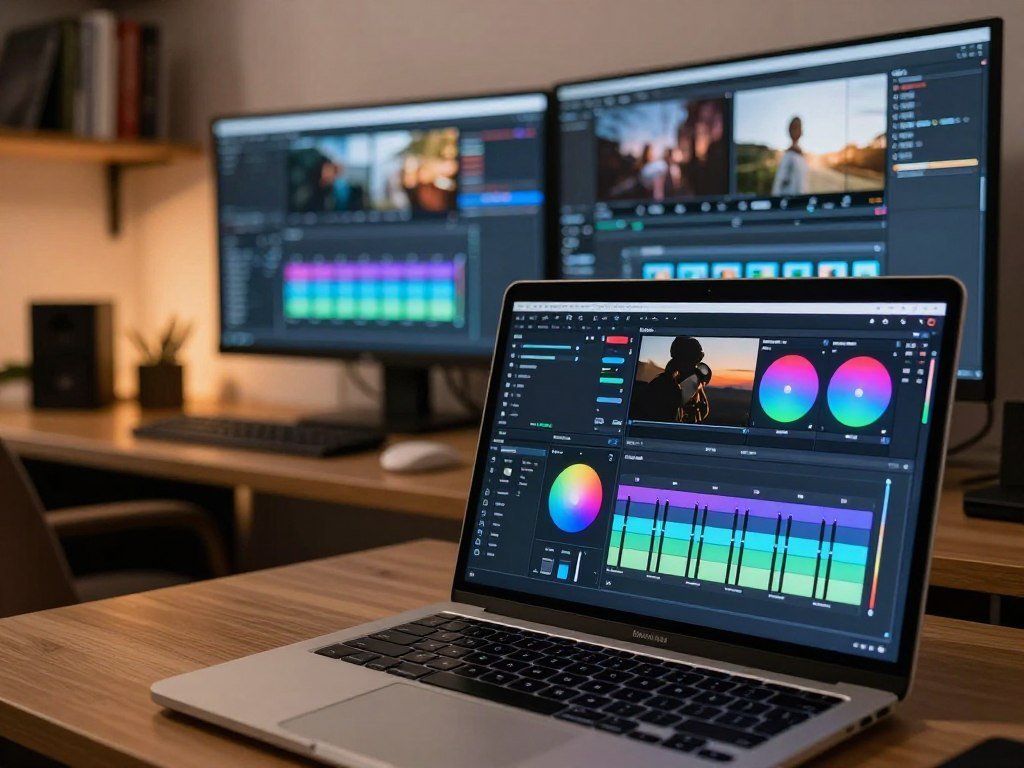
Editing, color, effects and audio in one application
DaVinci Resolve Free includes Edit, Fusion, Color, Fairlight and Deliver workflows. Those pages bring editing, effects, motion graphics, color correction, audio post-production and delivery into one app.
Its Color page supports primary correction, curves, qualifiers, Power Windows, tracking and scopes. Free also includes HDR grading, giving you substantial tools for shaping color without a license fee.
DaVinci Resolve 21 adds a Photo page to both editions. The release also adds IntelliSearch, CineFocus, facial-refinement tools and more than 100 motion-graphic effects.
Resolve Free runs on Windows, Mac and Linux. Its breadth makes it a leading free option for editing, effects, motion graphics, color work and audio.
When DaVinci Resolve Studio adds useful tools
Studio adds temporal and AI spatial video noise reduction, Magic Mask and advanced HDR tools. The desktop license has a US list price of $295.
Those tools matter when noisy footage, complex masking or advanced HDR work slows a real project. Studio also supports multiple GPUs, while version 21.1 Free supports one processing GPU on Windows and Linux.
Paying does not make sense just because the Studio edition has more features. Studio is most useful when its noise reduction, AI, HDR or multi-GPU tools solve a real project need.
Try the free edition on a representative project before deciding whether a Studio-only tool is essential.
What do Premiere plans cost, and who needs them?
Premiere is subscription software, and its individual plan has three US billing choices. The billing term changes the amount you pay each month or year.
Premiere suits people who need its professional workflow or Adobe integration. Occasional editors should weigh recurring billing against a free editor.
Individual Premiere plans
The individual plan includes desktop and iPhone apps, 100GB of cloud storage and 25 monthly generative credits. Adobe offers annual billing in monthly payments, annual prepayment and flexible month-to-month billing.
| Plan | Billing | US price | Included service |
|---|---|---|---|
| Premiere individual | Annual, billed monthly | $22.99/month | Desktop and iPhone apps, 100GB storage, 25 monthly generative credits |
| Premiere individual | Annual, prepaid | $263.88/year | Desktop and iPhone apps, 100GB storage, 25 monthly generative credits |
| Premiere individual | Flexible month-to-month | $34.99/month | Desktop and iPhone apps, 100GB storage, 25 monthly generative credits |
| Creative Cloud Pro | Annual, billed monthly | $69.99/month | Premiere and more than 20 other Adobe apps |
| Premiere for teams | Annual, billed monthly | $37.99/license/month | Premiere with 1TB of storage |
Creative Cloud and team plans
Creative Cloud Pro may suit you if other Adobe apps are part of your regular work. It includes Premiere and more than 20 other Adobe apps, rather than video editing alone.
The teams plan offers 1TB of storage and is billed per license. That setup may fit a shared workplace better than an individual account.
Compare the total annual commitment with the other apps and storage your work would otherwise require.
Which beginner-friendly editors are easiest to learn?
Filmora and Movavi are sensible first choices when labeled controls and ready-to-use effects matter more than a deep professional toolset. Both lower the first hurdle for newcomers.
Filmora and Movavi are beginner-friendly options, while Clipchamp or iMovie may be the best free video editing software for beginners with basic projects.
Filmora for a simple path to more features
Wondershare Filmora is designed for beginner-friendly editing and includes AI-driven features. Its interface aims to keep common editing tools easy to find.
That can help when you want effects or automated help without starting in a professional suite. Filmora may suit a new editor who expects to take on more involved projects later.
Its added effects do not remove the need to learn basic timing and sound choices. A clean cut and clear audio often matter more than a large effect collection.
Movavi for labeled tools and quick edits
Movavi Video Editor uses a drag-and-drop timeline and offers color correction, stabilization, titles, subtitles and effects. The named tools make it easier to spot the control you need.
Clipchamp or iMovie can be a better free starting point when the job is trimming clips, adding a title and saving a simple video. Your device and publishing needs help decide which one fits.
Check the paid tiers and trial terms before committing to either beginner-focused app. Pick the app whose timeline and export controls you can understand after a short practice edit.
What should Mac users choose: Final Cut Pro or iMovie?
Mac users can start with iMovie at no extra purchase and consider Final Cut Pro when their editing needs outgrow a simple timeline. Start with the included app if your project is straightforward.
iMovie is practical for simple projects, while Final Cut Pro suits a more involved Mac desktop workflow.
Final Cut Pro for a more involved Mac workflow
Final Cut Pro is the more suitable direction when you need a more capable desktop workflow. It can be the next step when your edits call for more control than a basic timeline provides.
That does not mean every Mac project needs a more advanced editor. A short video with a few cuts and titles may be easier to finish in an app you already know.
Think about the work that repeats in your projects. If you often need a more involved timeline, moving to Final Cut Pro may address a real gap.
iMovie for included, simple editing
Apple includes iMovie with Mac computers, and it supports two timeline tracks. The app also supports editing across Mac and iOS, with integration with Final Cut Pro.
Starting in iMovie can fit an Apple-device workflow when you capture clips on a phone and finish them on a Mac. Its simpler timeline suits uncomplicated cuts, titles and basic sound.
Choose iMovie for uncomplicated cuts and titles, and move to Final Cut Pro only when its added control solves a recurring need.
Which editors make sense on Windows?
Windows users have both quick-start editors and complex desktop tools, so the best fit depends on the project’s layers and footage. For complex footage, PowerDirector is a strong choice.
The best video editing software for PC depends on the project, with PowerDirector for multicamera or 360-degree footage and Clipchamp for simpler cuts.
CyberLink PowerDirector supports multicamera editing and 360-degree footage, and it has a separate mobile app. Clipchamp can suit a short edit with fewer layers, while Resolve serves users ready for a more involved interface.
- Short personal edits: choose Clipchamp for a quick, simple workflow.
- YouTube projects: consider Resolve when you want room for a more involved edit.
- Multicamera work: try PowerDirector for footage from several cameras.
- Free advanced editing: choose DaVinci Resolve if you can learn its interface.
Lightworks is another Windows option, alongside PowerDirector, Clipchamp and Resolve. The right choice depends on whether you need quick cuts, layered editing or specialized footage support.
A mobile app can help with a small edit away from your desk, but it does not replace every desktop workflow. Keep the main project on a computer when its timeline needs more room.
For multicamera or 360-degree material, verify the workflow on a sample clip before committing to an editor.
Which free open-source editors are worth trying?
Shotcut, Kdenlive and OpenShot are all free, open-source options available across Windows, Mac and Linux. They avoid subscription plans, though each has its own workflow.
Try a small project first, especially when editing reliability matters more than avoiding a monthly fee.
| Editor | Operating systems | Free/open-source status |
|---|---|---|
| Shotcut | Windows, Mac, Linux | Free and open source |
| Kdenlive | Windows, Mac, Linux | Free and open source |
| OpenShot | Windows, Mac, Linux | Free and open source |
Shotcut and OpenShot for flexible projects
Shotcut and OpenShot are options to test when you want open-source editing software on a desktop. Both run across the three major computer systems listed above.
Try the same short clip in each editor and note how the timeline feels. A familiar layout can save time when you return to the project later.
Kdenlive for a fuller cross-platform workflow
Kdenlive offers another cross-platform workflow for people who want a free editor. Its GPU rendering is experimental, which makes a sample test especially useful.
Do not judge an editor only by its feature list. Import a short clip, make a few changes and check the saved file on your own computer.
Test importing, playback and export on your own computer before moving a large project into an open-source editor.
When is a browser-based editor enough?
A browser-based editor is often enough for a short social clip, a simple slideshow or a quick template-led update. Small, clear jobs are where online tools fit best.
Clipchamp handles short template-led edits, while Adobe Express suits fast social content built with templates and stock assets.
Clipchamp runs in a browser and also has a Windows app. It offers free 1080p exports without a watermark, which can cover many short personal and social videos.
Adobe Express is another browser-based video editor. Its templates and stock assets can help when you need a quick visual post without a complex timeline.
These tools put ease and ready-made layouts ahead of deep control. Long edits with many clips, layers or precise audio changes can demand more than they prioritize.
Browser performance depends on a reliable internet connection. A slow or unstable connection can disrupt work, especially when you need to load and review several media files.
Use an online editor for a small, clear task, and test a longer project before relying on it for a deadline.
Which video editor fits iPhone and iPad?
VN Video Editor is a strong free iPhone choice when watermark-free exports and control over resolution, quality and bit rate matter. It gives you export control without requiring an advanced desktop timeline.
VN suits free iPhone editing, Premiere mobile handles basic cuts, and LumaFusion fits users who need more timeline control.
Free mobile editors without watermarks
VN Video Editor runs on iPhone, iPad, Android and Mac. Its iPhone free version exports without a watermark and lets you adjust resolution, quality and bit rate.
Adobe Premiere mobile offers core editing tools for free and exports without a watermark. Its paid features focus mainly on AI-generated content, making the app suitable for basic cuts.
For a wider look at AI features on phones, consider how tools may alter a clip before you share it. Keep an original copy when you need an unchanged version.
LumaFusion for a multitrack timeline
LumaFusion is a paid iPhone and iPad editor with a multitrack timeline, frame-accurate editing and audio mixing. It costs about $30 as a one-time purchase, with optional subscriptions and add-ons.
| App | Devices | Cost model | Useful distinction |
|---|---|---|---|
| VN Video Editor | iPhone, iPad, Android, Mac | Free iPhone version | Adjustable export settings, no watermark |
| Adobe Premiere mobile | iPhone | Core tools free | No-watermark exports, paid features mainly for AI content |
| LumaFusion | iPhone, iPad | Paid, about $30 one-time, optional subscriptions and add-ons | Multitrack frame-accurate editing and audio mixing |
Meta Edits suits an Instagram-first workflow, while CapCut offers a broader cross-device editing choice. Compare them by where you publish and which controls you use most.
Check that the app can export the aspect ratio and file quality your phone-based project needs.
How do export limits affect your choice?
Export limits matter because editing a high-resolution source does not guarantee that a free plan can master it at that resolution. Source and output are separate decisions.
Check the maximum output in the exact edition you plan to use before you start editing.
Free and paid output ceilings
DaVinci Resolve Free can handle media at unlimited resolution, but mastering and output stop at Ultra HD or below. Resolve Studio supports higher output limits.
| Editor and edition | Maximum stated output | Condition |
|---|---|---|
| DaVinci Resolve Free | Ultra HD 3840 × 2160, up to 60 fps | Media can be unlimited resolution; mastering is Ultra HD or below |
| DaVinci Resolve Studio | Up to 32K at 120 fps | Studio edition |
| Lightworks Free | 720p | Free version limit |
| Clipchamp | 4K export | Requires a paid subscription |
Clipchamp does not include 4K export in its free tier. Lightworks Free limits output to 720p, so it may not fit a project that needs a sharper master.
Check the output before editing
A source file’s resolution describes the footage you bring in. The export ceiling describes the final file the edition can create.
DaVinci Resolve Free’s Ultra HD limit is enough for many projects, but it does not meet a 32K output need. Frame rate matters too, especially when the final delivery has a stated rate.
Confirm the final resolution and frame rate in the exact edition you intend to use.
Is CapCut available in the US, and what are the trade-offs?
CapCut’s US Apple listing was live and its US-configured Google Play page offered an Install button as of October 19, 2026. Availability changed over time, so the legal timeline matters.
Some users may find CapCut less appealing because of its terms, changing availability and paid-feature upsells.
US availability and legal status
The Protecting Americans from Foreign Adversary Controlled Applications Act took effect for covered apps on January 19, 2025. CapCut was removed from certain Apple and Google stores beginning January 18, 2025.
Section 2(f)(2) excludes individual users from Attorney General enforcement under that section. This is a narrow exception for individual users, not a general statement about every part of the law.
Executive Order 14352, dated September 25, 2025, placed CapCut applications in a qualified-divestiture framework. A Justice Department opinion dated July 16, 2026, said divestiture had been finalized.
The TikTok USDS Joint Venture announced safeguards covering CapCut, while ByteDance retains a 19.9% stake. Apple’s US CapCut listing names Bytedance Pte. Ltd. as developer and seller.
Content rights and alternatives
CapCut’s June 2025 Terms of Service gives ByteDance a perpetual, worldwide, royalty-free license to use uploaded or edited content. That scope includes a user’s likeness.
Some users may prefer an app with terms that better fit their work. This matters most when a clip includes a client, a private event or a person whose image rights matter.
Review the current terms and store listing before uploading work whose ownership or likeness rights matter to you.
What hardware and workflow should you check?
Test the editor with a clip from your own camera or phone before trusting it with a full project. Your actual footage gives a better test than a sample file.
Check codec, resolution and frame rate together, then test playback with effects and audio enabled.
Test the footage you actually shoot
A 4K HDR iPhone 13 Pro clip may use HEVC, while 4K footage from a Sony mirrorless camera may use H.264. H.264 and HEVC are distinct codec names, so do not assume one setting covers both.
Resolution and frame rate add more demands to the computer. A clip that plays well on its own may slow down after you add effects, color changes or several audio tracks.
Keep projects manageable on your computer
Use a short test to see how the editor handles your common work. Import one representative clip and try these steps:
- Import a representative clip from your camera or phone.
- Test timeline playback with the audio enabled.
- Try a demanding effect or color correction.
- Export a short sample with your intended settings.
Proxy media can reduce the playback burden by letting you edit with lower-resolution copies. The original footage remains available for final export, but proxy media does not remove the need to check export support.
If playback stutters, try proxy media or a lighter preview setting before replacing the computer.
Which editor fits YouTube and social video?
A long YouTube edit and a fast vertical social clip place very different demands on an editor. Choose for the finished format, not for a presumed industry favorite.
The best video editing software for YouTube depends on the format, with DaVinci Resolve and Premiere suited to involved edits and Clipchamp or CapCut suited to quicker, simpler cuts.
Long-form and layered YouTube projects
Longer videos often need a timeline that can hold more footage, titles and audio. Resolve or Premiere can suit an involved edit where you want greater timeline control.
Resolve gives you a strong free route for layered work, while Premiere fits paid workflows and Adobe users. A simple edit may not need either app’s deeper controls.
Creators using AI for planning or scripts may also find AI chatbot options for creative work useful. Keep the editor choice focused on the video tasks you need to finish.
Short vertical clips and fast social edits
Short vertical clips need a different frame shape and often call for quick captions or direct publishing. Clipchamp and CapCut can suit simple cuts when speed matters more than a deep timeline.
YouTube, TikTok and Instagram each have different publishing formats and audiences. A creator should choose based on the finished format and the amount of timeline control needed.
Make a short test export in the format you publish most often before building a repeatable channel workflow.
What should you test before committing?
The most reliable test is a small real project that uses the footage, effects and export settings you plan to rely on. Test the whole path, from import to saved file.
Do not move a deadline-critical project until you have reopened the saved edit and checked its exported file.
A practice edit can expose problems before a large project depends on the software. Use these five checks:
- Import representative footage from the device you use.
- Make a short timeline edit with your usual cuts.
- Test the captions or audio tools you need.
- Export in the required format and resolution.
- Confirm the saved project can be reopened.
Adobe offers a 7-day individual Premiere trial, which gives you a chance to test its paid workflow. A useful trial project should resemble the work you expect to do, not just a quick tour of its interface.
Do not move a deadline-critical project until you have reopened the saved edit and checked its exported file.
Use an export test with the intended resolution, frame rate and file format. Do not move a deadline-critical project until you have reopened the saved edit and checked its exported file.
Conclusion
The best choice is the editor that fits your footage and the work you need to finish now. DaVinci Resolve is a strong free pick for ambitious projects, while a simpler app can be better for quick edits.
A paid suite makes sense when its specialized tools meet a need you face often. You do not need a complex workflow just because an editor offers one.
Start with a small project using a real clip and the export settings you need. Download or open your top candidate and complete one short test edit before building your next full project.
FAQ
Which is the no. 1 video editing software?
DaVinci Resolve is the strongest free all-around choice, while Adobe Premiere is a leading paid option for advanced workflows. Resolve combines editing, color, effects and audio tools in one desktop app. Premiere may fit better when your work needs its professional workflow or links with other Adobe apps. Your device, project size and comfort with learning new controls still matter.
Is DaVinci Resolve really free?
Yes, DaVinci Resolve Free costs $0, and DaVinci Resolve Studio is a separate desktop license priced at $295 in the US. The free edition includes substantial editing, color, effects and audio tools. Studio adds features such as advanced noise reduction and Magic Mask. You can begin with Free and pay only if a Studio tool solves a real need.
What do most YouTubers use to edit their videos?
No single editor is required for YouTube videos. Resolve and Premiere can handle involved timelines, while simpler apps can work for short videos with basic cuts and titles. The best fit depends on your project’s layers, your device and whether you publish long videos or vertical clips. A short test export helps you judge the workflow you will use most.
Is Edits or CapCut better?
Meta Edits suits an Instagram-first workflow, while CapCut is a broader cross-device editing choice. Edits may fit when Instagram is your main publishing destination. CapCut may work better when you want to edit across devices or publish to more than one platform. Compare the tools you need and the terms that apply to your content before choosing.
Why is CapCut being banned?
The 2025 Protecting Americans from Foreign Adversary Controlled Applications Act covered certain apps tied to foreign adversaries. CapCut was removed from certain Apple and Google stores beginning January 18, 2025, before the law took effect January 19. Later, an executive order placed its applications in a qualified-divestiture framework. A Justice Department opinion dated July 16, 2026, said divestiture had been finalized.
Why are people leaving CapCut?
Some users may weigh CapCut’s content license, changing availability and paid-feature upsells against other apps. Its June 2025 terms grant ByteDance a perpetual, worldwide, royalty-free license to use uploaded or edited content, including a user’s likeness. That scope may concern people editing client work or private videos. Others may prefer an app with a workflow better suited to their publishing platform.
Is CapCut still banned in the USA?
As of October 19, 2026, CapCut’s US Apple listing was live, and its US-configured Google Play page offered an Install button. The app’s US store status changed after removals from certain stores beginning January 18, 2025. Later qualified-divestiture developments altered the situation. Store access can differ by platform, so the Apple and Google listings showed the stated status on that date.
What’s better than CapCut for editing?
VN Video Editor and Adobe Premiere mobile offer free no-watermark exports, while LumaFusion is a paid iPhone and iPad option with a multitrack timeline. VN offers controls for resolution, quality and bit rate in its free iPhone version. Premiere mobile suits basic cuts. LumaFusion fits projects that need frame-accurate editing and audio mixing.